- The 3-2-1 Rule remains king: Keep three copies of your data, on two different types of media, with one copy stored off-site (the cloud).
- Cloud is for convenience, physical is for control: Cloud storage is essential for daily access, but physical hardware remains the only way to ensure 100% data ownership without subscription fatigue.
- Bit rot is real: Digital files degrade over time. Refresh your physical storage every 3–5 years to prevent silent data loss.
The most important piece of advice for your family archive in 2026 is this: if your photos exist in only one place, they do not exist at all. Whether that place is a shiny new smartphone, a single cloud subscription, or a dusty hard drive in a drawer, you are one hardware failure, one account hack, or one forgotten password away from losing a decade of family milestones.
We are currently living in an era of “digital abundance.” Our phones capture high-resolution videos of our children’s first steps, our cloud services automatically sync these files, and we assume that because it’s “in the cloud,” it’s safe forever. But the cloud is not a magical void where files live eternally; it is simply someone else’s computer. Relying solely on a third-party service provider, while incredibly convenient, introduces risks regarding privacy, subscription price hikes, and account lockouts. Conversely, relying solely on physical hard drives leaves you vulnerable to fire, theft, or simple human error.
As we navigate the mid-2020s, the only sensible approach for a busy parent—someone who doesn’t have time to be a professional IT administrator—is a hybrid strategy. It’s not about choosing between cloud or physical; it’s about understanding how they serve different roles in your family’s digital legacy.
Why the “Cloud-Only” Approach is a Trap
It’s easy to see why most of us have defaulted to cloud-only solutions. You take a photo, and five seconds later, it’s backed up. You can view it on your tablet, your laptop, or your TV. It feels seamless. However, the cloud ecosystem is built on a business model, not a philanthropic mission to preserve your family history.
The first risk is subscription fatigue and platform lock-in. If you store 2TB of photos in a specific cloud ecosystem, migrating that data away becomes a monumental task. If the provider raises their prices, changes their terms of service, or decides to sunset a feature you rely on, you are effectively held hostage. You have to pay, or you lose access to your memories.
Secondly, consider the “account lockout” scenario. We’ve all read the horror stories of people losing access to their primary email accounts due to a security breach or a misunderstood automated violation of terms. If your cloud storage is tied to that primary email, your digital history vanishes the moment the account is flagged. In the cloud, you are a tenant, not an owner. If the landlord decides to evict you, your belongings go with the building.
Physical Backups: The “Ownership” Safety Net
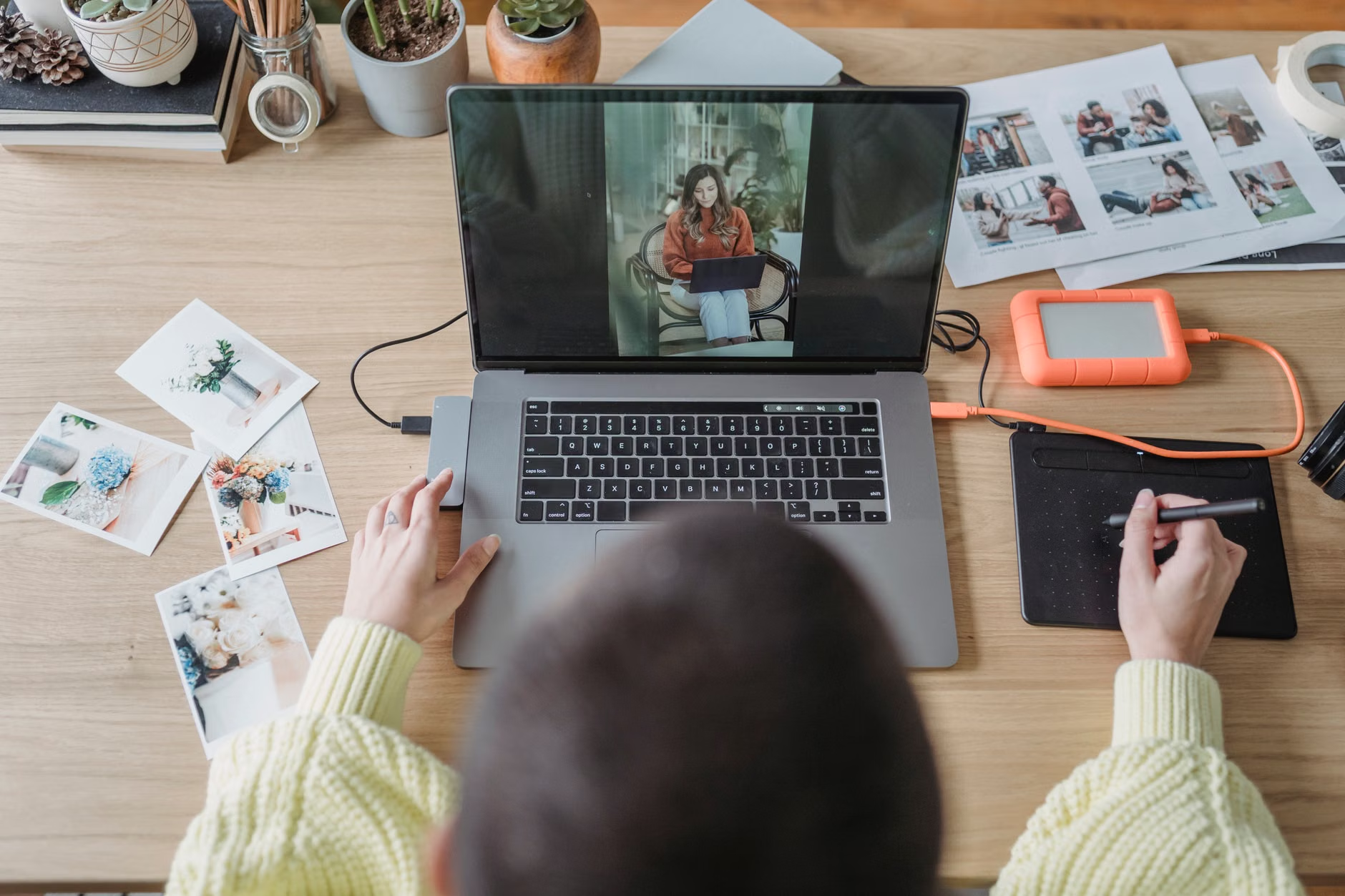
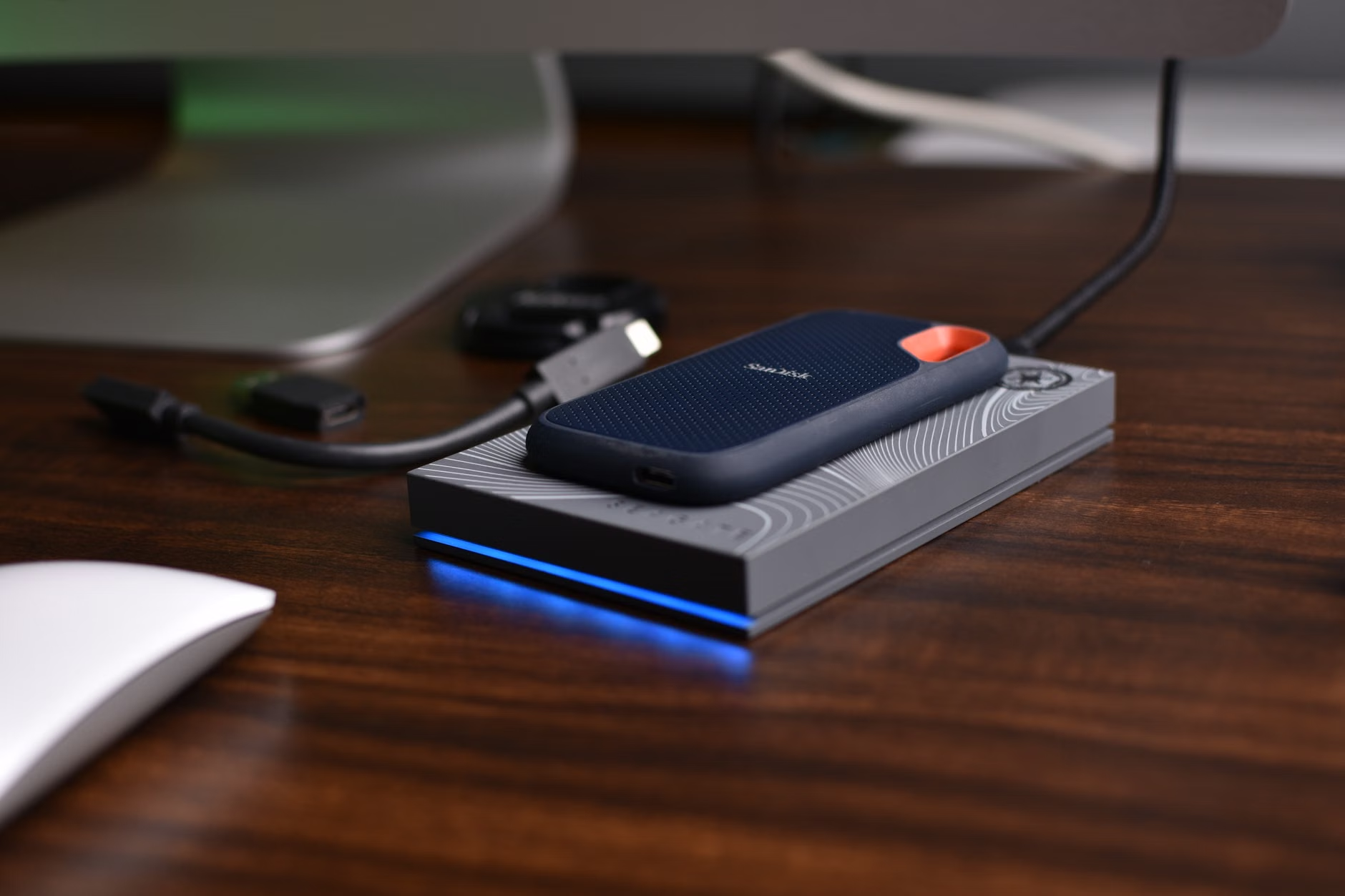
If the cloud is your rental apartment, physical storage is your deeded property. External Solid State Drives (SSDs) have become incredibly affordable and robust by 2026. Unlike the old-school mechanical Hard Disk Drives (HDDs) that used spinning platters—which were prone to failure if you dropped them—modern SSDs are essentially large, durable USB sticks. They are fast, quiet, and small enough to fit in a fireproof safe.
The beauty of physical storage lies in sovereignty. No one can change your password, no one can hike your monthly fee, and no one can “de-prioritize” your data to save server space. However, physical storage has one massive weakness: it is static. If you put a photo on a drive and put that drive in a desk, you have created a time capsule that you will likely never open again until the drive eventually fails. This is where the discipline of the “annual refresh” comes in.
The 3-2-1 Strategy Simplified for Parents
If you are raising children, you probably don’t have hours to spend on complex server management. The 3-2-1 rule is the industry standard for data protection, and it can be scaled down for family life:
| Component | Strategy | Why |
|---|---|---|
| 3 Copies | Original + 2 backups | Redundancy against accidental deletion. |
| 2 Media Types | Cloud + Physical SSD | Protection against specific hardware failure. |
| 1 Off-site | Cloud/Remote Drive | Protection against fire, flood, or theft. |
For most of us, this looks like:
- Copy 1: The files on your primary device (phone or laptop).
- Copy 2: A cloud backup service (Google Photos, iCloud, or Dropbox).
- Copy 3: A physical external SSD kept in a fireproof document bag or a secondary location.
The Hidden Enemy: Bit Rot and Format Obsolescence
A common misconception is that digital files are immutable. They aren’t. Data is stored as electrical charges on a flash chip or magnetic orientations on a disk. Over years, these charges can leak or shift. This is called “bit rot.” While it happens slowly, it means that a file you haven’t opened in ten years might be corrupted when you finally try to access it.
Furthermore, we face the problem of format obsolescence. Remember those proprietary video formats from 2005? Some are nearly impossible to open on modern devices without specialized software. By keeping your data on physical drives, you are responsible for the “migration.” Every 3 to 5 years, you should copy your data to a new drive. This isn’t just about replacing the hardware; it’s a chance to open your folders, ensure the files are readable, and perhaps delete the duplicates you accidentally saved.
Practical Workflow: How to Manage This Without Losing Your Mind
The biggest hurdle to a good backup strategy is friction. If it takes more than 10 minutes, you won’t do it. Here is a realistic, low-friction workflow for the busy parent in 2026:
1. The “Monthly Sync” Habit
Don’t try to back up every single day. Instead, set a recurring calendar alert for the first Saturday of every month. Call it “Family Archive Day.” During this time, plug your phone into your computer and transfer all the new photos and videos taken during the month onto your primary external SSD. This takes roughly 15 minutes.
2. Use “Cold” vs “Hot” Storage
Think of your cloud storage as “Hot” storage—it’s for sharing, editing, and viewing. Think of your physical SSD as “Cold” storage—it’s for preservation. Don’t worry about organizing every single photo on your physical drive perfectly. Just create folders by year and month. The goal is to have a complete, readable set of files that doesn’t depend on an internet connection.
3. The “Fireproof” Rule
If your house burns down, your computer and your local hard drive are both gone. Your cloud storage will survive, but your physical copy won’t. If you want to be extra safe, consider a second, smaller “travel” SSD that you keep at a relative’s house or a safe deposit box. Update this drive once a year during the holidays.
Choosing Your Hardware: What to Buy in 2026
You don’t need enterprise-grade servers. For a family archive, you need reliability and simplicity. Look for “ruggedized” portable SSDs. Brands like Samsung (T7/T9 series), SanDisk (Extreme series), and Crucial offer drives that are shock-resistant and water-resistant. These are ideal for households with kids where things tend to get dropped or spilled on.
Avoid buying the absolute cheapest drive on Amazon. Storage is the one area where you should pay a premium for brand reliability. A “no-name” drive might be $20 cheaper, but it’s not worth the risk when your wedding photos or your child’s first steps are on the line. Stick to established manufacturers and check for “NVMe” technology, which is the current standard for speed and stability.
Addressing the Privacy Dilemma
We need to talk about the elephant in the room: privacy. When you upload your family photos to a major cloud provider, you are entrusting them with your most intimate data. Many of these services use AI to categorize your photos—identifying faces, locations, and objects. While this makes searching for “beach photos from 2023” incredibly easy, it also means your data is being analyzed.
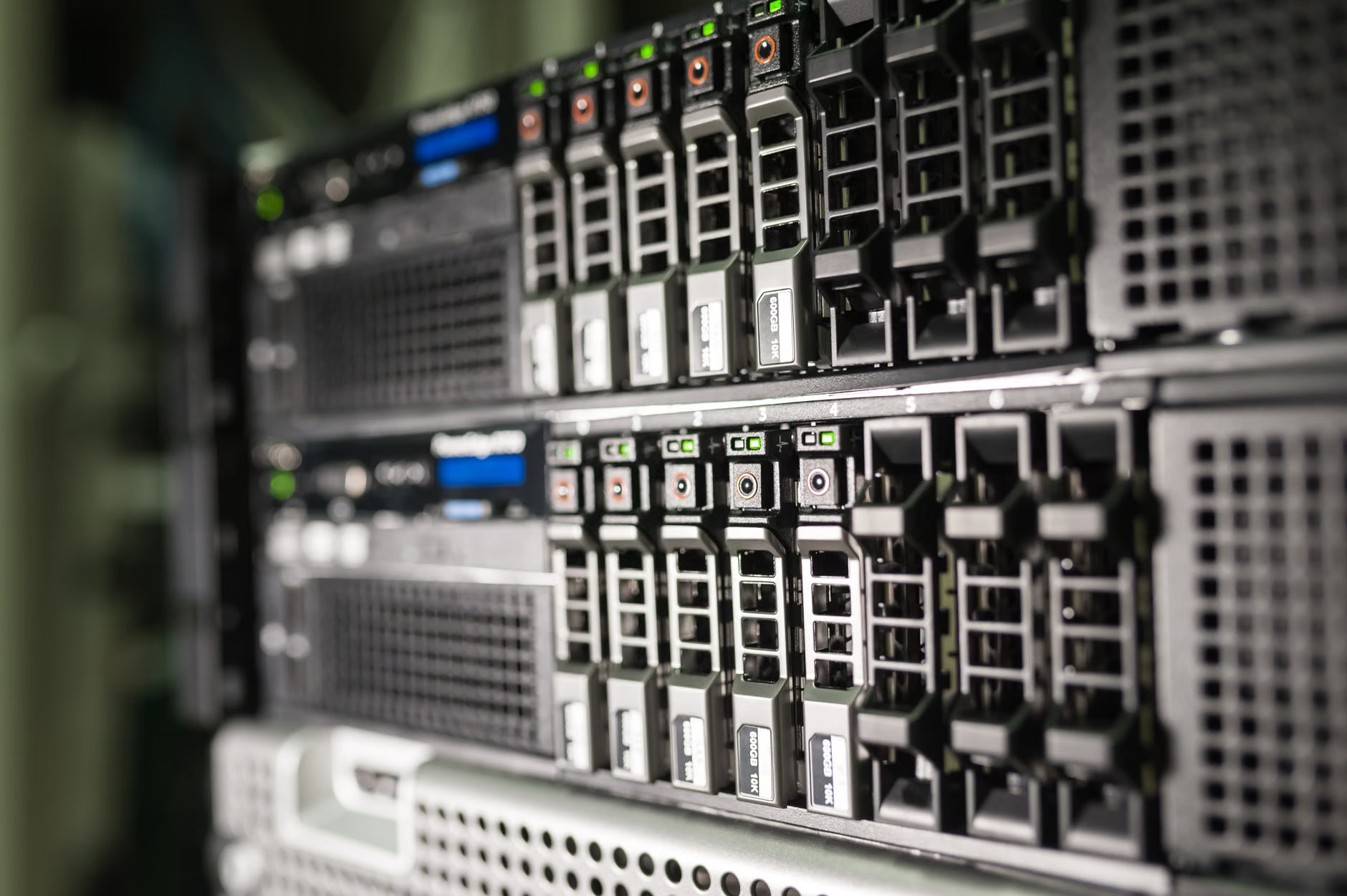
If privacy is your top concern, a Network Attached Storage (NAS) device is the logical next step. A NAS is essentially a private cloud server for your home. It connects to your Wi-Fi, allowing you to access your files from anywhere, but the data stays inside your house. While setting up a NAS used to require a degree in computer science, modern consumer units (like those from Synology or QNAP) are now almost as easy to set up as a smart speaker. They offer the convenience of a cloud service with the privacy of a physical drive. They are more expensive upfront, but they eliminate monthly subscription fees entirely.
The Psychological Aspect of Digital Archiving
There is a strange, modern anxiety associated with digital photos. Because we take so many, we often feel overwhelmed by the sheer volume. We have 50,000 photos, and we look at none of them. This is why a physical backup strategy is actually more than just a security measure—it’s a curation tool.
When you sit down to move files to your hard drive, you are forced to engage with your memories. You might delete that blurry photo of the floor or the five identical shots of your child eating lunch. This process of curation turns your digital archive from a “dumping ground” into a “collection.” It makes the history of your family more meaningful because you are actively choosing what to keep.
Do not let the perfect be the enemy of the good. You don’t need a perfectly tagged, AI-sorted, color-coded database. You just need a folder structure that you can navigate in five years. Even a simple system—2026/01_January—is significantly better than the standard default of “DCIM/100APPLE” that phone manufacturers use.
Summary of Recommendations
As we head further into 2026, the digital landscape will only get more complicated. New formats, higher resolution videos, and changing privacy laws will continue to challenge how we keep our history alive. However, the core principles of data security remain constant.
Start by auditing where your photos are today. If they are in only one cloud account, buy an external SSD this week. It is a one-time purchase that pays for itself in peace of mind. Remember that the “cloud” is for convenience, but physical hardware is for control. By combining both, you ensure that your family’s digital legacy is protected from both the fragility of the internet and the dangers of the physical world.
Be gentle with yourself regarding the “organization” part. You don’t need to be a professional archivist. Just ensuring the files are safe, redundant, and accessible is 90% of the battle. The remaining 10%—the tagging, the sorting, the albums—can happen whenever you have a quiet afternoon and a cup of coffee. Your future self, looking back at these memories a decade from now, will be incredibly grateful for the small effort you put in today.
For more technical details on data retention and standard practices, you can reference the official guidelines from the National Archives on preserving family records, which provides excellent insights into why physical media remains a pillar of long-term preservation.
Frequently Asked Questions
1. How often should I replace my external hard drives?
Even if they are working perfectly, it is best practice to replace your physical drives every 3 to 5 years. This is not because the drive will definitely break, but because the technology improves, and the risk of “bit rot” increases with age. Use the old drive as a secondary, tertiary, or “off-site” backup, but stop using it as your primary storage.
2. Is it safe to leave my SSD plugged into my computer 24/7?
While modern SSDs are designed to be durable, leaving them plugged in exposes them to electrical surges and potential accidental deletion or malware infection. For the best security, keep your backup drive unplugged when you aren’t actively transferring files. This also protects you against ransomware that might scan all connected drives for data to encrypt.
3. What if I can’t afford a NAS or high-end storage?
You don’t need expensive gear. Two high-quality external SSDs (one for your desk, one stored in a safe or fireproof bag) will cost significantly less than a few years of premium cloud storage subscriptions. The most important part of the 3-2-1 strategy is not the price of the hardware, but the discipline of having that second, physical copy that is disconnected from the internet.