The most critical rule when buying second-hand tech is simple: treat every device as if it holds a hidden digital ghost until you have performed a complete factory reset and hardware audit yourself. While picking up a pre-owned laptop or tablet can save your family budget hundreds of dollars, failing to vet the device’s internal integrity can lead to compromised accounts, identity theft, or hidden mechanical failures that turn a bargain into a costly paperweight.
Three Key Takeaways for Pre-Owned Tech
- Perform a deep scrub: Always execute a factory reset from the BIOS or recovery menu, not just the OS settings, to ensure no malicious partitions remain.
- Verify the battery cycle: Batteries are the most common point of failure; use built-in system tools to check the charge cycle count before committing to a purchase.
- Inspect the physical seals: Look for signs of unauthorized repair, such as stripped screws or uneven casing gaps, which often indicate water damage or poor-quality component swapping.
We have all been there. You are looking for a reliable laptop for a teenager starting high school, or perhaps a backup tablet for road trips, and the price tag on a brand-new model makes you wince. The second-hand market—populated by sites like eBay, Back Market, or local marketplaces—is tempting. It is environmentally conscious and financially smart. However, the convenience of a “good deal” often masks the reality that you are inheriting someone else’s technical baggage.
When we buy used, we are not just buying hardware; we are buying a history. Did the previous owner spill coffee on the motherboard? Is there a rootkit lurking in the firmware? Is the battery one charge cycle away from a fire hazard? By applying a systematic safety standard, you can mitigate these risks and enjoy the benefits of “pre-loved” tech without the anxiety.
The Anatomy of a Hardware Inspection
Before you ever turn a device on, you need to look at it. Physically. Most people get excited about the screen turning on and ignore the structural clues that tell the device’s true story. When you receive a second-hand gadget, take it to a well-lit area and perform a “forensic” visual inspection.
Start with the screws. If the screws on the bottom of a laptop or the side of a phone look stripped or scratched, the device has been opened. Now, opening a device isn’t inherently bad—people upgrade RAM or swap batteries—but it indicates that the device is no longer factory-sealed. If the seller didn’t disclose a repair, you have to ask why. Are the screws mismatched? That’s a red flag for a “franken-device” built from spare parts.
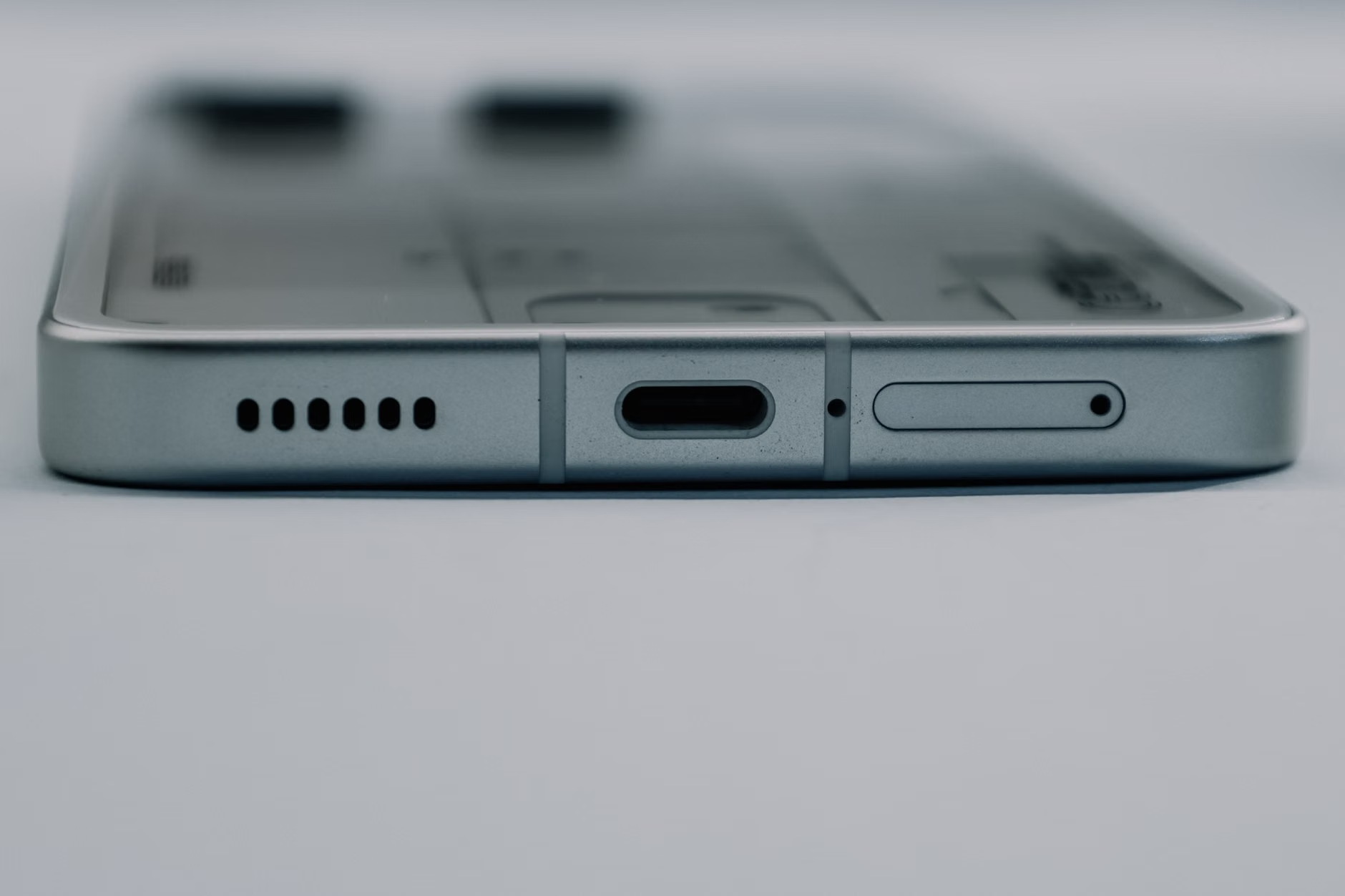
Next, check the ports. Use a flashlight to look inside the USB-C, Lightning, or HDMI ports. Look for corrosion, which often appears as a greenish or white crust. This is the definitive sign of liquid damage. Even if the device works today, corrosion is a slow-motion disaster. It will eventually bridge circuits and cause a short-circuit. If you see signs of moisture damage, return it immediately. Do not try to “dry it out” or clean it; you are buying a ticking time bomb.
Finally, inspect the chassis for “bowing.” Place the device on a perfectly flat surface, like a granite countertop or a glass table. Does it rock? If it wobbles, the battery is likely swelling. A swelling lithium-ion battery is a serious safety concern. It can puncture the internal casing, leak chemicals, or even catch fire. Never ignore a device that doesn’t sit flat.
Digital Hygiene: The Absolute Factory Reset
Once you have cleared the physical inspection, it is time to address the software. Many buyers make the mistake of simply creating a new user account and deleting the old one. This is insufficient. The previous user’s data, including potentially sensitive system files, could still exist in hidden partitions or user-profile directories.
You need to perform a “clean install” of the operating system. For Windows machines, this means using the “Reset this PC” option with the “Remove everything” and “Clean data” settings enabled. Better yet, create a bootable USB drive using the official Microsoft Media Creation Tool. This wipes the drive completely, removing any custom partitions the previous owner might have left behind.
For Apple devices, use the “Erase All Content and Settings” feature found in System Settings. This is a secure, hardware-level wipe that also de-links the device from the previous owner’s iCloud account. If you cannot sign out of the previous owner’s Apple ID, the device is effectively locked. This is known as “Activation Lock,” and it is a major indicator that the device might be stolen or improperly decommissioned. If the seller cannot provide the password to remove the lock, walk away.
For Android, the process is similar. Go to Settings, find the Reset menu, and perform a Factory Data Reset. However, always ensure you have removed your Google account from the device before resetting it to avoid triggering the Factory Reset Protection (FRP), which might ask for the previous owner’s credentials to set it up again.
Battery Health: The Invisible Metric
The battery is the most consumable part of any electronic device. We often judge a device by its screen resolution or processor speed, but a device is only as good as its ability to hold a charge. Batteries degrade chemically over time, a process known as “cycling.” One cycle is defined as using 100% of the battery’s capacity, whether in one session or several.

Most modern laptops have built-in utilities to check this. On a MacBook, hold the ‘Option’ key and click the Apple menu, then select ‘System Information.’ Navigate to ‘Power’ to see the ‘Cycle Count’ and ‘Condition.’ Apple generally rates batteries for 1,000 cycles before they drop to 80% of their original capacity. If the device has 800+ cycles, you should factor in the cost of a professional battery replacement within the next year.
For Windows users, open the Command Prompt as an administrator and type `powercfg /batteryreport`. This will generate an HTML file in your user folder. Open it, and you will see the ‘Design Capacity’ versus the ‘Full Charge Capacity.’ If the full charge capacity is significantly lower than the design capacity, the battery is reaching the end of its life. This is a great bargaining chip; if the battery is poor, you can often negotiate a lower price by presenting this data to the seller.
If you are buying a phone, the settings menu usually provides a “Battery Health” percentage. Anything below 85% is noticeable in daily use. If you are buying a used phone for a child, ensure the battery health is above 90%, as children tend to be heavy users of video apps, which are battery-intensive.
Security Protocols for the Modern Family
When we bring second-hand tech into our homes, we are potentially inviting an external network into our personal space. If you buy a used smart home hub, a router, or a smart camera, the security risks are higher than with a laptop. These devices often have “backdoors” or outdated firmware that the manufacturer no longer supports.
First, update the firmware immediately. Manufacturers release security patches to fix vulnerabilities that hackers use to gain access to your home network. If a device has not been updated in two years, it is likely insecure. Check the manufacturer’s website for the latest firmware version and compare it to the version installed on your device.
Second, change all default passwords. It sounds obvious, but many people forget that routers and smart devices often come with generic credentials like “admin/admin.” If you are buying a used router, perform a hard reset (usually a tiny pinhole button on the back) to clear the previous owner’s configuration and then immediately set a complex, unique password for the administrative interface.
Third, isolate the device if possible. If you are setting up a used smart device that you don’t fully trust, place it on a “Guest Network.” Most modern routers allow you to create a separate Wi-Fi network for guests. This keeps the device away from your main network where your primary computers, phones, and NAS (Network Attached Storage) drives live. If the device is compromised, it won’t have easy access to your personal family photos or banking information.
Tools of the Trade: What You Should Have
You don’t need to be a professional technician to handle second-hand tech safely, but a small kit of tools will make your life much easier. You can find basic precision screwdriver sets for under $20. These usually include various Torx, Phillips, and Pentalobe bits, which are essential for opening modern electronics.
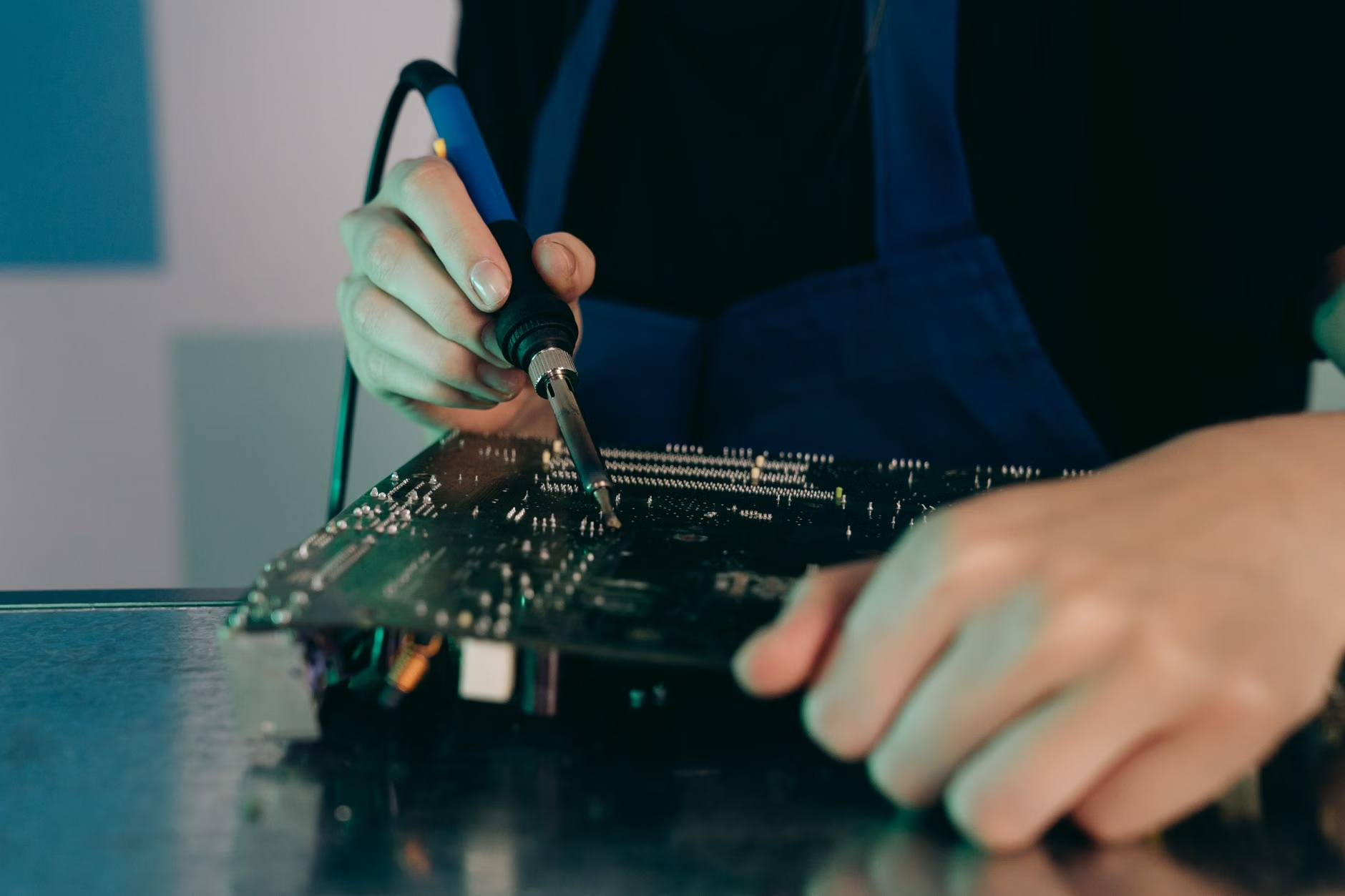
Beyond screwdrivers, keep these items in your “Tech Refresh” kit:
| Tool | Purpose |
|---|---|
| Microfiber Cloths | Safely cleaning screens without scratching or leaving lint. |
| Isopropyl Alcohol (90%+) | Disinfecting surfaces and cleaning contact points (use sparingly). |
| Soft-bristled Brush | Removing dust from fans and vents without damaging components. |
| Compressed Air | Clearing debris from heatsinks and hard-to-reach ports. |
| USB Boot Drive | Essential for a clean install of Windows or Linux. |
Using these tools allows you to perform a “deep clean” that not only makes the device look new but also improves its performance. Dust buildup inside a laptop is the #1 cause of thermal throttling, where the processor slows down because it cannot shed heat effectively. A quick blast of compressed air into the vents can sometimes double the effective lifespan of a used machine.
Comparing Marketplaces: Where to Buy Safely
Where you buy is just as important as what you buy. Not all marketplaces offer the same level of protection. Understanding the differences can save you from a major headache.
Refurbished Sites: Platforms like Back Market or Amazon Renewed act as intermediaries. They have strict quality control standards, and the devices usually come with a warranty. This is the safest, albeit slightly more expensive, route. If you are buying a primary device for work or school, pay the premium for a refurbished unit with a 12-month warranty.
Peer-to-Peer Marketplaces: Sites like eBay or local classifieds are the “Wild West.” You can find incredible deals, but you are also dealing with individuals who may not understand the tech they are selling. On eBay, always check the seller’s feedback score. If they have a high volume of sales in electronics, they are likely more reliable. If they have sold mostly clothes and are suddenly selling a high-end laptop, be cautious.
Corporate Liquidators: Many companies upgrade their hardware every three years. You can often buy these “off-lease” devices from specialized liquidators. These are usually business-class machines (like the Lenovo ThinkPad or Dell Latitude series). These machines are built to be serviced, meaning they are much easier to open, clean, and upgrade than consumer-grade laptops. They are often the best “bang for your buck” for families.
Common Misconceptions About Used Tech
There are many myths in the second-hand market that can lead you to make bad decisions. Let’s debunk a few of them.
Myth 1: “It’s only a few years old, it must be fast.” Speed is relative. A five-year-old high-end laptop might still be fast, but if it has a spinning hard drive (HDD) instead of a Solid State Drive (SSD), it will feel sluggish. Always check the storage type. If you buy a device with an HDD, upgrading to an SSD is the single most impactful upgrade you can perform. It will make the device feel 10 times faster for a very low cost.
Myth 2: “If it looks clean, it’s safe.” Aesthetic cleanliness is often used to hide deeper issues. A shiny, polished laptop might have a failing motherboard. Never let a clean exterior distract you from performing the software and battery checks mentioned earlier.
Myth 3: “I can just download an antivirus and be safe.” Antivirus software is reactive; it looks for known threats. It cannot protect you from hardware-level vulnerabilities or firmware rootkits that operate beneath the operating system. A clean install of the OS is the only way to be 100% sure the slate is wiped clean.
Myth 4: “Refurbished means it was broken.” Not necessarily. Many “refurbished” items are just open-box returns. Perhaps someone bought a tablet, decided they didn’t like the color, and returned it after two days. These are essentially brand-new devices sold at a discount. Always look for “Open Box” or “Manufacturer Refurbished” labels, as these are generally the highest-quality used goods you can find.
The Long-Term Maintenance Cycle
Once you’ve successfully vetted, purchased, and configured your second-hand device, the work isn’t done. To ensure it lasts another three to five years, you need to adopt a maintenance mindset. Electronics, like cars, require periodic check-ups.
Every six months, take a few minutes to clean the dust from the vents. If the device is a laptop, ensure the fans aren’t making a grinding noise, which could indicate a bearing failure. If you notice the device getting hotter than usual, it’s a sign that the thermal paste—the material that transfers heat from the processor to the heatsink—may have dried out. This is a common issue in older machines, and replacing it is a relatively simple DIY project that can keep your device running cool for years.
Also, stay on top of software updates. Even if you are using an older device, keep the operating system and browser updated. Modern browsers are the primary gatekeepers of our digital lives; keeping them patched is your first line of defense against phishing and malicious scripts.
Finally, be realistic about the device’s end-of-life. Eventually, a device will reach a point where it can no longer support modern software updates. When that happens, do not just throw it in the trash. Electronic waste is a significant global issue. Look for local recycling programs or charities that accept older tech. Some organizations wipe the drives professionally and donate the hardware to schools or underprivileged families, giving your “old” tech a third life.
Addressing Potential Failures
What if something goes wrong? You’ve done everything right, but six months later, the screen flickers or the Wi-Fi card fails. Don’t panic. One of the greatest advantages of buying older, used hardware is the wealth of information available on how to fix it.
Websites like iFixit provide free, step-by-step repair guides for almost every device on the market. If your screen breaks, you don’t necessarily need to replace the whole laptop. You can often buy a replacement screen panel for a fraction of the cost and follow a guide to swap it out yourself. This empowers you, the user, and keeps the device out of a landfill. Being able to repair your own gear is a skill that pays dividends for your entire life.
If you find that a component is dead, check for “part-out” units on marketplaces. Sometimes, a device with a broken screen is sold for parts. You can buy that device, strip the working component you need (like a keyboard or a Wi-Fi card), and fix your main machine for pennies on the dollar. This is the “circular economy” in action, and it is a powerful way to manage your family’s technology budget.
Always keep a backup. This is the golden rule of all computing, whether the device is new or used. Use a cloud-based backup service or an external hard drive to store your important family photos and documents. If your second-hand hardware does suffer a catastrophic failure, your data will remain safe and accessible.
Final Considerations
Buying second-hand is a balancing act between cost and risk. By following these safety standards, you shift the balance in your favor. You are no longer just a “shopper”; you are an informed consumer who knows how to evaluate, secure, and maintain the tools that keep your family connected.
It is easy to feel overwhelmed by the technical jargon or the fear of a bad purchase, but take it one step at a time. Start with the physical inspection, move to the software wipe, and finish with the battery health check. Each step you take is a layer of protection for your peace of mind. Remember, the goal isn’t just to save money—it’s to extend the life of high-quality hardware and teach our families that we don’t always need the latest model to be productive, creative, and connected.
Take your time, trust your research, and don’t be afraid to walk away from a deal that doesn’t feel right. There will always be another listing, another bargain, and another opportunity to make a smart, sustainable choice for your household.
Frequently Asked Questions
Q: Is it safe to buy a used smartphone if the battery health is low?
A: It can be, provided you factor the cost of a battery replacement into your budget. Many modern phones have non-removable batteries that require professional tools to swap. Check the cost of a service at a local repair shop or the manufacturer’s official store before you buy. If the total cost of the phone plus the battery replacement is still lower than a new model, it’s a good deal.
Q: How can I tell if a device is stolen?
A: The most common indicator is the presence of an “Activation Lock” or “Find My” lock. If the seller cannot sign out of their account, or if the device asks for a password you don’t have, it is highly likely the device is locked or stolen. Never buy a device that is locked to a previous user’s account, as it will be effectively useless to you.
Q: Are there any devices I should avoid buying used?
A: Generally, avoid buying used devices that have complex, non-replaceable parts or those that are known for high failure rates. This includes some older models of ultrathin laptops that have all components soldered to the motherboard, making any repair impossible. Also, be wary of used fitness trackers or smartwatches, as their batteries are often tiny and degrade very quickly, and they are difficult to open without destroying the water-resistant seal.
For more information on secure device disposal and data privacy, you can visit the official guidelines provided by the Federal Trade Commission (FTC) regarding data privacy and the Environmental Protection Agency (EPA) for safe electronics recycling practices.