The most effective way to protect your home’s digital privacy is to never share your primary Wi-Fi password with guests, as doing so inadvertently grants them potential access to your smart devices, file shares, and sensitive personal information.
- Network Isolation: A guest network separates visitor traffic from your main devices, preventing unauthorized access to your private files.
- Smart Home Safety: IoT devices like cameras and smart locks are often vulnerable; keeping them on a primary network away from guests is essential.
- Simple Implementation: Most modern routers allow you to enable a guest network with a single toggle in the settings app.
We have all been there. A friend, a neighbor, or a relative comes over, and the very first thing they ask is, “What’s the Wi-Fi password?” It feels rude to say no, so we rattle off the complex alphanumeric string we’ve written on a sticky note hidden somewhere in the kitchen. But here is the reality: in our age of hyper-connectivity, that small act of hospitality creates a massive security blind spot in your home.
When you provide your main Wi-Fi password, you aren’t just giving someone access to the internet. You are essentially inviting their device—which could be riddled with malware, outdated software, or tracking scripts—into the same digital ecosystem that houses your family photos, banking apps, and smart home controls. For parents managing a busy household, this isn’t just about tech paranoia; it’s about basic digital hygiene.
Why Your Home Network Needs a “Bouncer”
Think of your home network as your living room. When you have guests over, you invite them into the living room, but you don’t necessarily give them the key to your home office or the master bedroom. A guest Wi-Fi network acts as that digital bouncer. It creates a secondary “virtual” network that runs alongside your primary one, allowing guests to use your internet connection without ever stepping foot into your private digital space.
The primary concern here is “Lateral Movement.” This is a cybersecurity term for what happens when a compromised device on a network starts “crawling” through other devices. If a guest’s phone has a piece of spyware on it, that spyware can scan your network to see what else is connected. If your smart fridge, your printer, or your children’s tablets are on that same network, they become potential targets. By segmenting your network, you create a digital wall that the guest device simply cannot cross.
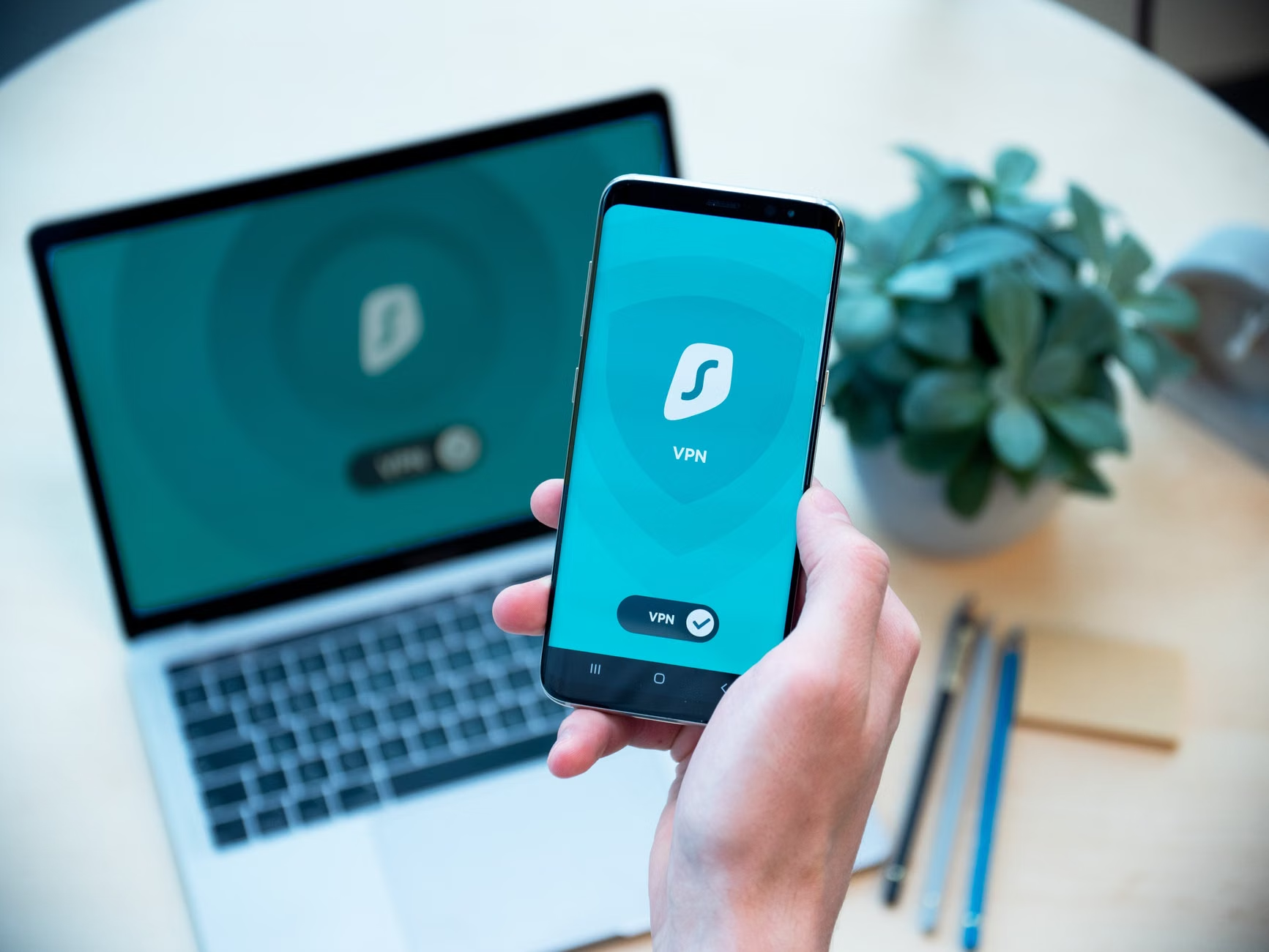
Understanding the Mechanics: What is Network Segmentation?
At its core, a guest network is a form of network segmentation. When your router creates a guest network, it essentially tells the data traffic, “If you are coming from the guest Wi-Fi, you are allowed to go to the internet, but you are forbidden from talking to any other device on this home network.”
This is achieved through a feature often called “AP Isolation” or “Client Isolation.” When this is enabled, devices on the guest network cannot see each other, and they cannot see the devices on your main network. This is crucial for two reasons:
- Prevention of Scanning: Malicious actors or even poorly coded apps cannot scan your local IP range to find your NAS (Network Attached Storage) drives or smart home hubs.
- Bandwidth Management: Many routers allow you to limit the speed of the guest network, ensuring that a guest streaming high-definition video doesn’t cause your work-from-home video call to stutter.
It is worth noting that while most routers have this feature, it is rarely enabled by default. You usually have to log into your router’s administrative dashboard or mobile app to flip the switch.
Step-by-Step: Setting Up Your Secure Guest Access
Setting up a guest network is significantly easier than it was a decade ago. Most modern mesh systems (like Eero, Google Nest, or TP-Link Deco) make this a matter of a few taps. If you are using an older router provided by your ISP, you might have to navigate a web-based interface, but the principles remain the same.
| Step | Action | Why it Matters |
|---|---|---|
| 1. Log In | Access your router via app or IP address. | Gives you control over network settings. |
| 2. Enable Guest | Find the “Guest Network” tab and toggle it to ‘On’. | Creates the isolated virtual lane. |
| 3. Set Password | Create a unique, simple password for the guest network. | Prevents unauthorized neighbors from using your bandwidth. |
| 4. Isolate | Ensure “Allow guests to access local network” is OFF. | The most important step for security. |
Once you have configured this, consider printing out the Wi-Fi details and placing them in a small frame in your guest room or living area. It makes you look like an incredibly thoughtful host, while actually serving a vital security purpose.
The Hidden Danger of IoT Devices
We often talk about “guests” as human beings, but in a modern smart home, your devices are effectively guests too. Smart lightbulbs, budget-friendly security cameras, and connected kitchen appliances are notorious for having weak security protocols. These devices are often manufactured with little attention to firmware updates, making them easy entry points for hackers.
A smart strategy for the privacy-conscious is to move all your “untrusted” IoT devices onto a separate VLAN (Virtual Local Area Network) or a guest network. If your router supports it, you can create a dedicated “IoT Network” that has no access to your primary network where your computers and phones live. This way, if your smart lightbulb is compromised, the attacker is stuck in a digital cul-de-sac with no path to your personal laptop or banking data.
Common Mistakes to Avoid
Even when people set up guest networks, they often make mistakes that negate the security benefits. Here are a few things to watch out for:
- Using the same password for everything: If you use your main Wi-Fi password for your guest network, you haven’t actually solved the problem. If a guest figures out the password, they are right back on your main network. Use a distinct, separate password.
- Forgetting to update the router firmware: Your router is the gatekeeper of your home. If the firmware is outdated, it may have known security vulnerabilities that no amount of network segmentation can fix. Check your router’s app for “Update” notifications at least once a month.
- Allowing local access: Some routers have a setting that says “Allow guest access to local network” or “Allow guest access to intranet.” Always keep this disabled. If you need to share a printer, consider setting up a cloud-based printing service rather than giving the guest direct access to your local printer via the network.
Managing Guests in the Age of QR Codes
In the past, we had to write down long, complex passwords. Today, the most convenient way to handle guests is through QR codes. Most modern routers allow you to generate a QR code for your guest network. You can print this out and keep it on your fridge or in a guest folder.
When a guest arrives, they simply scan the code with their smartphone camera, and they are instantly joined to the guest network. It’s professional, it’s secure, and it removes the social friction of having to recite a password. It also ensures that the guest never knows the password to your primary network, which is the ultimate goal.
The Impact of Privacy-Focused Networking
Is this level of effort really necessary? You might ask, “Who is actually trying to hack my home network?” The answer isn’t necessarily a hooded figure in a dark room. Most of the time, it is automated bots and scripts scanning millions of IP addresses for vulnerabilities. If you have an open, un-segmented network, you are essentially leaving your front door unlocked in a neighborhood where someone is walking by checking every handle.
By implementing a guest network, you are taking a proactive stance on your family’s digital safety. It is a small, one-time setup that provides peace of mind every single time you host a dinner party, have a babysitter over, or let the kids’ friends come by to play games.

Balancing Hospitality and Security
There is a social aspect to this that many people struggle with. Does having a “guest network” make you seem untrusting? Not at all. In fact, it is the standard practice in almost every professional office, coffee shop, and hotel in the world. It is simply a best practice for managing shared resources.
If a guest asks why they are on a separate network, you can frame it honestly and lightly: “Oh, it’s just the guest network! It’s set up to keep the streaming speeds smooth and the smart home stuff separate so nothing gets glitchy.” Most people will appreciate the stability of the connection rather than worrying about the security behind it.
Addressing Potential Edge Cases
What if you have guests who stay for an extended period, like a family member visiting for a month? In this case, you might feel the need to give them more access. Even then, it is better to start with the guest network and only provide access to shared resources (like a network printer or a media server) on a case-by-case basis. Never feel pressured to hand over your primary network credentials just because someone is staying for a while.
Also, consider the “smart TV” factor. Many people leave their smart TVs on their main network. If you use your TV to stream, that is fine, but remember that TVs are notoriously insecure. If your TV supports it, try to move it to a restricted network or at least ensure it is updated regularly. If your TV doesn’t have a strong security policy, keeping it on a “media-only” network is a smart, forward-thinking move.
Final Thoughts for the Modern Household
Creating a privacy-focused home environment isn’t about being a tech expert; it’s about being intentional. As we integrate more technology into our lives—from our thermostats to our doorbells—the surface area for potential security issues grows. A guest network is one of the lowest-effort, highest-reward security measures you can implement.
Take an hour this weekend to audit your router settings. Enable the guest network, set a distinct password, and disable local access. It’s a quiet, invisible change that will keep your private digital life secure while still being a welcoming host. You don’t have to be perfect; you just have to be proactive.
For more information on general home network security and best practices, you can refer to resources provided by organizations like the Cybersecurity & Infrastructure Security Agency (CISA), which offers excellent, non-technical guidance on securing your home environment.
Frequently Asked Questions
1. Will a guest network make my internet slower?
Generally, no. Your internet speed is determined by your ISP plan. However, a guest network allows you to prioritize bandwidth. If your router supports Quality of Service (QoS), you can ensure that your primary devices get priority over the guest network, which can actually prevent your internet from slowing down during heavy guest usage.
2. Can I share a printer across two networks?
Technically, yes, but it is often insecure. Most guest networks are designed to prevent communication between devices. If you absolutely need to share a printer, look for a printer that supports “Cloud Print” or email-to-print functions. This allows your guests to print without being on your local network, keeping your main connection secure.
3. How often should I change my guest Wi-Fi password?
You don’t need to change it as often as your primary password, but it is a good habit to rotate it every 6 to 12 months, or whenever you have had a high volume of different guests pass through your home. It’s a simple way to clear out old connections and maintain a clean digital environment.