The secret to managing your family’s digital photo library isn’t finding more storage space; it’s implementing a ruthless, time-boxed “sprint” system that treats digital clutter with the same urgency as a messy physical playroom.
- Adopt the Sprint Mindset: Tackle your photos in 30-minute bursts rather than attempting an impossible, all-encompassing migration.
- The 3-2-1 Rule: Ensure your memories are safe by keeping three copies on two different media types, with one copy stored off-site (the cloud).
- Prioritize “Culling” Over “Sorting”: Deleting duplicates and blurry shots is 80% of the battle; organizing the remainder is the easy part.
If you are in your 30s or 40s, you are likely part of the “sandwich generation” of digital photography. You remember the era of film cameras, but you have spent the last decade accumulating tens of thousands of digital files—screenshots, blurry toddler photos, accidental pocket-shots, and duplicates synced from three different devices. When the “Storage Full” notification pops up while you are trying to capture a fleeting moment, the frustration is real.
Most of us treat our digital photo libraries like a junk drawer: we keep shoving things in, hoping that one day, a magical AI tool will sort it all out for us. While AI is getting better at facial recognition, it cannot decide which of the 15 identical photos of your child’s birthday cake is the one worth keeping. That requires a human touch, and that is where the “Digital-Declutter Sprint” comes in.
Why Your Current Photo Strategy is Failing
The primary reason we fail at photo organization is “analysis paralysis.” We open our gallery, see 20,000 photos, and immediately feel overwhelmed. We think we need to create a perfect folder structure—Year/Month/Event—before we even begin. This is a trap. You don’t need a perfect system; you need a sustainable one.
The problem is compounded by the way modern devices sync. If you use iCloud, Google Photos, and a local hard drive, you likely have “ghost” duplicates everywhere. These aren’t just taking up space; they are psychological clutter. Every time you scroll to find a picture of your child’s first steps, you have to scroll past forty screenshots of recipes you never cooked and memes you no longer find funny.
To fix this, we have to stop viewing our photo library as an archive and start viewing it as a curated collection. An archive is everything you’ve ever touched; a collection is a story of your life. During your sprint, your goal is to transition from an archive to a collection.
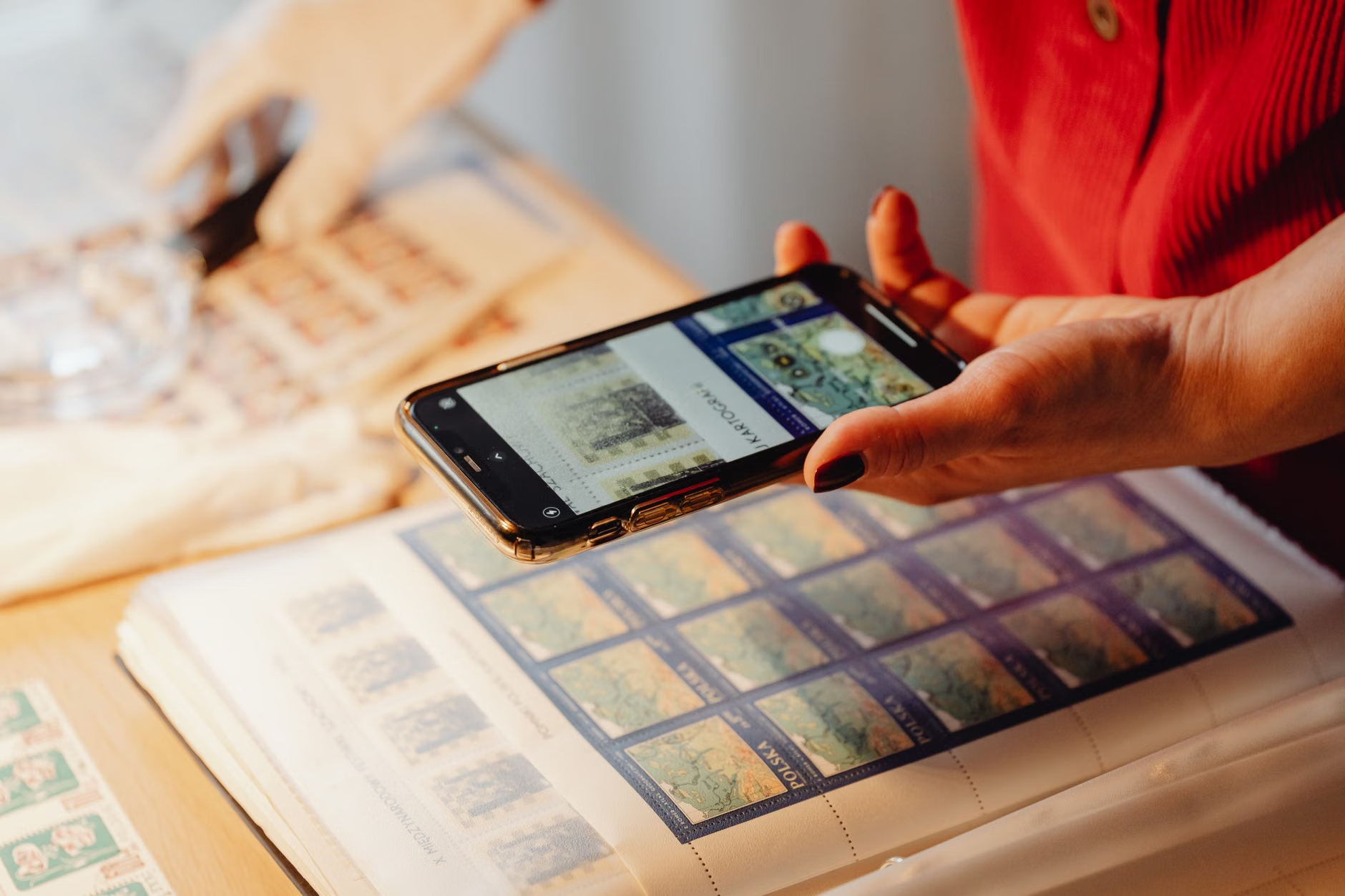
Phase One: The Aggressive Cull (The “Delete-First” Strategy)
Before you move a single file, you must delete. We often try to move photos into folders, thinking that “organizing” them will make the mess feel smaller. It won’t. The only way to win is to reduce the volume. Set a timer for 30 minutes. Your only goal is to delete photos, not to organize them.
Start with the “low-hanging fruit.” Search your gallery for the following categories and delete them without mercy:
- Screenshots: Most of these are temporary. If you haven’t looked at that screenshot of a flight confirmation or a funny tweet in three months, delete it.
- Burst Mode/Duplicates: If you have ten nearly identical shots of a sunset or a group selfie, keep the best one and delete the other nine. Use the “zoom-in” test: if it’s blurry at 100% zoom, it’s gone.
- Videos longer than 30 seconds that are just background noise: We all have those long clips of a school play where the camera is pointed at the floor or the ceiling. Trim them or delete them.
This phase is not about perfection. It’s about clearing the noise. If you feel hesitant, remember: you are not losing memories; you are removing digital static that prevents you from enjoying the actual memories.
Phase Two: Setting Up Your Infrastructure
Once you have reduced your library, you need a place to put it. The biggest mistake people make is relying on a single cloud provider as their “master” storage. If your account gets locked or you accidentally delete the sync folder, your photos could vanish. The industry standard for data preservation is the 3-2-1 Rule.
| Layer | Strategy | Why it matters |
|---|---|---|
| 3 Copies | Keep three distinct copies of your data. | Covers hardware failure and accidental deletion. |
| 2 Media Types | Store on two different platforms (e.g., Computer + Cloud). | Protects against specific format or software corruption. |
| 1 Off-site | Keep one copy in a different physical location (Cloud/Hard drive in a safe). | Protects against fire, theft, or local natural disasters. |
For most families, this means having your phone sync to a primary cloud service (like Google Photos or iCloud), and then running an automated backup to a physical drive at home once a month. This “hybrid” approach ensures that even if you lose your phone or your cloud account experiences a glitch, your physical drive remains your insurance policy.

Phase Three: The “Event-Based” Organization Logic
Avoid the temptation to organize by “Date Taken.” Your phone already does that. You don’t need a folder for “January 2023.” Instead, organize by Events and Milestones. Our brains don’t remember “June 14th, 2022”; we remember “Sam’s 5th Birthday” or “The Summer Trip to the Lake.”
Create a root folder named “Family Archives” and use a simple naming convention: YYYY-MM-DD-EventName. For example: 2023-08-15-BeachTrip. This keeps files in chronological order automatically while making them searchable by name.
Why this works: When you want to look back at a specific memory, you won’t be scanning a calendar. You will be searching for a keyword. If you have years of photos, keep the “Current Year” in a folder that is easily accessible, and move previous years into an “Archive” folder on your external drive. This keeps your daily device feeling fast and uncluttered.
Common Pitfalls and How to Avoid Them
The most common mistake is the “everything or nothing” approach. You decide to organize everything from 2010 to 2024 in one weekend. By Saturday afternoon, you are exhausted, the house is a mess, and you’ve only finished two months. Then, you quit, and the photos continue to pile up.
Instead, treat this as a continuous sprint. Dedicate 15 minutes every Sunday night to “process” the photos from the past week. Delete the junk, favorite the best shots, and move them into a “Selected” album. If you keep up with this weekly cadence, you will never have to face a massive “declutter project” again.
Another pitfall is “format anxiety.” People worry about HEIC vs. JPEG or RAW files. For family photos, stick to standard formats. Don’t overcomplicate your life with professional-grade file formats unless you are actually editing those photos for printing. JPEG is universally compatible and will last for decades. Focus on the content, not the file extension.
The Importance of Physical Prints
In our rush to digitize, we often forget the value of the physical. A digital photo is a file; a printed photo is a memory you can hold. While you are doing your digital sprint, identify 5-10 “hero shots” from each year. These are the photos you would save if your house were on fire.
Print these. Put them in a frame. Put them in an album. When your kids grow up, they won’t be scrolling through your Google Photos account; they will be looking for physical albums on the shelf. The act of printing a photo forces you to finalize the selection process—you only print what you truly value, which is the ultimate form of digital decluttering.

If you are co-parenting or sharing a household, the digital clutter is often a shared responsibility. Use shared albums for major events. If you and your partner are both taking photos at a soccer game, create one shared album for that specific event immediately. This prevents the “Who has the good shot?” conversation that happens months later.
There are many apps designed for this, but even standard “Shared Albums” in iCloud or Google Photos work perfectly. The key is the “Immediate Upload” rule. If you take a photo at an event, add it to the shared album before you leave the parking lot. It takes ten seconds, and it saves hours of cross-referencing later.
Technical Considerations for Long-Term Storage
Technology changes. The cloud service you use today might not exist in fifteen years, or it might become too expensive. This is why the local backup (the physical hard drive) is non-negotiable. Every three to five years, check your external drives. Hard drives do fail. If you have a drive that is five years old, buy a new one, copy the data over, and retire the old one. It is a small price to pay for the safety of your family history.
Also, consider the metadata. When you rename your files (using the YYYY-MM-DD format), you are embedding information that will survive even if the file is moved to a different operating system. Don’t rely on the “Date Created” timestamp of the file, as that often changes when you copy files between drives. The file name is your permanent anchor.
Dealing with “Legacy” Photos
What about the boxes of old film photos from your childhood or your parents’ collection? That is a separate project, but the same principles apply. Don’t try to scan everything. Only scan the “hero” shots. If you have a physical box of 500 photos, pick the best 50. Use a scanning app on your phone—they are remarkably good these days and use your phone’s camera to capture high-quality digital versions of physical prints.
Once you have scanned them, put the physical photos into an acid-free archival box and store them in a cool, dry place. The digital versions can then be added to your “Family Archives” folder structure, categorized by year. This bridges the gap between your physical heritage and your digital present.
Final Encouragement for the Sprint
Digital decluttering is not a task you “finish”; it is a habit you build. By treating your photo library with respect, you are ensuring that your family’s history remains accessible and meaningful. Don’t aim for a perfectly organized database that looks like a corporate server. Aim for a collection that makes you smile when you open it.
Start today. Set your timer for 30 minutes, open your oldest, messiest folder, and just start deleting. You will be surprised at how much lighter your digital life feels when the clutter is gone.
Frequently Asked Questions
Q: Should I use automated software to find duplicates?
A: Yes, but with caution. Tools like Gemini Photos or Duplicate File Finder can be helpful, but they often struggle with photos that look similar but have different cropping or minor lighting adjustments. Use them to get rid of obvious exact duplicates, but always do a manual review before hitting “Delete All.”
Q: Is it better to store photos in the cloud or on a local drive?
A: Both. The cloud is for convenience and sharing, while the local drive is for security and long-term ownership. Never rely on just one. If you have to choose one for the “master” copy, a local drive that you control is technically more secure against account lockouts, but the cloud is much better for daily access.
Q: How do I handle photos of people I no longer talk to?
A: This is a common emotional hurdle. If the photo represents a memory that is still valuable to you (like a trip or a shared experience), keep it. If the photo only brings up negative feelings, delete it. Your photo library is for *your* joy. You are the curator; you have the right to remove anything that doesn’t serve the purpose of your collection.
For more information on data preservation and digital storage best practices, visit the National Archives Preservation guidelines or the Library of Congress Digital Preservation site for high-level insights on maintaining digital integrity.