The most effective way to maintain a relationship between your children and their grandparents who live far away is to create a “zero-friction” digital environment, rather than expecting them to master complex technology. By focusing on hardware that requires minimal interaction and standardizing the communication software, you remove the barriers that usually lead to tech-related frustration and isolation.
- Hardware over Software: Choose dedicated devices like digital photo frames or “kiosk-mode” tablets that don’t require daily logins or complex app navigation.
- Standardize the Pipeline: Use a single, reliable communication app for video calls and stick to it; switching between apps creates a learning curve that is unnecessary.
- Remote Management is Mandatory: Use remote desktop software or mobile device management (MDM) tools to fix settings or update apps without needing to explain the process over the phone.
If you are in your 30s or 40s, you are likely the designated “IT department” for your extended family. It is a familiar cycle: you buy your parents a new device hoping to bridge the distance, they struggle with an update, and you spend your weekend troubleshooting over a choppy FaceTime call. The “Grandparent-Digital-Bridge” isn’t about teaching them how to be power users; it is about creating a dedicated, simplified pipeline that makes communication feel like a natural extension of their living room.
Choosing the Right Hardware: Why “Less is More”
The biggest mistake most of us make is handing over a standard, high-end smartphone or tablet and expecting it to be “easy.” These devices are designed for constant interaction, notifications, and complex multitasking—all of which are major hurdles for someone who didn’t grow up with touch-screen interfaces. For the digital bridge, you need to prioritize devices that are “set-and-forget.”
Consider the difference between a general-purpose tablet and a dedicated communication device. A standard iPad or Android tablet requires the user to manage battery life, handle pop-up notifications, and navigate app menus. Conversely, a smart display like an Amazon Echo Show or a Google Nest Hub acts as a dedicated portal. Once configured, they are always on, they don’t require a passcode to enter a video call, and they can be controlled remotely by your account.

When selecting hardware, evaluate based on these three criteria:
| Device Type | Best For | Maintenance Level |
|---|---|---|
| Smart Displays | Voice-activated calls | Low |
| Digital Photo Frames | Passive connection | Very Low |
| Locked-down Tablets | Interactive games/calls | Medium |
If you choose to use a standard tablet, you must use “Guided Access” (on iOS) or “App Pinning” (on Android). These features restrict the device to a single app. This prevents the user from accidentally deleting icons, opening settings, or getting lost in sub-menus. It turns a $500 computer into a single-purpose telephone or photo viewer, which is exactly what a digital bridge should be.
Standardizing the Communication Software
One of the most frustrating aspects of family tech support is the “app fragmentation” problem. You might prefer Signal for privacy, your partner prefers WhatsApp for groups, and your parents might have accidentally installed Skype because they heard the name once in 2012. You must settle on one platform and make it the only one that “exists” on their device.
For most international families, WhatsApp or FaceTime are the gold standards due to their ubiquity and reliability. If you choose WhatsApp, ensure that the “Auto-Download Media” settings are configured correctly. You don’t want their device storage filling up with every video sent to the family group, which leads to performance degradation and, eventually, a device that stops working. Set it to download only when on Wi-Fi and keep the storage limit manageable.
Why does this matter? Because the “Digital Bridge” relies on habit. If your children know that “Grandma is always on the iPad in the living room,” they will naturally gravitate toward it. If they have to guess which app is open or if the device is charged, the spontaneity of the connection dies. Reliability is the bedrock of digital intimacy.
The Importance of Remote Management
You cannot effectively support a device from thousands of miles away without remote access. If you are using a Windows-based PC or a Mac, tools like TeamViewer or AnyDesk are essential. For mobile devices, the options are more limited due to security restrictions, but you should at least have a “second-screen” setup where they can point their camera at their screen while you walk them through a fix.
However, the proactive approach is better. Set up their device with a standard Google or Apple account that you have access to. This allows you to remotely push app updates, manage contacts, and troubleshoot issues without requiring them to input passwords or navigate complex security prompts. If you are using an Apple device, consider setting up a “Family Sharing” plan, which allows you to manage their app library and subscriptions centrally.
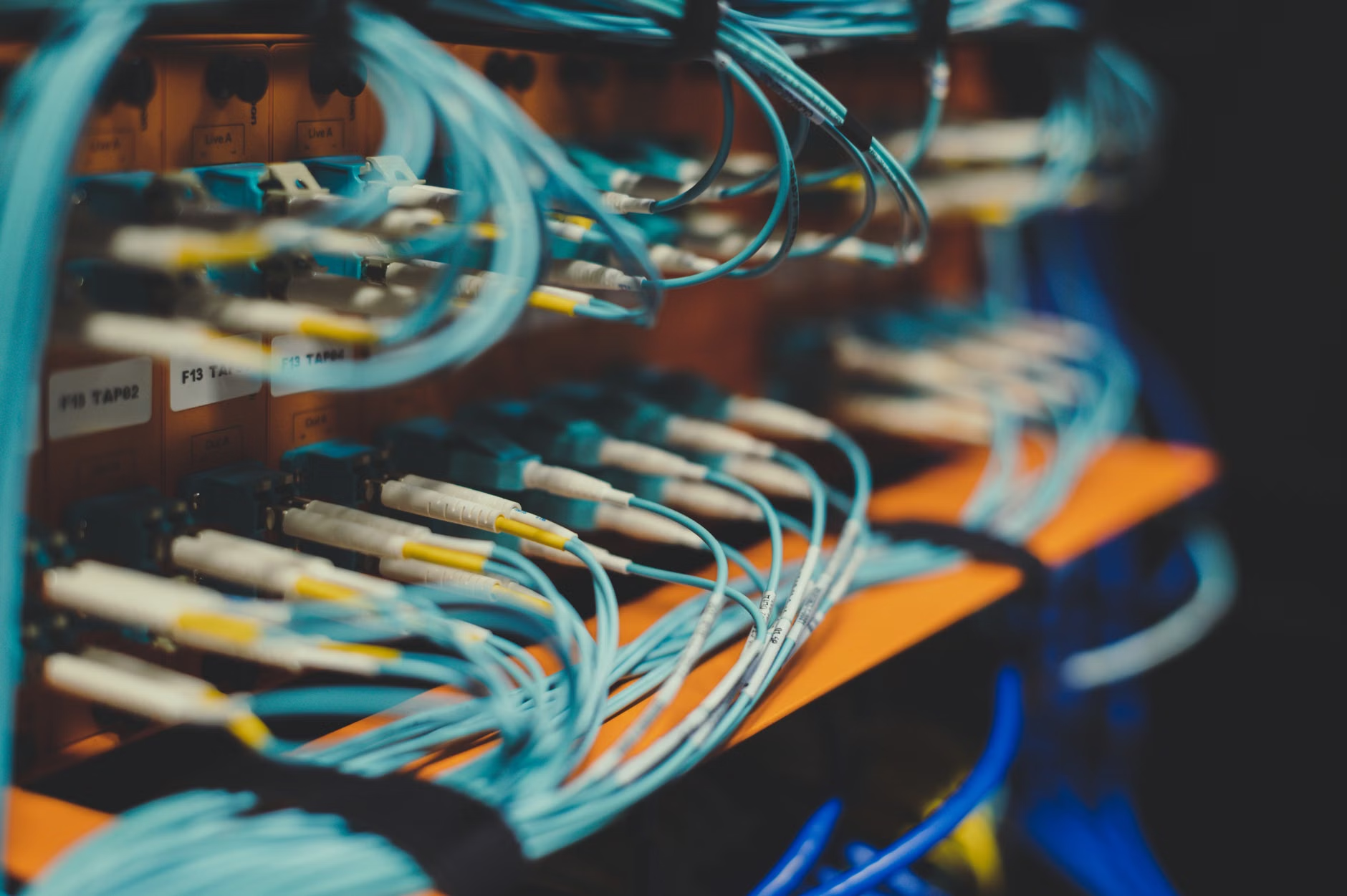
Common mistake: Failing to set up a robust Wi-Fi environment. A high-end tablet is useless if it is sitting in a “dead zone” of the house. Before you ship the hardware, ensure their home network is stable. If necessary, send them a simple mesh Wi-Fi system. You can configure it at your home, ship it to them, and it will automatically connect to their existing modem. This is often the single most effective “tech support” step you can take.
Managing Expectations and Digital Etiquette
Even with perfect hardware, the human element remains. The “Grandparent-Digital-Bridge” only works if there is a mutual understanding of boundaries. Parents often feel like they are “bothering” their children if they call, while children often feel like they don’t have enough time for long, rambling conversations.
Establish a “Digital Office Hour.” Instead of hoping for spontaneous calls, set a recurring, low-pressure time slot. Maybe it is “Sunday Morning Coffee” or “Tuesday After School.” Because the device is already set up and always on, these calls become part of the routine rather than an interruption. This also helps with the “tech support” aspect—if they have a question about their device, they know they can ask during the designated call time, rather than calling you in the middle of your work day.
Another crucial insight is the “Passive Connection.” Don’t underestimate the power of digital photo frames like Aura or Skylight. These devices allow you to push photos directly to a frame in their home. It requires zero effort from them, yet it provides a constant, tangible link to your daily life. It is the digital equivalent of a postcard, and it often sparks the conversations that lead to those longer video calls.
Troubleshooting the “Bridge” When It Breaks
Eventually, the Wi-Fi will drop, the app will freeze, or the device will need a restart. When this happens, do not ask them to “check the settings.” They don’t know what settings are. Instead, use a “Decision Tree” approach. Create a physical, laminated cheat sheet that stays next to the device.
Your cheat sheet should look like this:
- Is the screen black? Plug it in and wait 5 minutes.
- Is the Wi-Fi icon missing? Toggle the “Airplane Mode” on and off.
- Is the app frozen? Press the “Home” button and open it again.
- Still broken? Call me at [Your Number].
Keep the instructions limited to these four steps. If the problem is more complex than this, it is time for a remote session or a hardware replacement. Do not try to teach them how to navigate advanced OS menus over the phone. It is a recipe for frustration for both parties.

Security and Privacy Considerations
When setting up devices for older relatives, you must prioritize security. Enable two-factor authentication (2FA) on the accounts you manage, but use your own phone number for the verification codes if possible. This way, if the account ever triggers a security check, you handle it, not them.
Be cautious about “Smart Home” features. While voice assistants are great for calls, they can be a privacy risk if they are constantly listening or if they are accidentally ordering items. Disable “Voice Purchasing” and “Auto-Add to Shopping List” features immediately. Most of these devices have a physical “Mute” switch for the microphone—show your parents where it is and explain that they can turn it on if they ever feel uncomfortable.
For more information on managing digital privacy for seniors, the Federal Trade Commission (FTC) provides excellent general guidelines on data protection that, while business-focused, offer great principles for home network security.
Addressing Common Misconceptions
Many people believe that “buying the latest model” is the best way to ensure a long-lasting bridge. This is rarely true. High-end devices often have features—like FaceID, complex gesture controls, or frequent OS updates—that actually make them harder to use for seniors. A mid-range tablet or a specialized smart display is almost always a better choice because it is simpler, more stable, and less likely to change its interface drastically during an update.
Another misconception is that “more tech” equals “more connection.” The goal is to facilitate the relationship, not to turn them into tech enthusiasts. If they end up using the device only for video calls and photos, that is a success. Do not push them to use email, social media, or web browsers if they aren’t interested. Every additional app is another potential point of failure and another thing you have to support.
Final Thoughts: The Philosophy of the Bridge
The “Grandparent-Digital-Bridge” is ultimately about removing the “tech” from the technology. When you get it right, your parents won’t think of themselves as “using a computer.” They will simply be talking to their grandchildren. The effort you put in now to simplify, standardize, and automate the setup will pay for itself in the quality of the time you spend connected.
Start with the hardware that fits their lifestyle, standardize the communication software so there is no ambiguity, and maintain the system remotely so they never have to worry about the “how.” It is a small investment of your time that fundamentally changes the nature of long-distance family life.
Frequently Asked Questions
Q: My parents keep forgetting their passwords. How do I solve this?
A: Stop using passwords that they need to remember. Use a password manager (like Bitwarden or 1Password) where you store the credentials. For the device itself, use biometric security like “FaceID” or “TouchID” if the device supports it. If not, use a very simple, non-security-critical PIN that they can easily remember, or set the device to “Auto-Login” if the security risk is acceptable for your specific situation.
Q: Should I buy a dedicated tablet just for my kids to call them?
A: Yes, if your budget allows. Having a “Grandma-only” device prevents your kids from accidentally deleting her contact or messing up her settings. It also creates a “sacred” space for that relationship. If a dedicated device is too expensive, use the “Guided Access” feature mentioned earlier to lock the tablet to the communication app.
Q: How often should I check the device for updates?
A: If you have set up remote access, perform a “health check” once a month. This includes checking for OS updates, ensuring the communication app is up to date, and clearing out any unnecessary files or photos. If you don’t have remote access, try to do this during your scheduled “Digital Office Hour” call, but keep it brief—don’t let the maintenance take over the conversation.
For further reading on digital literacy for seniors, consider visiting AARP’s Technology section, which offers a wealth of resources tailored to the specific needs of older adults.