If your video calls freeze just as you are about to present a key point, or if your kids’ gaming sessions are throttling your file uploads, the culprit isn’t your internet service provider—it’s your router’s inability to penetrate your home’s layout. Switching to a mesh network is the single most effective way to stabilize your home office, effectively ending the “dead zone” era by creating a unified, seamless blanket of connectivity throughout your entire living space.
- Mesh is not a signal booster: Unlike traditional range extenders that halve your bandwidth, mesh nodes share the same network name and use intelligent routing to maintain high speeds.
- Placement is everything: A mesh system’s performance is dictated by the distance between nodes; for optimal results, keep them within line-of-sight of each other, not buried inside cabinets.
- Wired backhaul wins: If your home is wired with Ethernet, connecting your mesh nodes via cables (wired backhaul) will provide significantly lower latency and higher reliability than wireless communication between nodes.
We’ve all been there: you’ve moved your desk to the quietest corner of the house, only to realize the Wi-Fi signal is barely holding on. You try a traditional range extender, but it creates a separate network that forces your devices to disconnect and reconnect as you walk through the hallway. It’s a classic frustration for anyone in their 30s or 40s juggling virtual meetings, school-age kids streaming content, and smart home devices fighting for bandwidth. The reality is that traditional single-router setups are relics of a time when the entire family gathered in one room to use one laptop.
Understanding the Mesh Architecture: Why Your Old Router Failed
To understand why mesh is the solution, we first need to look at the failure of the traditional router. Most standard routers are “star” networks. The router is the center of the star, and every device tries to reach out to it. As you move further away, or as walls and furniture obstruct the signal, the speed drops exponentially. This is because Wi-Fi signals operate on radio frequencies that are easily absorbed by drywall, brick, and even the water in our bodies.
A mesh network, by contrast, acts more like a web. You have a primary hub connected to your modem, and several satellite “nodes” placed strategically throughout the house. These nodes communicate with each other, creating a self-healing, unified network. If one node is struggling, the system automatically reroutes traffic through another path. This is vital for home offices because it prioritizes consistent latency—the time it takes for data to travel back and forth—which is more important for a smooth Zoom call than raw download speed.
The “Range Extender” Trap
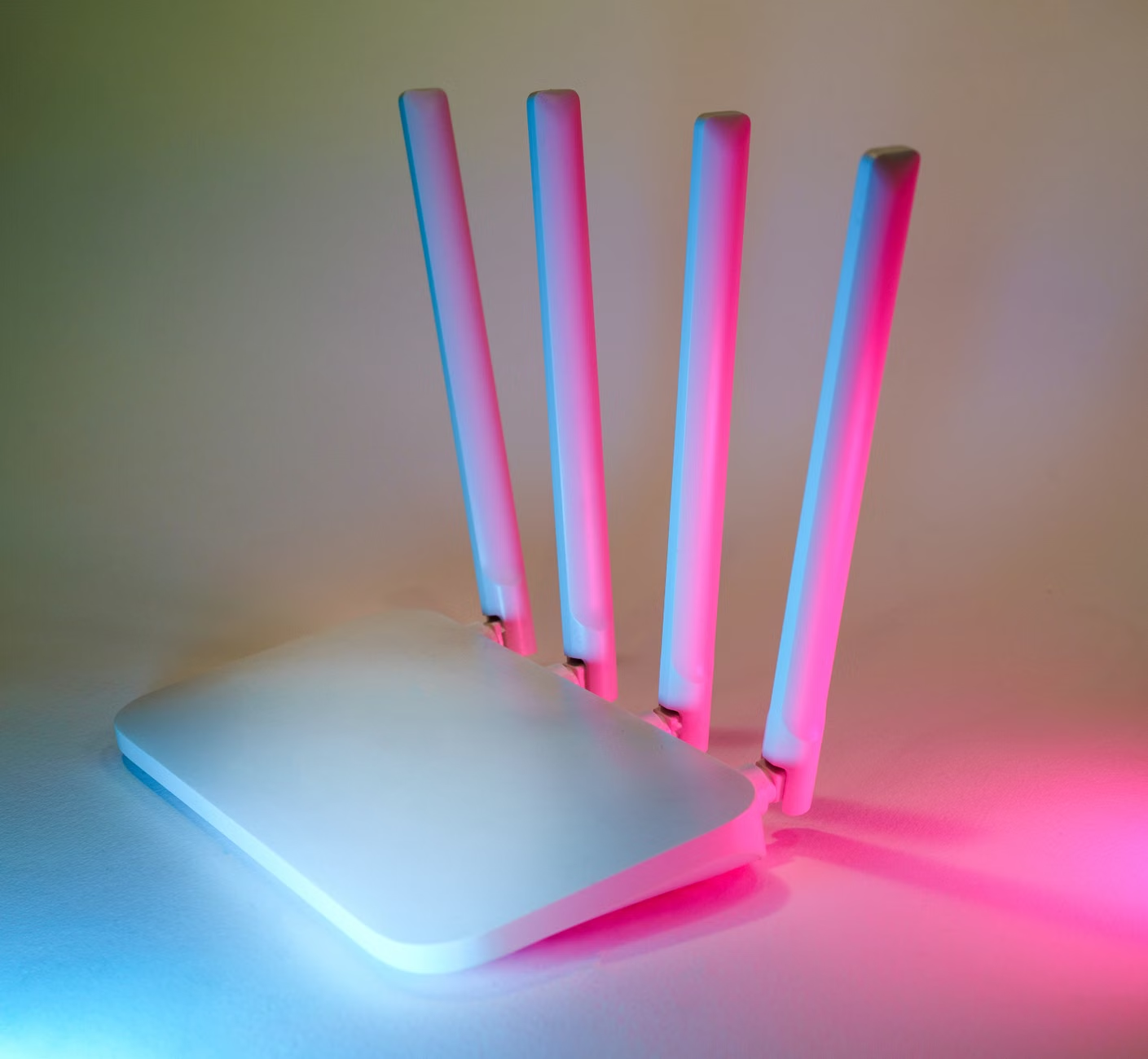
Many people try to fix their Wi-Fi by buying a cheap range extender. This is almost always a mistake for a professional office setup. A range extender takes the signal from your router, repeats it, and sends it out again. Because the extender has to “listen” and “talk” on the same frequency, it effectively cuts your potential bandwidth in half. Furthermore, most extenders create a separate network name (SSID), meaning your laptop doesn’t seamlessly switch from the main router to the extender. It clings to the weaker signal until it completely drops, leading to that dreaded “reconnecting” screen in the middle of a client presentation.
Planning Your Mesh Infrastructure: Where to Put the Nodes
The biggest mistake most users make is treating a mesh system like a “set it and forget it” appliance. While the software is smart, physics is still physics. If you place a node in a basement room behind a heavy desk and a concrete wall, it won’t be able to communicate effectively with the main hub. The ideal layout involves placing nodes in a “daisy chain” or “star” pattern where they can see each other, not just where you need the Wi-Fi most.
Think of each node as a lightbulb. If you put a lightbulb inside a closed metal box, you won’t see much light outside. Similarly, don’t hide your mesh nodes inside wooden TV cabinets or behind large metal appliances. These materials act as shields. For a typical three-bedroom home, you generally want the main hub near the modem, one node in the center of the home (like a hallway), and one node near your home office.
The “Wired Backhaul” Advantage
If you live in a newer home, you might have Ethernet ports in your walls. This is the “gold standard” for home networking. Most high-quality mesh systems allow for “wired backhaul.” This means the communication between your mesh nodes happens through the physical wires in your walls rather than over the air. This frees up the wireless spectrum for your actual devices (laptops, phones, tablets), resulting in near-zero latency and massive improvements in stability. If you are doing professional video editing, cloud-based software development, or high-definition streaming, this is the configuration you want.

Comparing Mesh Systems: What Actually Matters?
When shopping for a mesh system, the marketing language can be overwhelming. You’ll see terms like “Tri-band,” “Wi-Fi 6E,” and “Gigabit ports.” Let’s break down what actually impacts your daily life.
| Feature | Why It Matters for Your Office |
|---|---|
| Tri-Band | Essential. It provides a dedicated “lane” for the nodes to talk to each other, preventing your work traffic from slowing down. |
| Wi-Fi 6 (or 6E/7) | Crucial for handling many devices at once. If your kids are streaming while you work, this prevents congestion. |
| Ethernet Ports | Look for nodes with at least two ports. You can plug your computer directly into the node for the most stable connection possible. |
Do not be swayed by “maximum speed” claims. Most ISPs provide 300Mbps to 1Gbps. Any modern mesh system can handle these speeds. The differentiator is how the system manages traffic when 20+ devices are connected. A “Tri-band” system is the minimum requirement for a household with multiple remote workers or heavy media usage. A “Dual-band” system will struggle as soon as you have more than a few concurrent high-bandwidth activities.
Common Pitfalls and How to Avoid Them
The most common error is “over-meshing.” People often buy a three-pack for a small apartment, thinking more nodes mean more speed. This is incorrect. If nodes are too close to each other, their signals overlap and cause interference, which actually slows down your network. For a standard 1,500-square-foot home, two nodes are often sufficient. If you have a large two-story home, three or four might be necessary, but you should always start with the minimum and add more only if you find persistent dead zones.
Another overlooked variable is the modem itself. A mesh system cannot fix a bad connection from your ISP. Before you install your mesh network, test your speed by plugging your laptop directly into your modem with an Ethernet cable. If that speed is erratic, you have an ISP issue. Call them to have your line tested. No amount of mesh hardware can fix a degraded physical line coming from the street.

The Hidden Cost of Cloud Dependency
Most consumer mesh systems (like those from major tech giants) require you to use an app and a cloud account to manage your network. While convenient, this means your network settings live on a server somewhere. If the internet goes down, you might lose the ability to change your Wi-Fi password or check device status. For those who prioritize privacy, there are “prosumer” mesh options that allow for local management, though these come with a steeper learning curve. For 95% of users, the mainstream systems are fine, but it is worth noting that you are trading some control for ease of use.
Step-by-Step Implementation for the Busy Professional
Setting up your new network doesn’t have to take all weekend. Follow this sequence to minimize downtime for the rest of the household:
- Audit your current location: Identify where your modem is and where your primary workstation is. If possible, plan to run a long Ethernet cable from the modem to your office if it’s in a different room.
- The “Main Hub” setup: Connect the primary node to your modem. Turn off the Wi-Fi on your old ISP-provided router to prevent “channel interference.” Most ISPs provide a “gateway” (a modem and router in one). You will need to put this in “Bridge Mode” to avoid a double-NAT issue, which can cause connection drops for VPNs and gaming.
- Node placement: Place the secondary nodes one by one. Use the manufacturer’s app to check the signal strength between nodes. If the app says the connection is “Fair,” move the node closer to the main hub. You want “Excellent.”
- Device transition: Once the mesh is active, rename your network to the exact same name (SSID) and password as your old network. This will save you from having to reconnect every single smart light, printer, and TV in the house.
- Test the office: Once set up, run a speed test from your office laptop. If you are using a node with an Ethernet port, use a cable to connect your computer to that node. This is the definitive way to ensure your home office is “bulletproof.”
Managing the Kids and Bandwidth
One of the best features of modern mesh systems is the ability to manage device priority. In many apps, you can set a “Quality of Service” (QoS) rule. You can tell your router: “My laptop is the highest priority.” This ensures that even if your kids are downloading a massive game update, your video call bandwidth is reserved first. This is a game-changer for parents working from home. It prevents the “who is using all the bandwidth” argument that happens when the whole family is online at 3 PM.
Furthermore, most systems now include basic parental controls. You can pause the internet for specific devices at dinner time or set a hard cutoff for gaming consoles. This isn’t just about control; it’s about network hygiene. Removing unnecessary traffic during your core working hours is a legitimate way to improve your connection stability. Don’t be afraid to use these tools to protect your professional output.
When to Call It Quits on Wireless
Sometimes, no matter how good your mesh system is, the environment is just too hostile. If you live in a building with thick concrete walls or a home with metal siding, wireless signals will always struggle. In these cases, you must move toward a wired connection. This might mean hiring a low-voltage technician to run Ethernet through your attic or crawlspace. It is an investment, but for a professional who relies on their internet for their livelihood, it is an investment that pays for itself in reduced stress and increased productivity.
If you are renting, look into “flat” Ethernet cables that can run under carpets or along baseboards. They are thin enough to be hidden but provide a rock-solid, 1Gbps connection that no wireless signal can match. Sometimes the best “tech” solution is actually a $20 cable.
Final Thoughts on Connectivity
Optimizing your home network is one of those “invisible” projects that yields massive dividends. Once the mesh system is installed and the nodes are placed correctly, you stop thinking about your internet. It just works. You walk from your home office to the kitchen, and your video call doesn’t drop. You upload a large file, and it finishes in seconds rather than minutes. It is the foundation of a modern home office.
Do not wait until you have a critical failure during an important meeting to address your network. Take a Saturday morning, assess your current coverage, and invest in a system that can grow with your needs. Your future, stress-free self will thank you.
Frequently Asked Questions
Q: Do I need to buy the most expensive mesh system to get good speeds?
A: Not necessarily. You are paying for features like more processor power, more concurrent device handling, and advanced security. For a standard household with 2-3 people, a mid-range Wi-Fi 6 mesh system is more than enough. You only need the top-tier systems if you have a very large home (over 3,000 sq ft) or an extremely high number of smart home devices (50+).
Q: Will a mesh system work with my current ISP modem?
A: Yes, absolutely. However, you should ensure your ISP’s modem is set to “Bridge Mode.” If you don’t do this, you create a “Double NAT” scenario, which can cause issues with VPNs, online gaming, and certain work-from-home applications. If you aren’t sure how to do this, a quick search for “[Your ISP Name] bridge mode guide” will usually provide the exact steps.
Q: How often should I reboot my mesh system?
A: Modern systems are designed to stay on 24/7. You shouldn’t need to reboot them often. If you find yourself needing to reboot frequently, check for firmware updates in the app. If the problem persists, it may indicate a node is placed too far away from the hub and is struggling to maintain a stable connection, leading to a system-wide “hiccup.”
For more technical details on Wi-Fi standards and best practices, visit the Wi-Fi Alliance official website to learn more about the latest standards like Wi-Fi 6E and 7.