The most effective way to secure your smart home camera is to treat it not as a simple “plug-and-play” appliance, but as an internet-connected computer that requires regular maintenance and strict access controls.
- Passwords are your first line of defense: Use unique, complex passwords for every single account, never reusing them from other sites.
- Enable Multi-Factor Authentication (MFA): This is the single most effective tool to stop hackers, even if they steal your password.
- Network Segmentation: Keep your smart home devices on a separate “Guest” Wi-Fi network to isolate them from your primary computers and sensitive data.
We’ve all been there. You’re at the grocery store, juggling a toddler and a shopping list, and you pull up your home camera app just to make sure the delivery person dropped off the package. It’s convenient, almost like magic. But that same “magic” creates a digital window into your most private space. For those of us in our 30s and 40s, balancing professional lives with parenting, the idea that someone—a stranger, a bot, or a bored hacker—could be watching our living rooms is more than just a tech glitch; it’s a genuine violation.
The reality is that smart cameras are essentially small, internet-facing computers. They aren’t just “cameras”; they are IoT (Internet of Things) devices. Because they are designed for mass-market ease of use, they often ship with default settings that prioritize “getting connected” over “staying secure.” Let’s look at how we can shift that balance without needing a degree in computer science.
Why Your Camera Is a Target (And Why It’s Usually Not Personal)
There is a persistent myth that “I’m just a normal person, why would a hacker want to watch me?” It’s a comforting thought, but it’s fundamentally flawed. Hackers rarely target individuals manually. Instead, they use automated scripts—essentially digital fishing nets—that scan the entire internet for devices with known vulnerabilities or weak, default passwords.
When your camera is left with the factory-set password (like “admin” or “12345”), you are effectively leaving your front door wide open. Automated bots find these devices in seconds. Once they have access, they can use your camera to spy, or worse, turn it into part of a “botnet”—a massive network of compromised devices used to launch cyberattacks on larger targets. You aren’t being targeted because you’re famous; you’re being targeted because your device was easy to find.
Step 1: The Password Reset You Actually Need
If you haven’t changed the password that came in the box, do it right now. I’ll wait. Seriously, stop reading and go check your app settings.
When you create a new password, avoid the “pet’s name plus birthday” routine. Use a password manager. If you aren’t using one, you’re making your digital life significantly harder than it needs to be. Services like Bitwarden, 1Password, or even the built-in managers in your browser can generate long, random strings of characters that are impossible for a human—or a dictionary-based hacking tool—to guess.
Rule of thumb: If a password is easy for you to remember, it’s easy for a computer to guess. Let the machine remember the complexity; you just need to remember one master password.
Step 2: Multi-Factor Authentication (MFA) Is Non-Negotiable
If you take only one piece of advice from this article, make it this one: Enable Multi-Factor Authentication (MFA) on every camera account you own.
MFA is that extra step where the app asks for a code sent to your phone or generated by an app like Google Authenticator after you enter your password. It means that even if a hacker manages to buy your password on the dark web or guess it, they still can’t log in because they don’t have your physical phone in their hand.
Step 3: Network Segmentation (The “Guest” Network Trick)
This is a slightly more technical tip, but it’s incredibly effective. Most modern Wi-Fi routers allow you to create a “Guest Network.” This is a secondary Wi-Fi signal that is logically separated from your main home network.
Think of your home network like a house. Your main network is the living room, where your laptop (with your bank details) and your work phone live. Your guest network is the shed in the backyard. By putting your smart cameras on the “shed” network, you ensure that if someone manages to compromise your camera, they are stuck in the shed. They cannot “hop” from the camera to your personal laptop to steal your tax records or photos.
Most router apps make this easy. Look for “Guest Network” in your router’s settings, enable it, and move your camera’s Wi-Fi connection over to it.
Step 4: Firmware Updates Are Your Best Friend
Have you ever seen an “Update Required” notification and swiped it away because you were too busy getting the kids to school? We’ve all done it. But for smart devices, those updates are often “security patches.”
When a manufacturer discovers a vulnerability—a hole in the fence, so to speak—they release a firmware update to patch it. If you don’t update, you’re choosing to leave the hole open. Make it a habit to check the “Device Info” or “System” section of your camera app once a month. Many modern cameras have an “Auto-Update” feature. Turn it on. It is the single most effective way to stay ahead of known exploits.
Step 5: Physical Privacy and Positioning
Technology isn’t the only way to secure a camera. Sometimes, the best security is physical. Consider the placement of your cameras. Do you really need one pointed at the bathroom hallway, or is it better placed to monitor the front door and the living room entry points?
Furthermore, consider the “privacy shutter.” Some newer, high-end cameras come with physical shutters that cover the lens when you are home. If your camera doesn’t have one, and you’re worried about privacy in sensitive areas, consider placing the camera on a smart plug. When you are home and want privacy, you can simply turn off the smart plug via your phone, physically cutting power to the device. No power, no stream.
Step 6: Review Your Permissions and Sharing
It’s easy to forget who has access to your camera feeds. Did you add your spouse? What about the babysitter you hired three years ago? Or the neighbor who helped you check on the house during your last vacation?
Go into your camera app and look for a “Manage Users” or “Shared Access” tab. Audit that list ruthlessly. If someone doesn’t need access, remove them. If you are sharing access with family, ensure they are also using strong, unique passwords and MFA. Their security is now your security.
Step 7: Understanding the Cloud vs. Local Storage
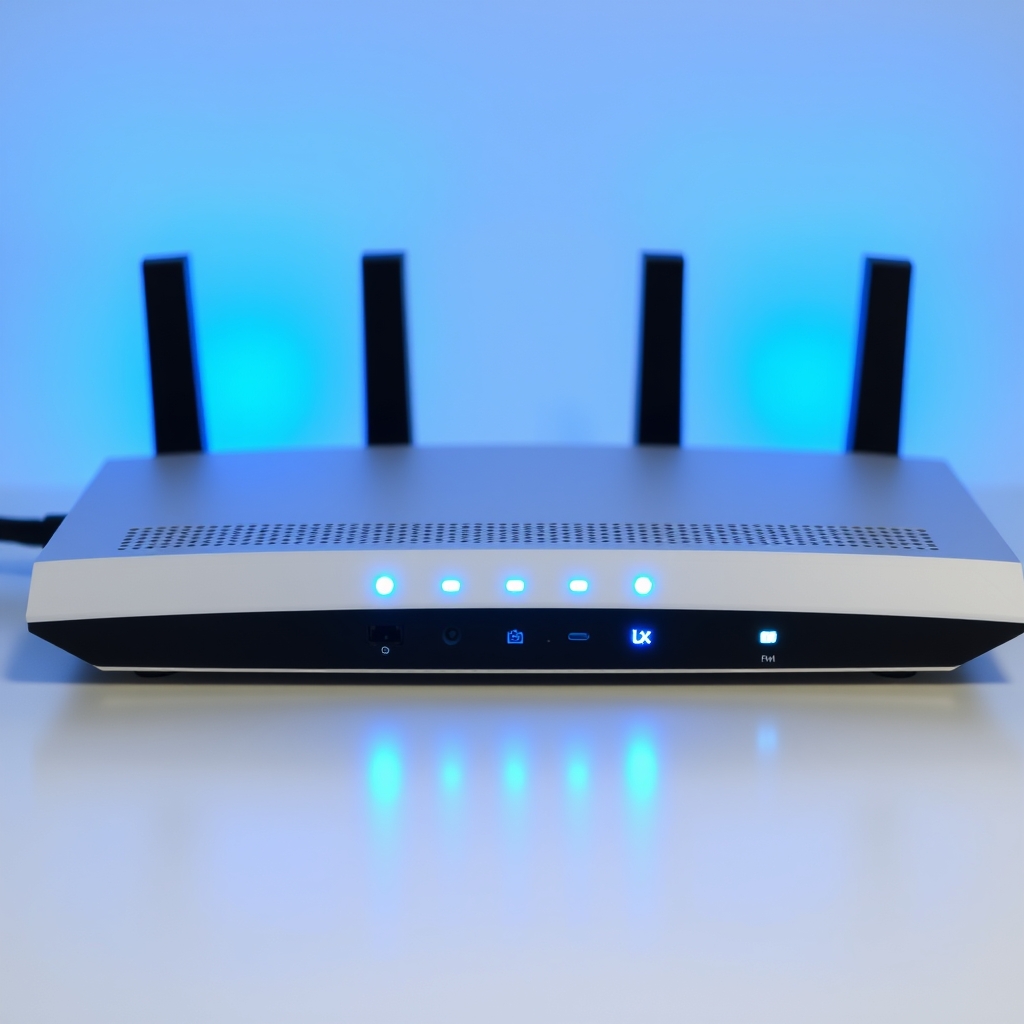
Where does your footage go? Most cameras upload video to the “Cloud” (the manufacturer’s servers). This is convenient, but it means your private moments are stored on someone else’s computer. If that company has a data breach, your video could be exposed.
If you are highly privacy-conscious, look for cameras that support Local Storage (like an SD card inside the camera) or have a local “Hub” (a device that stays in your house). This keeps your data within your four walls. While this is less convenient if you want to check your footage from across the country, it significantly reduces your risk profile.
Comparing Security Options
| Feature | Cloud Storage | Local Storage (SD/Hub) |
|---|---|---|
| Accessibility | High (Access from anywhere) | Medium (Requires app/network) |
| Privacy | Lower (Data on third-party servers) | Higher (Data stays in your home) |
| Risk | Breach at company level | Physical theft of the device |
The Reality of “Smart” Living
Living with smart technology is a trade-off. We trade a little bit of privacy and a little bit of maintenance time for the convenience of knowing that our house is safe. That’s a fair trade, provided we actually do the maintenance.
The goal isn’t to be a paranoid hermit who disconnects everything. The goal is to be a responsible owner. By taking these seven steps—using a password manager, enabling MFA, isolating your network, keeping firmware updated, thinking about placement, auditing access, and choosing the right storage—you are already ahead of 99% of other users. You’ve moved from being “low-hanging fruit” to a “hard target.”
And let’s be honest: hackers are lazy. They want the easiest path. When they run into a wall of MFA, unique passwords, and a segmented network, they move on to the next house. Make them move on from yours.
Common Questions About Camera Security
Q: Is it safe to use cameras from low-cost, lesser-known brands?
A: Generally, no. Established brands have a reputation to maintain and a dedicated team that releases security updates. Budget “no-name” brands often lack the resources to fix security holes, meaning once they are sold, they are essentially abandoned. If you buy a cheap camera, you are often paying for the hardware, but not the security.
Q: What should I do if I think my camera has been hacked?
A: Immediately change your account password from a different device. Enable MFA. If the camera allows it, perform a “Factory Reset” to wipe all settings. If you’re still concerned, disconnect the camera from the power and the network until you can verify the settings through the manufacturer’s official support channels.
Q: Does “End-to-End Encryption” actually help?
A: Yes, absolutely. It means the video is scrambled at the camera and only unscrambled when it reaches your phone. Even the camera manufacturer cannot see your footage. Look for this feature prominently advertised on the product box; it’s a gold standard for privacy.
For further reading on protecting your home network, check the Federal Trade Commission’s guide on home network security. Remember: security is a process, not a destination. Take it one step at a time, and don’t let the technical jargon intimidate you. You’ve got this.