An air-gap backup—a physical storage device entirely disconnected from the internet—is the only 100% effective defense against ransomware, cloud service outages, and accidental account deletions for your family’s irreplaceable documents.
Key Takeaways
- Absolute Immunity: Because an air-gapped drive is never connected to a network, it is physically impossible for a remote hacker or ransomware virus to encrypt or delete your files.
- Media Diversification: Relying solely on one type of storage is a mistake; a robust air-gap strategy uses both high-speed SSDs for convenience and M-Discs or high-quality HDDs for long-term “cold” storage.
- The 3-2-1-1 Rule: Modern family security requires 3 copies of data, on 2 different media types, with 1 offsite copy and 1 air-gapped (offline) copy to ensure total recovery during a disaster.
We live in an era where our most precious memories and critical legal identities are reduced to strings of ones and zeros. As parents in our 30s and 40s, we are the “bridge generation”—we remember physical photo albums, yet our children’s entire lives are documented in the cloud. We trust Google, Apple, and Microsoft with our birth certificates, property deeds, and every photo since 2010. But what happens if that trust is broken? What if a sophisticated ransomware attack hits your home network, or a “permanent” cloud account is suddenly flagged and locked by an algorithm with no human customer service to call?
I’ve spent the last few weeks researching how high-security government agencies and paranoid tech billionaires protect their data. They don’t just “sync to the cloud.” They use a technique called air-gapping. It sounds like something out of a spy movie, but for a busy parent, it’s actually the ultimate “sleep better at night” insurance policy. It’s about taking your most critical digital assets and putting them in a physical vault that no hacker in the world can reach, simply because there is no wire or signal connecting it to the outside world.
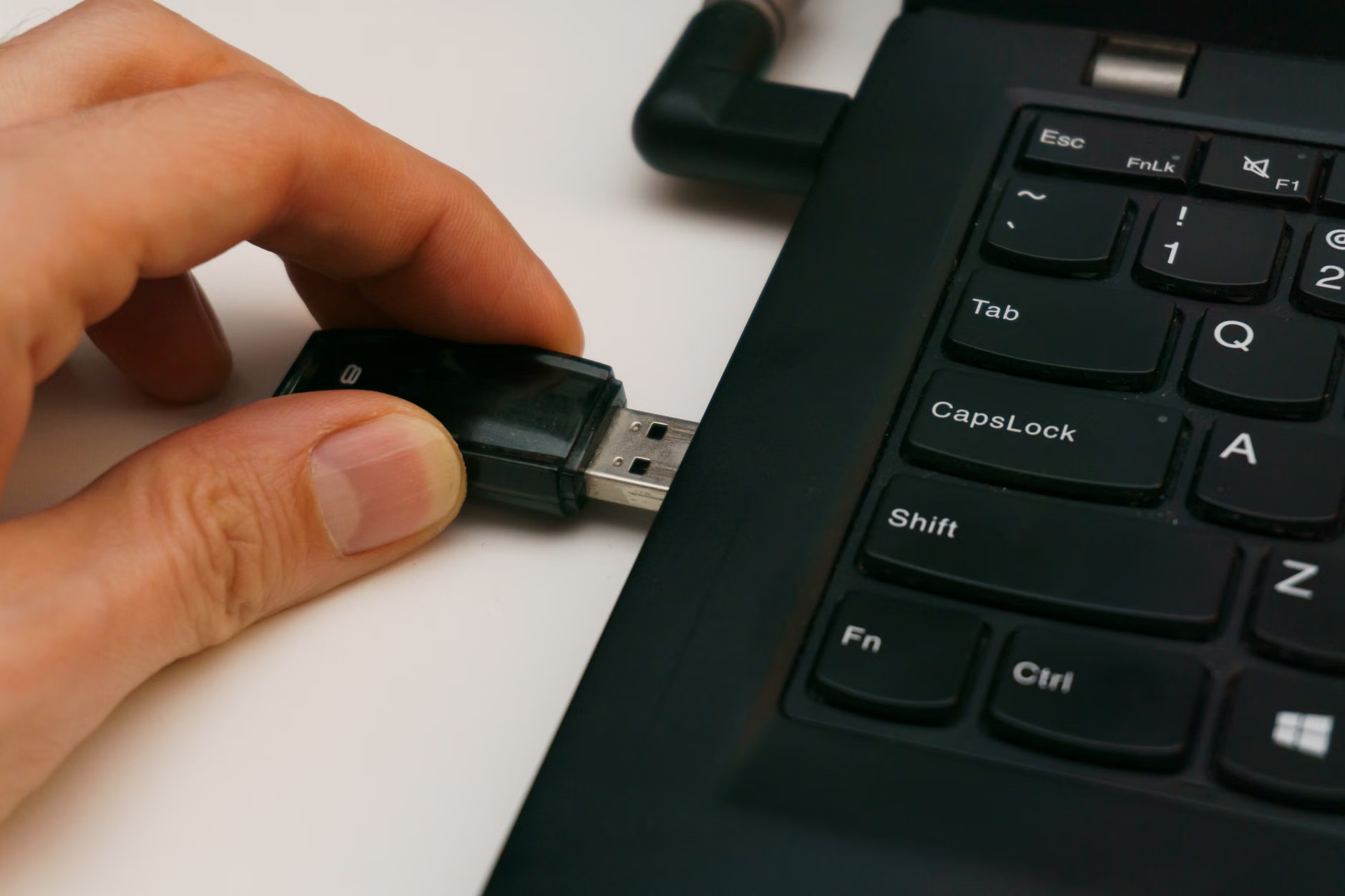
Why Your ‘Unlimited’ Cloud Storage is a Single Point of Failure
Most of us feel “safe” because we pay for iCloud or Google One. We think, “If my house burns down, my data is in the sky.” While that’s true for a fire, it’s not true for a digital fire. If your primary computer is infected with ransomware, the virus often searches for connected network drives and synchronized cloud folders. It can encrypt your local files, and then those encrypted (unreadable) files are dutifully synced to your cloud account, overwriting your good backups. By the time you realize it, the “cloud” version is just as useless as the local one.
Furthermore, we are seeing an increase in “account orphaning.” This happens when an automated system flags an account for a perceived violation of terms—sometimes mistakenly—and locks the user out of a decade’s worth of data. Without a physical, offline copy, you are essentially a tenant in your own digital life, subject to the whims of a landlord who doesn’t answer the phone. The air-gap moves you from “tenant” to “owner.”
The Reality Check: An air-gap isn’t about backing up every single meme or blurry video of your kid’s soccer game. It’s about the 1% of data that would cause a life-altering crisis if lost. This includes your mortgage papers, scans of passports, tax returns, and that one “Golden Folder” of family photos that you absolutely cannot live without.
The Document Audit: What Exactly Belongs in the Vault?
Before you buy hardware, you need to know what you’re protecting. Most people fail at backups because they try to save everything, get overwhelmed by the size, and eventually stop doing it. For a successful air-gap, we need to be surgical. I recommend creating a “Master Document List” divided into three tiers of urgency.
| Category | Document Examples | Why It Needs an Air-Gap |
|---|---|---|
| Identity & Legal | Passport scans, Birth certificates, Marriage licenses, Social Security/ID cards. | Essential for proving identity if physical copies are lost in a natural disaster. |
| Financial & Property | Property deeds, Car titles, Life insurance policies, Wills/Trusts, Tax returns (last 7 years). | Required for insurance claims and legal disputes; often hard to replace quickly. |
| The ‘Golden’ Media | One curated folder of the 1,000 most important family photos/videos. | Irreplaceable sentimental value; cloud compression can degrade quality over time. |
| Medical & Health | Immunization records, chronic condition histories, current prescription lists. | Crucial if you need to switch doctors or travel during a health crisis. |
Pro Tip: Don’t just save the files. Save a text document called “READ_ME_FIRST.txt” at the root of your drive. In it, list what is on the drive and any instructions for your spouse or children on how to access the information. If you are the “tech person” in the family, this is your digital legacy insurance.

Choosing Your Hardware: SSD, HDD, or the 100-Year Disc?
Not all storage is created equal. If you put your family’s life on a cheap $10 USB stick you found in a drawer, you are asking for trouble. Flash memory (like in USB sticks) can “leak” charge over time if left unpowered, leading to data corruption. For a serious air-gap, you have three real options, each with a specific role.
1. External SSDs (The ‘Active’ Vault)
Solid State Drives (SSDs) are fast and durable because they have no moving parts. They are perfect for your primary air-gap drive that you update every few months. Recommendation: Look for “ruggedized” versions from reputable brands like Samsung (T-series) or SanDisk (Extreme series). These are often water and shock-resistant, which is helpful if your “vault” is a box in the basement that might get bumped.
2. Mechanical HDDs (The ‘Mass’ Vault)
Traditional Hard Disk Drives (HDDs) use spinning platters. They are slower and more fragile than SSDs, but they are significantly cheaper for large amounts of data. If you are trying to air-gap 10TB of family home movies, a high-quality external HDD (like a Western Digital Elements or Seagate Expansion) is the most cost-effective way to do it. However, because they are mechanical, they should be stored flat and never dropped.
3. M-Disc (The ‘Forever’ Vault)
If you are truly serious about “archival” storage, look into M-Discs. Unlike standard DVDs or Blu-rays that use organic dye that rots over time, M-Discs etch data into a rock-like inorganic layer. They are rated to last 1,000 years. This is the “set it and forget it” option for your absolute most critical photos and legal scans. You’ll need an M-Disc compatible Blu-ray writer, but for about $100 total, you can create a backup that will outlive you.
The Trade-off: SSDs are the easiest to use, but M-Discs are the most permanent. Most families should start with two identical SSDs—one kept at home in a safe, and one kept at a relative’s house or in a bank deposit box.
Step-by-Step: How to Execute a Perfect Air-Gap Transfer
The “Air” in air-gap refers to the physical space between your computer and the internet. If you plug your backup drive into a computer that is currently browsing the web, you are not air-gapping; you are just doing a standard backup. To do this correctly, follow this workflow:
- The Cleanse: Restart your computer and turn off the Wi-Fi. Better yet, put it in Airplane Mode. This ensures that no background processes are communicating with the cloud or potentially active malware.
- The Connection: Plug in your external drive. If it’s a new drive, format it to a universal standard like exFAT. This allows the drive to be read by both Windows and Mac computers—crucial if you need to access files on a friend’s laptop during an emergency.
- The Encryption: This is a non-negotiable step. If you lose this drive, you don’t want your Social Security number and bank statements sitting in plain text for a stranger to find. Use BitLocker (Windows) or FileVault (Mac) to encrypt the entire drive with a strong password. Write this password down on a piece of paper and keep it in a separate physical location from the drive.
- The Transfer: Drag and drop your curated folders. Don’t just copy the files; verify them. Once the transfer is done, spot-check five random files to make sure they open correctly.
- The Ejection: Properly “Eject” the drive in the software before pulling the plug. This prevents data corruption during the final write-cycle.
- The Physical Gap: Unplug the drive and put it in its storage location. The air-gap is now established.
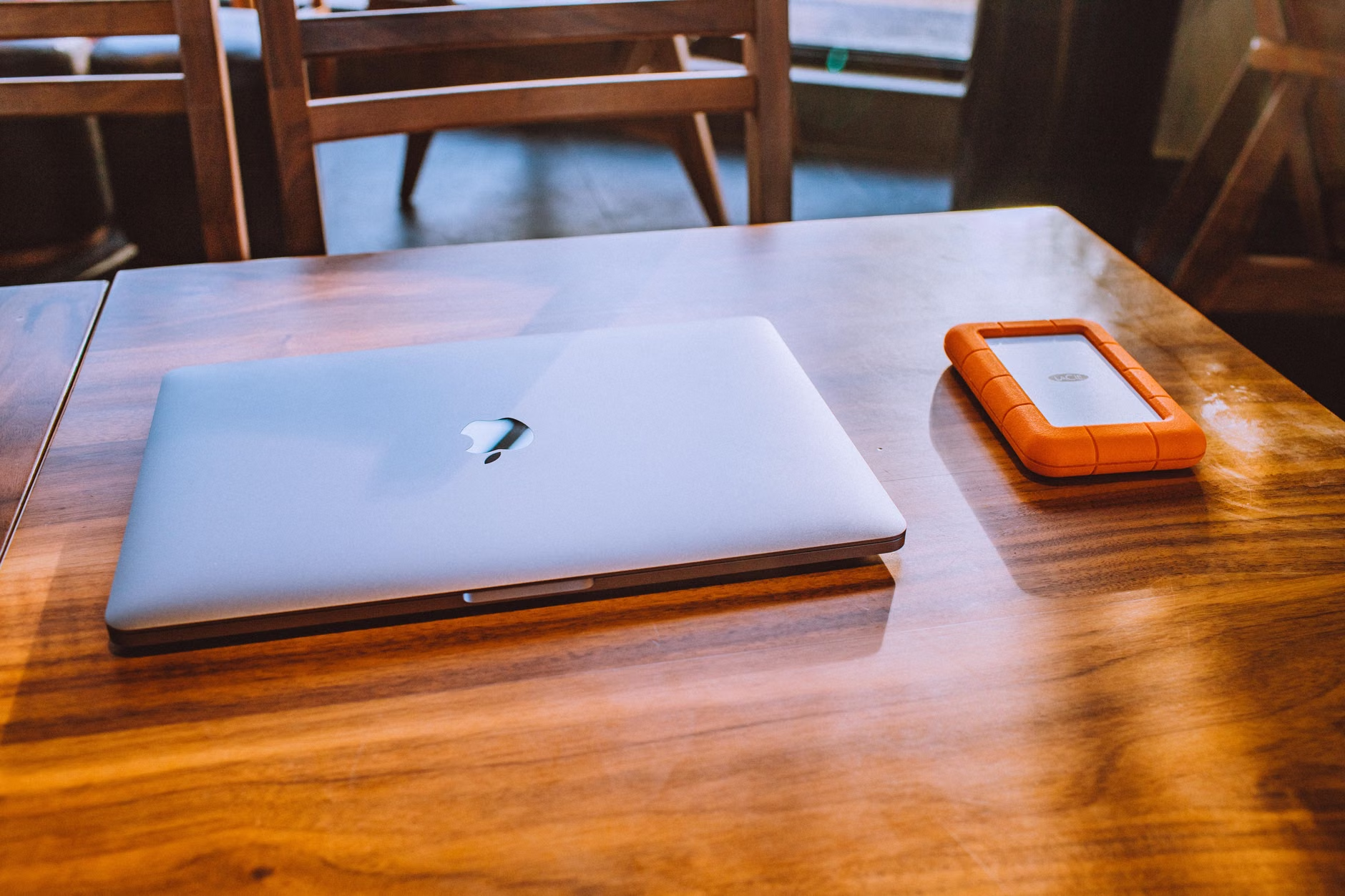
Physical Security: Where Does the Drive Actually Go?
A digital vault is only as good as its physical protection. If you leave your air-gapped SSD on your desk, it’s vulnerable to theft, fire, or a toddler who thinks it’s a chew toy. You need to treat this drive like jewelry or a stack of cash.
The Fireproof Safe: Most “fireproof” home safes are designed to keep paper from charring. However, digital media (like SSDs) is much more sensitive to heat. Look for a safe that is specifically rated for “Digital Media” or “Data.” These have extra insulation to keep the internal temperature below 125°F (52°C), whereas a standard paper safe might let the interior reach 350°F.
The Faraday Bag: For the truly cautious, store your drive inside a Faraday bag. This is a small pouch lined with metallic mesh that blocks all electromagnetic signals. It protects the drive from EMPs (electromagnetic pulses) and ensures that even if the drive had some sort of “hidden” wireless capability, it couldn’t transmit. It’s cheap insurance for about $15.
The Offsite Rotation: Natural disasters like floods or wildfires can destroy an entire home. Your air-gap strategy should ideally involve two drives. Every six months (I do this when the clocks change for Daylight Savings), update the drive you have at home, then swap it with the one you keep at a trusted relative’s house or in a safety deposit box. This way, you always have one offline copy that is physically distant from your home.
Avoiding the ‘Bit Rot’ Trap
There is a common misconception that digital data lasts forever. In reality, data “fades.” This is known as Bit Rot or data decay. On a hard drive, magnetic bits can flip over years of sitting idle. On an SSD, the electrical charge that represents your data can slowly dissipate.
To prevent this, you must “exercise” your data. Every 12 to 24 months, plug your air-gapped drive into a computer (offline!) and perform a ‘Data Scrub’ or simply copy the files to a new location and back. This forces the drive’s controller to refresh the electrical charges or magnetic orientations of the bits. If you are using M-Discs, this isn’t necessary, but for SSDs and HDDs, it’s the difference between a working backup and a brick of useless plastic ten years from now.
The 3-2-1-1-0 Rule for Families
In the IT world, the “3-2-1 Rule” is the gold standard: 3 copies of data, 2 different media, 1 offsite. For families in the 2020s, I suggest the 3-2-1-1-0 Rule:
- 3 Copies: Primary (on your computer), Secondary (Cloud), Tertiary (Air-Gap).
- 2 Media: SSD/HDD and Cloud.
- 1 Offsite: Cloud or a drive at a relative’s house.
- 1 Air-Gapped: Completely offline.
- 0 Errors: Periodic verification and “data exercise” to ensure zero corruption.
This might seem like overkill until you talk to someone who has lost 15 years of family photos to a failed NAS or a hacked iCloud account. The peace of mind that comes from knowing your family’s “Digital Crown Jewels” are sitting in a safe, disconnected from the chaos of the internet, is worth the two hours of work it takes to set up.
Final Takeaway: Don’t wait for a “close call” to start this. Buy a reputable 1TB or 2TB external SSD today. This weekend, turn off your Wi-Fi, gather your most important PDFs and photos, and build your family’s first unhackable vault. It is the single most important tech project you will do this year.
Official Resources for Further Reading:
- CISA (Cybersecurity & Infrastructure Security Agency) – Data Backup Options
- NIST (National Institute of Standards and Technology) – Data Backup Basics
- Apple Support: How to use FileVault to encrypt your Mac startup disk
- Microsoft Support: Device encryption in Windows
Frequently Asked Questions
Q: Can I just use a high-capacity SD card instead of an SSD?
A: While convenient, SD cards are not recommended for long-term air-gap storage. They use lower-grade flash memory compared to SSDs and are much more prone to physical damage and “charge leakage” (data loss over time). Stick to external SSDs from major manufacturers for better reliability and faster transfer speeds during your updates.
Q: Is it safe to store my air-gap password in a password manager like LastPass or 1Password?
A: It defeats the purpose of a “physical” vault. If your password manager account is compromised, the hacker has the key to your offline drive if they ever steal it. The best practice for an air-gap is a “low-tech” key: write the password on a piece of paper, put it in an envelope, and store it in a different physical safe or a different room from the drive itself.
Q: How do I handle large video files that won’t fit on a reasonably priced SSD?
A: This is where the “Tiered Storage” approach works. Use a high-capacity Mechanical HDD (8TB+) for the bulk video archives, but keep your “Golden Folder” (the most important 100GB of photos and documents) on a separate SSD. This way, if the mechanical drive fails (which they eventually do), you haven’t lost the most critical items. Always prioritize quality over quantity for the air-gap.
Stay safe, stay disconnected, and keep those memories secure. — SoCooly