Key Takeaways
- Wi-Fi 7 isn’t just about raw speed; it’s about “Multi-Link Operation” (MLO), which allows your devices to talk to the router on multiple bands simultaneously to prevent lag.
- Capacity is the real game-changer for families with 20+ connected devices, as Wi-Fi 7 handles congestion significantly better than previous standards.
- Upgrading requires a holistic approach; your router, your devices, and your home layout all play a role in whether you actually see a performance boost.
If you’ve ever had your high-stakes Zoom meeting freeze just as your toddler starts streaming a high-definition cartoon and your partner initiates a large cloud backup, you know the true meaning of “network congestion.” Most of us in our 30s and 40s aren’t just using the internet for casual browsing anymore; our homes have become command centers for remote work, remote schooling, home security, and high-fidelity entertainment. The arrival of Wi-Fi 7 represents a fundamental shift in how we manage this digital traffic, moving away from simple “speed” and toward intelligent, multi-lane traffic control.
Why Your Old Router is Struggling (And Why It’s Not Just Your ISP)
It is easy to blame your Internet Service Provider (ISP) when the video buffers. However, more often than not, the bottleneck isn’t the pipe coming into your house—it’s the traffic jam happening inside your living room walls. Think of your Wi-Fi router like a single-lane bridge. In the past, it was fine because only one or two cars crossed at a time. Today, that bridge is being used by your smart fridge, your thermostat, three smartphones, two tablets, a gaming console, and a work laptop all at once.
Wi-Fi 5 and Wi-Fi 6 were designed to make that bridge wider. Wi-Fi 7, technically known as 802.11be, does something different: it creates multiple bridges and allows data to hop between them instantly. This is the difference between a single-lane road and a multi-lane highway with dynamic traffic management. For a household that balances professional responsibilities with family life, this isn’t just a “nice-to-have” upgrade; it is a way to stop the “Wi-Fi wars” that occur every evening.
The Magic of Multi-Link Operation (MLO)
If there is one term you need to understand about Wi-Fi 7, it is Multi-Link Operation, or MLO. In previous generations, your phone or laptop would choose one band—either 2.4GHz (long-range, slower) or 5GHz (shorter-range, faster). It was locked into that choice until the connection dropped or you moved to a different room.
With MLO, your device can connect to the 2.4GHz, 5GHz, and 6GHz bands simultaneously. If the 5GHz band gets crowded because your neighbor is also streaming, the router can instantly shift your data packets to the 6GHz lane without you ever noticing a stutter. It’s essentially “load balancing” for your home data. This is particularly transformative for video calls, where even a millisecond of latency can cause that awkward “Can you hear me now?” dance.
Capacity: The Secret to a Happy Household
Many people ask, “Do I really need gigabit speeds?” The answer is usually no. Most people don’t need faster download speeds; they need more capacity. Capacity is the ability of a network to manage a high density of devices without tripping over itself. Wi-Fi 7 utilizes a wider channel bandwidth—up to 320MHz—which is effectively doubling the “road width” compared to Wi-Fi 6. This means more data can flow through the air at the same time.
For a family, this means:
- Gaming without lag: The gaming console gets the priority it needs without being throttled by background updates.
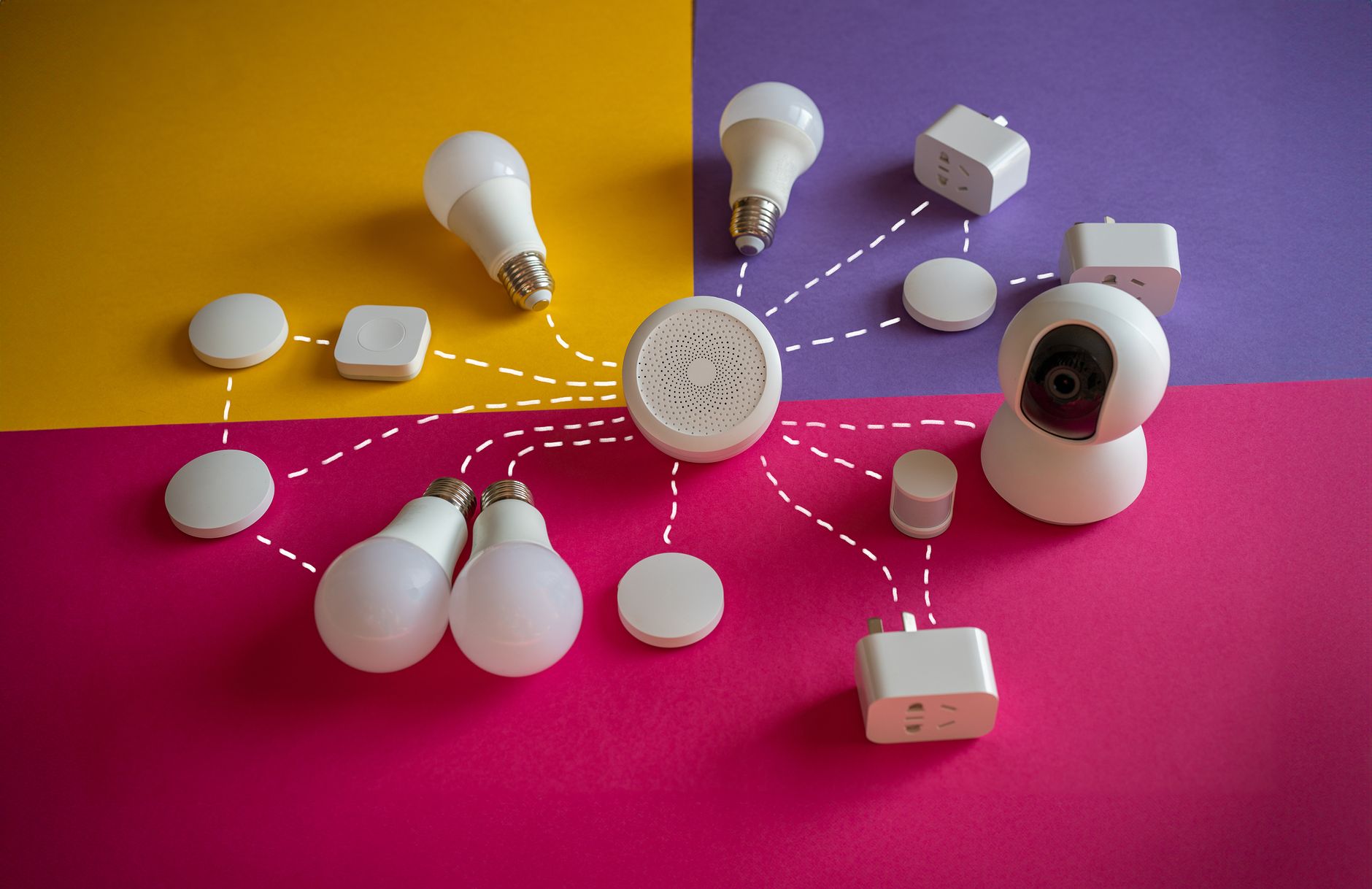
- Smart Home Stability: Your smart locks, cameras, and lights don’t “go offline” just because someone is downloading a large file.
- Seamless Video Conferencing: Professional-grade audio and video even when the rest of the house is active.
Is Your Home Ready for an Upgrade?
Before you rush out to buy the latest, most expensive “gaming” router, take a step back. Wi-Fi 7 is a standard, but it requires your client devices (phones, laptops, tablets) to support it to get the full benefit. If you buy a Wi-Fi 7 router today, your older devices will still work, but they will operate at their native, slower speeds. You won’t see the full “MLO” magic on a three-year-old smartphone.
However, the router itself still provides an advantage. Even for older devices, a Wi-Fi 7 router often features better processors and better antenna arrays, which improve signal strength throughout your home. If you live in a larger home or an apartment complex with thick walls and high interference from neighbors, the hardware upgrade alone can be worth the investment.
| Feature | Wi-Fi 6/6E | Wi-Fi 7 |
|---|---|---|
| Max Channel Width | 160 MHz | 320 MHz |
| Multi-Link Operation | No | Yes |
| Modulation | 1024-QAM | 4096-QAM |
| Best For | General Home Use | High-Density/Multi-User |
Note: 4096-QAM allows for 20% more data throughput than the previous 1024-QAM standard, effectively packing more information into every signal pulse.
Practical Deployment: Where to Put the Router
Even the best Wi-Fi 7 router will fail if it’s stuffed inside a metal cabinet, hidden behind a television, or tucked into a basement corner. Radio waves are physical things—they bounce off mirrors, get absorbed by water (including human bodies), and are blocked by thick masonry.

Place your router in a central, elevated location. If your home has multiple levels, consider a mesh system. Wi-Fi 7 mesh systems are currently hitting the market, and they allow you to place “nodes” around your home that talk to each other using the high-speed 6GHz backhaul. This effectively extends the “highway” to every room in your house, ensuring that the Wi-Fi in the kids’ bedroom is just as stable as the Wi-Fi in your home office.
Common Myths About Wi-Fi Upgrades
There is a lot of marketing fluff in the tech world. Let’s clear up a few common misconceptions:
Myth 1: “A new router will increase my internet speed from the ISP.”
False. Your router manages the internal traffic. If your ISP plan is 100 Mbps, a new router won’t magically make it 500 Mbps. It will only ensure that your 100 Mbps is distributed efficiently without internal bottlenecks.
Myth 2: “More antennas equal better range.”
Not necessarily. While more antennas (MIMO) help with capacity and handling multiple streams, range is more dependent on the power output and the quality of the beamforming technology. A well-placed router with fewer antennas will often outperform a “spider-looking” router shoved in a closet.
Myth 3: “I need to replace all my devices to see a difference.”
While you need Wi-Fi 7 devices to see the full benefits like MLO, the router’s improved management of legacy devices (Wi-Fi 6 and below) is often enough to make the network feel “snappier” for the whole family.
The Reality of Modern Connectivity
For many of us, the home network is now a utility, right up there with electricity and water. When it goes down, work stops and entertainment ceases. Investing in Wi-Fi 7 is essentially an investment in household harmony. It reduces the stress of “the internet is slow” complaints and provides a stable foundation for the increasing number of smart devices we bring into our homes.
However, be realistic about your needs. If you live alone in a small apartment and only use one device at a time, the performance gains of Wi-Fi 7 might not justify the current premium price tag. But if you are a multi-device household where everyone is online simultaneously, the upgrade is one of the most practical quality-of-life improvements you can make this year.
A Few Things to Keep in Mind Before You Buy
Before you finalize your purchase, check your current ISP modem. If you are renting a modem from your provider, you may need to set it to “Bridge Mode” to use your own high-performance Wi-Fi 7 router. This disables the Wi-Fi on the ISP modem so it acts only as a gateway, preventing “double NAT” issues, which can cause problems with online gaming and some VPNs.
Also, remember to update your router’s firmware regularly. Manufacturers often release updates that improve stability and security. Set a reminder in your calendar to check for updates every three months—it’s a simple task that keeps your network running smoothly for years.
Finally, don’t forget to wire what you can. If you have a desktop PC or a smart TV that stays in one place, use an Ethernet cable (Cat6 or better) whenever possible. Offloading those high-bandwidth, stationary devices onto a wired connection is the single best way to clear the airwaves for your mobile devices.
Frequently Asked Questions
1. Do I need a special internet plan for Wi-Fi 7 to work?
No. Wi-Fi 7 is a local network standard. It works with any internet plan. However, to actually experience the “speed” that Wi-Fi 7 is capable of, you should ensure your ISP plan provides at least 500 Mbps to 1 Gbps, or you may find your router is much faster than your connection, leading to a “bottleneck” at the ISP level.
2. Can I mix Wi-Fi 7 devices with older Wi-Fi 5 or 6 devices?
Yes, Wi-Fi 7 is fully backward compatible. Your older devices will connect to the router, but they will not be able to use the advanced features like MLO or the 320 MHz channels. They will continue to function exactly as they did before, but the router will be better at managing their traffic alongside your newer, faster devices.
3. Is Wi-Fi 7 overkill for a typical family home?
It depends on your device density. If you have fewer than 10 devices, a high-quality Wi-Fi 6E router is likely sufficient. If you have 20+ devices, including smart home sensors, security cameras, multiple streaming devices, and work-from-home setups, Wi-Fi 7 is a worthwhile investment to ensure future-proofing and better traffic management.
For more technical specifications and to check if your specific devices support Wi-Fi 7, you can refer to the official Wi-Fi Alliance website. Stay connected, and hopefully, this helps clear up the digital congestion in your home.