The most important rule for buying second-hand tech is to treat the device as “guilty until proven innocent” by verifying the hardware, software, and battery health before you ever hand over your cash.
- Battery Health is the #1 Hidden Cost: Never buy a mobile device without checking the cycle count or battery health percentage; if it’s below 80%, factor the cost of a replacement into your offer.
- The “Activation Lock” Trap: Always verify that the device is factory reset and signed out of all cloud accounts (iCloud, Google, Samsung) before finalizing the transaction.
- Physical Inspection Beats Online Descriptions: A pristine screen doesn’t mean a working motherboard; always test the ports, speakers, and camera sensors in person.
We’ve all been there. You find a “like-new” laptop or tablet on a marketplace site for half the price of the retail model. It looks perfect in the photos, the seller claims it was only used for “light office work,” and you’re already imagining how much money you’re saving. But three weeks later, the battery won’t hold a charge, the screen flickers when tilted, or—worst of all—the device locks up because the previous owner didn’t actually remove their account.
Buying second-hand tech in your 30s and 40s is usually about balancing the need for reliable tools for work or the kids’ school projects with the reality of a household budget. You don’t have time for a device that stops working during a deadline or a Zoom call. This guide breaks down exactly how to verify any piece of consumer electronics so you don’t end up with a very expensive paperweight.
The Pre-Purchase Audit: What to Ask Before Meeting
Before you even bother to meet a seller, you need to filter out the “time-wasters” and the “unaware sellers.” Many people selling used tech aren’t malicious; they’re just clueless about what actually matters. Your goal is to ask questions that force them to reveal the state of the device.
Start by asking for the serial number or IMEI. If they refuse to provide it, walk away immediately. This is a non-negotiable red flag. Once you have the serial number, plug it into the manufacturer’s official warranty checker (Apple, Dell, HP, and Samsung all have these). This tells you how old the device is and whether it was reported stolen or has an active “Find My” lock.
Ask these three questions in your first message:
- “Is the device currently signed out of all cloud accounts, and can I perform a factory reset in your presence?”
- “What is the current battery health percentage or cycle count?”
- “Are there any cracks, liquid damage indicators, or non-original parts (like a third-party screen replacement)?”
If the seller gets defensive or says “I don’t know, it just works fine,” assume the worst. A seller who isn’t willing to answer basic technical questions is usually hiding a device that has been dropped, dunked, or neglected.
The Physical Inspection Checklist: Don’t Just Look, Feel
Once you are in person, don’t rush. Sellers often use the “I have another buyer coming in ten minutes” tactic to pressure you. Ignore them. You are the one with the cash, and you are the one taking the risk.
1. The “Wiggle” Test
Inspect the charging port. Use a flashlight (your phone’s flash is fine) to look inside. If you see bent pins, debris, or dark discoloration, the port is failing or has been damaged by moisture. Plug in your own portable power bank and a charging cable. If the device doesn’t start charging instantly without you having to “wiggle” the cable, it’s a hardware failure waiting to happen.
2. The Screen Integrity Check
Turn the brightness all the way up and open a solid white image or a plain website. Look for “ghosting,” yellowing at the edges, or dead pixels. Next, turn the brightness all the way down. If the screen flickers or has dark patches, the backlight is dying. This is particularly common in older iPads and thin-and-light laptops that have been subjected to heat.
3. The Hinge and Chassis Check
For laptops, open and close the lid at least five times. If you hear a grinding noise or feel resistance, the hinges are damaged. This isn’t just cosmetic; a broken hinge will eventually snap the internal display cable, killing your screen. Check for “bowing” on the bottom case—this is a classic sign of a swollen battery, which is a significant fire hazard.
Diagnostic Software: The Truth Behind the Screen
You cannot trust the seller’s word on battery life. Batteries are chemical components that degrade regardless of how well the device was treated. A laptop that looks brand new on the outside might have a battery that lasts only 45 minutes.
For MacBooks, download an app like CoconutBattery or use the built-in System Information tool to check the cycle count. For Windows, open the Command Prompt and type powercfg /batteryreport. This will generate a file showing the “Design Capacity” versus the “Full Charge Capacity.” If the Full Charge Capacity is less than 80% of the Design Capacity, you should negotiate a lower price—that’s the cost of a new battery you’ll need to buy sooner rather than later.
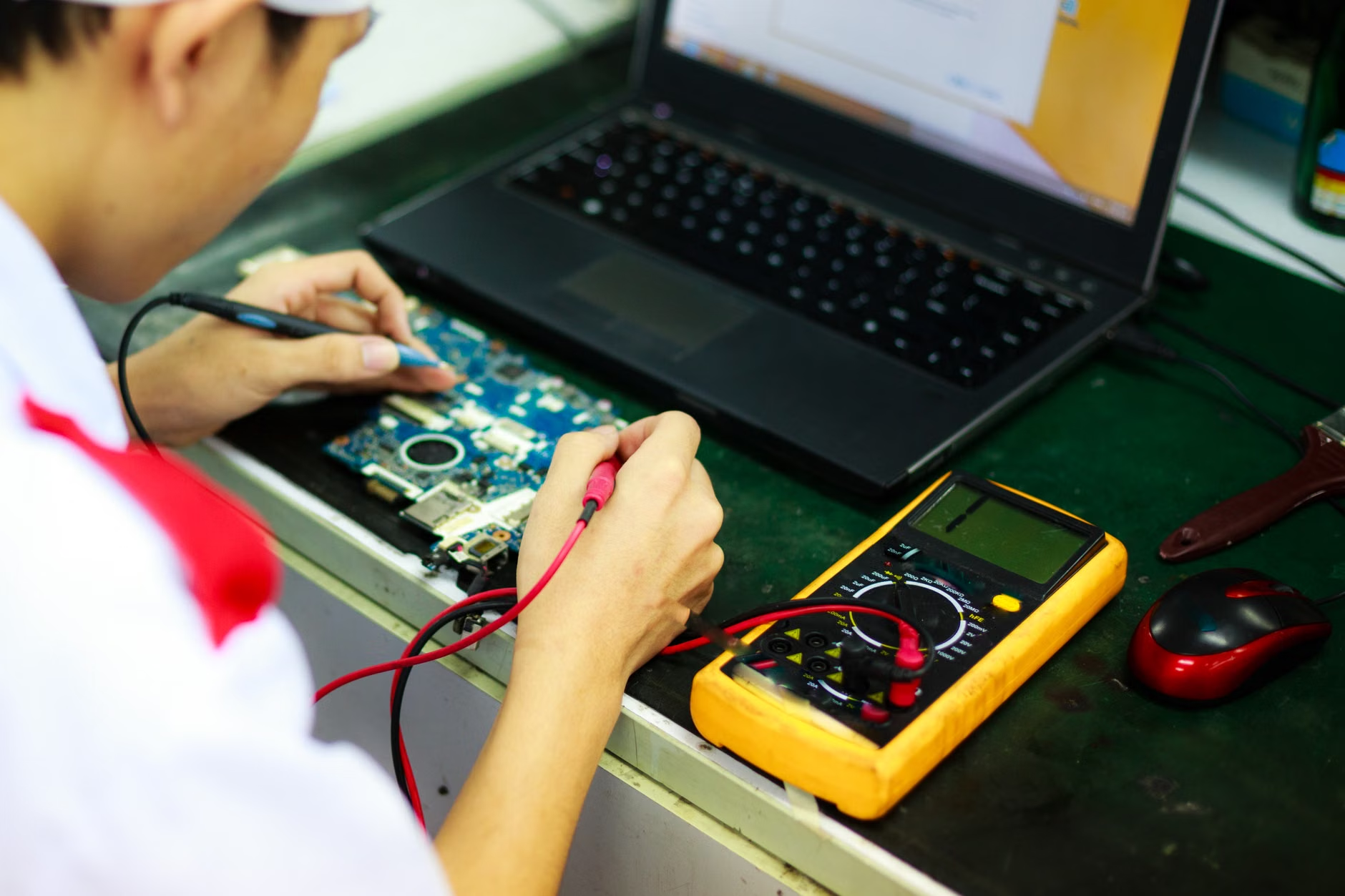
Table: Battery Health Assessment Guide
| Capacity Status | Action | Negotiation Strategy |
|---|---|---|
| 90% – 100% | Excellent | Fair market price is acceptable. |
| 80% – 89% | Good | Ask for 10% discount to cover future replacement. |
| Below 80% | Poor | Subtract the cost of a professional battery replacement. |
Always verify the “Full Charge Capacity” against the original design specs. If the seller claims the battery was replaced, ask for the receipt. A cheap, non-branded battery replacement is often worse than an old, original one.
The Software “Gotchas” That Kill Deals
Even if the hardware is pristine, you can be blocked by software locks. The most common is the “Activation Lock” or “Find My” feature. If the device is still linked to the previous owner’s account, it is essentially a brick. You cannot remove this lock without their password.
The Golden Rule: Never leave the meeting until you have performed a full factory reset while the seller is standing right there. For an iPhone or iPad, this means going to Settings > General > Transfer or Reset > Erase All Content and Settings. If the device asks for an Apple ID password during this process, the seller must enter it. If they “forgot” their password, do not buy the device. There is no “workaround” for this—if there were, the security feature wouldn’t be effective.
Similarly, for Windows laptops, ensure the device is not managed by a “Company” or “School” account. Some corporate laptops have BIOS-level locks or MDM (Mobile Device Management) profiles that will re-install company restrictions even after you wipe the hard drive. Check this by looking for “Access work or school” in the settings menu.
Why “Refurbished” Is Often Better Than “Used”
There is a massive difference between “second-hand” (a private sale) and “refurbished” (a professional sale). When you buy from a reputable retailer’s refurbished program, the device has usually been tested, had its battery replaced, and comes with a 6-to-12-month warranty.
For parents, the peace of mind of a warranty is often worth the 20% price premium. If you are buying a device for your child, consider the “hidden cost” of your own time. If a private-sale tablet breaks in two months, you have zero recourse. If a refurbished unit breaks, you have a support team to contact. Always prioritize the warranty if the device is intended for daily school use or long-term reliability.

Common Mistakes That Cost You Money
One of the biggest mistakes people make is ignoring the “version” of the hardware. For example, in the tablet market, there are often multiple generations of the same model that look identical. A seller might list an “iPad Pro” without specifying the year. The 2017 model and the 2022 model look similar in a grainy photo, but the 2017 model is nearing the end of its software update support. Always check the model number (e.g., A2377) on the back of the device and search it on the manufacturer’s support site to confirm the release year.
Another common oversight is ignoring the storage capacity. If you’re buying a phone or tablet for a child, they will inevitably fill it with games and videos. Don’t settle for the base storage model if you plan on keeping the device for more than a year. The “cheaper” deal on the 32GB model is often a trap because you’ll spend more money on cloud storage subscriptions or external drives in the long run.
Finally, avoid “bundle” deals unless you actually need the accessories. Sellers often inflate the price of a used laptop by adding a cheap, generic mouse, a low-quality keyboard cover, or a non-certified charging cable. These items are usually worth pennies and don’t add real value. Focus only on the core device’s condition.
Finalizing the Transaction: Safety First
When you’ve done your checks and decided to proceed, keep the transaction safe. Use payment methods that offer protection, like credit cards via a platform (if the marketplace supports it) or PayPal Goods and Services. Never use “friends and family” transfers, bank wires, or cash apps for a large purchase with a stranger. If the seller demands cash, meet in a public place—many local police stations in countries like the US, UK, and Canada offer “safe trade zones” in their parking lots.
Remember, the goal is not to get the absolute lowest price; it is to get the best value for your household. A slightly higher price for a device with a documented history, a healthy battery, and no software locks is always a better deal than a “steal” that requires hours of troubleshooting or a replacement battery trip to the repair shop.
Frequently Asked Questions
What should I do if the seller claims they “forgot” their password at the time of the sale?
Walk away. There is no legitimate reason for a seller to have a device that they cannot unlock or reset. If they cannot provide the password to remove their account, the device is likely tied to them, and you will never be able to use it as your own. Never pay for a device that is still linked to someone else’s account, even if they promise to “send the password later.”
Is it worth buying a device with a cracked screen if the price is significantly lower?
Generally, no. A cracked screen is often just the beginning. The force required to crack the glass can also damage the digitizer (touch sensitivity), the display panel underneath, or even the internal frame. Unless you are an experienced technician with the specific tools to perform a professional screen replacement, the cost of the repair will usually push the total price above what you would have paid for a working, pristine unit.
How do I know if a laptop is “too old” to be worth buying?
Check the “End of Life” or “Security Update” support for the operating system. For Windows, look for devices that support Windows 11 (generally CPUs from 2018 or later). For Apple devices, check how many years of macOS or iPadOS updates remain for that specific model. If the device has less than two years of official security updates left, it is a poor investment for anything other than very basic, offline tasks.
Recommended Resources:
Buying second-hand is a smart way to manage your tech budget, provided you stay disciplined. Stick to the checklist, don’t let the seller rush you, and always prioritize the health of the battery and the status of the cloud account. With these steps, you can confidently find high-quality tech that fits your family’s needs without the stress of hidden failures.