- Data Ownership: Running a Local-LLM means your grocery lists, dietary restrictions, and household habits never leave your home network.
- Hardware Requirements: You don’t need a supercomputer; a modern laptop with 16GB of RAM and a decent GPU (or an Apple Silicon Mac) is sufficient to run models like Llama 3 or Mistral.
- Total Control: Unlike public AI apps, a local setup allows you to permanently delete or modify your “brain” without worrying about corporate data harvesting.
If you have ever asked a popular AI app to “plan a gluten-free dinner for four using only what is in my pantry,” you have essentially handed a detailed profile of your family’s health, schedule, and consumption habits to a third-party server. For most of us, this is a trade-off we make for convenience. But what if you could get the same intelligent, personalized assistance without the privacy cost?
The solution is a “Local-LLM” (Local Large Language Model). By running an AI model directly on your own hardware, you keep your data entirely offline. No cloud, no tracking, and no data mining. In this guide, I will walk you through why this matters and how you can actually set this up—even if you aren’t a software engineer.

Why Your Meal Plan is a Privacy Goldmine
It sounds dramatic, but your meal planning habits are incredibly valuable data. Companies use this information to build “consumer personas.” If your AI knows you buy organic produce on Tuesdays, prefer quick 15-minute meals on Thursdays (because of sports practice), and have a family member with a specific allergy, that is a goldmine for advertisers.
When you use a cloud-based AI, that data is processed on a remote server. Even if the company promises privacy, the data is technically accessible to them. If you are in your 30s or 40s, you are likely managing a household where this data leakage could affect your insurance rates, targeted advertising, or even your digital footprint for years to come. A Local-LLM changes the architecture. Your computer becomes the server. The data never leaves your desk.
Understanding the “Local” Advantage: Security vs. Convenience
Running a model locally isn’t just about privacy; it’s about stability. When the internet goes down, or a service provider changes their API (the way apps talk to each other), your cloud-based meal planner might stop working. A local setup is yours to keep. You control the updates. You control the “knowledge base.”
However, let’s be realistic about the trade-offs. Cloud-based models like GPT-4 or Claude 3 Opus are massive—they have trillions of parameters. They are better at writing poetry or complex coding. Local models are smaller. They might occasionally get a recipe step slightly wrong or require more “prompt engineering” (the way you phrase your request) to get the exact result you want. But for meal planning? They are more than capable.
Hardware Check: Do You Have Enough Power?
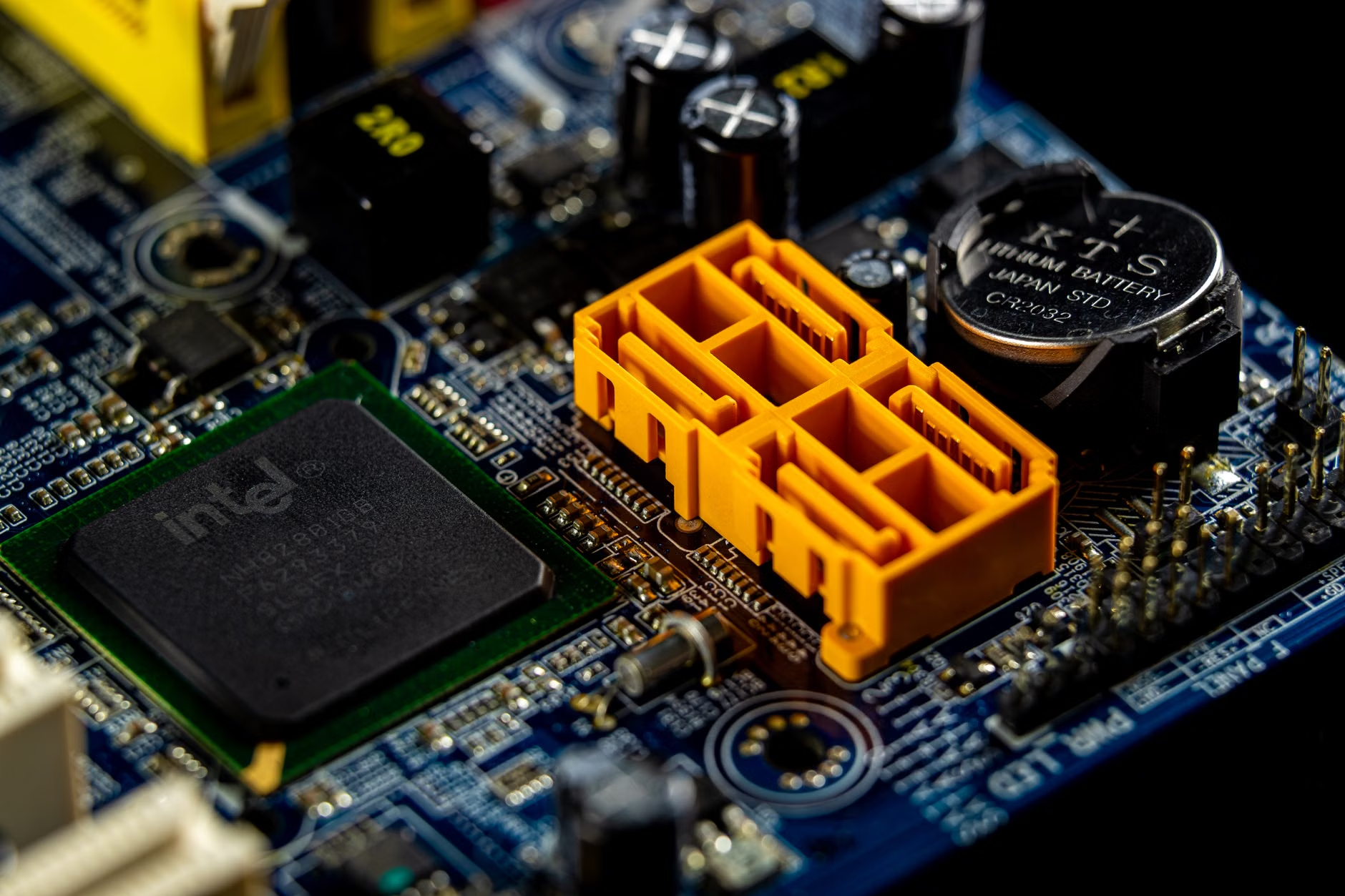
You don’t need a dedicated server rack to do this. If you are using a computer bought within the last 3-4 years, you are likely ready. Here is a rough guide for what you need:
| Component | Minimum Requirement | Recommended |
|---|---|---|
| RAM | 16GB | 32GB+ |
| GPU (Graphics Card) | NVIDIA RTX 3060 (12GB VRAM) | NVIDIA RTX 4080/4090 or Apple M2/M3 Pro |
| Storage | 50GB free space | 100GB SSD free space |
If you are on an Apple Silicon Mac (M1, M2, or M3 chips), you are in a great position. The unified memory architecture of these chips is excellent for running local models. If you are on a Windows PC, an NVIDIA GPU is the gold standard because most AI software is optimized for their “CUDA” technology.
Step-by-Step: Setting Up Your Private AI Brain
You don’t need to write code to get started. The community has built “one-click” installers that make this surprisingly easy. We will focus on the two most popular tools for beginners: Ollama and LM Studio.
1. Installing the Engine (Ollama)
Ollama is the backend. Think of it as the “engine” that runs the intelligence. You can download it for Windows, macOS, or Linux from ollama.com. Once installed, it runs in the background. It doesn’t have a flashy interface—it just works.
2. Choosing Your “Brain” (The Model)
Once Ollama is installed, you need a model. For meal planning, I recommend the Llama 3 (8B) model or Mistral. These are small enough to run on consumer hardware but smart enough to understand “Make a meal plan for a family of four with no dairy.”
To pull the model, open your terminal (or command prompt) and type: ollama run llama3. It will download the file, and that’s it. You are now running an AI model entirely on your machine.
3. The Interface: Making it Useful
Using a terminal is fine for testing, but for meal planning, you want a chat interface. LM Studio (lmstudio.ai) is a fantastic, user-friendly tool that lets you download models and chat with them in a window that feels exactly like ChatGPT. It is the best way for a non-techie to get started.
Refining Your Meal Planning Routine
Now that you have the infrastructure, how do you actually use it for meal planning? The secret lies in your “System Prompt.” This is a set of instructions you give the AI to tell it how to act. Instead of just asking, “What should I eat?”, you should define the rules.
Example System Prompt:
“You are a helpful home chef. You only suggest recipes that take under 45 minutes. You know we are a family of four. We avoid peanuts and shellfish. Always provide the output as a table with a grocery list at the end.”
Because the model is local, you can “feed” it your pantry list. You can paste a text file of everything in your kitchen into the chat, and it will prioritize using those ingredients first. This helps with food waste—a massive hidden cost in most households.
Common Mistakes to Avoid
The most common mistake beginners make is trying to run a model that is too big for their hardware. If your computer starts sounding like a jet engine or the response takes 30 seconds per word, you have chosen a model that is too large. Stick to “8B” or “7B” models (these refer to the number of parameters). They are the “Goldilocks” size for home use: fast, smart, and efficient.
Another mistake is forgetting to save your chat history. Unlike the cloud, if you close your local app without saving, that conversation is gone. Most interfaces have an “Export” or “Save” button—get into the habit of using it.
Is This Actually Worth the Effort?
You might be wondering: “Why not just use a spreadsheet?” A spreadsheet doesn’t understand context. If you tell a spreadsheet “I’m tired and need something easy,” it can’t suggest a recipe. An LLM can. It understands your mood, your constraints, and your preferences, all while staying within your four walls.
The real value is in the cumulative knowledge. Over time, you can create a “System Instruction” file that contains your family’s favorite recipes. You can load this into your Local-LLM, and it will become a highly specialized assistant that knows exactly how your family likes their tacos or which veggies your kids actually eat. That is a level of personalization that no commercial app can offer, because they are designed to sell you things, not to serve your specific, quirky household needs.
Addressing the Hidden Costs
While there is no subscription fee, there is an energy cost. Running a Local-LLM keeps your computer’s processor working harder than usual. If you leave it running 24/7, you will see a minor increase in your electricity bill. However, when you compare this to the $20-$30 monthly cost of premium AI subscriptions, it is negligible. The biggest investment is your time—the time to set it up, learn the interface, and curate your own prompt library.
Moving Forward with Your Private Setup
Privacy is not just about keeping secrets; it is about maintaining autonomy. By moving your meal planning to a Local-LLM, you are taking a small but significant step toward reclaiming your digital life. You aren’t just planning dinner; you are building a tool that respects your boundaries.
Start small. Don’t try to build the perfect system in one night. Install Ollama, run a simple model, and ask it to suggest a meal plan for tomorrow. Once you see how it works, you can start building your library of preferences and pantry lists. You will be surprised at how quickly this becomes an indispensable part of your weekly routine, and you will sleep better knowing that your family’s data is staying exactly where it belongs: with you.
Frequently Asked Questions
Q: Will my computer slow down if I run a Local-LLM?
A: Yes, if you are running it while doing other heavy tasks like video editing or gaming. However, most modern processors handle these models in the background without noticeable lag. You can always stop the model when you aren’t using it.
Q: Can I access my local AI from my phone?
A: Not directly. Because the model lives on your computer, you would need to be on your home network and use a tool like “Ollama WebUI” (or Open WebUI) to access it via a browser on your phone. It is a bit more advanced, but fully doable.
Q: What happens if the AI gives me a bad recipe?
A: Treat the AI as an intern, not a head chef. Always double-check the logic. If you notice a pattern of bad suggestions, you can adjust your prompt to be more specific, or switch to a different model—that is the beauty of having full control.
For more information on the models mentioned, visit the Hugging Face repository, which serves as the industry standard for open-source AI model documentation and safety guidelines.
Advanced Customization: Creating Your Family’s “Digital Chef”
Once you have mastered the basics, you can move from simple chatting to “RAG” (Retrieval-Augmented Generation). This is the secret sauce for making your Local-LLM truly useful. RAG allows the AI to “read” your local files—like a PDF of your favorite cookbook or a text file of your family’s dietary history—and use that as a source of truth.
Imagine having a folder on your desktop called “Family Recipes.” You can point your Local-LLM interface to this folder. Now, when you ask “What should I cook?”, the AI isn’t just pulling from general internet knowledge; it is pulling from your specific collection. This makes the suggestions infinitely more relevant and reduces the “hallucinations” (where AI makes up ingredients that don’t exist) that often plague generic models.
Troubleshooting Common Roadblocks
If you encounter issues, don’t panic. The local AI community is vast and helpful. If a model fails to load, check your RAM usage. If the output is gibberish, check your “Temperature” setting in your chat interface. Lowering the temperature (usually a setting between 0 and 1) makes the AI more deterministic and less “creative,” which is exactly what you want for recipes. A temperature of 0.2 is usually the sweet spot for utility tasks like meal planning.
The Future of Home AI
We are currently in the early days of personal AI. As models get more efficient, we will see these tools integrated into smart home devices, allowing for seamless, private interaction. By starting now with a Local-LLM, you are getting ahead of the curve, learning how to manage your own digital environment before it becomes a necessity. It is not just about meal planning; it is about learning how to be a citizen of the digital age rather than a product of it.
Stay curious, keep your data private, and enjoy the process of building your own, tailor-made kitchen assistant. The peace of mind alone is worth the effort.