The most important rule when buying pre-owned technology is that you should never assume a device is “clean” just because the seller performed a factory reset; you must treat every second-hand gadget as a potential security risk until you have personally verified its software and hardware integrity.
Key Takeaways for Tech-Savvy Parents
- Perform a deep wipe: A simple factory reset isn’t always enough; research the specific “factory data reset” protocols for your device to ensure data partitions are cleared.
- Hardware safety first: Inspect battery health and charging ports for physical damage, as these are the most common failure points in older electronics.
- Network isolation: If you are unsure about a device’s history, connect it to a guest network or a separate VLAN to prevent it from accessing your primary home data.
We have all been there. You are looking for a first tablet for your child, or perhaps a reliable older laptop for schoolwork, and the price tag on a brand-new model makes you wince. The second-hand market—refurbished sites, local marketplaces, and hand-me-downs—seems like a goldmine. It is sustainable, it is wallet-friendly, and it keeps perfectly functional hardware out of landfills. But as someone who has spent more time than I care to admit troubleshooting “bargain” electronics, I’ve learned that the savings can evaporate quickly if you compromise on safety.
Buying tech second-hand isn’t just about whether the screen turns on or the speakers work. It’s about the silent digital footprint left behind by the previous owner and the physical degradation of components that you can’t see with the naked eye. In our thirties and forties, we are often the “IT department” for our households. If a device is compromised, it’s not just the device at risk—it’s the Wi-Fi password, the family photos, and the sensitive financial apps synced to our accounts.
Understanding the Digital Ghost in the Machine
When you buy a used device, the biggest concern is persistent malware or unauthorized access. While it is rare for a casual seller to intentionally plant malicious software, “ghost” data is a real phenomenon. This includes remnants of old cloud accounts, saved browser passwords, or even background processes that were never properly terminated.
Most operating systems have built-in “Reset” functions. On an iPhone, it’s the “Erase All Content and Settings” feature; on Windows, it’s “Reset this PC.” These are generally effective, but they are not infallible. If a device has been modified—for example, if it was “jailbroken” or had a custom ROM installed—the standard reset might not actually restore the system to its original, secure factory state. In such cases, the malicious software could be baked into the firmware itself.
To combat this, you should always aim for a “clean install” rather than a “factory reset.” For a laptop, this means using a bootable USB drive to wipe the hard drive completely and reinstall the operating system from scratch. For a smartphone, ensure you are using the manufacturer’s official restoration software through a computer (like iTunes for iOS or the official Android flashing tools) rather than just the menu options on the device itself.

The Physical Reality: Why Hardware Inspection Matters
Beyond the software, we have to look at the physical health of the device. Tech doesn’t age like fine wine; it ages like a carton of milk left out on the counter. The most critical component to inspect is the lithium-ion battery. Batteries have a finite number of charge cycles. If you buy a used phone that is four years old, that battery has likely degraded to 70-80% of its original capacity. While that might just mean shorter usage times, a damaged or bloated battery is a genuine fire hazard.
Look for signs of “swelling.” If the screen looks like it is lifting slightly from the frame, or if the back cover of the phone is bowed, do not buy it. That is a battery that is beginning to fail, and it is a major safety risk in a home with children. Also, check the charging port. Use a flashlight to look inside. If you see bent pins or signs of corrosion, walk away. A faulty charging port can short out the motherboard, turning your “deal” into a paperweight within weeks.
Checklist for Hardware Integrity
| Component | What to Look For |
|---|---|
| Battery | Check settings for “Battery Health.” If it’s below 80%, factor in the cost of a replacement. |
| Screen | Check for “dead pixels” (black dots) or “ghosting” (faint images of previous screens). |
| Ports | Ensure cables click in firmly and don’t wiggle excessively. |
| Audio/Mic | Record a voice memo and play it back to test both the microphone and the speakers. |
The “Guest Network” Strategy: Why You Should Isolate Your New Purchase
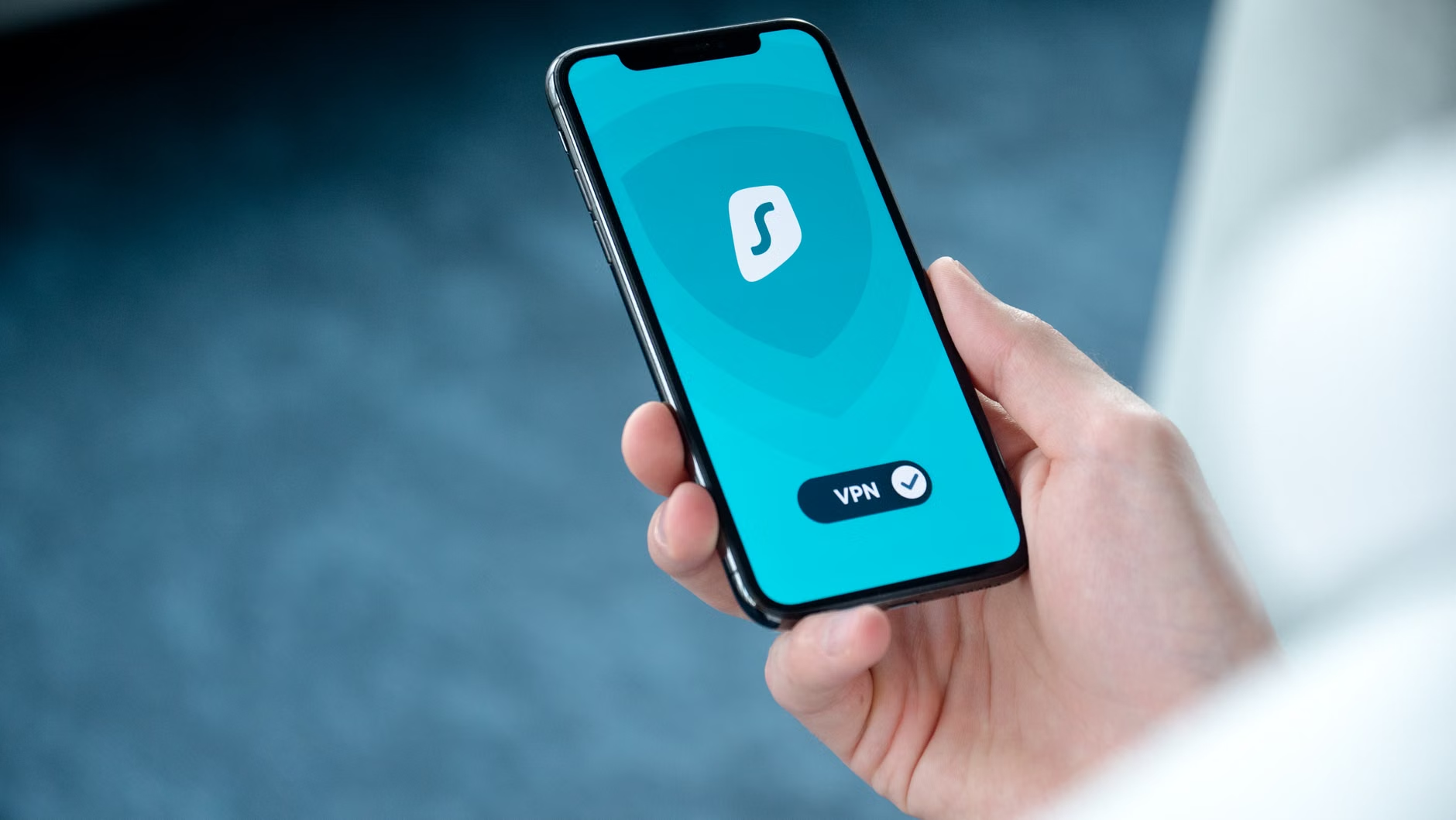
Even after you have wiped a device and verified the hardware, there is still the “unknown factor.” Maybe you missed a security update, or maybe the device is too old to receive the latest security patches. This is where network segmentation comes in. If you have a modern router, you likely have the ability to create a “Guest Network.”
Think of your guest network as a digital sandbox. Devices on this network can access the internet, but they cannot “see” your other home devices—like your NAS storage, your primary computer, or your smart home security hub. By placing your newly acquired second-hand device on this network for the first week or two, you allow yourself time to monitor its behavior.
Is it trying to connect to strange servers in the background? Is it running hot despite no apps being open? These are signs of potential issues. If you notice unusual activity, you can simply disable the device’s internet access from your router’s dashboard without ever putting your main home network at risk. It is a simple, low-effort step that provides significant peace of mind.
Dealing with “End-of-Life” Hardware
One of the biggest mistakes people make is buying devices that are no longer supported by the manufacturer. If you are looking at a tablet that hasn’t received a security update since 2019, you are essentially buying an open door for hackers. Security patches are not just about new features; they are about fixing vulnerabilities that allow bad actors to take control of your device.
Before you commit to a purchase, take 60 seconds to Google the model name followed by “end of life date” or “last security update.” If the device is no longer supported, the price needs to be low enough to justify the risk, or you should reconsider. For children, especially, I recommend only buying devices that are still receiving active support from the manufacturer. If you want to use older hardware for non-internet tasks—like a digital picture frame or a music player—ensure that the Wi-Fi/Bluetooth functionality is permanently disabled.
The Ethics and Logistics of Refurbished vs. Used
There is a massive difference between buying from a “private seller” on a marketplace and buying “certified refurbished” from a major retailer. When you buy certified refurbished, you are usually getting a device that has been inspected, had its battery replaced, and comes with a limited warranty. This is the gold standard for parents who want to save money but can’t afford the time to troubleshoot a device.
If you choose to buy from a private seller, treat it like a transaction in a public space. Meet in a well-lit, busy area. Bring a portable power bank so you can test the device before handing over any money. If the seller refuses to let you test the device, walk away. No deal is worth the safety of your personal information or the potential for a scam.
Building Your Personal Tech Safety Workflow
Let’s put this all together into a practical workflow you can use whenever you bring a new-to-you device home. I like to think of this as a “quarantine” process. It keeps things orderly and ensures you don’t accidentally sync your personal data to a device that isn’t ready for it.
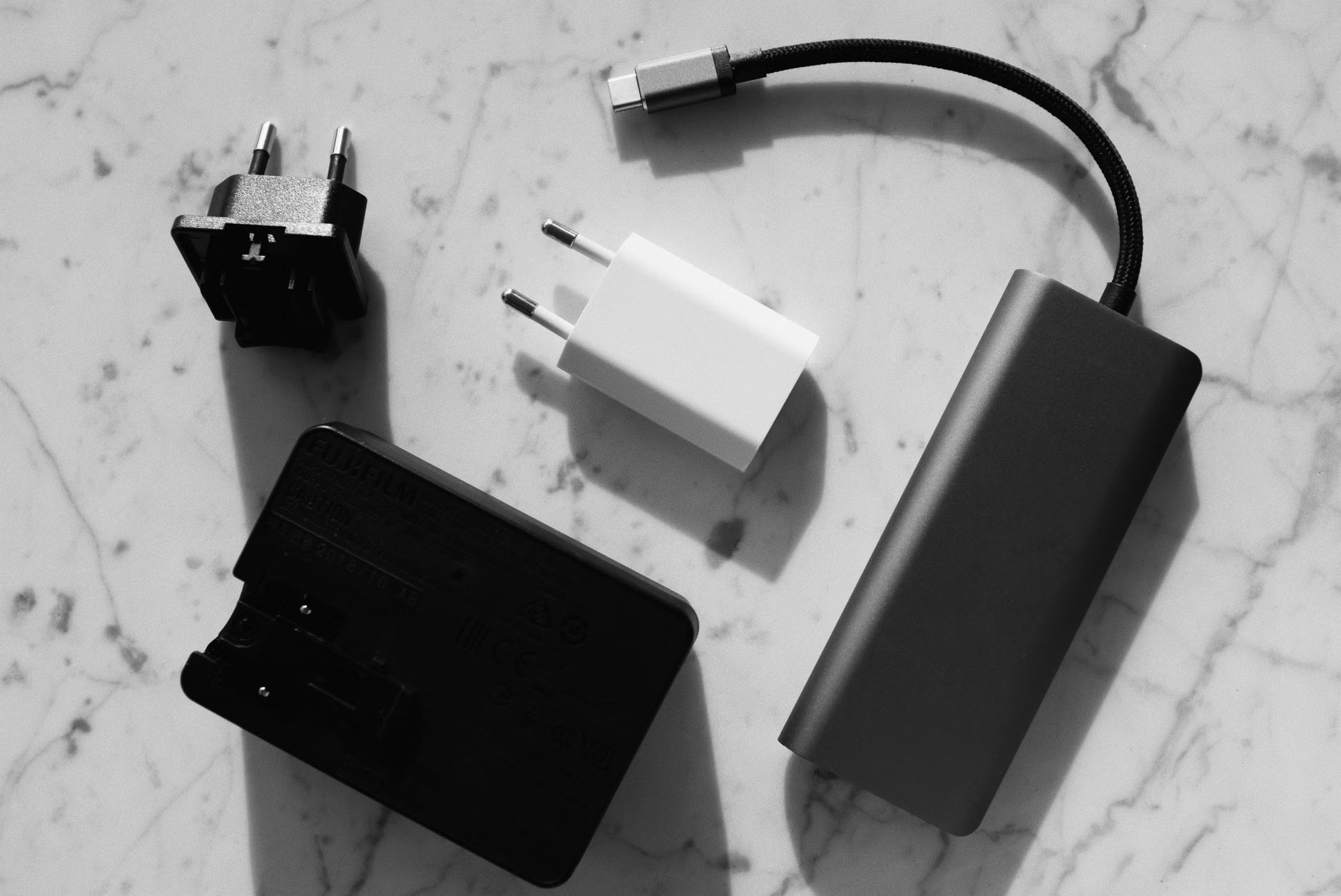
- The Physical Inspection: Before even turning it on, check the chassis for cracks, battery swelling, and port cleanliness. Ensure the charger is an original or a high-quality, safety-certified replacement.
- The “Cold” Boot: Turn on the device and immediately perform a hard reset using the manufacturer’s official software tools. Do not sign into any personal accounts yet.
- The Patching Phase: Once reset, connect to your guest network and run every available system update until the device tells you it is fully up to date.
- The Security Audit: Check the “Privacy” settings. Ensure location services are off, ad-tracking is disabled, and any pre-installed “bloatware” is removed if possible.
- The Integration: Only after these steps are complete should you sign into your primary accounts. If it’s for a child, ensure you have set up parental controls and restricted app store access *before* handing it over.
This process might take an hour or two of your weekend, but it transforms a potentially risky purchase into a secure, reliable tool for your family. It is the difference between being a victim of a bad tech decision and being a smart, proactive manager of your household’s digital environment.
Refining Your Expectations
It is important to manage your expectations regarding performance. A used laptop from five years ago might have been a beast in its day, but modern web browsers and software are much more resource-intensive. If you are buying a used device for school or work, prioritize RAM (memory) over raw processor speed. 8GB of RAM is the absolute minimum for a decent experience in 2024; 16GB is the sweet spot. If you find a device that has a great processor but only 4GB of RAM, you will likely find it frustratingly slow, regardless of how secure it is.
Furthermore, look for devices with Solid State Drives (SSDs). If you are looking at a computer that still uses an old spinning Hard Disk Drive (HDD), the speed will be abysmal by modern standards. Swapping an old HDD for a cheap SSD is one of the easiest and most impactful upgrades you can perform, but it does require some technical comfort. If you aren’t comfortable opening up a laptop, stick to devices that already have SSDs installed.
When to Walk Away
Sometimes, the best decision is to walk away. If a deal seems too good to be true, it almost always is. Be wary of devices with “iCloud locks” or “activation locks.” These are often stolen devices, and they are essentially useless to you. Never buy a device that the seller cannot unlock in front of you. If they claim they “forgot the password,” that is an immediate red flag. Do not fall for the “I’ll email you the password later” line—it never ends well.
We want our tech to be a helpful assistant in our daily lives, not a source of constant stress or a risk to our identity. By being deliberate and careful, you can navigate the second-hand market with confidence. You are not just saving a few dollars; you are making an informed choice that respects both your budget and your family’s digital safety.
Summary and Final Encouragement
Navigating the world of second-hand technology requires a mix of skepticism and technical discipline. By focusing on deep software wipes, careful hardware inspection, and network isolation, you can safely integrate pre-owned devices into your home. Always prioritize devices that are still receiving security updates, and never be afraid to walk away from a deal that feels “off.” With these standards in place, you can enjoy the benefits of a circular economy while keeping your household’s data secure and your family’s tech experience smooth and reliable. You’ve got this—just keep your security protocols as sharp as your eye for a good deal.
Frequently Asked Questions
Q: Is a factory reset enough to remove all my personal data from a device before I sell it?
A: Not always. While a factory reset is a good first step, it is safer to perform a “secure wipe” if the device supports it, or use the official manufacturer software to overwrite the storage. For most modern smartphones with encrypted storage, a standard factory reset is usually sufficient, but for older laptops, you should consider using a tool that wipes the entire disk drive to ensure no file recovery is possible.
Q: How do I know if a device is still receiving security updates?
A: The easiest way is to search the manufacturer’s support website for the specific model’s “End of Life” (EOL) or “Support Lifecycle” page. If you can’t find it, look for the most recent security patch date in the device’s “About” settings. If that date is more than a year old, it is a sign that the device may no longer be receiving critical security updates.
Q: Can I use a second-hand charger safely?
A: It is generally better to buy a new, high-quality charger from a reputable brand. Cheap, off-brand, or damaged chargers can deliver inconsistent voltage, which can degrade your device’s battery or even cause a short circuit. If you must use a second-hand charger, inspect the cable for fraying and ensure the power brick doesn’t get excessively hot while in use.
For further reading on digital security and device maintenance, visit official resources like CISA.gov for general cybersecurity best practices and your specific device manufacturer’s official support portal for product-specific security guides.