The most effective way to regain control over your family’s digital legacy while eliminating recurring monthly subscription fees is to migrate from centralized public cloud services to a self-hosted personal cloud, commonly known as a Network Attached Storage (NAS) system.
- Break the Subscription Cycle: A personal cloud requires a higher upfront investment but eliminates the $10–$30 monthly fees common with Google One, iCloud, or Dropbox.
- Data Sovereignty Matters: Hosting your own data means you are the only one with the keys, protecting your family photos and documents from third-party data mining or sudden account lockouts.
- The 3-2-1 Rule is Mandatory: Migrating to a personal cloud does not replace backups; you must keep three copies of data, on two different media, with one stored offsite.
If you are in your 30s or 40s, you likely have a decade or two of digital clutter scattered across various platforms. You have photos from your wedding on one service, your children’s early years on another, and critical tax documents buried in a free tier of a third. The frustration isn’t just the fragmentation; it’s the creeping cost. As our digital lives expand, so do the storage tiers we are forced to purchase. If you’ve ever felt like your family memories are being held hostage by a monthly invoice, you aren’t alone.
The Hidden Cost of “Free” and Paid Cloud Storage
We often treat cloud storage like a utility, but it functions more like a digital rental agreement. When you pay for Google One or iCloud, you aren’t buying storage; you are paying for the convenience of synchronization. The moment you stop paying, your access becomes restricted, or worse, your data faces deletion policies. For a family generating gigabytes of 4K video and high-resolution photos annually, these costs compound rapidly.
Consider the math: A mid-range 2TB cloud subscription typically costs around $120 per year. Over five years, that’s $600. In contrast, a high-quality 4-bay NAS enclosure plus two 8TB hard drives might cost $800 upfront. By the end of year seven, the personal cloud has effectively paid for itself, and you own the hardware, which can be upgraded or repurposed. This is the difference between an operating expense (OpEx) and a capital expenditure (CapEx) in your personal household budget.
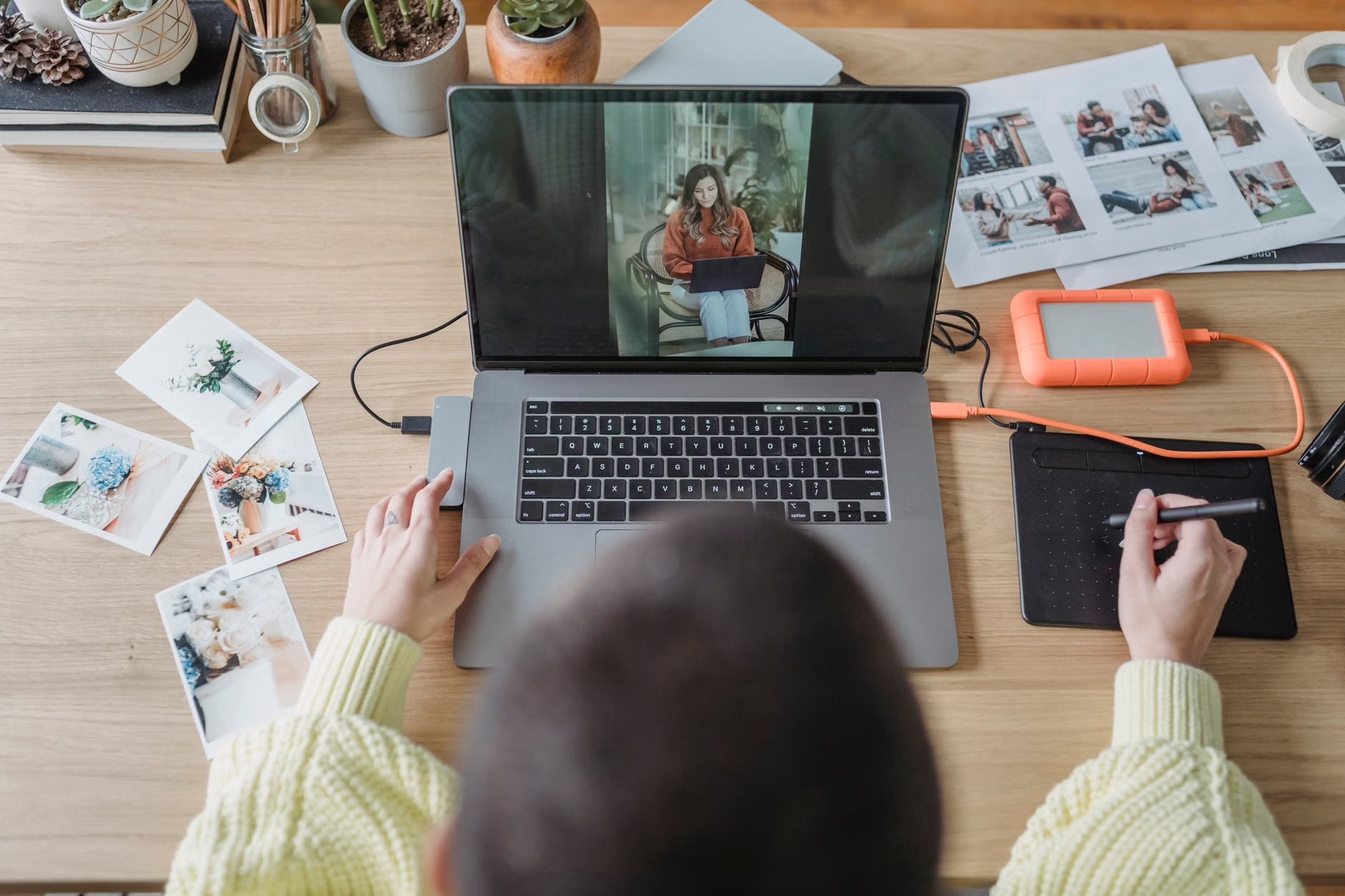
What Exactly is a Personal Cloud?
A personal cloud is essentially a small, dedicated computer that stays on in your home, connected to your router. It is often referred to as a NAS (Network Attached Storage). Unlike an external hard drive that you plug into your laptop only when you need it, a NAS is always online, accessible via Wi-Fi or cellular data from anywhere in the world.
When you use a personal cloud, you install software on your phone that acts exactly like the Google Photos or iCloud app. It automatically uploads your photos in the background, organizes them by date, and allows you to share albums with family members. The critical difference? The data resides on your physical drive in your living room, not in a server farm in a different state or country.
The Trade-off: Convenience vs. Responsibility
This transition isn’t for everyone. When you use a public cloud, the provider manages the hardware, the redundancy, and the security updates. When you move to a personal cloud, you become your own IT department. If a hard drive fails, you are responsible for replacing it. If you forget to update your firmware, your system could be vulnerable. You are trading the convenience of “set it and forget it” for the sovereignty of “I own this data.”
Step-by-Step Migration Strategy
Migrating isn’t just about moving files; it’s about changing your workflow. Here is a realistic roadmap for families.
Phase 1: The Hardware Selection
Don’t fall for the trap of building a server from scratch unless you are a hobbyist. For a family, reliability is paramount. Look for “plug-and-play” NAS solutions from reputable brands like Synology or QNAP. These companies provide user-friendly interfaces that look and feel like a modern smartphone app.
Phase 2: The Data Consolidation
Before you migrate, clean house. Most of us have thousands of duplicate screenshots, blurry photos, and temporary files. Use this opportunity to purge. Once you have a clean set of data, use the manufacturer’s migration tools to pull your data from existing cloud accounts. Many NAS systems have built-in “Cloud Sync” apps that can pull your data directly from Google Drive or Dropbox in the background over several days.
Phase 3: Setting Up Remote Access
To replace your cloud provider, you need to access your data away from home. Most modern NAS systems use a “QuickConnect” or similar relay service. This allows you to log in via a secure ID rather than having to configure complex port-forwarding settings on your home router. This is the “cloud-like” experience that makes the switch painless for the rest of your family.

The 3-2-1 Rule: Why One Server is Never Enough
A common mistake is thinking that buying a NAS is a “backup.” A NAS is a primary storage device. If your house suffers a fire, a flood, or a surge, the NAS will be destroyed along with your data. To truly protect your family’s history, you must follow the 3-2-1 rule:
- 3 copies of your data: Your original, a local backup, and an offsite backup.
- 2 different media types: For example, your NAS and an external hard drive.
- 1 offsite backup: This can be a cloud backup (like Backblaze B2, which is significantly cheaper than standard cloud storage) or a secondary drive kept at a family member’s house.
By using a NAS, you can automate this. You can set the NAS to automatically back up its contents to a low-cost cloud storage provider every night. This gives you the best of both worlds: fast, free local access for your daily needs and affordable, secure offsite protection for emergencies.
Common Pitfalls and How to Avoid Them
The “It’s Too Loud” Myth: Many people fear a NAS will sound like a jet engine. Modern enclosures designed for home use are whisper-quiet. Place it in a ventilated cabinet or a home office, not inside a bedroom, and you won’t even know it’s running.
Hard Drive Choice: Do not use standard desktop drives. They aren’t designed to run 24/7. Invest in “NAS-grade” drives (such as WD Red or Seagate IronWolf). They are engineered for the vibration and heat associated with constant operation.
Power Fluctuations: Because your NAS is a server, a sudden power outage can corrupt your file system. A small Uninterruptible Power Supply (UPS) is a mandatory investment. It provides a battery backup that allows the NAS to shut down safely if the power goes out, preventing data loss.
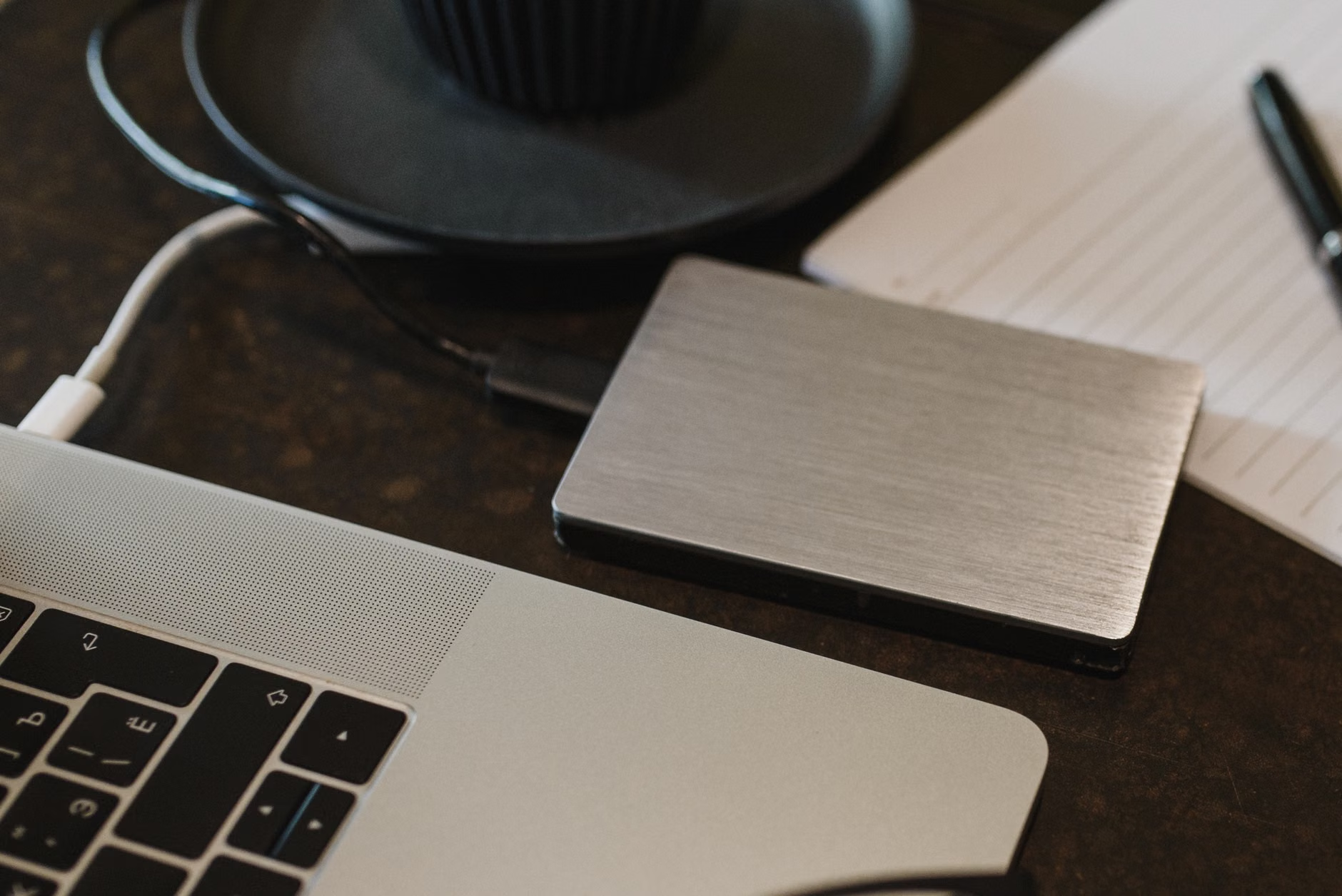
Is This Right for Your Household?
Ask yourself these three questions to determine if you are ready for a personal cloud migration:
- Does your family generate more than 500GB of new data per year? If yes, the cost savings of a NAS will become apparent within 24 months.
- Are you comfortable with basic troubleshooting? If you can update your phone’s OS or change a lightbulb, you can manage a modern NAS. If you find the prospect of “logging into an IP address” terrifying, you may want to stick with a managed cloud service.
- Do you value privacy over convenience? If you are concerned about your family photos being used to train AI models or being subject to data breaches, the personal cloud is the only logical path forward.
For those who decide to proceed, start small. Purchase a 2-bay NAS, install two 4TB drives in a RAID 1 configuration (where one drive mirrors the other), and begin by moving your photo library. Once you see how seamless the experience is, you can move your documents, movies, and backups over time.
Final Thoughts
Migrating to a personal cloud is not just about saving money on subscription fees; it is about reclaiming the digital autonomy of your household. We have spent the last decade handing over our most precious memories to third-party corporations for the sake of convenience. It is time to bring them home. Start with a modest setup, follow the 3-2-1 backup rule religiously, and enjoy the peace of mind that comes from knowing your family’s data is yours, and yours alone.
For further information on setting up your first home storage, check out the Synology Knowledge Center or the QNAP How-To Guide, both of which offer excellent, non-technical walkthroughs for beginners.
Frequently Asked Questions
1. Will I lose the ability to use my phone’s “Memories” or AI-assisted photo features?
Many NAS brands, such as Synology with their “Photos” app, have integrated AI that performs object and face recognition locally on your server. While it may not be as aggressive as Google’s cloud-based AI, it provides similar functionality without sending your images to a third-party server.
2. Can I access my files if my home internet goes down?
Yes. Because the NAS is connected to your local network (LAN), you can access all your files as long as you are at home, even if your internet service provider is offline. The “cloud” aspect (remote access) will be unavailable, but your local storage will remain fully functional.
3. What happens if I make a mistake and delete a file?
Most NAS operating systems include a “Recycle Bin” feature for shared folders. Additionally, you can configure “Snapshots,” which act like a time machine for your data, allowing you to restore files to a specific point in time even if they were permanently deleted from the folder view.