Key Takeaways
- True Sovereignty: You only possess your data if you hold the physical copy; cloud services are rentals, not ownership.
- The 3-2-1 Rule: Always keep three copies of your data, on two different media types, with one copy stored off-site.
- Cost vs. Control: While private storage requires an upfront investment, it eliminates recurring monthly subscription fees and prevents third-party data mining.
The most effective way to protect your family’s digital legacy is to stop treating your cloud storage subscription as a permanent vault and start treating it as a temporary convenience. If you are in your 30s or 40s, you likely have decades of photos, videos, and legal documents scattered across Google Photos, iCloud, or Dropbox. When you rely solely on these platforms, you are not the owner of your digital life—you are a tenant who can be evicted (or locked out) at the whim of an algorithm or a terms-of-service update.
Why Your Digital “Safety” Is a Mirage
We often assume that because our photos appear on our phones, they are “ours.” In reality, we are operating under a licensing model. When you upload a family video to a major cloud provider, you are entrusting your data to a server you cannot touch, manage, or audit. This is the definition of a lack of data sovereignty.
Consider the common scenario: You have thousands of photos of your children from birth to school age. One day, your account is flagged for a potential policy violation—perhaps a photo of a child at the beach triggers an over-zealous automated content moderation system. Suddenly, your access is restricted. You are locked out of your memories while you wait for a support ticket that may never be answered by a human. This isn’t theoretical; it happens to thousands of users annually. When you host your own data, you are the moderator, the administrator, and the owner.
Beyond the risk of being locked out, there is the issue of “hidden” data mining. The terms of service for most free or low-cost cloud tiers explicitly state that they can analyze your content to improve their AI models. By keeping your family’s data in these silos, you are effectively providing free training data for corporate algorithms. Reclaiming sovereignty means moving your primary storage to a system where your data is encrypted and accessible only by you.
The 3-2-1 Backup Strategy: A Modern Necessity
Data sovereignty is not just about privacy; it is about durability. Hard drives fail, phones get lost, and cloud providers occasionally suffer from catastrophic data loss. To ensure your family data survives, you must implement the 3-2-1 rule. This is the gold standard for data management, and it is far more achievable for a busy parent than it sounds.
| Component | Explanation |
|---|---|
| 3 Copies | Keep three total copies of your data: your primary copy, a local backup, and an off-site backup. |
| 2 Media Types | Don’t rely on just one tech. For example, keep one copy on your PC and one on a NAS or external SSD. |
| 1 Off-site | Store one copy in a different physical location to protect against fire, theft, or natural disasters. |
For a family in their 30s or 40s, this usually looks like this: Your primary photos stay on your smartphone. Your “local backup” is a Network Attached Storage (NAS) device in your home. Your “off-site” backup could be an encrypted cloud sync to a secondary provider (like Backblaze or an off-site drive at a relative’s house). This structure ensures that even if your house burns down or your phone is stolen, your family history remains intact.
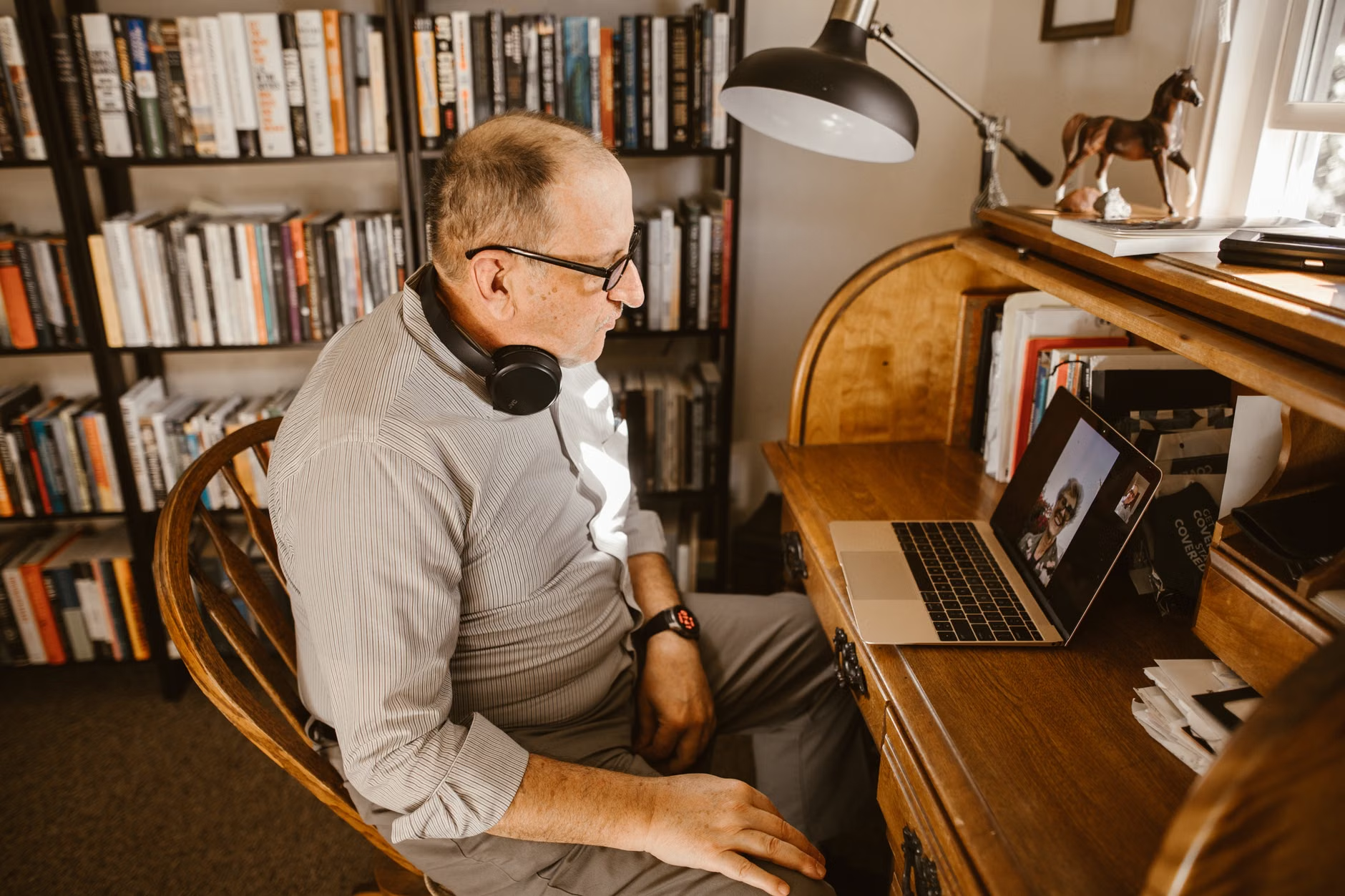
Choosing Your Hardware: NAS vs. External Drives
Many people assume that “owning” their data means buying a complex server that requires a degree in computer science. This is a misconception. Today, consumer-grade NAS devices (like those from Synology or QNAP) are designed for plug-and-play operation. They act as your own private cloud.
A NAS is essentially a dedicated computer that sits on your home network. It holds multiple hard drives and runs software that allows you to access your files from anywhere in the world, just like Google Drive, but the data stays in your house. The trade-off is the initial investment: a decent two-bay NAS with drives can cost between $400 and $800. However, compare this to the cumulative cost of monthly cloud subscriptions over ten years, and the NAS often becomes the more economical choice.
If a NAS feels like too much of a commitment, start with the “External SSD Strategy.” Buy two rugged, high-capacity external SSDs. Once a month, plug both into your computer and sync your photos and documents to both drives. Keep one drive in your desk drawer and the other in a fire-proof safe or at a trusted family member’s home. It is a manual process, but it is a massive step up from relying solely on a cloud subscription.
The Hidden Costs of “Convenience”
We are conditioned to value convenience above all else. Cloud providers make it incredibly easy to “back up” your phone photos automatically. The cost of this convenience is your data’s mobility. Have you ever tried to move 500GB of photos from Google Photos to iCloud? It is a nightmare of slow downloads, broken metadata, and file corruption. This is known as “vendor lock-in.”
When you own your data on a local system, you control the file structure. You are not trapped by proprietary formats or slow export tools. You can move your files to any new device, any new operating system, or any new storage medium whenever you want. This is the essence of sovereignty: the freedom to move your assets without asking for permission.
Furthermore, consider the “digital rot” of cloud services. Over time, cloud providers change their interfaces, their subscription tiers, and even their file-naming conventions. By keeping your own master copy, you ensure that your files remain in their raw, original state, untouched by the shifting UI of a tech giant.
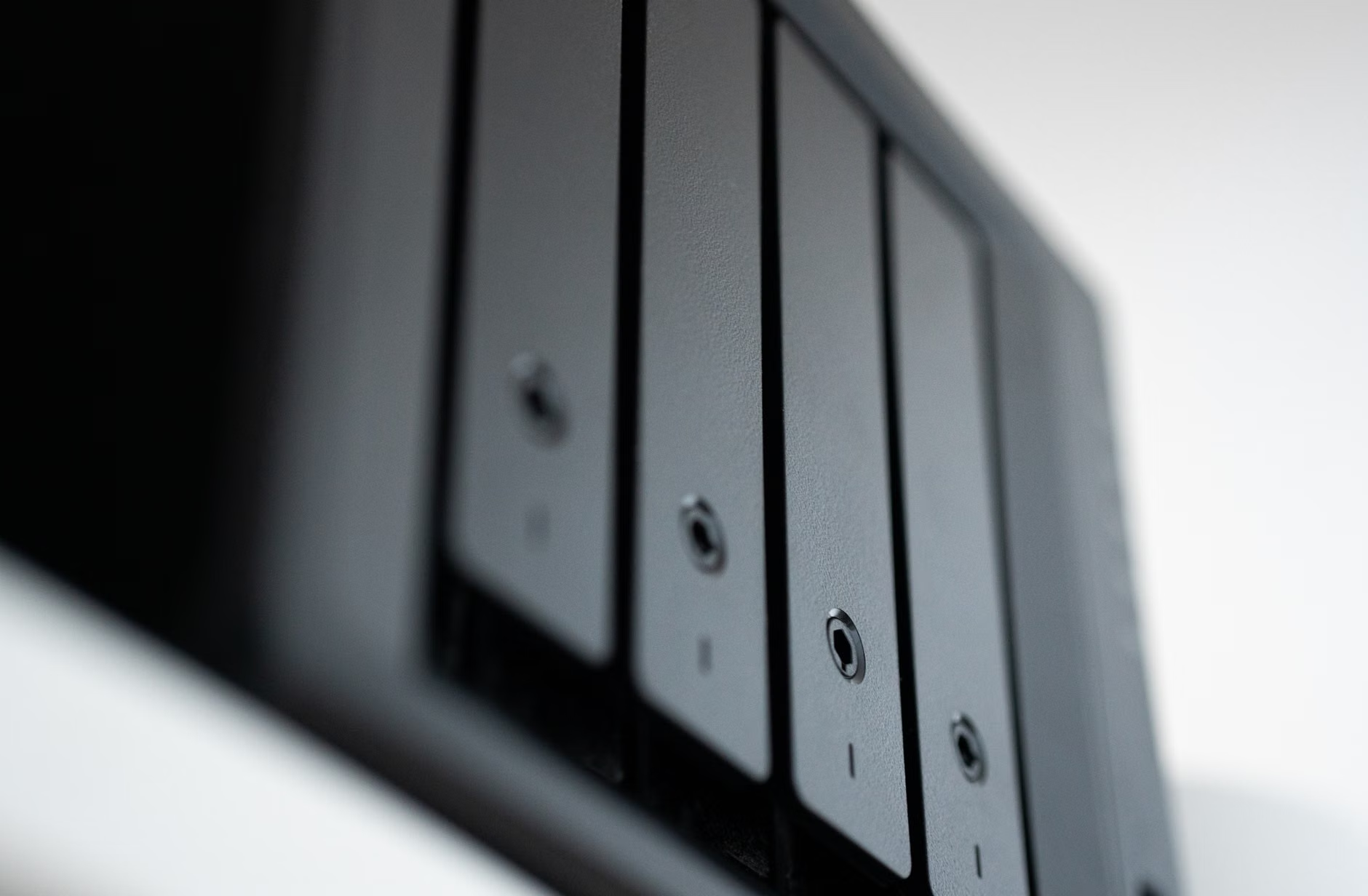
Step-by-Step: Setting Up Your Private Family Cloud
If you are ready to take control, don’t try to move everything at once. Start by building a “Master Archive.”
- Consolidate: Create a single folder on your computer that acts as the “source of truth.” Gather all your photos from old laptops, cloud downloads, and external drives into this folder.
- Organize: Use a simple, date-based folder structure (e.g., YYYY/MM-DD_EventName). This is future-proof and works on any operating system.
- Select Hardware: If you have the budget, buy a 2-bay NAS. If you are starting small, buy two 2TB or 4TB external SSDs.
- Automate: Use software like FreeFileSync or the built-in sync tools on your NAS to automate the copying process. You want this to happen in the background without you thinking about it.
- The Off-site Rule: Once a quarter, take your secondary drive to your parents’ house or a secure location. This protects you against physical disasters at your primary residence.
The most common mistake people make is trying to create a “perfect” system on the first day. You don’t need perfection; you need consistency. If your system is too difficult to maintain, you will stop doing it. Choose a method that fits into your existing routine, whether that is a monthly sync or an automated nightly backup.
Addressing Common Misconceptions
There is a persistent myth that “cloud is safer because it’s in a data center.” While it is true that data centers have better fire suppression and power redundancy than your living room, they are also subject to human error, cyber-attacks, and internal policy shifts. A local backup is immune to a global cloud outage or a change in a company’s privacy policy.
Another misconception is that local storage is “not secure.” In reality, a local NAS can be just as secure as the cloud if you follow basic security practices: use a strong, unique password, enable two-factor authentication (2FA), and keep your device’s firmware updated. In some cases, it is actually more secure because your data is not being indexed by third-party AI crawlers.
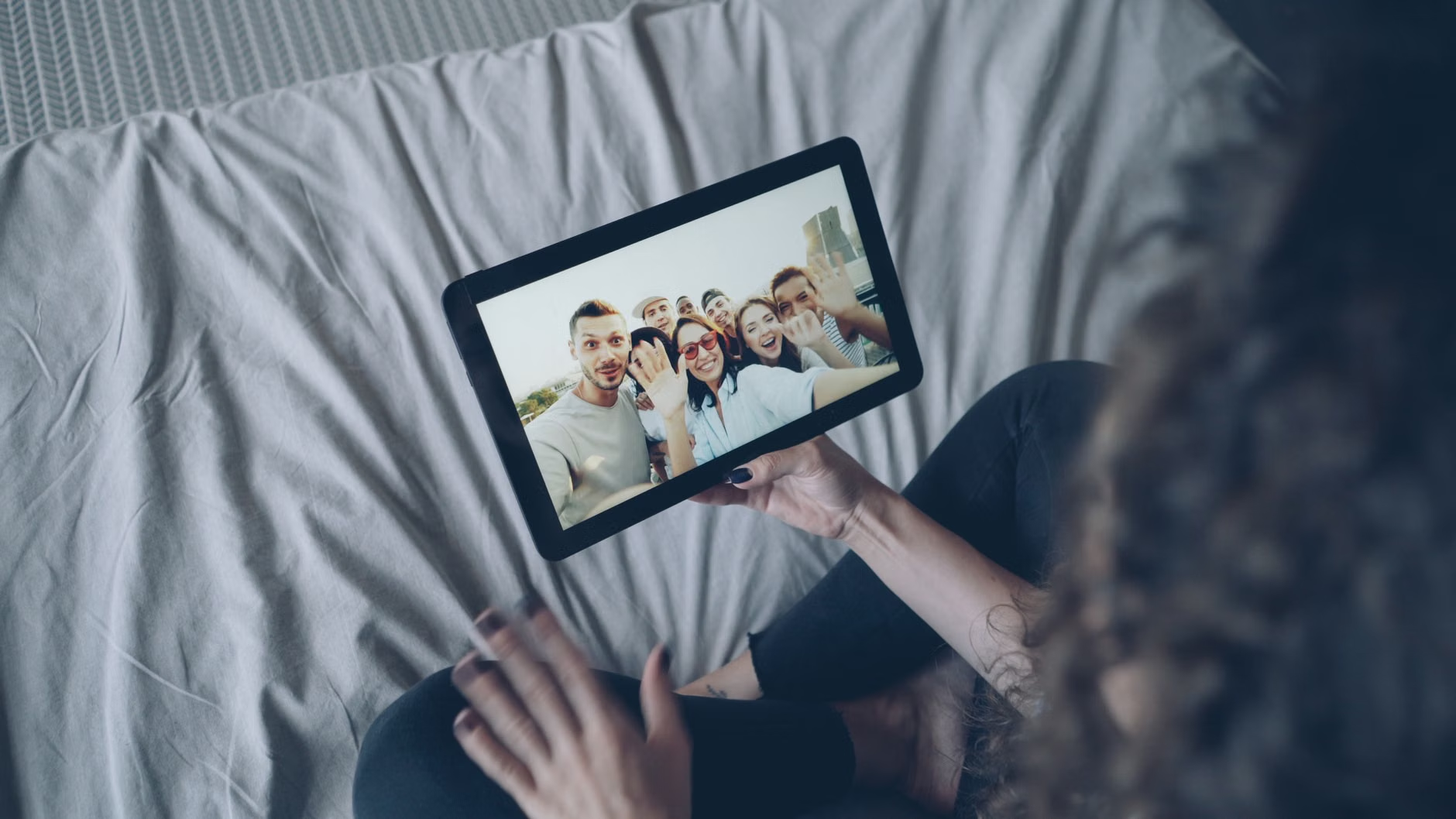
The Emotional Value of Digital Sovereignty
Beyond the technical and privacy benefits, there is a profound psychological shift that happens when you own your data. When you browse your photos on a private system, you are looking at a collection that you have curated and protected. It changes your relationship with your digital history from one of passive consumption to active stewardship.
For parents, this is especially important. These photos and videos are not just files; they are the record of your family’s growth. By taking responsibility for them, you are ensuring that these memories are not subject to the expiration date of a corporate subscription plan. You are building an archive that can be passed down to your children, which is something a cloud-based link simply cannot replace.
Long-term Maintenance: The Yearly Review
Data sovereignty is a practice, not a one-time purchase. Once a year, you should perform a “digital audit.”
- Check Drive Health: If you are using a NAS, check the health status of your drives via the dashboard. If you are using external SSDs, perform a quick check to ensure they are still mounting correctly.
- Verify Backups: Attempt to restore a random folder from your backup. If you can’t restore it, your backup doesn’t exist. This is the most overlooked step in data management.
- Update Your Hardware: Technology evolves. Every 5-7 years, consider migrating your data to newer, higher-capacity drives to take advantage of faster speeds and better reliability.
Treat this annual review like a household chore, similar to changing the batteries in your smoke detectors. It takes an hour once a year, but it provides the peace of mind that your family’s history is safe regardless of what happens in the tech industry.
Final Thoughts on Digital Ownership
Reclaiming your data sovereignty is one of the most practical steps you can take to protect your family’s future in an increasingly digitized world. It requires an initial investment of time and resources, but the independence it provides is invaluable. You are no longer at the mercy of platform lock-in, subscription price hikes, or opaque content moderation policies.
Start small, stay consistent, and remember that the best backup system is the one you actually use. By following the 3-2-1 rule and keeping a master copy within your own walls, you are doing more to protect your digital legacy than most people will in their entire lives. Take the first step today—your future self will thank you.
Frequently Asked Questions
1. Is it really safer to keep data at home rather than in a professional data center?
While data centers have high-end infrastructure, they introduce risks like account locks, privacy erosion, and dependence on internet connectivity. A local NAS provides you with total control and immunity from external policy changes. As long as you have a proper 3-2-1 backup strategy (including off-site storage), your local data is highly secure.
2. What if I am not tech-savvy? Is a NAS too difficult to manage?
Modern NAS devices are designed for home users. The setup process is often as simple as following a web-based wizard. If you can set up a home Wi-Fi router, you can set up a basic NAS. If you still feel uncomfortable, the “Dual External SSD” method is an excellent, non-technical alternative that provides similar levels of control without the need for network configuration.
3. How do I access my private photos when I am away from home?
Most modern NAS manufacturers provide secure mobile apps that allow you to browse and upload photos from your phone to your home storage, effectively replacing services like Google Photos. These apps use encrypted connections, ensuring that your data remains private even while it is traveling over the internet to reach your home device.
For further reading on data security and privacy, you can consult the Electronic Frontier Foundation (EFF), which provides comprehensive guides on digital privacy for individuals.