- Don’t rely on social media: Platforms like Facebook or Instagram are not archives; they are for sharing. Your primary repository must be offline-first or in a dedicated, exportable digital vault.
- Prioritize metadata over resolution: A 4K scan of a photo is useless if no one knows who is in it. Spend 80% of your time tagging names, dates, and locations.
- Follow the 3-2-1 rule: Keep at least three copies of your archive, on two different types of media, with at least one copy stored in an off-site location (like a cloud service or a family member’s home).
Most of us have a “digital junk drawer.” It’s that one folder on your laptop or the cloud service you pay for monthly, filled with thousands of unsorted photos, scanned birth certificates, and shaky videos of family birthdays. We tell ourselves we’ll organize it “someday,” but the reality is that without a system, this digital clutter isn’t a family legacy—it’s a data graveyard that will likely be deleted the moment our storage subscriptions expire or we lose our passwords.
If you are in your 30s or 40s, you are the bridge generation. You likely possess the last physical mementos of your grandparents and the first generation of purely digital records for your own children. This makes you the designated family archivist, whether you asked for the job or not. Building an “Ancestral-Roots” digital archive isn’t about being a professional genealogist; it’s about ensuring that your family’s identity survives the transition from paper to pixels.
Why Your Current Cloud Storage Strategy is Failing You
The biggest mistake most people make is assuming that “in the cloud” means “safe forever.” Cloud storage services like Google Photos, iCloud, or Dropbox are excellent for access, but they are not designed for archiving. They are proprietary platforms. If the company changes its terms, shuts down a service, or locks your account due to a security flag, your access to that history can vanish instantly.
Furthermore, cloud services often compress your media to save space. While this is fine for sharing a quick update with friends, it is detrimental to long-term preservation. You need a “master copy” that is uncompressed, tagged with metadata, and stored in a format that will be readable 20 years from now. Think of your current setup as a temporary display shelf; your actual archive needs to be a vault.
The “Link Rot” Risk: If you rely on links to social media posts or shared albums, those links are prone to breaking. A URL that works today might lead to a 404 error in five years. Your archive must be self-contained and platform-independent.
The 3-2-1 Preservation Rule in Practice
The 3-2-1 rule is the industry standard for data backup, and it is the only reliable way to prevent the loss of your family history. Let’s break down how this works for a family archive:
| Strategy | Execution |
|---|---|
| 3 Copies | One on your primary computer, one on an external SSD, and one in the cloud. |
| 2 Types of Media | Don’t use two identical hard drives. Use an SSD for speed/access and a cloud service (like Backblaze or AWS S3) for remote storage. |
| 1 Off-site | The cloud counts as off-site, but consider a physical drive kept at a relative’s house to protect against local disasters. |
Digitizing Physical Assets: The Right Way to Scan
Before you start digitizing, you need a workflow. Most people try to scan everything at once, get overwhelmed, and give up. Instead, adopt a “curated collection” approach. Not every blurry photo of a birthday cake from 2012 needs to be in your permanent archive.
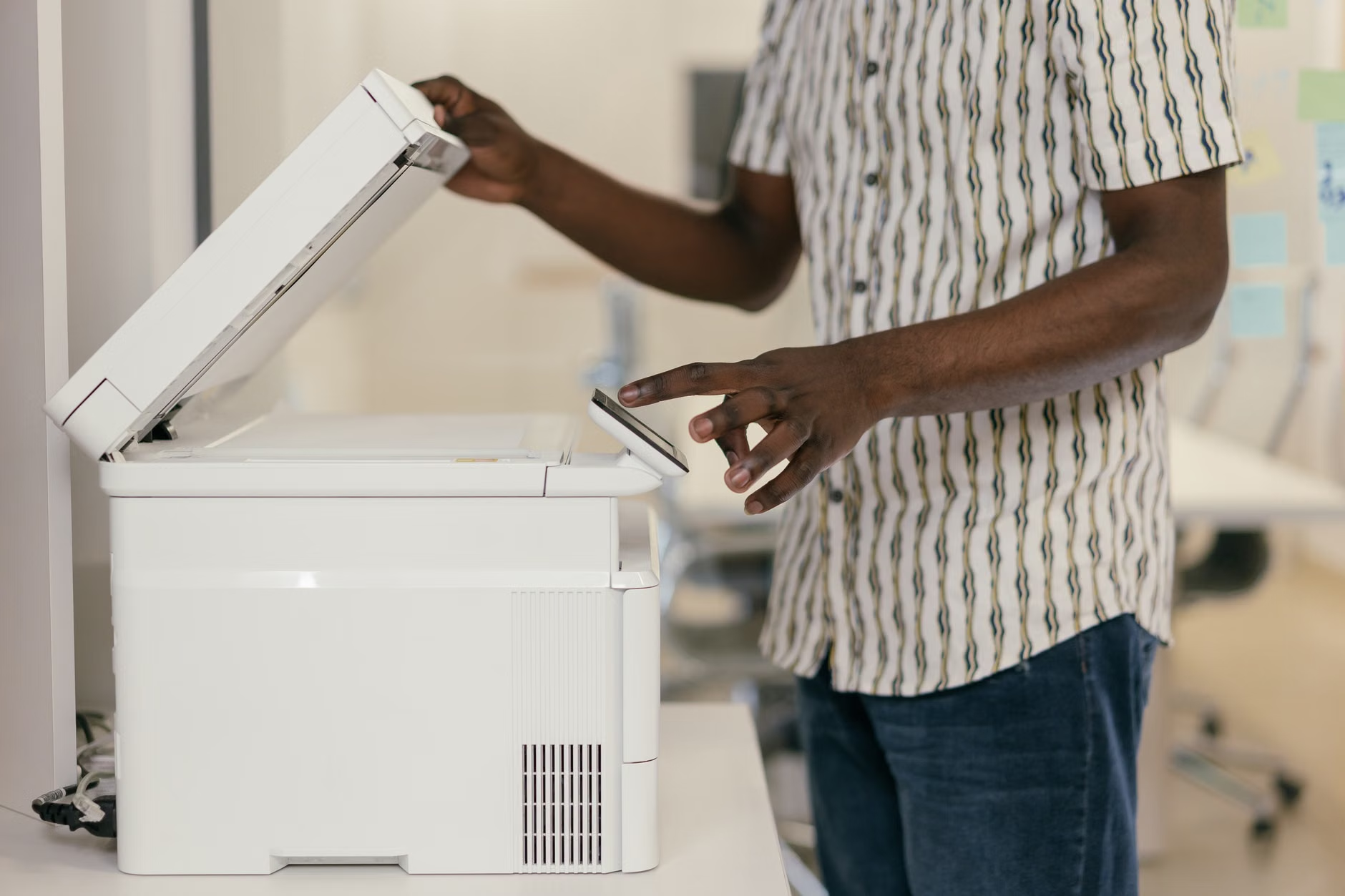
For physical documents and photos, resolution matters. A general rule of thumb is to scan photos at 600 DPI (dots per inch) and documents at 300 DPI. If you are scanning small, old photographs, you might even consider 1200 DPI to capture the fine details of the paper grain, which helps if you ever need to restore them later.
The “Metadata First” Rule
This is the most critical part of the process. If you scan a photo and call it IMG_001.jpg, it is effectively lost. You will forget who is in it, where it was, and when it was taken. Metadata is the “data about the data” that lives inside the file itself.
Step-by-step for tagging:
- Rename the file: Use a consistent format:
YYYY-MM-DD_Event_Location_Names.jpg. For example:1985-07-04_GrandpaBirthday_Chicago_JohnDoe.jpg. - Embed Metadata: Use software like Adobe Bridge, DigiKam, or even the built-in Windows/macOS file properties to add tags. If you use a cloud service, ensure it supports IPTC metadata, which travels with the file wherever you move it.
- The Story Field: If the file format allows (like a PDF or specific image sidecar files), include a short paragraph about the context. Who is in the photo? Why does this moment matter?
Choosing Your “Vault” Architecture
Where should this archive live? You have three main options, each with different trade-offs regarding cost, ease of use, and longevity.
1. The Local Home Server (NAS)
A Network Attached Storage (NAS) device is essentially a private cloud in your home. It’s excellent for tech-savvy parents who want total control over their data without paying monthly subscription fees. You can set it to automatically back up every device in the house. The downside is the upfront hardware cost and the responsibility of maintaining it.
2. The “Static” Cloud Archive
This involves using services designed specifically for long-term storage, such as Amazon S3 Glacier or Backblaze B2. These are incredibly cheap but harder to navigate. They aren’t meant for browsing; they are meant for keeping files safe. You would use this as your “Vault,” while keeping a smaller, curated version on your phone or tablet for daily viewing.
3. The Curated Digital Scrapbook
Platforms like Forever.com or specialized genealogy sites (like Ancestry or MyHeritage) offer features for storytelling. These are better for engagement—your family will actually look at these—but they are proprietary. Never use these as your only copy. Always treat them as a secondary, public-facing layer of your archive.
Common Mistakes That Lead to Data Loss
Even with good intentions, many families lose their history due to common technical oversights. Here is how to avoid them:
- Proprietary Formats: Avoid saving files in formats that require specific, obscure software to open. Stick to universal formats: JPEG for photos, PDF/A for documents, and MP4 (H.264) for videos. These formats are highly likely to remain readable for decades.
- The “Password Trap”: If you are the only one with the password to your digital vault, your archive dies with you. Create a “Digital Will” or a secure, shared password manager (like Bitwarden or 1Password) that grants access to a trusted family member or executor in the event of your death.
- Ignoring “Bit Rot”: Digital files can degrade over time due to silent data corruption on hard drives. This is why you must check your archive every 1-2 years. Simply copying files to a new hard drive or refreshing them in the cloud helps prevent this.
The Human Element: Turning Data into Heritage
An archive is just a collection of files until you add the human element. The best way to ensure your archive lasts is to make it useful for the next generation. If you simply dump 50,000 photos into a folder, your children will be overwhelmed and eventually delete them to free up space on their devices.
The “Annual Review” Ritual: Every year, perhaps during a holiday or a quiet weekend, sit down and pick the top 50 photos or documents from the past year. Tag them properly, write a short caption for each, and move them into a “Family Highlights” folder. This keeps the archive growing without the pressure of managing every single digital scrap.
Interviewing the Elders: If you have living parents or grandparents, the most important part of your archive isn’t the file itself—it’s the context. Record a voice memo or a simple video interview while they talk about old photos. Store that audio file in the same folder as the relevant images. That voice recording is infinitely more valuable than a high-resolution scan of a portrait.
Moving Forward: Your Next Steps
You don’t need to organize your entire life’s history this weekend. The goal is to establish a sustainable system. Start by creating a folder structure on your computer that makes sense to you, then move your most important documents—birth certificates, property deeds, and high-value family photos—into that structure. Once that is done, implement the 3-2-1 backup rule. If you do nothing else, at least get your files off your phone and onto a secure, redundant storage system.
Remember that this is a marathon, not a sprint. Your goal is to pass down a clear, organized, and accessible narrative of who your family is. By taking these steps today, you are preventing the loss of stories that would otherwise vanish into the digital ether. Start small, stay consistent, and keep your documentation simple.
For more information on digital preservation standards, you can refer to the Library of Congress Digital Preservation Guide, which offers excellent resources on how to maintain long-term access to digital files.
Frequently Asked Questions
Q: Should I use AI-powered photo organization tools?
A: AI tools can be great for tagging people and locations, but be cautious. If you rely solely on a cloud service’s AI to organize your photos, you are locked into their ecosystem. Use AI to speed up the process, but ensure your metadata is embedded into the file itself so it remains searchable even if you switch services.
Q: Is it safe to store family records in the cloud?
A: It is as safe as the service provider you choose. For sensitive documents (like legal papers or medical history), use end-to-end encrypted storage services like Proton Drive or Tresorit. These ensure that even the service provider cannot read your files.
Q: What happens if I can’t find a digital file format that lasts?
A: You don’t need to predict the future of technology perfectly. The key is “migration.” Every 5-10 years, check the industry standards. If the format you are using (e.g., an old video codec) is becoming obsolete, simply convert your collection to the new standard. This is why keeping the “master” uncompressed original is so important—it gives you a clean source to convert from.