Your family photos are not safe just because they are in the cloud; true digital security requires a local-first backup strategy that puts physical control of your files back into your own hands.
- Cloud is a service, not a vault: Reliance on a single cloud provider exposes you to account lockouts, subscription price hikes, and privacy trade-offs.
- The 3-2-1 Rule remains the gold standard: Keep at least three copies of your data, on two different media types, with one copy stored off-site.
- Local-first is sustainable: Owning your hardware eliminates monthly recurring costs and ensures your high-resolution memories remain accessible without an internet connection.
If you are in your 30s or 40s, you are likely the unofficial archivist of your family. You have thousands of photos scattered across iCloud, Google Photos, and perhaps an old, dusty laptop from 2015. We often assume that because our phones sync automatically, our memories are safe. But what happens if you lose access to your primary Google account? What if a company decides to change its Terms of Service or discontinue a feature you rely on? The “cloud” is simply someone else’s computer, and when you put all your eggs in that digital basket, you lose the ability to manage your own risk.
Why the Cloud is Not Enough for Long-Term Preservation
The convenience of cloud storage is undeniable. It organizes our faces, geotags our locations, and allows us to share an album with Grandma in seconds. However, the convenience hides a significant vulnerability: dependency. When you rely exclusively on a cloud provider, you are operating under their rules. If you violate a policy, or if an automated system flags your account incorrectly, you can be locked out of your life’s digital history for weeks—or forever.
Furthermore, consider the “subscription fatigue” factor. As cloud providers move toward tiered pricing models, the cost of storing decades of high-resolution RAW files and 4K videos grows exponentially. Many users in their 30s and 40s find themselves paying monthly fees that scale up as their families grow, creating a permanent tax on their memories. A local-first strategy flips this dynamic. By investing in hardware once, you own the storage for years, effectively reducing your long-term cost to near zero.
There is also the issue of data integrity and format obsolescence. While major cloud providers are excellent at keeping data alive, they are also prone to “black-box” processing. They may compress your photos to save space, or modify metadata in ways that make it difficult to migrate your library to a different platform later. Owning your source files means you maintain the original, uncompressed data, ensuring you are never “locked in” to a specific ecosystem.
The 3-2-1 Rule: Your Practical Blueprint
To build a robust local-first system, you do not need to be an IT professional. You just need to follow the 3-2-1 backup rule, which is the industry standard for data resilience. It is simple, effective, and scalable for any family.
1. Keep three copies of your data: This includes your primary source (your phone or computer) and two separate backups.
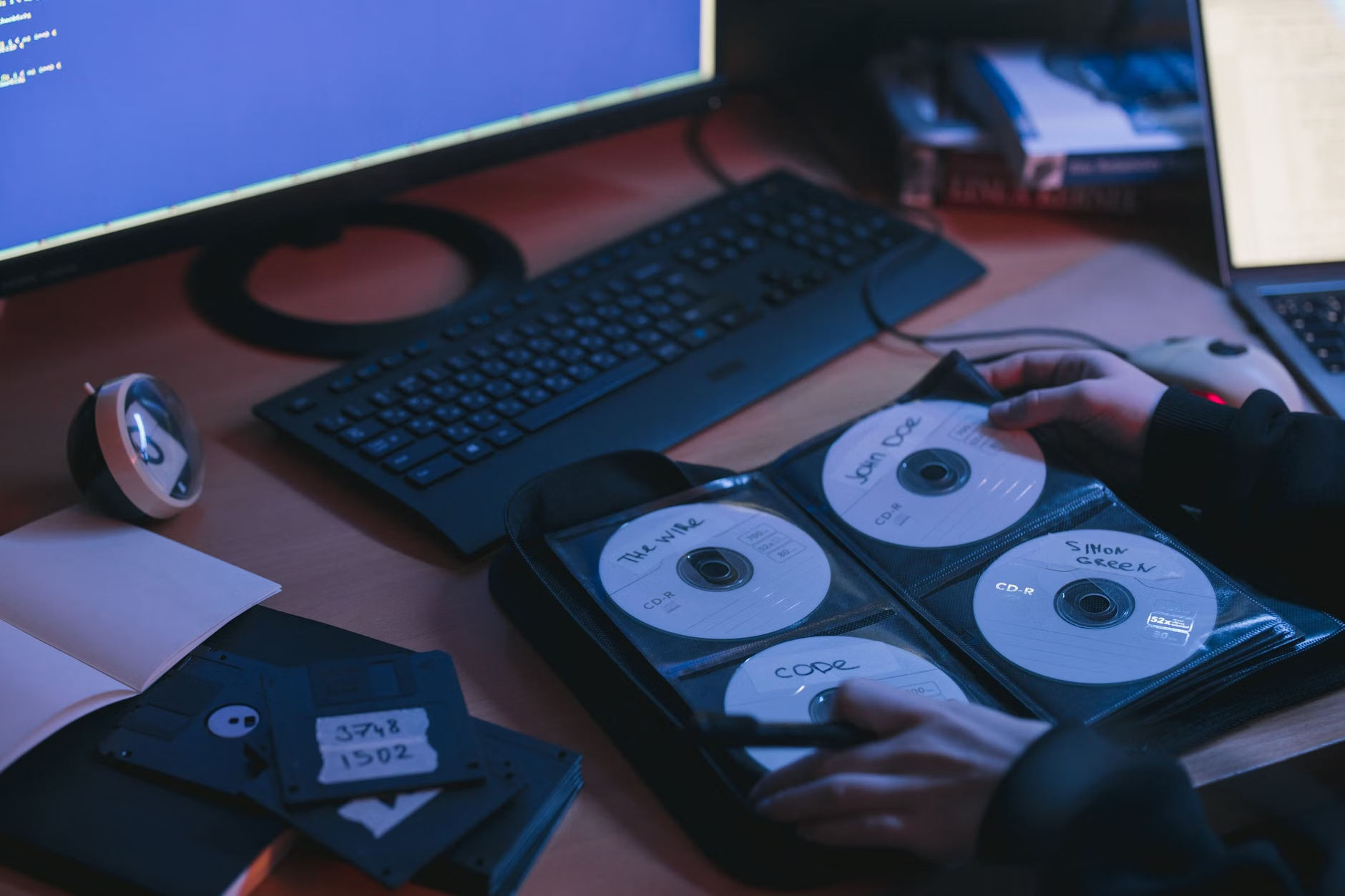
2. Use two different media types: Do not just store everything on hard drives. Use a combination of SSDs, HDDs, or even M-DISC (archival-grade optical media) to ensure that a single point of failure—like a specific brand of drive failing—doesn’t wipe you out.
3. Keep one copy off-site: This is your insurance policy against fire, flood, or theft. This could be a drive at a family member’s house or a secure, encrypted cloud storage service that you treat as a “cold” backup rather than a primary sync tool.
Choosing the Right Hardware for Your Needs
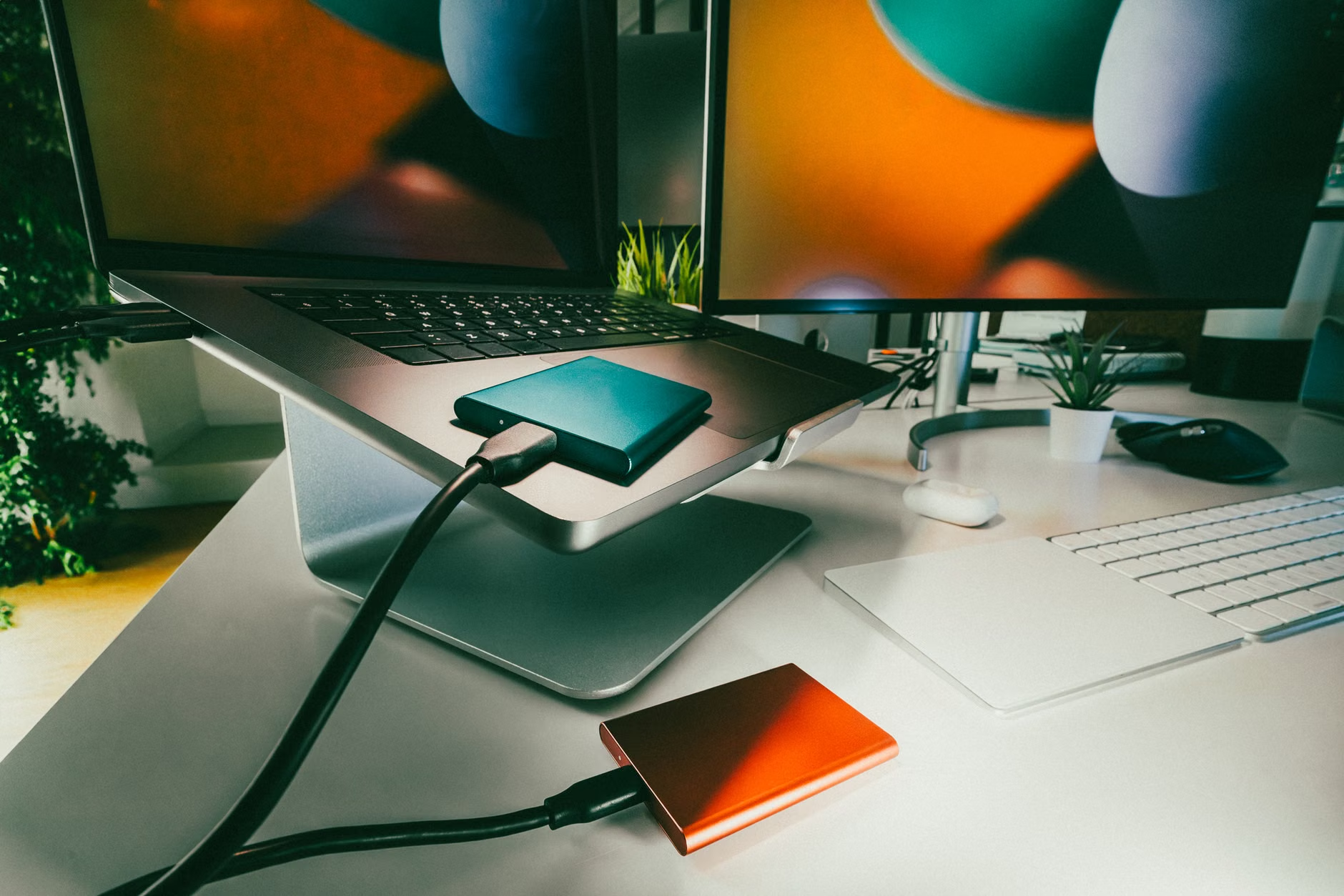
For most families, a high-capacity portable Solid State Drive (SSD) is the best starting point. SSDs are faster and more durable than traditional mechanical Hard Disk Drives (HDDs) because they have no moving parts. However, for massive archives (think 5TB+), mechanical HDDs remain the most cost-effective option for long-term, “cold” storage.
If you want to move beyond simple drives, a Network Attached Storage (NAS) device is the next logical step. A NAS is essentially a small, private server that sits in your home, connected to your router. It allows every device in your house to back up automatically to a central location. Brands like Synology or QNAP offer user-friendly interfaces that make this feel like running your own private, local version of Google Photos.
| Option | Best For | Pros | Cons |
|---|---|---|---|
| Portable SSD | Quick, frequent backups | Fast, durable, portable | Higher cost per GB |
| Desktop HDD | Large, static archives | Cheapest per GB | Fragile, slow |
| NAS Device | Automated, multi-user homes | Centralized, private, automatic | Setup complexity, upfront cost |
Step-by-Step: Moving from Cloud-Dependent to Local-First
Transitioning to a local-first strategy should not feel like a chore. The goal is to build a workflow that happens in the background. Here is how to execute this without losing your mind:
Step One: The Digital Spring Cleaning
Before you start moving files, delete the duplicates. Use tools like Gemini 2 or PhotoSweeper to identify blurry shots, screenshots, and accidental bursts. A smaller, curated library is easier to back up and more enjoyable to look through. If you have 50,000 photos, start by organizing them into folders by “Year/Month.” This simple structure is universally readable by any computer, forever.
Step Two: Establish the Primary Local Archive
Pick one computer (your “Master Archive” machine) to be the hub. All new photos from your phone should eventually land here. Use software like DigiKam (free and open-source) or Adobe Lightroom Classic (if you are a hobbyist photographer) to manage your catalog. These tools store your photos in standard folders, meaning you are not trapped in a proprietary database.
Step Three: Automate the Backups
Manual backups fail because we forget to do them. Use software like Carbon Copy Cloner (Mac) or FreeFileSync (Windows/Linux) to set up a scheduled task. Tell the computer: “Every Sunday at 8 PM, copy everything from the Master Folder to the Backup Drive.” Once this is set, you don’t have to think about it again.
Common Pitfalls and How to Avoid Them
One of the biggest mistakes people make is “bit rot.” This happens when data is stored on a drive for years without being accessed. Over time, the magnetic or electrical charges on the storage medium can degrade. The solution is periodic verification. Every six months, plug in your backup drives and run a “scrub” or a simple check to ensure the files can still be opened. If you haven’t touched a drive in three years, it is time to move the data to a newer, faster drive.
Another common mistake is neglecting the “off-site” requirement. If your house suffers a catastrophic event, your local backups go with it. If you are uncomfortable with the cloud, at least keep a physical drive at your parents’ or a trusted friend’s house. Swap it with your current backup drive every few months. It’s a low-tech solution, but it’s incredibly effective.
Lastly, beware of “sync” vs. “backup.” Services like iCloud or Google Drive are syncing services. If you delete a photo on your phone, it disappears from the cloud instantly. A true backup is a copy that does not update when you delete the original. Always ensure your backup software is set to “Archive” or “Mirror” mode, not “Sync” mode, so that accidental deletions don’t propagate to your safety nets.
The Psychology of Digital Ownership
There is a quiet peace of mind that comes from knowing your family history is physically in your home. In an era where we lease our software, our movies, and our storage, owning your data is a small act of rebellion. It teaches us that our memories are not mere content to be managed by an algorithm, but tangible artifacts of our lives.
When you sit down to look at a photo album—even a digital one—stored on your own hardware, you are interacting with it differently. You aren’t worried about whether the server is down or if the company has changed its interface. You are simply viewing your life. For parents in their 30s and 40s, this sense of agency is vital. We are the generation tasked with bridging the gap between physical photo albums and the digital age. By taking control of the storage, we ensure that our children will have a clear, accessible archive of their childhoods, rather than a fragmented collection of broken links and expired cloud accounts.
Final Recommendations for Your Strategy
If you are overwhelmed, start small. Do not try to solve ten years of digital chaos in one weekend. Start by backing up the last 12 months of photos to two separate external drives. Once that is done, you have successfully secured the “new” stuff. Then, work backward, one year at a time.
Remember, the best backup system is the one you actually use. If a complex NAS setup feels like too much, stick to two high-quality external SSDs that you manually sync. If you are comfortable with technology, move toward a NAS for the automation it provides. The hardware you choose matters less than the consistency of your routine. Set a calendar reminder. Treat your digital memories with the same care you would give to physical heirlooms. Because in the end, that is exactly what they are.
For those looking to dive deeper into the technical specifications of data longevity, consult the National Archives’ guide on preserving family archives, which provides excellent context on how to handle digital files for the long haul.
Frequently Asked Questions
1. Does a “local-first” strategy mean I have to stop using Google Photos or iCloud entirely?
Not at all. You can use the cloud for the convenience of mobile viewing and sharing, but you should treat it as a secondary or “viewing” copy. Your primary, high-resolution source of truth should always be your local, offline storage. Use the cloud for the “now,” but keep the “forever” on your own drives.
2. How long do external hard drives actually last before they fail?
While an SSD or HDD can last for many years, they are not permanent. A good rule of thumb is to replace your primary backup drives every 5 to 7 years. This isn’t just about preventing mechanical failure; it’s about upgrading to newer, more reliable technology and ensuring your interface (like USB-C) remains compatible with future computers.
3. Is it really necessary to store a copy off-site?
Yes. If your home is damaged by fire, flood, or burglary, any local-only backup strategy will fail completely. If you don’t want to use a cloud service for off-site backup, simply keeping a small encrypted USB stick at a relative’s house that you update during holiday visits is a perfectly valid and safe way to satisfy the “off-site” requirement of the 3-2-1 rule.
Stay organized, stay in control, and keep those memories safe. You’re the curator of your family’s history—treat it with the care it deserves.