Key Takeaways
- Firmware is the operating system of your hardware: If it isn’t updated, your smart devices become entry points for hackers, regardless of how strong your Wi-Fi password is.
- The “Set and Forget” trap is your biggest risk: Most IoT security breaches occur because devices remain on factory-default firmware versions for years.
- Audit your network quarterly: A simple 15-minute manual check of your router and primary smart devices is more effective than expensive, complex security software.
Your smart home is likely holding the keys to your digital life, yet it is often the most vulnerable part of your household network. Most of us spend hours researching the best smart lock, the most convenient video doorbell, or the most efficient smart thermostat, but we rarely spare a thought for the “brain” inside these devices—the firmware.
If you haven’t checked the update status of your devices since you unboxed them, you are essentially leaving the digital front door unlocked. A firmware security audit isn’t just for IT professionals; it is a vital chore for any parent or homeowner in the 2020s. Let’s break down exactly how you can audit your home devices to ensure your family’s data stays where it belongs.
Why Firmware Updates Are Your First Line of Defense
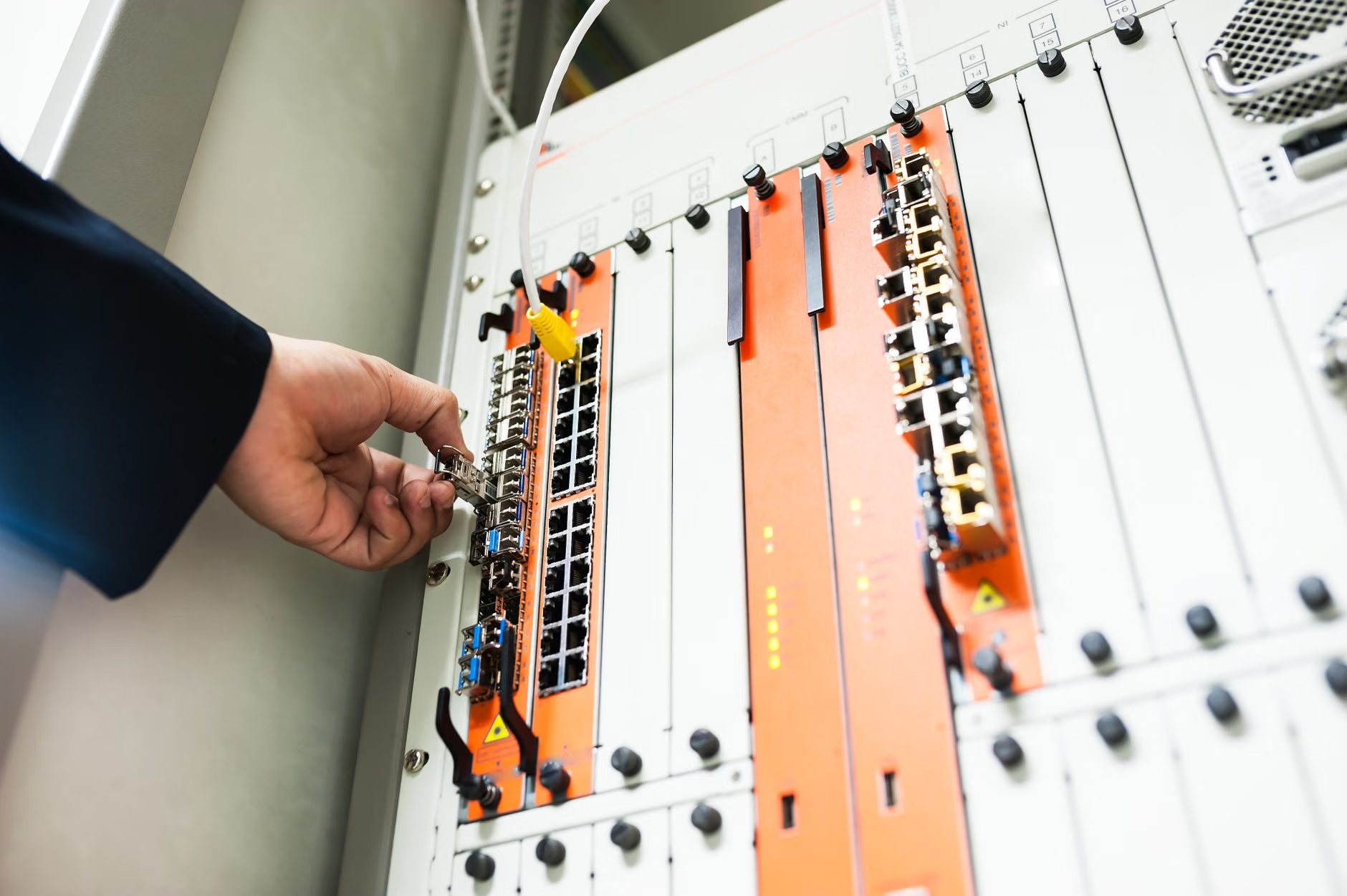
To understand why a firmware audit matters, we first need to demystify what firmware actually is. Think of it as the specialized software that tells your hardware how to function. Unlike the apps on your phone that update automatically in the background, firmware often requires a manual handshake between you and the manufacturer. When a company releases a firmware update, it is almost always to patch a “vulnerability”—a fancy term for a hole in the software that a hacker could potentially climb through.
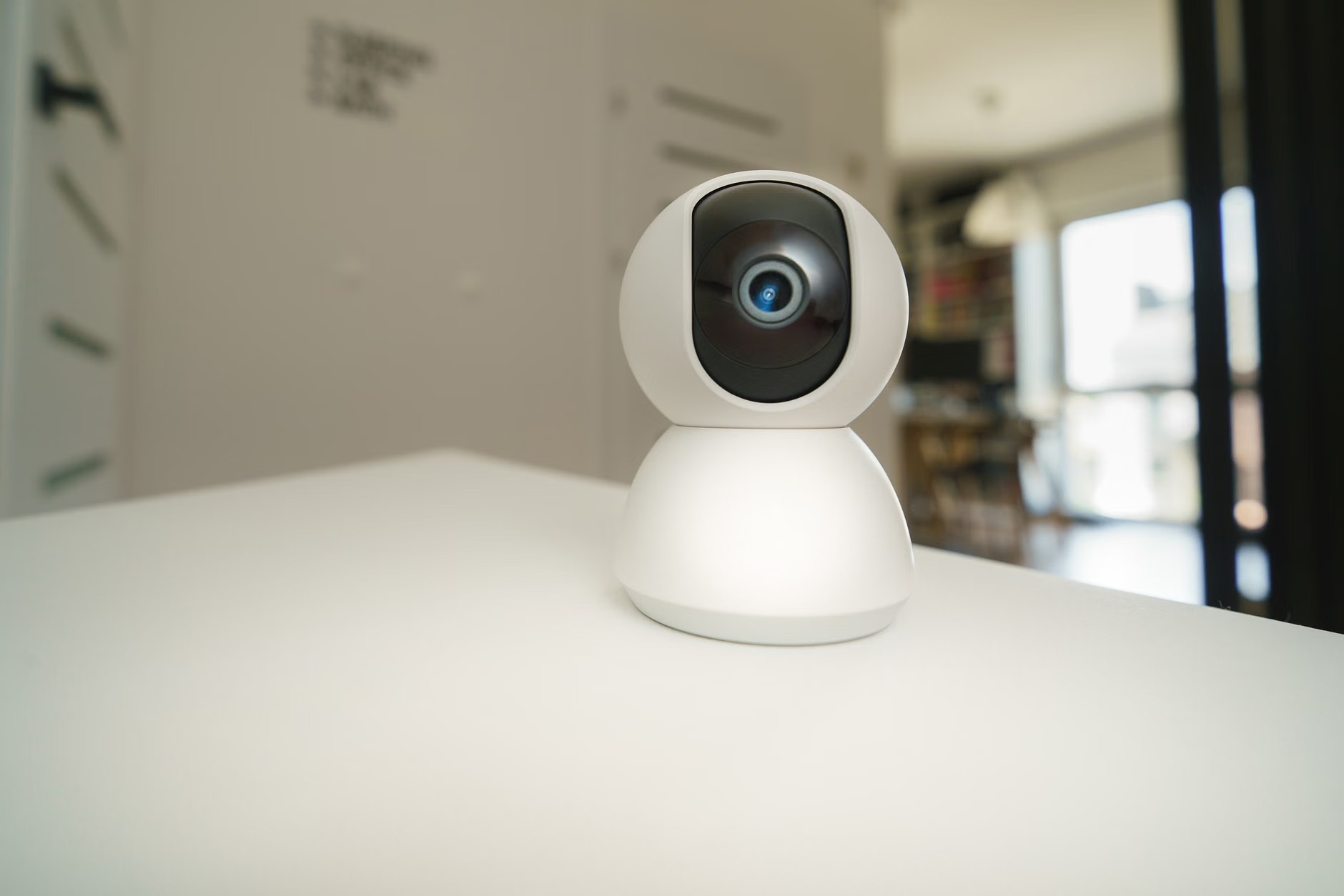
In our 30s and 40s, we are balancing school runs, work deadlines, and grocery lists. It is easy to see an “Update Available” notification and swipe it away, thinking, “I’ll do that later.” But in the world of IoT (Internet of Things), “later” is exactly when attackers strike. Many smart devices are manufactured with minimal security to keep costs down. When a researcher discovers a flaw, the manufacturer sends out a patch. If you don’t install it, your device remains a sitting duck.
Consider the “Mirai Botnet” incident, which famously compromised hundreds of thousands of smart cameras and routers. The devices weren’t hacked because they were “smart”; they were hacked because they were running outdated, unpatched firmware. The attackers didn’t need to break through a firewall; they simply walked through the open door that the manufacturer had already provided a key for.
The 5-Step DIY Firmware Audit Checklist
You don’t need a degree in cybersecurity to secure your home. By following these five steps, you can drastically reduce your attack surface. Perform this audit once every three months, or whenever you add a new device to your network.
Step 1: Map Your Network
You cannot protect what you don’t know exists. Start by listing every device connected to your Wi-Fi. This includes smart TVs, gaming consoles, light bulbs, smart speakers, security cameras, and even the smart fridge. If it connects to the internet, it has firmware.
Step 2: Check the Manufacturer’s Support Page
Don’t rely solely on the device’s app to tell you if it’s up to date. Apps are sometimes slow to push notifications. Visit the manufacturer’s official support website, search for your specific model number, and look for the “Downloads” or “Firmware” section. Compare the version number listed on the site with the version number displayed in your device’s settings menu.
Step 3: Audit Your Router First
Your router is the gatekeeper of your home network. If your router is compromised, every device behind it is compromised. Log into your router’s administrative interface—usually by typing an IP address like 192.168.1.1 into your browser. Check for a “Firmware Update” or “System Upgrade” tab. Ensure that your router is set to “Auto-Update” if the feature exists.
Step 4: Change Default Credentials
Many smart devices come with a default username and password (like “admin/admin”). During your audit, check if you have changed these. If a device doesn’t allow you to change the password, consider replacing it. A device that forces you to use a factory password is a red flag in terms of security architecture.
Step 5: Isolate Sensitive Devices
If you have older smart devices that no longer receive firmware updates (a process known as “End of Life”), do not throw them away immediately, but do isolate them. Most modern routers allow you to create a “Guest Network.” Move these outdated devices to the guest network so that if they are compromised, they cannot “see” your primary devices, such as your laptops or smartphones where you do your banking.
Common Pitfalls and How to Avoid Them
Even with good intentions, many of us fall into traps that compromise our security. Here are the most common mistakes to watch out for:
| Mistake | The Consequence | The Fix |
|---|---|---|
| Ignoring “Minor” Updates | Small patches often fix specific security flaws. | Install every update, even if the release notes seem boring. |
| Using the same password for all devices | If one device is hacked, all are compromised. | Use a unique, complex password for each device interface. |
| Leaving UPnP enabled on routers | Allows devices to open ports automatically without your permission. | Disable UPnP in router settings and open ports manually if needed. |
The “minor update” trap is particularly insidious. Manufacturers often label updates as “Performance Enhancements” to avoid scaring users or admitting they had a security vulnerability. Do not be fooled by the marketing language. Any firmware update is a signal that the manufacturer is actively maintaining the product’s security profile.
The Hidden Cost of “Smart” Living
There is an unspoken trade-off in the smart home market: convenience versus control. When you buy a $30 smart camera, you are paying for the hardware, but you are not paying for the long-term security maintenance. This is why “budget” brands are often the most dangerous. They lack the infrastructure to push updates to thousands of devices over a period of five or ten years.
When you are in your 30s and 40s, you likely have more disposable income than when you were in your 20s. Use this to your advantage by choosing brands with a proven track record of long-term software support. Before buying a new device, spend five minutes searching for “How long does [Brand Name] provide firmware updates for [Product Name]?” If the answer is “we don’t know” or “only for one year,” that is a clear signal to look elsewhere.
Furthermore, consider the “End of Life” (EOL) policy. If a device has reached its EOL, it will no longer receive security patches. At this point, the device is essentially a liability. It is better to retire it than to keep it running on your network as a potential back door for attackers.
Building a Family Culture of Security
Security isn’t just about settings; it’s about habits. If you have children in the house, they will eventually start interacting with your smart devices. Teaching them about “digital hygiene” is just as important as teaching them to lock the physical house doors.
Explain to your children that smart devices are like computers. They need “check-ups” just like we need doctor appointments. When you perform your quarterly audit, involve them. Show them the router settings or the app interface. Making security a transparent, normal part of home life removes the mystery and ensures that they don’t accidentally compromise the system by clicking on suspicious links or downloading unauthorized apps to those devices.

It is also worth noting that many smart devices are now integrated with voice assistants like Alexa or Google Home. While these are convenient, they act as a central hub. If your voice assistant’s firmware is outdated, it could potentially be used to control other devices in your home. Always prioritize updating your smart hubs and routers over secondary devices like light bulbs or smart plugs.
Actionable Steps for the Next 48 Hours
If you feel overwhelmed, start small. You don’t need to do everything at once. Here is a realistic plan for the next two days:
- Tonight: Log into your router and check the firmware version. If it’s more than a year old, look for an update button. If it’s a very old router (more than 5 years), it might be time to invest in a new one that supports modern encryption standards like WPA3.
- Tomorrow: Identify your three most “sensitive” smart devices—usually those with cameras or microphones. Check their specific apps for updates.
- The Day After: Change the password on any device that is still using its factory default settings.
This is not a one-time task. It is a recurring responsibility. By treating your smart home like a living system that requires maintenance, you protect not just your data, but your peace of mind. The goal isn’t to be a paranoid tech expert; the goal is to be a responsible homeowner who understands that in the digital age, security is a fundamental part of home maintenance, just like fixing a leaky faucet or changing a lightbulb.
Frequently Asked Questions
What should I do if a device manufacturer no longer provides firmware updates?
If a device is officially “End of Life” and no longer receives security patches, it is a significant security risk. The safest course of action is to disconnect it from your primary network. If you must use it, keep it on a separate Guest Network with no access to your local devices, and never use it for sensitive tasks like security monitoring or controlling home locks.
Does updating firmware ever break the device?
It is rare, but it can happen. This is why you should never turn off a device while it is in the middle of a firmware update. Always ensure your device has a stable power connection and, if possible, a stable internet connection before starting. If you are worried, check recent user reviews or forums for that specific device to see if the latest firmware version has reported issues before installing it.
How do I know if my device has been hacked?
Signs of a compromised device include unusual behavior, such as the device turning on or off by itself, slow performance, or settings changing without your input. If you notice these, the first step is to perform a factory reset to wipe the device, then immediately update the firmware to the latest version. If the behavior continues, the device may be permanently compromised or have a hardware-level vulnerability that cannot be patched.
For further reading on securing your home network, you can consult official guidance from the Cybersecurity & Infrastructure Security Agency (CISA) regarding IoT device security.