The single most effective way to ensure your family photos survive for the next thirty years is to stop treating the cloud as your primary storage and start treating it as a secondary convenience.
- Cloud is not a backup: Cloud services are synchronization tools; accidental deletions or account lockouts can wipe your photos instantly.
- The 3-2-1 Rule remains the gold standard: Keep three copies of your data, on two different media types, with one copy stored off-site.
- Local-first is about ownership: By keeping your master library on a local drive, you maintain control over your digital legacy regardless of subscription status or internet connectivity.
We have all been there: you are at a family dinner, trying to show a photo from three years ago, and you are met with that dreaded “Loading…” spinner because the image is tucked away in some remote server. Or worse, you receive an email from a service provider announcing a price hike, a Terms of Service change, or—the nightmare scenario—the discontinuation of their photo-hosting service entirely.
For parents in their 30s and 40s, our phones are essentially mobile museums of our children’s lives. We capture hundreds of images every month. But if your entire history is sitting on a single smartphone or a single cloud account, you are one password reset, one lost phone, or one company policy change away from losing everything. It is time to talk about taking back control of your digital archives.
Why the Cloud Fails as a Primary Archive
The “cloud” is simply someone else’s computer. While it offers undeniable convenience—automatic syncing, AI-powered search, and easy sharing—it creates a false sense of security. The primary issue is that most cloud services are “sync” services, not “archive” services.
Consider this: if you accidentally delete a photo from your phone, that deletion is often synced to your cloud account within seconds. There is no “safety net” if you accidentally clear your trash folder. Furthermore, cloud services change. Remember Picasa Web Albums? Or the various iterations of Yahoo Photos? When companies pivot, merge, or shutter, they rarely offer a graceful exit for your data. You are often forced to scramble to download terabytes of data under a tight deadline.
Then there is the issue of “digital rot” and account accessibility. If you lose access to your primary email address—perhaps due to a security breach or a dispute with a provider—you lose the keys to your entire digital kingdom. By moving to a local-first strategy, you ensure that your photos exist physically in your home, completely independent of the internet or a monthly subscription.

The Mechanics of a Local-First Infrastructure
A local-first strategy requires a shift in mindset. You are no longer “uploading to the cloud” as your first step; you are “ingesting to your local drive” as your primary action. Here is how to build a system that is robust enough to last decades.
Step 1: The Master Library
Your “Master Library” should live on a high-quality external hard drive or a dedicated Network Attached Storage (NAS) device. A NAS is essentially a small, private server for your home. Unlike a simple USB drive, a NAS can run RAID (Redundant Array of Independent Disks), which means if one physical drive fails, your data is automatically mirrored on a second drive.
Step 2: The Working Copy
You still need your photos on your phone for daily viewing. This is your “Working Copy.” The workflow should be: Phone → Computer (Ingest to Master Library) → Cloud (Optional convenience copy). Never consider the phone or the cloud as the source of truth.
Step 3: The Off-Site Backup
The final pillar of the 3-2-1 rule is off-site storage. Even if you have two drives at home, a fire, flood, or theft could destroy both. You need one copy of your data that lives at a different physical location. This could be a hard drive kept at a family member’s house, or a “cold storage” cloud provider (like Backblaze B2 or Amazon S3 Glacier) that is strictly for disaster recovery, not for daily viewing.
Evaluating Your Storage Hardware
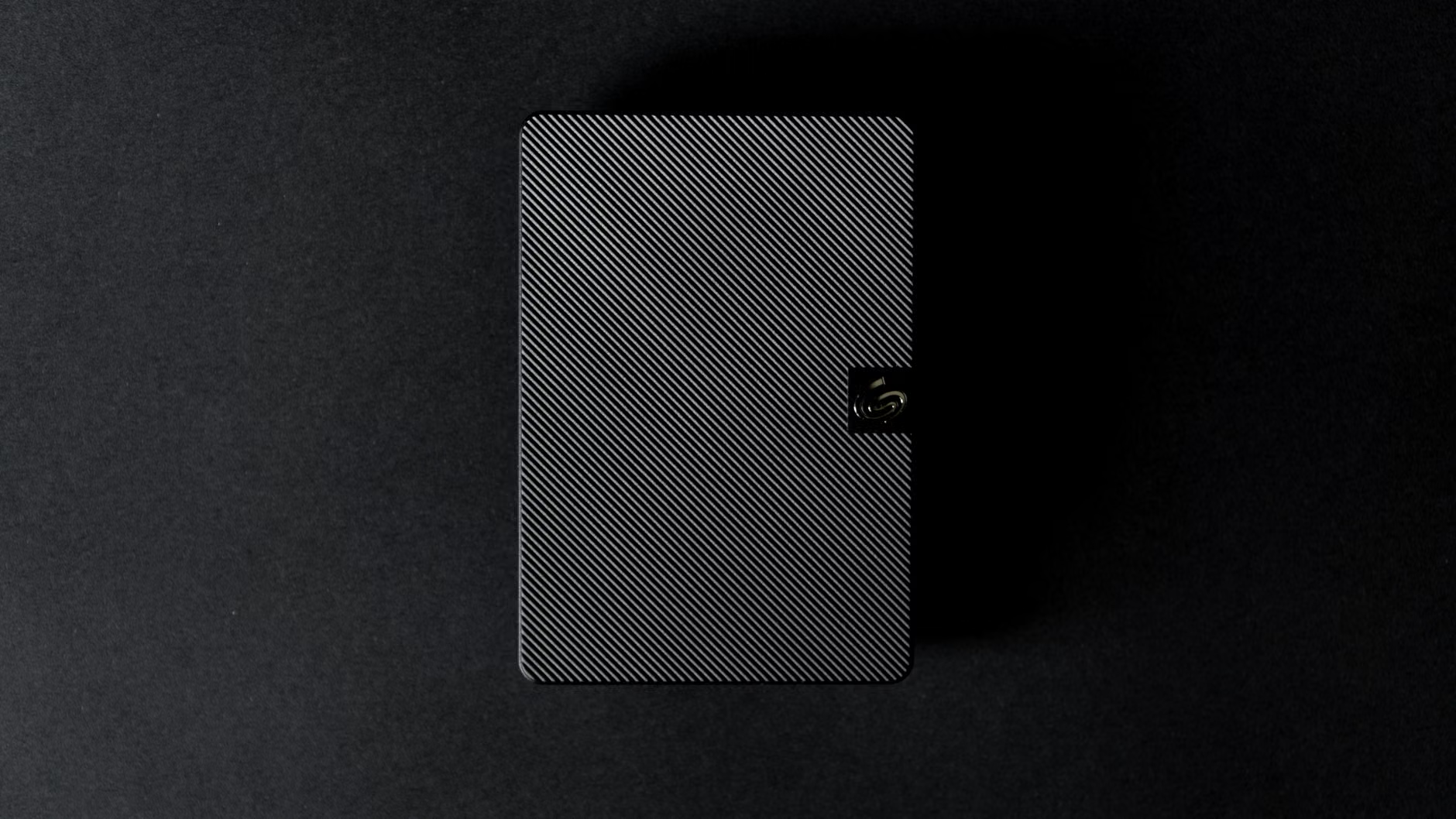
Not all storage is created equal. For a family archive, you should move away from standard portable spinning-disk hard drives, which are prone to mechanical failure if dropped. Instead, consider the following hierarchy of storage:
| Storage Type | Best For | Reliability | Cost |
|---|---|---|---|
| External SSD | Active editing, fast access | High (no moving parts) | High |
| Desktop HDD | Long-term cold storage | Medium (mechanical) | Low |
| NAS (RAID 1) | Centralized family hub | Very High | Very High |
If you are just starting out, do not feel pressured to buy an expensive NAS. Start with two high-quality desktop-grade hard drives. Use software (like Carbon Copy Cloner or FreeFileSync) to mirror your data from the primary drive to the backup drive once a week. This “manual” process is often more reliable than automated systems that you forget to check.
The Hidden Costs of Cloud Dependence
Many people assume the cloud is “cheap” because it costs $2–$10 a month. However, over a 20-year period, those small subscriptions add up to hundreds, if not thousands, of dollars. More importantly, you are paying for the privilege of accessing your own data.
There is also the “bandwidth tax.” If you ever need to restore your entire library from the cloud, you will be at the mercy of your internet provider’s upload/download speeds. Downloading 500GB of family photos can take days or even weeks depending on your home connection, whereas moving that same data from a local drive takes minutes.
Furthermore, cloud services often perform “lossy” compression on your images to save space. While they look fine on a phone screen, you are not actually keeping the full-quality original file you captured. When you store files locally, you keep the original, uncompressed raw data—ensuring that if you ever want to print a large-format photo for a wall, you have the highest possible resolution available.
Establishing a Maintenance Routine
The biggest mistake people make is buying a hard drive, transferring their photos, and then putting it in a drawer for five years. Technology changes. USB ports change. File formats change. A “local-first” strategy is not a “set it and forget it” solution; it is a maintenance routine.
The Annual “Data Health Check”: Every year—perhaps on a birthday or anniversary—plug in your drives. Check if they are still readable. If you are using a NAS, check the health logs to see if any drives are reporting errors. If you have a drive that is more than five years old, it is time to copy that data to a new drive and retire the old one.
File Format Standardisation: Avoid proprietary formats. Stick to industry standards like JPEG, HEIC, or TIFF. If you use specialized software to organize your photos, ensure that it can export your library into a standard folder structure. You do not want your photos trapped inside a proprietary database that requires a specific app to open.
Addressing Common Misconceptions
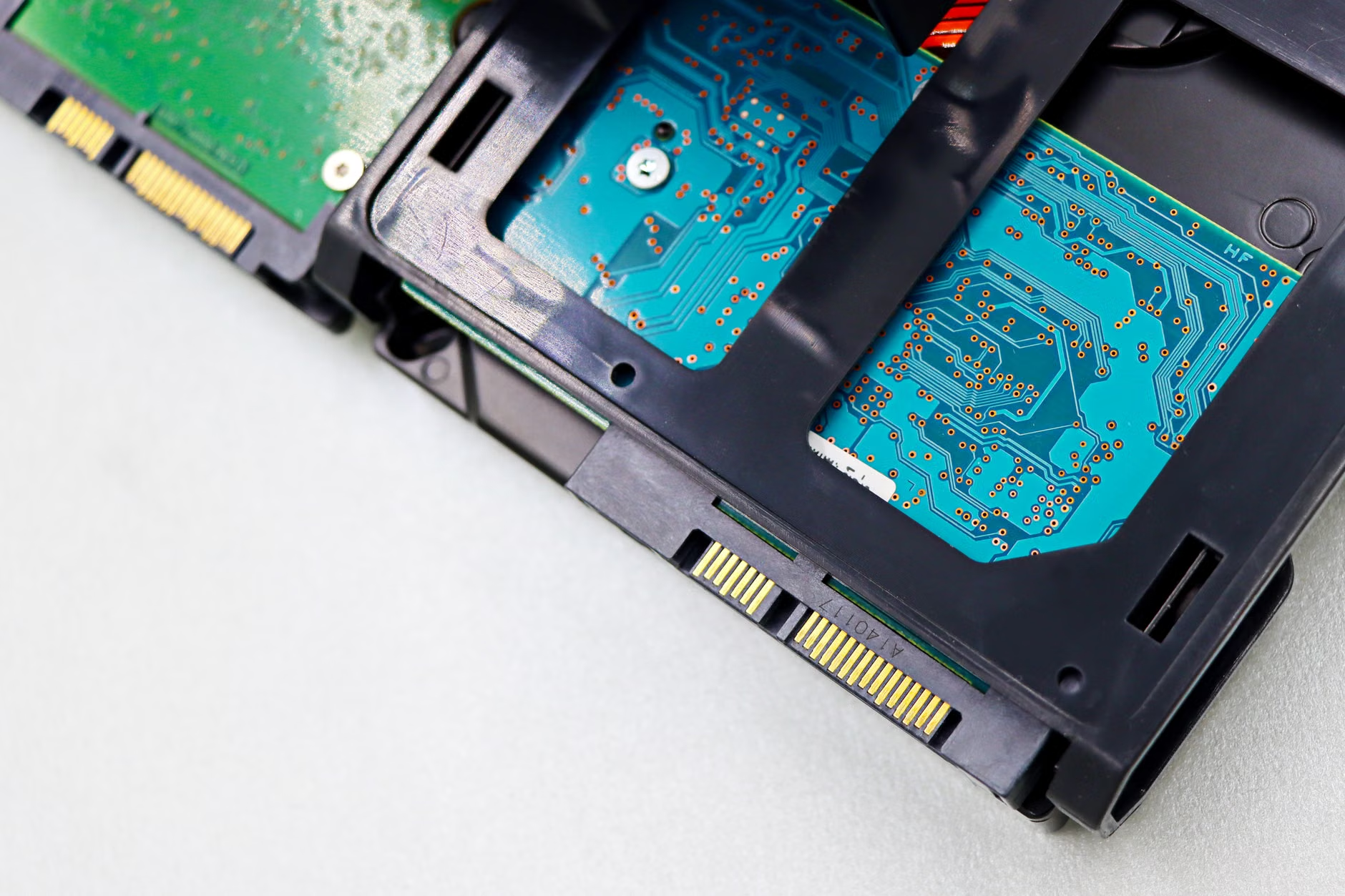
One of the most common myths is that “SSD drives are better for everything.” While it is true that SSDs are faster and more durable against physical impact, they are not necessarily better for long-term “cold storage.” If an SSD is left unpowered for several years, it can theoretically lose data as the charge in its memory cells dissipates. Mechanical hard drives, while susceptible to physical shock, are generally better at holding data in a “powered-off” state for longer periods.
Another misconception is that “RAID is a backup.” RAID (Redundant Array of Independent Disks) is a way to ensure uptime. If one drive in your NAS fails, your photos remain available. However, RAID does not protect you from a virus that deletes files, an accidental deletion, or a house fire. RAID is for hardware failure; true backups are for data loss prevention.
The Psychological Benefit of Local Control
There is a quiet peace of mind that comes from knowing your family’s history is sitting in a drawer in your office, not floating in a server farm in another country. It changes how you value your digital memories. When you have to manually curate and organize your photos into folders by date or event, you are forced to actually look at them.
Cloud services, by design, try to hide the “work” of storage from you. They show you “Memories from this day,” which is nice, but it turns your photo library into a passive feed rather than a deliberate collection. By adopting a local-first strategy, you become an active curator of your family’s life. You move from being a passive consumer of a service to being the owner of your digital legacy.
Actionable Steps for the Next Weekend
Do not try to do this all at once. If you have ten years of photos, the task will feel overwhelming. Break it down into manageable chunks:
- Audit: Identify where your photos currently live. Are they on your phone? A laptop? Google Photos? iCloud?
- Consolidate: Download your primary library from the cloud to a local computer.
- Duplicate: Copy that folder to two separate, high-quality external hard drives.
- Label: Clearly label your drives (e.g., “Family Photos – Master” and “Family Photos – Backup”).
- Rotate: Store the backup drive in a different location, such as a fireproof safe or a relative’s home.
Once you have the foundation, the monthly habit is simple: once a month, connect your phone to your computer, move the new photos into your Master Library folder, and run a sync to your backup drive. It takes less time than watching a single episode of your favorite show, but it secures a lifetime of memories.
Conclusion
We are the generation that documents everything, yet we are arguably the generation most at risk of losing our history due to our reliance on digital services that we do not own. A local-first backup strategy is not about being a “tech expert”; it is about being a responsible parent. By keeping your photos physically close, you remove the reliance on third-party companies and ensure that your family’s story is yours to keep, forever.
Start small, stay consistent, and remember: if it isn’t in two places, it doesn’t exist.
Frequently Asked Questions
- Q: Can I just use a USB flash drive for backups?
A: No. Flash drives (thumb drives) are notorious for sudden, catastrophic failure. They are meant for transferring files, not for long-term storage. Always use dedicated external hard drives or SSDs designed for archival storage. - Q: What if I don’t know how to set up a NAS?
A: You don’t need to. A simple “manual sync” using two external hard drives is perfectly adequate for most families. You don’t need complex hardware; you just need to be diligent about making sure the data is copied to both drives regularly. - Q: Should I stop using the cloud entirely?
A: Not at all. The cloud is fantastic for convenience, sharing with grandparents, and quick access. The goal is to make the cloud your secondary copy, not your only copy. Continue using it for the features you love, but ensure the “Master” version of your files remains under your own roof.
For more information on digital preservation standards, you can refer to the National Archives’ guide on preserving family records, which provides excellent insights into why physical copies remain the gold standard for long-term stability.