The most effective way to secure your home network and protect your personal data from guests—and even your own smart devices—is to enable a dedicated, isolated guest Wi-Fi network on your router.
Key Takeaways
- Network Isolation: A guest network keeps visitors from accessing your private files, printers, and smart home hubs.
- IoT Protection: Moving smart home devices to a separate network prevents compromised devices from infecting your primary computers.
- Ease of Access: You can provide a simple password for guests without ever revealing your main administrative or home network credentials.
We have all been there. You are hosting a dinner party or a playdate for the kids, and inevitably, someone asks, “Hey, what’s the Wi-Fi password?” It feels rude to say no, but handing out your primary network password is essentially giving a digital key to your home. If a guest’s phone is infected with malware, or if they have a background process that scans local networks, your laptop, NAS drive, and smart security cameras could be exposed. In our 30s and 40s, we are juggling a household full of sensitive data—tax documents, work files, and personal photos—making home network security more than just a hobbyist’s concern; it is a necessity.
Understanding the Digital “Front Door” of Your Home
Most modern home routers act as the gatekeeper for your digital life. However, by default, most routers create a single, “flat” network. In this setup, every device—your smartphone, your work laptop, your smart fridge, and your guest’s tablet—all talk to each other as if they are in the same room. This is convenient for printing documents from your phone, but it is a security nightmare.
When you enable a guest network, you are essentially creating a virtual “guest house” within your Wi-Fi signal. The router uses something called VLAN (Virtual Local Area Network) tagging to ensure that data packets from the guest network cannot cross over into your private network. To your router, the guest network is a completely separate entity. Even if a visitor’s device is compromised, they would have to find a way to “jump” the firewall—a task that is significantly harder than simply snooping on a flat network.

Why Your Smart Home Needs Its Own “Neighborhood”
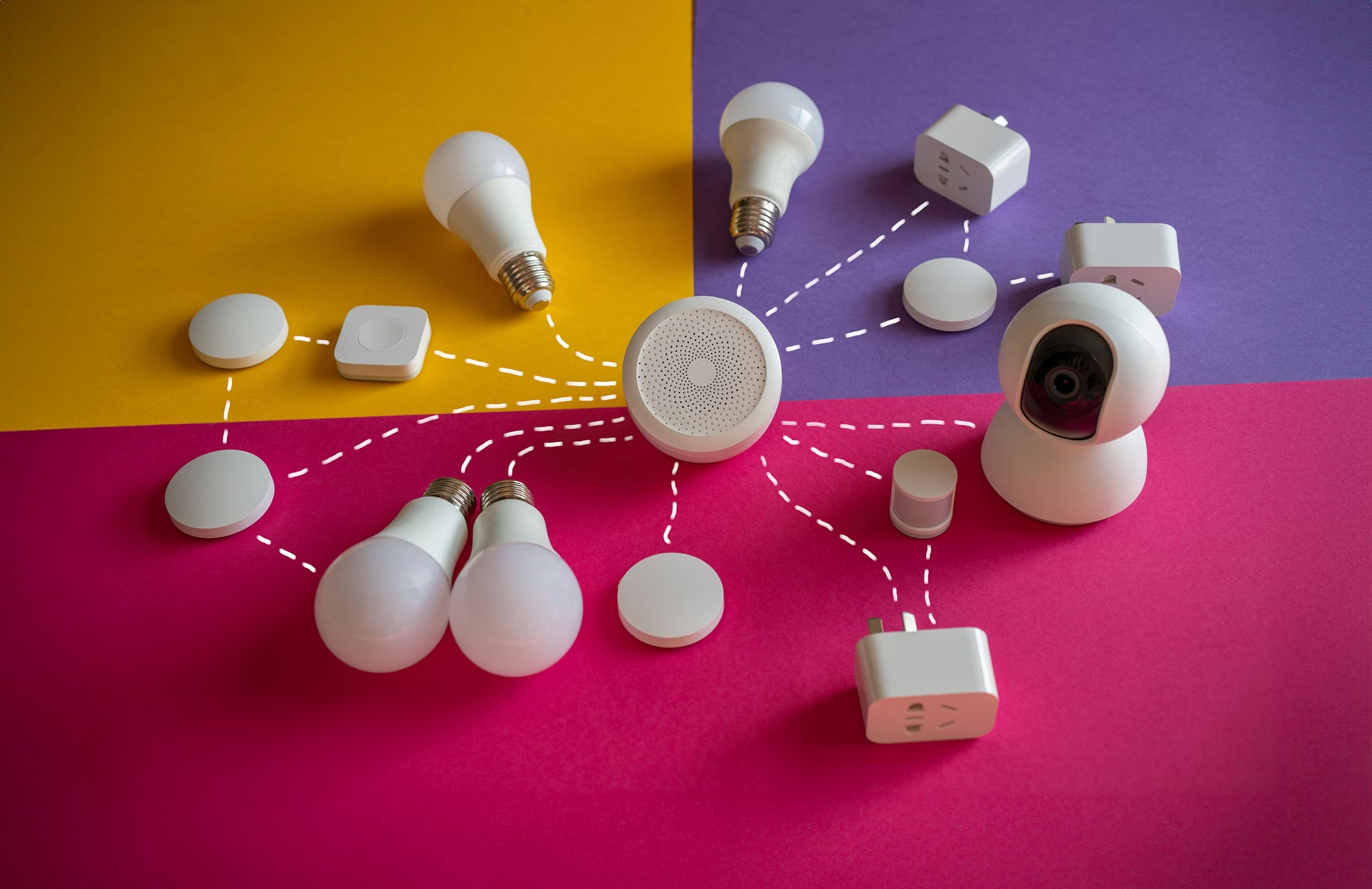
Beyond human visitors, we need to talk about the “Internet of Things” (IoT). We love the convenience of smart lightbulbs, video doorbells, and robotic vacuums. However, these devices are notoriously insecure. They often lack regular security updates, have hardcoded passwords, and sometimes send data back to servers in foreign countries.
If you put your smart thermostat on the same network as your work laptop, you are creating a bridge. If a hacker exploits a vulnerability in that smart thermostat, they could potentially move laterally across your network to target your computer. A common strategy for privacy-conscious households is to set up one network for “trusted” devices (computers, phones) and a secondary, isolated network for “untrusted” devices (IoT, guests). This is a simple, free, and highly effective way to mitigate risk.
Step-by-Step: Configuring Your Guest Network
Most routers from the last five to seven years support guest networks. If your ISP provided you with a standard router, check the back or the bottom for a default IP address (usually 192.168.0.1 or 192.168.1.1). Type this into your browser while connected to your home Wi-Fi to access the administrative dashboard.
| Step | Action | Why it matters |
|---|---|---|
| 1 | Log into Router Admin | Accessing the control panel is the first step to modifying settings. |
| 2 | Locate “Guest Network” | Usually found under “Wireless” or “Advanced Settings.” |
| 3 | Enable & Name (SSID) | Give it a clear name like “Home_Guest” to avoid confusion. |
| 4 | Set WPA3/WPA2 Security | Always use encryption; never leave a guest network open. |
| 5 | Enable AP Isolation | This prevents guests from “seeing” each other on the network. |
When you name your guest network, try to avoid names that identify your family, like “TheSmithHouseGuest.” A generic name like “Guest_WiFi” or “Connected_Home” is better because it doesn’t provide personal information to people walking or driving by your house. Also, ensure you use a strong, unique password for the guest network. While it might be tempting to use “password123” for ease, a moderately complex password prevents casual neighbors from hopping on your connection to stream movies or perform illegal activities that might be traced back to your IP address.

Common Pitfalls and How to Avoid Them
One common mistake is neglecting the “AP Isolation” feature. Some routers have a setting called “Allow guests to access local network resources.” Make sure this is turned off. If you turn it on, you are effectively defeating the entire purpose of the guest network. You want guests to have access to the internet, but not to your network-attached storage (NAS), your printer, or your smart home hub.
Another pitfall is “password fatigue.” We all want to be good hosts, but changing your guest Wi-Fi password every month is a chore. A good middle ground is to keep a consistent, moderately complex password and write it down on a small card in your living room or a digital notepad. If you feel like the password has been shared too widely, simply log into the router and change it. It takes less than two minutes to update, and it gives you a fresh start.
Also, consider the physical placement of your router. If your router is in a high-traffic area, the signal might be strong enough for people on the street to connect. You can often adjust the “Transmit Power” in your router settings to focus the signal inside your home rather than broadcasting it to the entire neighborhood. While this won’t stop someone with a high-gain antenna, it is a good “neighborhood etiquette” practice that reduces the number of people tempted to join your network.
The Role of Firmware Updates
Even with a perfect guest network setup, your router is only as secure as its software. Manufacturers periodically release “firmware” updates that patch newly discovered security vulnerabilities. Many modern routers have an “Auto-Update” feature. If yours does, enable it. If it doesn’t, try to check for updates once every few months. This is especially important for households with children, as an unpatched router can be a gateway for malicious traffic that might inadvertently reach a child’s tablet or gaming console.
Advanced Considerations: Beyond the Basics
For those who want to go further, some advanced routers allow you to set “Bandwidth Limits” on your guest network. This is incredibly useful if you have guests who like to stream 4K video while you are trying to work. By capping the guest network to, say, 20% of your total bandwidth, you ensure that your own work calls and video streams remain stable. This is a subtle but effective way to maintain “quality of service” in a busy household.
Additionally, some routers offer a “Schedule” feature. If you only host guests on weekends, you can set the guest network to automatically turn off during the week. This reduces the “attack surface” of your home network—if the signal isn’t there, no one can try to brute-force the password.
Finally, keep an eye on the “Connected Devices” list in your router dashboard. Many routers will show you exactly what is connected to each network. If you see a device on your guest network that you don’t recognize, you can block it with a single click. It is a good practice to audit this list occasionally, just like you would check your bank statements.
Summary of Best Practices
Security is not about being paranoid; it is about being prepared. By isolating your guests and your IoT devices, you create a digital environment where your most sensitive data is shielded from the risks of the outside world. Start with the basics: enable the guest network, use a strong password, and ensure local network access is disabled. From there, you can layer on more advanced features like bandwidth limiting and scheduling as your needs evolve.
Remember that technology is meant to serve your life, not complicate it. Once these settings are configured, you rarely have to touch them again. The peace of mind that comes from knowing your main network is secure is well worth the hour of setup time. Keep your software updated, stay curious about your router’s features, and enjoy the convenience of a truly smart—and secure—home.
For more information on router security, you can visit the Cybersecurity & Infrastructure Security Agency (CISA) website for general home security tips, or check your specific router manufacturer’s support page for model-specific documentation.
Frequently Asked Questions
Does using a guest network slow down my main internet connection?
Generally, no. Your internet speed is determined by your ISP plan. While a guest network creates a separate “pipe,” they both draw from the same total bandwidth. However, if your router supports Quality of Service (QoS), you can prioritize your main network traffic to ensure it never slows down, even when guests are streaming on the guest network.
Can I see what websites my guests are visiting?
Most standard consumer routers do not log individual web history for privacy reasons. While you might be able to see which devices are connected and how much data they are consuming, you usually cannot see the specific URLs they are visiting. If you require that level of monitoring, you would need professional-grade networking equipment, which is generally overkill for a residential home.
Do I need to change my guest Wi-Fi password if I change my main Wi-Fi password?
No, they are independent. You can change your primary network password to protect your home devices without affecting the guest network. However, it is a good habit to update the guest password periodically—perhaps every six months—to ensure that old guests or neighbors who may have been given the password in the past no longer have access.
Disclaimer: This article provides general information regarding home network security. Router interfaces and features vary significantly by manufacturer and model. Always refer to your specific router’s manual or official support website for accurate instructions related to your hardware.