- Not all USB-C cables are created equal: A cable that charges your phone might not handle high-speed data transfer or power a laptop, regardless of the physical plug shape.
- Look for the logo: Always prioritize cables with official USB-IF certification logos (like the 60W or 240W icons) to ensure safety and hardware compatibility.
- The “E-Marker” chip is mandatory for high power: If you need to charge a laptop, ensure the cable has an internal E-Marker chip, or it will be capped at a slow 60W speed (or fail to charge entirely).
If you have spent the last three years feeling like your kitchen junk drawer has become a graveyard for mysterious white cables, you are not alone. We were promised that USB-C would be the “universal” connector—the end of the frustration where you have a lightning cable for your phone, a micro-USB for your kid’s toy, and a proprietary brick for your laptop. While the physical port is indeed becoming universal, the capabilities of the cables attached to those ports are a complete wild west.
For those of us juggling professional work laptops, tablets for the kids, and our own smartphones, the confusion is more than just a minor annoyance; it is a potential safety hazard and a massive waste of money. If you plug a high-draw device into a low-quality cable, you might end up with slow charging, overheated hardware, or worse, damaged charging ports. Let’s cut through the marketing noise and look at what you actually need to know to manage your home’s tech ecosystem.
The Anatomy of a Cable: Why Looks Are Deceiving
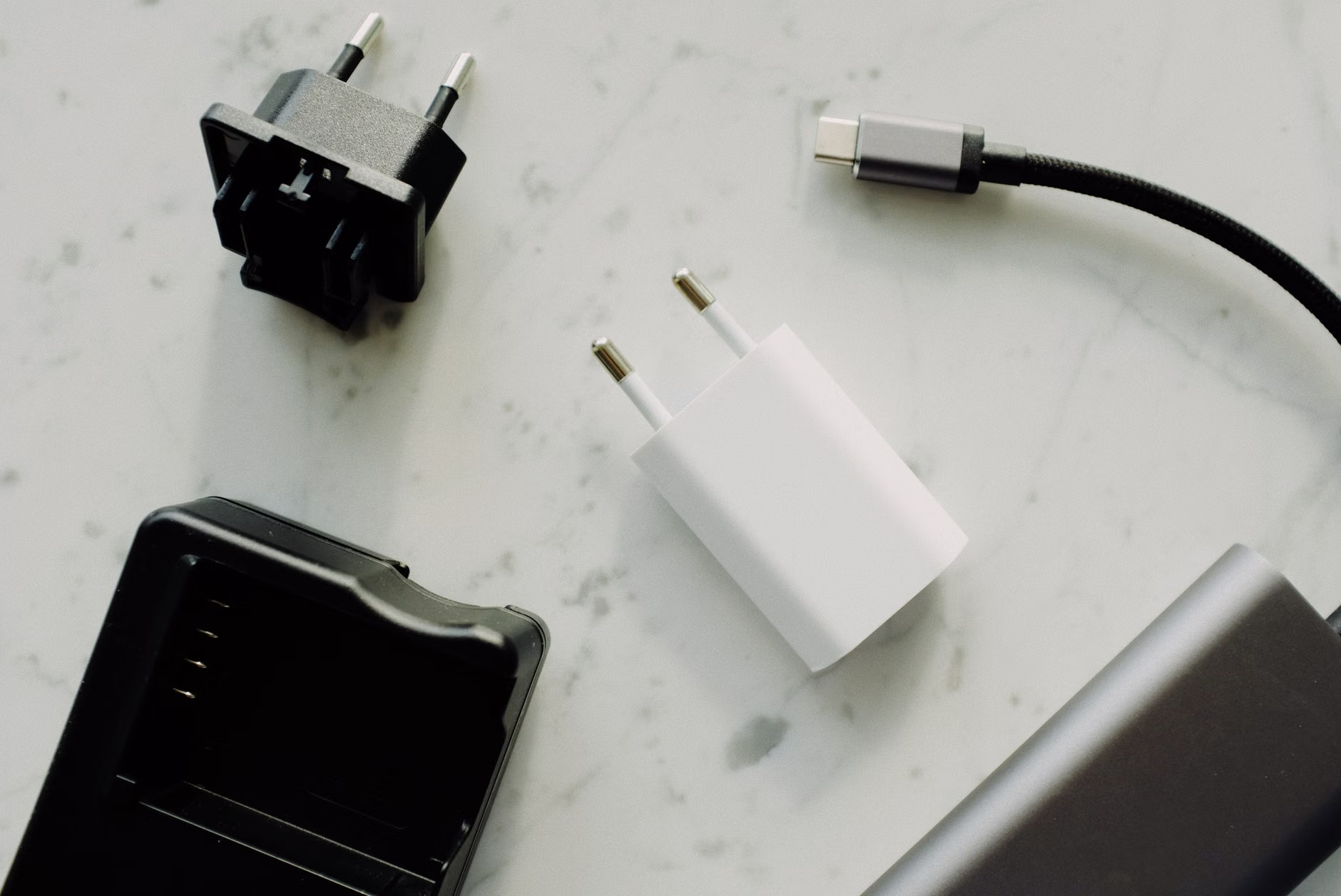
The most common mistake people make is assuming that because the connector fits, the cable will work. USB-C is just the shape of the plug. Inside that cable, there are different numbers of wires designed for different tasks. Think of a USB-C cable like a road: some are narrow back alleys that can only handle a bicycle (a basic phone charger), while others are high-speed multi-lane highways that can carry massive amounts of data and power (a Thunderbolt 4 or high-wattage charging cable).
When you buy a cheap, unbranded cable from a convenience store bin, you are often getting a cable that only supports USB 2.0 speeds. This is fine for charging a small device overnight, but if you try to use that same cable to connect an external monitor to your laptop or transfer a large video file, it will either fail or operate at a snail’s pace. The physical connector is identical, but the internal wiring is vastly different.
To avoid this, you must look for the certification icons printed on the packaging. The USB Implementers Forum (USB-IF) oversees these standards. If you see a logo with a “60W” or “240W” icon, that tells you the cable is rated to handle specific power delivery (PD) standards. If the box is blank and just says “Fast Charging,” be skeptical. That is marketing fluff, not a technical specification.
Decoding Power Delivery (PD) and the “E-Marker” Chip
If you are charging a modern laptop, you are likely using a Power Delivery (PD) charger. These chargers communicate with your device to decide how much power to send. This is a smart system, but it relies entirely on the cable acting as a messenger. This is where the “E-Marker” chip comes in.
Any cable rated for more than 60 watts of power must contain an E-Marker chip. This tiny piece of silicon tells your charger and your laptop, “Hey, I can safely handle 100W or 240W of power.” Without this chip, the charger will default to a safety mode, usually capping the power at 60W. This is why your laptop might charge painfully slowly even when plugged into a powerful wall brick—the cable is the bottleneck.
Decision Rule: If you are buying a cable for a laptop, tablet, or high-end smartphone, ignore any cable that does not explicitly state “E-Marker” or “100W/240W PD support” in the technical specifications. If you are just charging a set of wireless earbuds or a basic phone, a standard 60W cable is perfectly fine and usually cheaper.
The Data Transfer Trap: USB 2.0 vs. USB 4
Power is only half the battle. If you ever move photos from your camera to your computer or use an external SSD for backups, the data transfer speed becomes the primary concern. USB-C cables are tiered by their data transfer capabilities, and the price difference is significant.
| Standard | Max Speed | Typical Use Case |
|---|---|---|
| USB 2.0 | 480 Mbps | Basic charging, low-speed data (mouse/keyboard) |
| USB 3.2 Gen 1 | 5 Gbps | General file transfers, external hard drives |
| USB 3.2 Gen 2 | 10 Gbps | High-res photo transfers, fast SSDs |
| USB 4 / Thunderbolt | 40 Gbps+ | 4K/8K video, eGPUs, high-speed docks |
As the table shows, there is a massive performance gap. If you spend $40 on a “premium” charging cable, you might be surprised to find it only supports USB 2.0 data speeds. Conversely, if you buy a $10 data cable, it might not support high-wattage power delivery. Always check the box for the “Gbps” rating. If it doesn’t mention data speed, assume it is USB 2.0 (the slowest tier).
Managing the Cable Chaos: A Practical Household Strategy

In a household with multiple users, the “one cable for everything” dream often falls apart because people accidentally swap their high-speed laptop cables for their phone chargers. My recommendation? Implement a color-coding or labeling system. It sounds tedious, but it saves hours of troubleshooting when a device isn’t charging correctly.
Step-by-Step Cable Management:
- Audit your inventory: Gather all your USB-C cables. Test them by plugging them into a device that supports fast charging. If the device reports “Slow Charging,” label that cable with a piece of colored tape—it’s a “slow” cable, meant only for low-drain devices like headphones or nightstands.
- Use high-quality cables for high-drain tasks: Keep your 100W/240W cables exclusively for your laptops and tablets. Use a rubber band or a velcro tie to keep these bundled separately from your “slow” cables.
- Discard damaged cables: If a USB-C cable has a frayed jacket, a bent connector, or if the connection feels “loose” and disconnects when you wiggle it, stop using it. Internal shorts in USB-C cables can cause heat buildup at the port, which is a common cause of melted charging ports on expensive laptops.
Don’t fall for the “braided nylon” marketing trap. While braided cables are more durable against pets and kids, the braid does nothing for the electrical performance. A cheap, flimsy-looking cable from a reputable brand (like Anker, Belkin, or Ugreen) is often safer than a fancy-looking braided cable from an unknown manufacturer on a discount marketplace.
Common Misconceptions and Hidden Risks
One of the most persistent myths is that “longer cables charge slower.” While true for extremely long, low-quality cables (due to voltage drop), the real issue is usually not length, but the thickness of the internal copper wire (the gauge). A high-quality 3-meter cable will charge just as fast as a 1-meter cable, provided it is designed for it. If you need a long cable for the living room, look for cables labeled as “Active” or specifically rated for high-wattage over long distances.
Another overlooked variable is the “Port Wear” issue. USB-C ports are designed for thousands of cycles, but they are magnets for pocket lint and debris. If your cable isn’t clicking firmly into place, don’t force it. Use a wooden toothpick to gently clean out the port on your phone or laptop. Compressed air also works, but be careful not to blow debris deeper into the device.
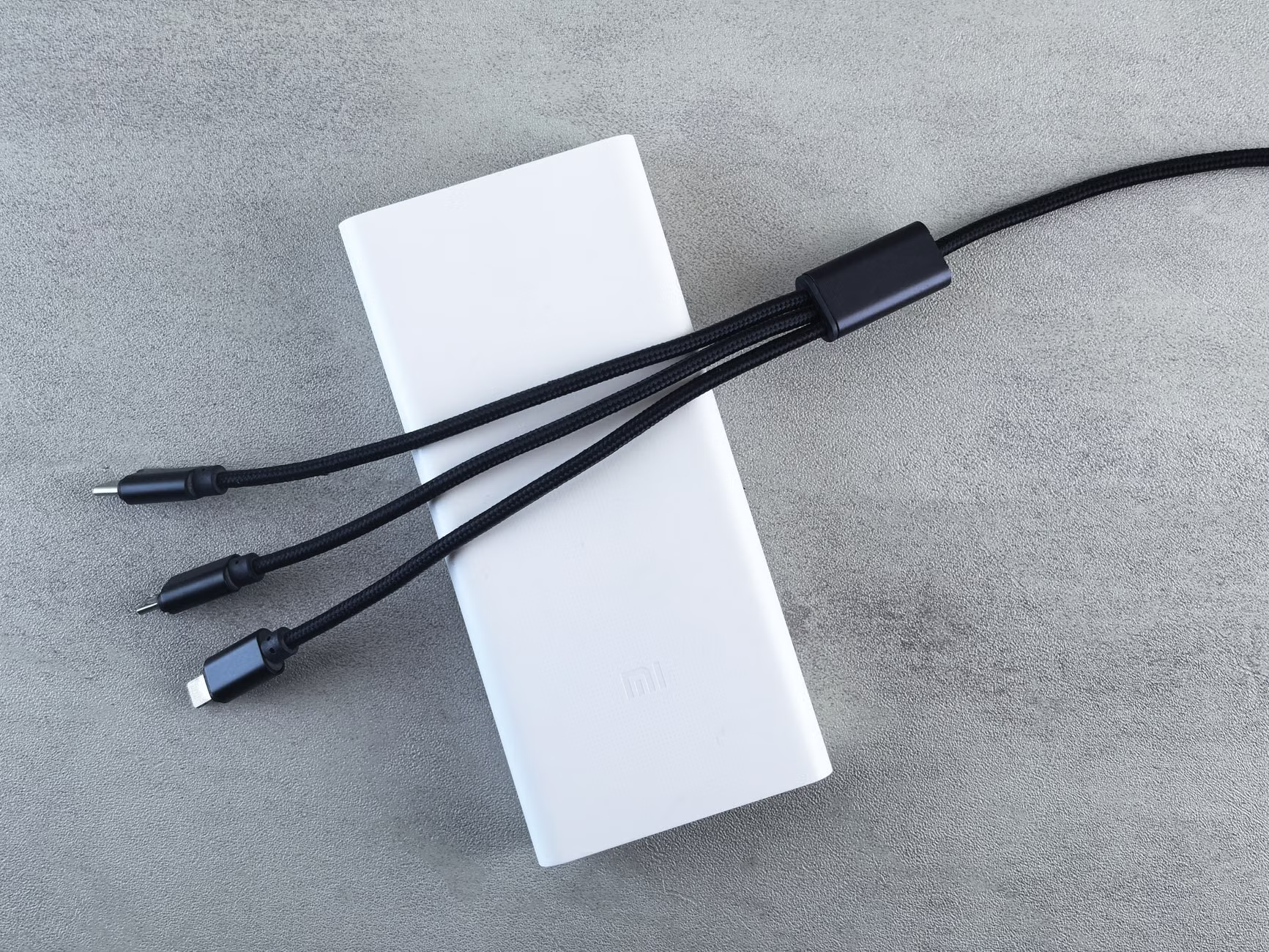
Finally, avoid “Multi-head” cables (cables that have a USB-C, Lightning, and Micro-USB head on one end). These are notoriously unreliable for power delivery. They often cannot negotiate the complex handshake required for fast-charging laptops, and they are prone to breaking at the split point. They are fine for travel if you are desperate, but they should never be your primary charging solution for expensive hardware.
Safety and Longevity: The Final Verdict
Ultimately, the “universal” nature of USB-C puts the responsibility on the consumer to understand what they are plugging into. The best approach is to buy a few high-quality, certified cables from reputable brands and keep them in dedicated locations. Stop buying cheap “value packs” of cables; they are essentially e-waste waiting to happen. The cost difference between a $5 cable that might damage your $1,500 laptop and a $20 certified cable is negligible in the long run.
If you find yourself confused, look for the USB-IF logo on the box. It is the gold standard for compatibility. If it isn’t there, you are taking a gamble on the safety and performance of your devices. Treat your cables like the essential infrastructure they are, not as disposable commodities, and you will save yourself a fortune in replacement batteries and hardware repairs.
Frequently Asked Questions
Q: Can using a “too powerful” charger hurt my phone?
A: No. Modern devices are smart. They have internal power management circuits that will only draw the amount of electricity they need. A 100W charger will safely charge a phone that only requires 20W without causing any damage.
Q: Why does my phone say “Fast Charging” sometimes and not others?
A: This is usually due to a “handshake” failure between the charger, the cable, and the phone. If the cable doesn’t support the specific power delivery protocol required by the charger, it will default to a standard, slower charging speed. Ensure both your charger and cable are rated for the same PD (Power Delivery) standard.
Q: Should I be worried about my cable getting hot?
A: A cable getting slightly warm is normal during high-speed charging. However, if it is hot to the touch or if you smell burning plastic, unplug it immediately. This is a sign of a short circuit or a cable that is not rated for the amount of power being drawn through it.
Official Resources for Further Research:
For those who want to dive deeper into the technical specifications, the official USB Implementers Forum (USB-IF) Charger and Power Delivery page provides detailed documentation on how these standards work. For specific product compatibility, always refer to the user manual provided by your device manufacturer (Apple, Samsung, Dell, etc.), as they sometimes implement proprietary “Super Fast” charging standards that require specific cables to function correctly.