Key Takeaways
- The “Factory Reset” is not enough: Simply deleting photos is insufficient; you must perform a full cryptographic wipe or factory reset through system settings to ensure old data is unrecoverable.
- Battery health is the hidden cost: A used device with a degraded battery (below 80% capacity) often leads to frustration; always check the “Battery Health” menu in settings before purchasing.
- Software lifecycle matters more than hardware: Avoid devices that no longer receive security updates, as they are vulnerable to malware regardless of how “clean” the hardware looks.
Buying second-hand tech for your children is the ultimate “parenting win”—it saves you hundreds of dollars while teaching kids that devices are tools to be cared for, not disposable toys. However, the convenience of a hand-me-down or a marketplace bargain comes with a hidden layer of technical responsibility. If you aren’t careful, you aren’t just handing your child a tablet; you might be handing them a security risk or a device that will stop functioning within three months.
As parents in our 30s and 40s, we aren’t just budget-conscious; we are time-poor. We don’t have time to troubleshoot a device that crashes during a school project or to worry about whether a previous owner’s data is still lurking in the background. This guide isn’t about saving a buck at the expense of your peace of mind. It’s about creating a rigorous, step-by-step framework to turn a “used” device into a “secure” device for your family.
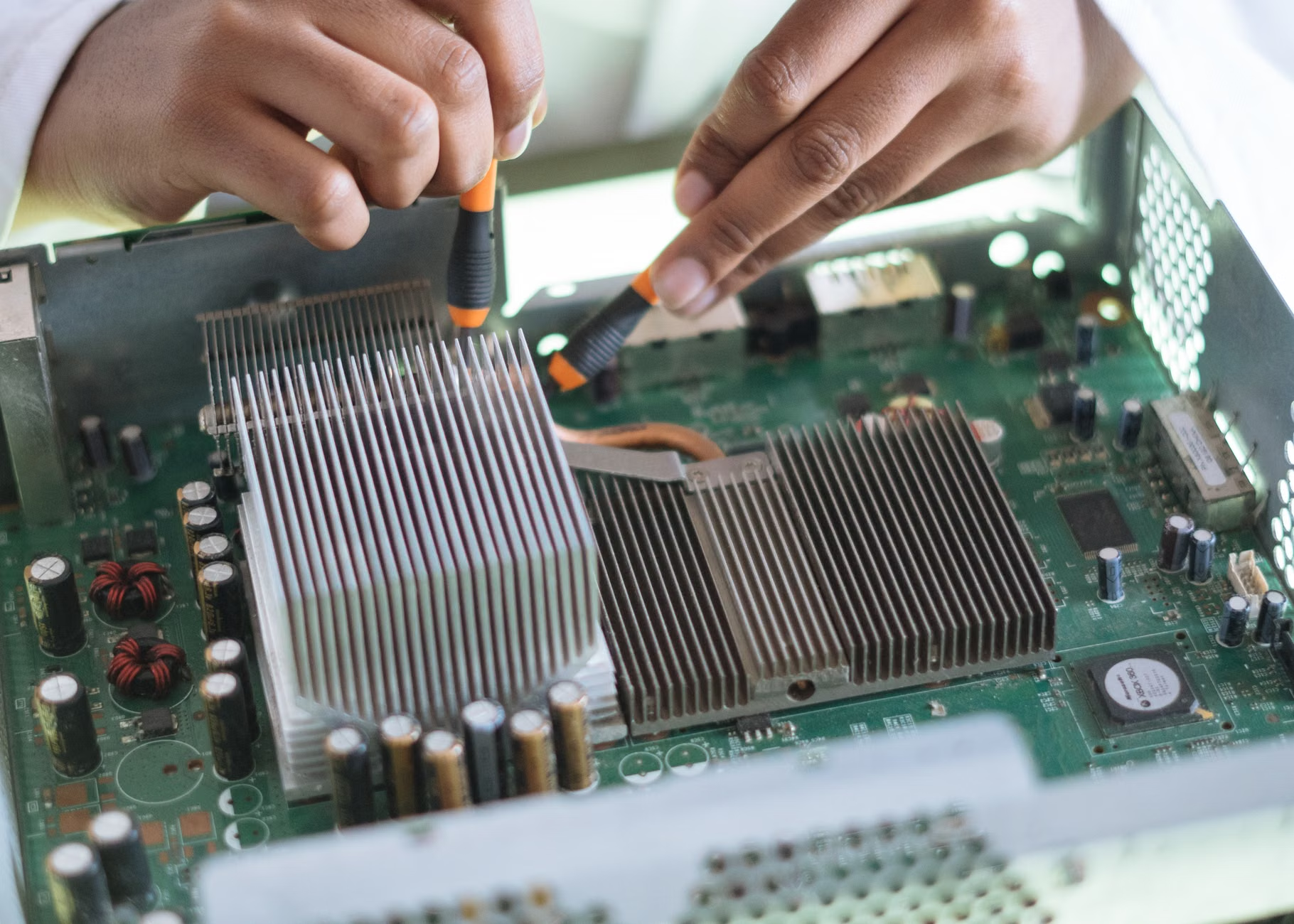
Why the “Used” Market is a Minefield for Security
When you buy a brand-new device, you are the first “custodian.” When you buy second-hand, you are inheriting the digital history of a stranger. The primary risk isn’t just “malware” in the traditional sense; it’s the persistence of old accounts, lingering cloud syncs, and the degradation of hardware components that were never designed to last indefinitely.
Most parents assume that if the screen turns on and the home screen appears, the device is “ready to go.” This is a dangerous misconception. A device can be perfectly functional while harboring outdated firmware, compromised accounts, or a battery that is on the verge of failure. If you skip the sanitization process, you are essentially leaving the door open for your child to accidentally interact with a previous owner’s data or, worse, bypass the very restrictions you are trying to set up.
The “Lifecycle” Trap: Why Old Hardware is a Liability
The most important factor in buying second-hand tech is the Software Support Lifecycle. Every major manufacturer—whether it’s Apple, Samsung, or Google—provides security updates for a limited number of years. Once a device reaches its “End of Life” (EOL), it stops receiving these critical patches. A device without security updates is a sitting duck for hackers and malware.
Before you even look at the physical condition of a device, you must check its support status. If a tablet can no longer run the latest version of its operating system (iOS or Android), it is essentially a liability. For example, if you are looking at a budget-friendly used iPad, check the Apple support page to see if it supports the current iPadOS. If it’s stuck on an OS version from four years ago, it won’t be able to run modern educational apps, and more importantly, it won’t be protected against the latest security threats.
The Pre-Purchase Checklist: What to Inspect Before You Pay
Before you hand over your cash or confirm that online order, you need to be a detective. The physical exterior of a device is only 20% of the story. The remaining 80% is hidden inside the settings menu and the physical integrity of the internal components.
| Component | What to Check | Why it Matters |
|---|---|---|
| Battery Health | Check settings for “Battery Health” (aim for >80%) | Prevents sudden shutdowns and overheating. |
| Cloud Locks | Ensure “Find My” or “Activation Lock” is disabled | A locked device is a paperweight you cannot use. |
| Charging Port | Inspect for lint and debris with a flashlight | Common cause of “it won’t charge” complaints. |
| Screen Integrity | Check for “ghost touch” or flickering | Indicates internal damage or cheap replacement parts. |
If you are meeting a seller in person, always bring a portable power bank and a charging cable. Plug the device in and watch how it reacts. If the percentage jumps erratically or the device gets unusually hot while idling, walk away. A battery that has been cycled hundreds of times is a ticking time bomb for your child’s daily usage.
The “Sanitization” Protocol: A Step-by-Step Guide
Once you have the device in hand, your goal is to return it to a “factory fresh” state. Do not trust the seller when they say, “I already wiped it.” Even if they did, you have no way of knowing if they did it correctly. You must perform the wipe yourself.
Step 1: The Account Purge
Before you reset anything, ensure that all previous accounts are removed. If the device is an Apple product, you must ensure the previous owner has signed out of their iCloud account. If you reset an iPad that still has an active “Activation Lock,” you will be locked out permanently, and no amount of technical skill will get you back in. For Android devices, ensure the Google account is removed from the “Accounts” section in Settings.
Step 2: The Deep Wipe
Once accounts are cleared, perform a full “Factory Data Reset.” On iOS, this is found in Settings > General > Transfer or Reset iPad. On Android, it’s usually in Settings > System > Reset options. Choose the option that says “Erase all data.” This isn’t just about deleting files; it’s about resetting the encryption keys so that any residual data becomes mathematically impossible to recover.
Step 3: The “Fresh Start” Configuration
After the reset, you will be greeted by the “Hello” screen. This is where you set the device up as if it were brand new. Do not restore from a backup if you are unsure of the source. Set it up as a “New Device.” This ensures that no hidden configurations, rogue profiles, or weird settings from the previous owner carry over.

Installing “Guardrails”: Parental Controls and Digital Hygiene
Once the device is physically and software-clean, your next job is to build the digital playground. This is where most parents fail—they give the device to the child without setting any boundaries. A second-hand device is essentially a blank slate, which means you have the perfect opportunity to install your preferred parental control software.
Use the native tools first: Screen Time on Apple devices and Google Family Link on Android devices. These are free, deeply integrated, and harder for kids to bypass than third-party apps. Set up a dedicated child account, not a “shared” account with you. If you use your own account, your child will have access to your emails, your photos, and your purchase history. Never, under any circumstances, allow a child to use an adult’s main account.
Common Mistake: Many parents set up the device and then give the child the password. If you want to keep the device “safe,” you must be the gatekeeper of the passwords. For the device unlock code, use something your child doesn’t know, and for the App Store, require a password for every single download. This forces a “ask permission” step that is essential for younger children.
Maintaining the Device: Beyond the Initial Setup
Technology is a living thing; it requires maintenance. A second-hand device will not last forever, but it can last for years if you treat it with respect. Teach your children about the physical limits of the device. For example, explain that charging the device overnight, every night, can wear out the battery faster. Teach them how to keep the charging port clean—a simple toothpick can remove pocket lint that prevents a good connection.
Software-wise, set a recurring calendar alert for yourself—say, once a month—to check for system updates. If the device is no longer receiving updates, it is time to start planning for its replacement. Don’t wait for it to break; plan for the upgrade when the security patches stop. This is the hallmark of a responsible “tech-savvy” parent.
The Overlooked Variable: The Power Brick
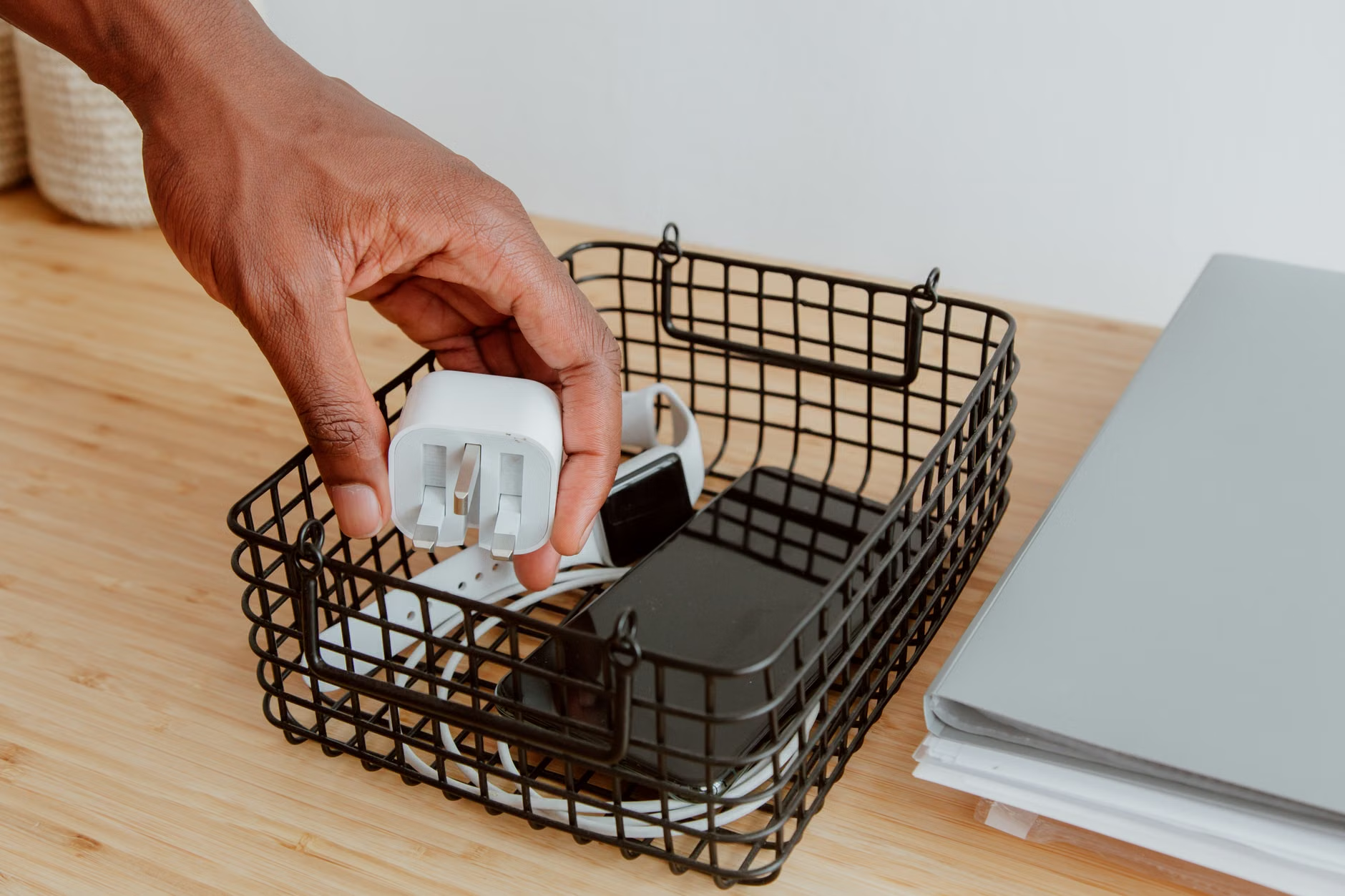
One of the most common issues with second-hand devices is the charger. Often, people sell the device but keep the original, high-quality charger, replacing it with a cheap, third-party knock-off. These cheap chargers are notorious for causing screen flickering, ghost touches, and, in rare cases, electrical hazards. If you are buying a used device, try to source a high-quality, name-brand charger or a certified replacement. It’s a small investment that protects the longevity of the device’s internal charging circuitry.
The Reality of “Refurbished” vs. “Used”
There is a massive difference between buying a device from a random seller on a marketplace and buying a “Certified Refurbished” device from a major retailer or manufacturer. “Refurbished” usually means the battery has been replaced, the screen has been inspected for defects, and the device has been tested by professionals. If you are nervous about the technical side of things, spend the extra 20-30% to get a refurbished unit. It’s the “safety net” version of buying second-hand.
If you choose to buy from a random individual, treat the transaction as a high-risk event. Meet in a public, well-lit place. Test everything. If the seller refuses to let you reset the device in front of them, walk away. There is no deal good enough to justify a device that is locked to someone else’s account.
Final Thoughts: Empowering Kids through Responsibility
Ultimately, the goal of giving your child a second-hand device isn’t just to save money—it’s to teach them stewardship. When you involve your child in the process of “wiping” the device, setting up the parental controls, and choosing the right protective case, they learn that tech is valuable. They see the effort you put into keeping the device safe, which encourages them to be more careful with it.
Start by being transparent about the rules. Tell them, “This device is ours to use, but it needs to be kept secure so it doesn’t break.” By treating the device as a shared project, you remove the “it’s just a toy” mentality. You are building a foundation of digital literacy that will serve them long after this specific tablet has been retired.
Remember: You are the expert in your home. You don’t need the latest, most expensive hardware to keep your kids entertained or educated. You need a device that is clean, secure, and configured with your family’s values in mind. Take the time to do it right, and you’ll find that second-hand tech is actually the smartest way to manage your family’s digital life.
Frequently Asked Questions
Q: Is it safe to buy a device with a cracked screen if the touch still works?
A: Generally, no. A cracked screen is a point of entry for moisture and dust, which can corrode internal components over time. Furthermore, a crack can propagate, eventually rendering the touch sensitivity useless. If you are buying for a child, the screen will likely take more abuse, and a pre-existing crack is a weak point that will fail much sooner than you expect.
Q: How do I know if a device is “too old” to be safe?
A: Check the manufacturer’s support page. If the device is no longer receiving security updates, it is technically “too old.” For example, if an iPad cannot be updated to the latest version of iPadOS, it is vulnerable to modern exploits. A good rule of thumb is to avoid devices that are more than 5 years old, regardless of how well-maintained they seem.
Q: What should I do if I find a “Profile” on a used device that I can’t delete?
A: This is a major red flag. Sometimes, devices from schools or corporations have “Mobile Device Management” (MDM) profiles that lock the device to an organization’s server. These profiles are often impossible to remove without the original organization’s credentials. If you see a “Remote Management” or “Device Management” screen during setup, return the device immediately—it is likely a stolen or unreleased asset.
Useful Resources: