Three Key Takeaways for Smart Tech Buying
- Software Lock Check: Never complete a purchase until you verify the device is factory-reset and free of iCloud or Google activation locks, as these are virtually impossible to bypass legally.
- Battery Health is King: For any mobile device, a battery health below 80% is a hidden cost; always negotiate a lower price or factor in a professional battery replacement fee.
- The “Audit Trail” Rule: Prioritize sellers who provide original purchase receipts or verifiable digital invoices, as these are your best defense against stolen goods and invalid warranty claims.
Buying second-hand tech is one of the smartest ways to manage a household budget, especially when you’re constantly juggling the needs of growing kids, work requirements, and the inevitable “I dropped my iPad” moments. However, the thrill of finding a high-end laptop or smartphone for 40% off can quickly evaporate if you end up with a device that’s locked, battery-dead, or missing essential components.
You don’t need to be an IT engineer to buy used tech safely. You just need a system. After years of navigating online marketplaces, I’ve refined a 7-step verification process that ensures you aren’t just buying someone else’s problem. Let’s break down how to audit your next tech purchase like a professional.
Step 1: The Activation Lock Audit (The Deal-Breaker)
Before you even talk price, you must verify the device’s “cleanliness.” In the world of smartphones and tablets, an “Activation Lock” is a security feature designed to prevent thieves from using a stolen device. If a device is still linked to the previous owner’s iCloud (Apple) or Google (Android) account, it is essentially a paperweight.
The Action Plan: If you are meeting in person, ask the seller to perform a “Factory Reset” in front of you. Watch the screen. If it asks for an Apple ID or Google password after the reset, walk away. Period. There is no “workaround” that is worth your time or money.
If you are buying online, ask the seller for the device’s IMEI number (for phones) or Serial Number (for laptops/tablets). You can input these into official checkers, such as Apple’s Activation Lock Status tool. If the seller refuses to provide the serial number, treat it as a massive red flag. Honest sellers have nothing to hide.
Step 2: Battery Health: The Hidden Variable
Many people assume that if a device turns on, it’s “good.” But for a parent using a laptop for remote work or a tablet for long car rides, the battery is the heart of the machine. Lithium-ion batteries degrade over time. A device with a battery health of 75% will feel sluggish and require constant charging.
The Math: When evaluating the price, always check the battery health settings. For Apple devices, this is found under Settings > Battery > Battery Health. If it’s below 80%, you are looking at a future repair bill. Check the manufacturer’s website for the cost of an official battery replacement. If a replacement costs $80, deduct that from the seller’s asking price immediately.
Common mistake: Sellers often claim a battery is “new” without proof. Unless they have a receipt for a professional battery replacement from an authorized service provider, assume the battery is original and worn.
Step 3: Physical Inspection: Beyond the Scratches
Cosmetic damage—like a small dent on the corner of a laptop—is usually fine. It’s the functional damage that matters. When inspecting a device, you need to look for signs of “internal trauma.”
The Checklist:
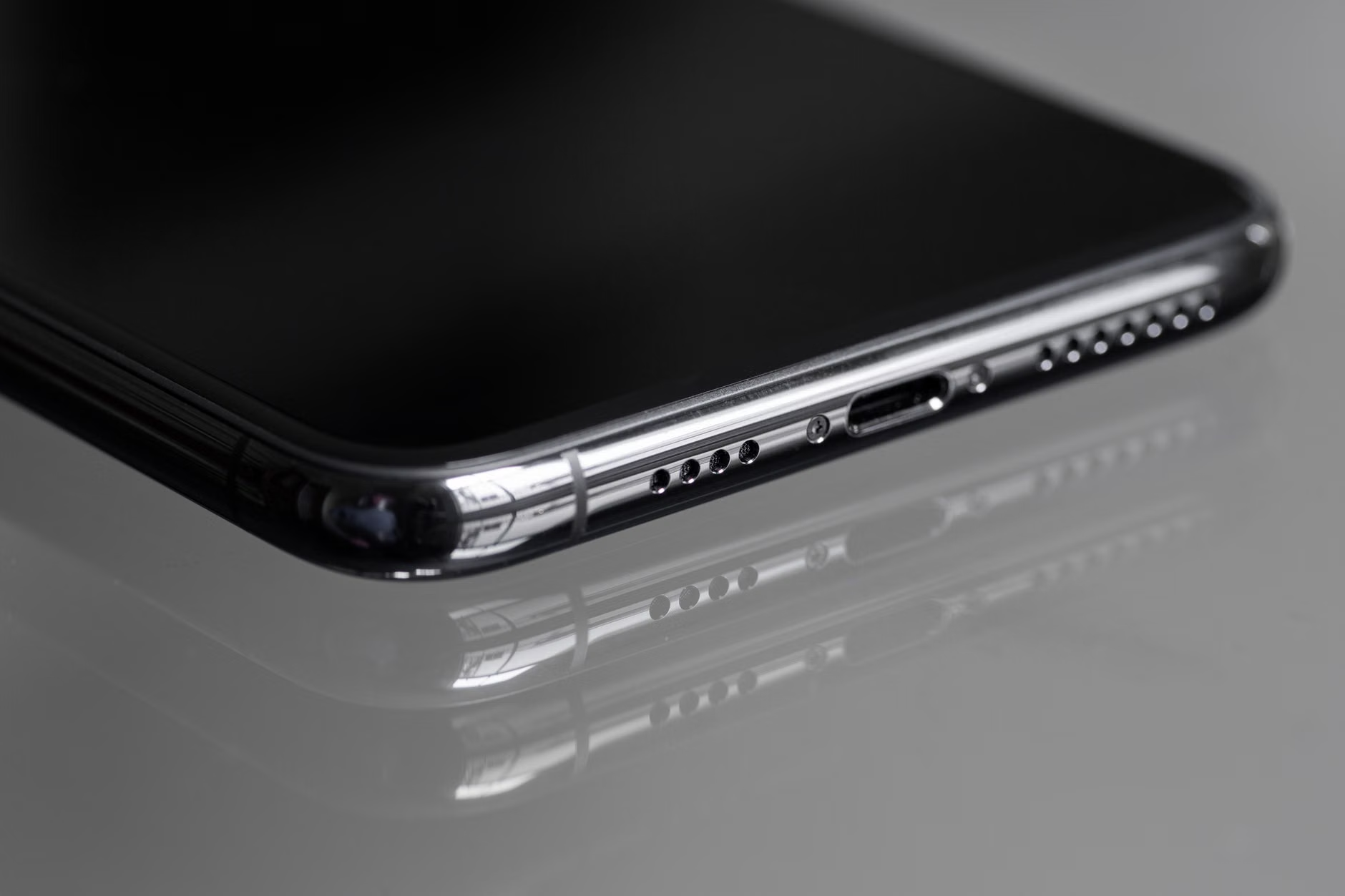
- The Port Test: Use a flashlight to look inside the charging port. If it’s full of lint or the pins look bent, the device will have charging issues.
- The Screen Flicker: Turn the screen brightness to maximum and open a plain white image. Do you see discolored spots or flickering? These are signs of water damage or a failing backlight.
- The Hinge Test: For laptops, open and close the lid three times. Any grinding sound or excessive wobbling indicates structural damage that will only worsen over time.

Step 4: Software and Component Diagnostics
Hardware isn’t just about the shell. You need to know if the internal components, like the Wi-Fi card, the camera, and the keyboard, are fully functional. This is where many buyers get caught out by “intermittent” issues.
The Strategy: Don’t just trust the seller’s word. Use built-in diagnostic tools. For Windows, use the “Performance Monitor” or run a quick command in the terminal. For Macs, use the built-in Apple Diagnostics (hold ‘D’ during startup). These tools take five minutes to run and can save you from buying a machine with a failing hard drive or a dead Wi-Fi chip.
If you are buying a smartphone, download a third-party diagnostic app. These apps will test the touch sensitivity of every pixel on the screen and the health of the internal sensors. If a small strip of the touchscreen doesn’t register your finger, you’ll notice it every single day when you try to type.
Step 5: The “Audit Trail” and Proof of Purchase
Why does an original receipt matter? It’s not just about the warranty. It’s about provenance. A seller who can produce the original digital invoice from the Apple Store, Best Buy, or a similar reputable retailer is likely the original owner. This significantly lowers the risk of buying a device that was purchased on a fraudulent credit card or is part of a corporate lease that hasn’t been paid off.
If you are buying from a platform like eBay, Facebook Marketplace, or specialized refurbishers, look for the “Refurbished” certification. Manufacturers like Apple and Dell have official refurbished programs that come with a warranty. This is the “gold standard” of second-hand buying—you get the discount, but you keep the peace of mind.
Step 6: Understanding the “Hidden Costs” of Older Tech
In our 30s and 40s, we often value time over saving an extra $50. When buying older tech, consider the “Software Support Cycle.” Apple, for example, typically supports devices with major OS updates for 5–7 years. If you buy a five-year-old laptop, you might only have one or two years of security updates left.
The Decision Rule: Always check the manufacturer’s “End of Support” (EOS) date for the model you are buying. If a device will stop receiving security patches in six months, its value drops significantly. You aren’t just buying hardware; you’re buying the lifespan of the software that runs on it.

Step 7: The Final Negotiation and Handover
Once you’ve done the audit, you are in the driver’s seat. Use your findings to negotiate. If the battery is at 78%, don’t be afraid to say, “I’m interested, but since the battery needs replacing, I’d like to offer $X instead of $Y.” Most sellers would rather close the deal than wait for another buyer who might be less thorough.
When you exchange money, prioritize secure payment platforms that offer “Buyer Protection.” Never pay via bank transfer or “friends and family” options on payment apps unless you are physically in the room with the person and have tested the device for at least 15 minutes.
Putting It All Together: A Quick Reference Table
To help you keep track of these steps, I’ve put together this quick decision matrix. Use this as a mental checklist during your next purchase.
| Checklist Item | What to Look For | Decision Impact |
|---|---|---|
| Activation Lock | Device resets to “Hello” screen | Must pass or cancel deal |
| Battery Health | Above 80% capacity | Negotiate price if lower |
| Screen/Display | No dead pixels or flicker | Do not buy if faulty |
| Ports/Hinges | Clean, no grinding | Factor in repair costs |
| Software Support | At least 2 years of updates left | Avoid if near EOS date |
The beauty of buying second-hand is the sustainability and the savings. By following this checklist, you aren’t just saving money—you’re ensuring that the tech you bring into your home is reliable and ready for your family’s daily chaos. Don’t rush the process, trust your audit, and don’t be afraid to walk away if the numbers or the conditions don’t add up. There will always be another deal, but your peace of mind is worth more than any gadget.
Frequently Asked Questions
Q: Is it safe to buy “Refurbished” items from third-party sellers?
A: It depends on the seller’s rating and the warranty offered. “Certified Refurbished” from the manufacturer is the safest route. If buying from a third-party, ensure they offer at least a 90-day return policy. If they don’t, treat it as a “buyer beware” situation.
Q: How do I know if a phone was reported stolen?
A: Every phone has a unique IMEI number. You can use free online services like StolenPhoneChecker (in the US) or similar national databases in your region to verify the status of the device before you hand over any money.
Q: What if the seller seems annoyed by my questions?
A: A genuine seller who has taken care of their device will usually understand your caution. If a seller is pushy, aggressive, or tries to rush you, it is a massive warning sign. Walk away; the stress of a bad purchase isn’t worth the discount.
Note: This guide is intended for informational purposes. Always check the specific laws and consumer protection policies in your country or region before completing a private transaction.