The most critical step in securing your child’s wearable is not just choosing the right device, but disabling the “default-on” features that expose their real-time location and personal data to third-party servers. If you are reading this, you’ve likely already bought the watch, but you can still retroactively “harden” its security by auditing three specific areas: data collection, contact permissions, and location frequency.
- Location Privacy: Change location ping intervals from “real-time” to “scheduled” to minimize the footprint of your child’s movement data on company servers.
- Contact Whitelisting: Always manually enable the “whitelist” feature, which prevents any number not saved in your parent app from calling or messaging the child’s device.
- Data Minimization: Review the app permissions on your own phone; if the companion app requires access to your contacts, photos, or microphone unnecessarily, revoke those permissions immediately.
We live in an era where “safety” and “surveillance” have become uncomfortably intertwined. You want to know your child is safe when they walk to school or play at a friend’s house, but the trade-off is often a device that functions like a small, wearable data-broker. The problem isn’t just the watch—it’s the cloud ecosystem behind it. When you buy a budget-friendly GPS watch, you aren’t just paying for hardware; you are paying for a subscription to a server that stores your child’s habits. Let’s look at how to audit these devices like a pro.
The Reality of “Always-On” Location Tracking
Most parents believe that “real-time tracking” is a binary choice: either it’s on, or you don’t know where your child is. In reality, modern wearables offer a spectrum of settings. The “always-on” mode is the most vulnerable; it continuously broadcasts GPS coordinates to the manufacturer’s cloud. If that company suffers a data breach, your child’s most common routes—school, home, park—are potentially exposed.
What to do instead: Look for “Interval Mode” or “Battery Saver Mode” in your companion app. Setting your device to update its location every 15 or 30 minutes instead of every 30 seconds significantly reduces the amount of granular data stored on third-party servers. For most parents, knowing where a child is every 15 minutes is more than enough to ensure safety without creating a high-resolution map of their daily life for hackers to target.
Common Mistake: Leaving “Geofencing” alerts active for locations you don’t actually need to monitor. Every time your child enters or leaves a “safe zone,” the device pings the server. If you have five different zones set up, you are increasing the frequency of data transmission and, consequently, the risk profile of the device.
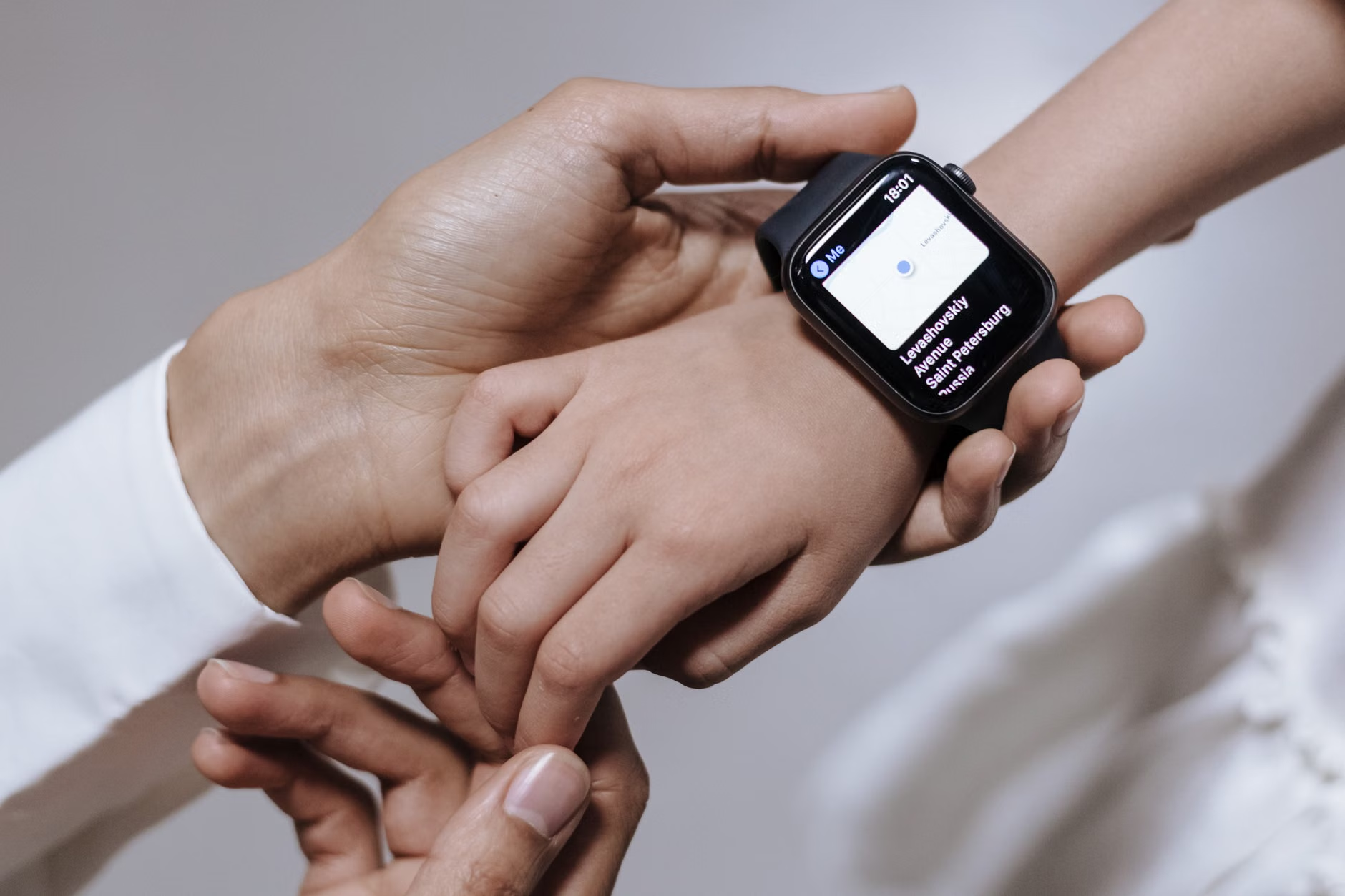
Auditing Contact Whitelisting and Stranger Danger
A smartwatch is essentially a phone that is much easier to lose or manipulate. Many parents assume that the device comes with a “firewall” for calls, but many models default to allowing anyone who knows the device’s phone number to call it. This is a massive oversight.
The “Whitelist” feature is your primary defense. When enabled, the watch will automatically reject any incoming call or text message from a number not stored in the parent-managed contact list. If you haven’t enabled this, your child is effectively carrying a public device that can be reached by telemarketers, scammers, or worse.
Step-by-Step Whitelist Audit:
- Step 1: Open your parent companion app.
- Step 2: Navigate to “Settings” or “Security.”
- Step 3: Look for “Call Restriction” or “Whitelist.”
- Step 4: Toggle it to “ON.”
- Step 5: Manually input the numbers of immediate family members.
- Step 6: Test it by having a friend call the watch from an unsaved number. The call should be blocked or sent to voicemail immediately.
Insight: If the device does not have a native whitelist feature, it is likely not a secure device for a child. Consider returning it. In the world of kid-tech, if the manufacturer hasn’t built a simple “block unknown callers” feature, they haven’t built the device with the child’s safety in mind.
Data Privacy: The Hidden Cost of “Free” Apps
When you download the companion app to your phone, you are usually asked for a laundry list of permissions. Why does a GPS watch app need access to your photos? Why does it need access to your Bluetooth or your contacts list? Often, it doesn’t. These permissions are often “over-privileged,” meaning they collect more data than the app actually needs to function.
How to audit your phone’s permissions:
| Permission | Necessary? | Risk Level |
|---|---|---|
| Location | Yes | High (Required for tracking) |
| Contacts | Maybe | Medium (Used for calling) |
| Photos/Storage | No | High (Privacy risk) |
| Microphone | No | High (Unless using voice chat) |
If you are on iOS or Android, go to your system settings and check the “App Permissions” for the watch’s companion app. Revoke any permission that doesn’t feel essential. If the app stops working, you can always re-enable it, but you will be surprised how many apps function perfectly fine without access to your entire photo library.

The Vulnerability of Unencrypted Messaging
Many smartwatches include a “Voice Chat” or “Text” feature. This is often the most overlooked aspect of digital safety. In many budget models, this data is sent in plain text or using very weak encryption. This means that if a person were to intercept the signal—a technique known as a “Man-in-the-Middle” attack—they could potentially listen to the voice messages or read the texts between you and your child.
The Reality Check: While it is unlikely that a random hacker is targeting your specific child, the data is still being stored on the manufacturer’s server. If that company is hacked, your private conversations are now part of a database on the dark web. Use the watch for essential communication only. Avoid sharing sensitive information like your home address, school name, or personal routines via the watch’s messaging function.
Best Practice: Treat the watch’s messaging system like an unencrypted postcard. If you wouldn’t write it on a postcard and mail it, don’t send it through the watch.
Building a Digital Hygiene Routine
Security isn’t a “set it and forget it” task. It’s a routine. Just like you check your child’s backpack for forgotten homework or check their shoes for wear, you should audit the watch every month. Here is your monthly “Digital Hygiene” checklist:
- Check for Firmware Updates: Manufacturers often release updates to fix security vulnerabilities. If you see a “Update Available” notification, do not ignore it. It is often a patch for a known security hole.
- Review the Contact List: Kids grow, and their circle changes. Remove old contacts or numbers that are no longer needed.
- Clear the Cache: If the app allows, clear the cache to delete old messages and temporary data stored on the app side.
- Re-verify Permissions: Did an update just reset your privacy settings? It happens more often than you’d think. Check your phone’s app permissions again.
When to Consider a “Dumb” Alternative
There is a growing movement toward “dumb” wearables—devices that offer GPS tracking and a simple calling function without the bloat of games, social media, or cloud-based messaging. If you find that the security settings on your current watch are too complex, or if you simply don’t trust the manufacturer’s privacy policy, the best security decision is to switch to a device with a smaller attack surface.
Look for devices that store data locally or use end-to-end encryption. While these are often more expensive upfront, they don’t rely on a “freemium” model where your child’s data is the product being sold to advertisers. Remember, if you aren’t paying for the product with money, you are paying with your data. For a child’s safety, paying a bit more for a reputable, privacy-focused brand is an investment in their long-term digital security.
Final Thoughts: Your Role as the Digital Gatekeeper
Securing your child’s wearable is not about paranoia; it’s about control. You are the architect of their digital environment. By taking the time to audit these settings, you are teaching them—and yourself—that technology is a tool to be managed, not a master to be obeyed. Start with the whitelist, tighten those app permissions, and don’t be afraid to pull the plug on a device that doesn’t respect your privacy. Your child’s safety is worth more than the convenience of an extra feature.
Frequently Asked Questions
1. Does using a VPN on my phone protect the data sent from my child’s watch?
No. A VPN protects the traffic between your phone and the internet. It does not encrypt the data sent directly from the watch to the manufacturer’s servers. The security of that connection depends entirely on the manufacturer’s own encryption standards.
2. Should I be worried about my child’s watch being hacked by a stranger?
While targeted attacks on children are rare, “script kiddies” and automated bots do scan for insecure devices. By using a whitelist and ensuring your account has a strong, unique password (and two-factor authentication if available), you mitigate 99% of the risk from these automated threats.
3. What is the most important setting to check immediately?
The “Whitelist” or “Contact Restriction” setting. Preventing unauthorized people from contacting your child is the single most effective way to improve their safety while using a wearable device.
For more information on cybersecurity best practices for families, you can visit the Federal Trade Commission’s guide on child privacy or the National Cybersecurity Alliance.