Most household printer issues—from the dreaded paper jam to streaky printouts—are not hardware failures but simple maintenance oversights that you can fix in less than twenty minutes without calling a technician or buying a new machine.
- Most “broken” printers are just dirty: Dust and paper fiber buildup on rollers are responsible for over 70% of paper feed failures.
- Use the right cleaning agent: Always use 70% or higher isopropyl alcohol and lint-free materials to avoid leaving residue on sensitive optical sensors.
- Prevention is cheaper than parts: Storing paper in a sealed container and running a “head cleaning” cycle once every two months prevents ink clogs before they start.
If you are a parent, you know the specific panic of a school project deadline at 9 PM, only for your printer to spit out a blank page or flash a cryptic error light. It is a rite of passage for the modern home office. Before you consider replacing the unit or paying a service fee that costs as much as a new printer, let’s look at the actual mechanics of why these machines fail and how you can restore them to working order.
Understanding Why Your Printer Stops Working
Modern inkjet and laser printers are deceptively complex. While they appear to be simple boxes, they contain precision-engineered components that rely on friction, light sensors, and microscopic ink droplets. When these systems fail, it is rarely because the “brain” of the printer has died. Instead, it is usually because a physical variable has shifted.
Think of your printer like a high-performance bicycle. It needs clean parts, the right amount of tension, and clear paths for movement. When you neglect the physical cleaning, dust accumulates. This dust acts as an insulator or a barrier, tricking the printer’s sensors into thinking there is a paper jam or an empty ink cartridge. By addressing the physical environment of the printer, you remove the most common obstacles to functionality.
The Golden Rule of Printer Repair: Never force any part of the printer. If a piece does not slide or open easily, there is likely a latch or a specific sequence you are missing. Forcing parts often results in snapped plastic gears, which is the one thing that truly makes a printer unrepairable.

The Paper Feed Problem: When the Printer “Can’t See” the Paper
The most common complaint is the “Paper Jam” error when there is no paper jammed, or the printer simply failing to grab the sheet. This is almost always caused by the rubber feed rollers. Over time, these rollers collect paper dust and oils from your fingers. Once the surface of the roller becomes smooth or coated in dust, it loses the “grip” necessary to pull a single sheet into the machine.
Step-by-Step Roller Restoration
You do not need specialized tools for this. You need a lint-free cloth (a microfiber lens cloth works perfectly) and isopropyl alcohol (70% or higher).
- Unplug the printer: Safety first. You will be reaching into areas with moving parts and electrical contacts.
- Locate the rollers: Open the paper input tray or the back access panel. You are looking for small, usually grey or black rubber wheels.
- Clean the surface: Dampen your cloth with a small amount of alcohol. Do not soak it. Wipe the rollers thoroughly while rotating them with your finger. You will likely see black residue come off onto the cloth. This is the culprit.
- Dry and test: Let the alcohol evaporate for 5 minutes before plugging the printer back in.
Common Mistake: Using water or household cleaning sprays. Water can cause the rubber to swell or degrade, and household sprays often contain surfactants that leave a slippery film, making the problem worse. Stick to high-percentage isopropyl alcohol, which evaporates cleanly.
Troubleshooting Inkjet Print Quality Issues
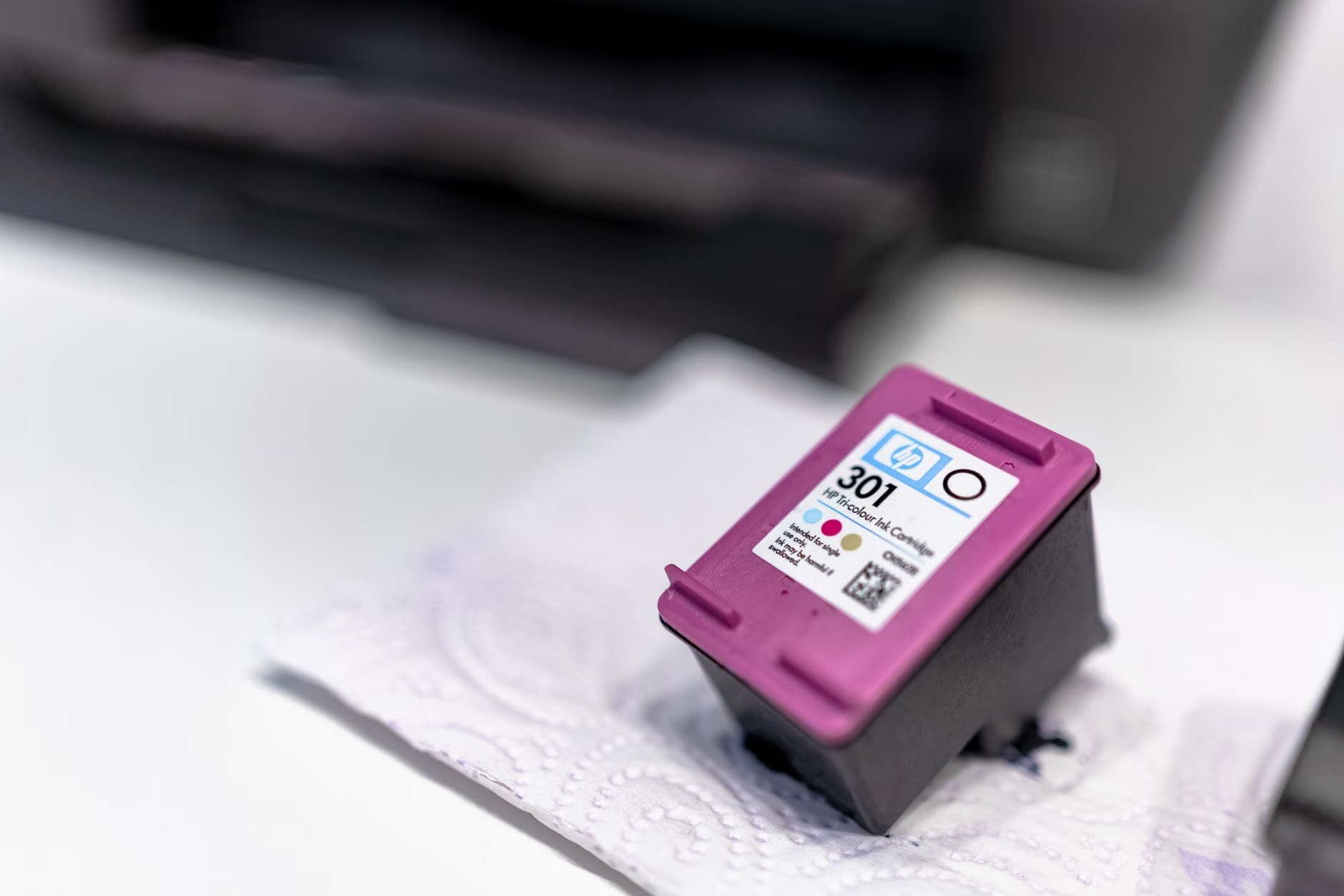
If your prints are coming out streaky, faded, or with missing colors, the issue is almost certainly a clogged print head. Inkjet printers work by firing microscopic droplets through tiny nozzles. If the printer sits idle for a few weeks, the ink in those nozzles can dry out, forming a solid plug.
The Hierarchy of Cleaning
Don’t jump straight to the most aggressive cleaning method. Follow this hierarchy to save your ink:
| Method | Intensity | When to use it |
|---|---|---|
| Built-in Software Cleaning | Low | First attempt for minor lines or streaks. |
| Deep Cleaning Cycle | Medium | Use only if standard cleaning fails; consumes significant ink. |
| Manual Head Soaking | High | Use if the print head is removable and software cleaning fails entirely. |
Pro Insight: Many people run the “Deep Cleaning” cycle five or six times in a row when they see a streak. This is a mistake. If the first two attempts don’t work, the clog is likely too hard for the software to clear. Running it more will only drain your expensive ink cartridges. If two cycles fail, wait several hours or overnight. Sometimes, the chemical cleaners in the ink need time to dissolve the dried clog naturally.
Dealing with Paper Jams: The “Hidden” Obstacle
When a paper jam occurs, the natural reaction is to pull the paper out as fast as possible. This is the fastest way to break a sensor flag. A sensor flag is a tiny, delicate piece of plastic that swings back and forth to tell the printer where the paper is located.
Safe Jam Removal Technique
If you see a jam, follow these steps:
- Power down: Leave the printer plugged in but turn it off. If it is still on, the motors might fight against you.
- Open all access doors: Most modern printers have a front, back, and top access. Open them all to get a clear view of the entire paper path.
- The “Gentle Tug” rule: Always pull the paper in the direction of the normal paper path (the direction it travels when printing). If you pull it backward, you can damage the feed gears.
- Check for scraps: This is the step most people skip. A small corner of a torn sheet can remain stuck in the roller path. Use a flashlight to inspect the rollers. Even a tiny piece of paper, the size of a fingernail, can trigger a “Jam” error indefinitely.
If you cannot see any paper but the error persists, there may be a piece of debris stuck on the optical sensor. This is located along the path where the paper travels. A can of compressed air is the best tool here. Give it a short, controlled burst to clear any dust or tiny paper shreds that might be blocking the sensor’s “eye.”

Preventative Maintenance: The “Set and Forget” Strategy
You can avoid most of these repairs by changing how you store your printer. The environment is the biggest enemy of your hardware.
The Humidity Factor
Paper is hygroscopic, meaning it absorbs moisture from the air. If you live in a humid climate, your paper will become limp and prone to jamming. If you live in a very dry climate, the paper can become brittle and generate excessive static electricity, causing it to feed multiple sheets at once.
Actionable Advice: Keep your printer in a room with stable temperature and humidity. If you have a room that fluctuates wildly (like a garage or a basement), your printer will struggle. Furthermore, keep your paper in a sealed plastic bag or a dedicated airtight container. Even a small amount of moisture absorption can lead to paper feed failures.
The “Once-a-Month” Rule
Inkjet printers are designed to be used. If you don’t print anything for months, the ink will dry. Set a calendar reminder to print one full-color test page once every three to four weeks. This keeps the ink flowing through the nozzles and prevents them from drying shut. It costs pennies in ink but saves you the headache of replacing a print head, which can cost nearly as much as the printer itself.
When to Give Up (And Why)
There comes a point where a repair is no longer economically viable. For a home user, this threshold is usually reached when the cost of parts (like a new print head or a main logic board) exceeds 40% of the cost of a new, entry-level printer.
However, before you recycle your unit, consider the “Hidden Cost of New.” New printers often come with “starter” ink cartridges that contain only 20-30% of the ink of a standard retail cartridge. When you buy a new printer, you are not just paying for the machine; you are paying for the inevitable purchase of full-sized ink cartridges within the first month. If you can fix your current printer with a $10 bottle of isopropyl alcohol, you are effectively saving yourself the $100+ cost of a new machine plus the immediate need for ink.
Common Misconceptions About Printer Repair
Many users believe that “Third-party ink” is the cause of all hardware failures. While cheap, low-quality ink can certainly clog nozzles faster, it is rarely the cause of mechanical failures like paper jams or roller issues. Don’t blame your ink for a mechanical problem. If your printer isn’t grabbing paper, it’s a mechanical issue. If your print is faint or streaky, it’s an ink/nozzle issue. Distinguishing between the two will save you from buying ink when you actually need to clean your rollers.
Another myth is that “resetting” the printer by unplugging it for 60 seconds is a waste of time. It is not. Many printers have volatile memory that holds onto error states. A “hard reset” (unplugging the power cable while the machine is on, then waiting for the internal capacitors to discharge) forces the printer to re-initialize its mechanical sensors. It is the digital equivalent of a “have you tried turning it off and on again,” and it is surprisingly effective for clearing “ghost” errors.
Final Thoughts for the Busy Household
Maintaining a printer doesn’t require technical expertise or a degree in engineering. It requires a bit of patience, a clean workspace, and the willingness to look inside the machine. By keeping your rollers clean, your paper dry, and running the occasional test page, you can extend the life of your printer by years.
If you find yourself constantly battling your printer, take a moment to evaluate your usage. If you only print once or twice a year, a laser printer (which uses toner powder instead of liquid ink) is a much better long-term investment. Toner does not dry out, and laser printers are generally more robust for intermittent use. For the average family, a simple, well-maintained inkjet is usually sufficient, provided you treat it with the same care you would any other household appliance.
For more specific troubleshooting, always refer to your manufacturer’s support page. Most offer excellent PDF manuals that include “service modes” for specific models. You can find the main support portals for major manufacturers here:
Frequently Asked Questions
1. Does using non-brand ink actually damage my printer?
Low-quality third-party ink can lead to faster clogging of the print head nozzles because the pigment particles may be larger or the chemical composition less stable. However, it does not cause mechanical issues like paper jams. If you choose to use third-party ink, buy from reputable suppliers who specialize in printer supplies rather than the cheapest option on a general marketplace.
2. My printer says “Ink Cartridge Depleted” but I know it has ink. What gives?
Printers use optical sensors or chip-based counters to track ink levels. Sometimes, the chip on the cartridge becomes dirty or the printer’s internal counter gets desynchronized. Try removing the cartridge and gently cleaning the gold contact points on the cartridge and the printer with a dry, lint-free cloth. If that fails, a hard reset of the printer (unplugging it for 60 seconds) often clears the false error.
3. How often should I perform a deep cleaning cycle?
You should almost never use the “Deep Cleaning” setting unless you have exhausted all other options. It is an aggressive process that pulls a large amount of ink through the system. Always start with the standard “Cleaning” or “Nozzle Check” function. If you find yourself needing to deep clean more than once every few months, your printer may have a permanent clog or a failing print head.