The most dangerous misconception in modern parenting is the belief that “syncing” your files to a cloud service is the same thing as having a secure backup. If you delete a file from your phone, it disappears from your cloud; if your account is compromised, your “backup” is the first thing a hacker will lock or delete. To truly protect your family’s digital legacy—birth certificates, property deeds, tax returns, and sentimental photos—you need an encrypted-backup protocol that exists independently of your primary accounts.
Three Essential Pillars of Family Data Security
- The 3-2-1 Rule is the Baseline: Keep 3 copies of your data, on 2 different media types, with 1 copy stored in a physically separate, off-site location.
- Encryption is Mandatory: If your backup drive is lost or stolen, it should be a useless brick to anyone without your master decryption key.
- The “Heir-Access” Protocol: A backup is worthless if you are the only one who can unlock it; you must establish a secure, non-digital way for a trusted family member to recover the data.
Why Cloud Synchronization is Not a Backup
We live in an era of convenience. When you take a photo on your smartphone, it automatically uploads to a cloud service. When you scan a document for your home insurance, it goes straight to a folder that syncs across your laptop and tablet. This is excellent for accessibility, but it is catastrophic for data integrity. A backup is, by definition, a static snapshot of your data that cannot be altered by the source device.
Consider the “Sync-Deletion” trap. If a malicious actor gains access to your primary email account, they can often access your connected cloud storage. They might wipe your files, hold them for ransom, or simply corrupt the index. Because your devices are synced, the “delete” command propagates to every device you own within seconds. You aren’t just losing your files; you are losing your redundancy.
Furthermore, cloud providers are businesses, not digital vaults. Terms of Service can change, accounts can be flagged for “suspicious activity” and frozen, or you might find yourself locked out due to a forgotten password recovery process that relies on an email address you no longer access. For family documents that you might need in ten or twenty years, you need a protocol that you own, control, and verify yourself.
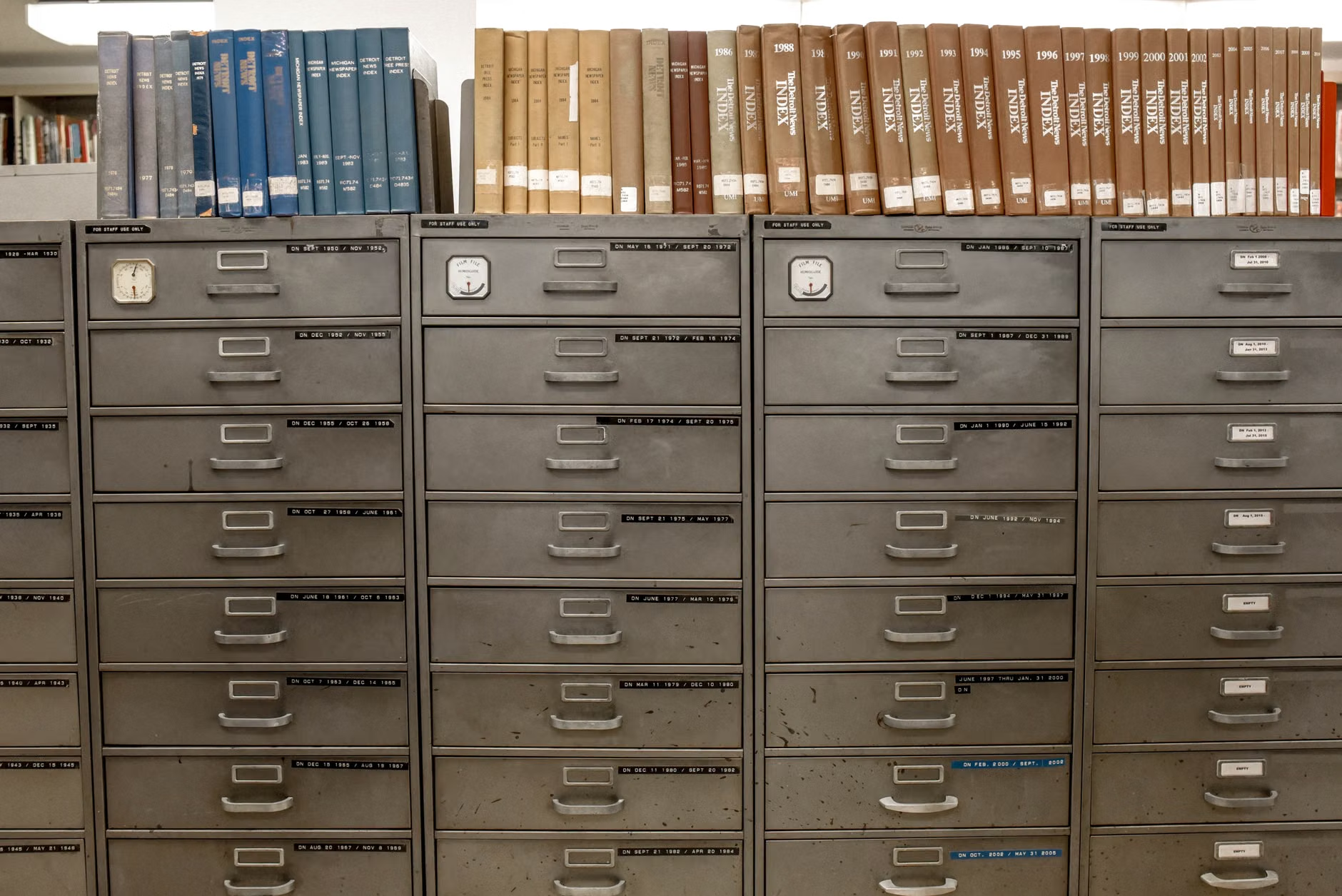
The Hardware Strategy: Choosing the Right “Cold” Storage
To move away from total cloud reliance, you need “cold storage.” This refers to media that is not permanently connected to the internet. For the average family, this means moving your sensitive documents onto an encrypted external drive. Forget standard, cheap USB thumb drives. You want an external Solid State Drive (SSD) that features hardware-level encryption.
Hardware encryption is superior to software encryption because the security process happens on the drive’s internal controller, not your computer’s processor. Even if you plug the drive into a malware-infected laptop, the drive will not unlock until you enter the correct PIN on its physical keypad or via a secure software interface. If the drive is stolen, the data is encrypted with AES-256 bit standards, which is currently considered virtually uncrackable by brute force.
When shopping for these drives, look for:
- FIPS 140-2 Level 3 Certification: This indicates that the device has undergone rigorous testing for physical tampering and cryptographic security.
- Physical Keypad: Drives that have a physical button array on the device itself are safer because the password never touches the computer’s memory.
- Ruggedness: Since this is for long-term storage, look for IP68-rated drives that can survive water and dust.
The Encryption Protocol: A Step-by-Step Implementation
Once you have your hardware, you need a workflow to ensure that your data is actually protected. Simply copying files to a drive isn’t enough; you need a strategy that keeps your files organized and retrievable.
Step 1: The Master Index
Create a master spreadsheet or a text file that acts as an “Index of Life.” This should contain the location of every important document, the expiration dates of passports, the account numbers for insurance policies, and the location of physical keys. This index itself must be encrypted. You can use tools like Veracrypt to create an encrypted container—a digital “vault” file—where this index lives.
Step 2: Versioning Your Files
Never overwrite a file. If you are updating your Will or a property deed, save it as “Will_2023_v1,” then “Will_2024_v2.” When you back up to your external drive, keep the old versions. In the event of a file corruption or accidental deletion, you will have a clean, previous version to fall back on.
Step 3: The “Fire-Safe” Test
Your encrypted drive is only as safe as its physical location. If it’s sitting next to your laptop, it will be lost in a house fire or a burglary along with the computer. Invest in a fireproof, waterproof document safe. These are heavy, cumbersome, and annoying to open—which is exactly why they work. They are not for daily use; they are for your “Cold Backup.”

Solving the “Heir-Access” Problem
The greatest risk to a highly encrypted backup system is you. If you are incapacitated or pass away, your family will be faced with a digital vault that is impossible to open. This is a common point of failure for people who take privacy too seriously.
You must establish a “Digital Inheritance” plan. This doesn’t mean giving your password to everyone. Instead, use a “Dead Man’s Switch” or a physical redundancy. Many families choose to keep a sealed envelope in a bank safety deposit box or with a trusted family lawyer. Inside the envelope is a recovery key for your encrypted drive and instructions on how to access your primary password manager.
Common Mistake: Do not store your recovery key on the same drive as your data. If the drive fails, the key is gone. Keep the recovery information in a separate physical location, like a fireproof safe at a relative’s house or a bank.
Advanced Security: Multi-Factor Authentication (MFA)
Even with local backups, you still need to secure your cloud accounts to prevent unauthorized access in the first place. If you are using SMS-based two-factor authentication, you are vulnerable. SIM-swapping—where a hacker convinces your mobile carrier to transfer your number to their SIM card—allows them to intercept your SMS codes and bypass your security.
Instead, move to hardware security keys like YubiKey or Titan keys. These are small USB devices that you physically touch to authorize a login. They are immune to phishing and cannot be intercepted remotely. For a family, having two of these (one primary, one backup) stored in your fireproof safe is the gold standard for protecting your primary email and cloud accounts.
Comparison of Backup Options
It is easy to get overwhelmed by the choices. This table breaks down the risks and use-cases for each storage method.
| Method | Best For | Main Risk |
|---|---|---|
| Cloud Sync | Daily access, collaboration | Account compromise, accidental deletion |
| Encrypted External SSD | Long-term cold storage | Physical loss or hardware failure |
| Off-site Physical Backup | Disaster recovery | Outdated data, physical damage |
The key takeaway here is that no single method is sufficient. A robust system uses the cloud for convenience, an encrypted SSD for local security, and an off-site physical location for true disaster recovery. If your house suffers a catastrophic event, you should be able to recover your “Digital Life” from the off-site location.
The Hidden Variables of Long-Term Digital Storage
One aspect often overlooked is “bit rot.” Digital files are stored as magnetic or electrical charges on a drive. Over many years, these charges can degrade, leading to corrupted files. If you are storing your family history on a drive and leaving it in a safe for five years, you must adopt a “refresh” schedule.
Every 12 to 18 months, plug in your cold storage drives, verify that the files open, and if necessary, copy them to a newer drive. This is called “data migration.” It sounds tedious, but it is the only way to ensure that your files remain readable. Treat this like an annual physical checkup for your data.
Additionally, be wary of proprietary software. If you use a specific app to encrypt your files, ensure that the software is still supported and that you can export your data to an open format. If the company behind your encryption software goes bust, you might find yourself with an encrypted blob of data that no modern computer can decrypt. Stick to open-source or industry-standard encryption protocols whenever possible.
Practical Next Steps for Your Family
Don’t try to build the perfect system in a day. Start by identifying your “Must-Save” list. This should include:
- Identity Documents: Scans of passports, birth certificates, and social security cards.
- Financial Records: Tax returns for the last 7 years, property deeds, and investment account summaries.
- Medical History: Vaccination records, records of major procedures, and insurance policy details.
- Digital Assets: A list of your essential accounts, crypto-wallets (if applicable), and domain names.
Once your list is compiled, purchase your hardware. If you are not tech-savvy, start with a high-quality encrypted SSD. Configure it with a strong, memorable passphrase (not a simple password, but a sentence). Store it in a fireproof bag or safe. Finally, set a recurring calendar alert for every six months to check the drive.
This protocol isn’t about being paranoid; it’s about being prepared. In your 30s and 40s, you are likely the “digital steward” of your family. By taking these steps, you are ensuring that if the worst happens, your family won’t have to navigate a digital maze to recover their lives. They will have a single, secure, and accessible source of truth.
Frequently Asked Questions
Q: Is it safe to store my backups in a bank safety deposit box?
A: Generally, yes, but be aware that you may not have immediate access to your box during bank holidays or outside of business hours. It is an excellent location for a “Deep Cold” backup (e.g., a yearly update), but you should also maintain a secondary, more accessible backup at home or with a trusted family member for emergencies.
Q: What happens if I forget the master PIN for my encrypted drive?
A: In most cases, the data is gone forever. This is the trade-off for high-level security. This is why you must have a physical, offline copy of your recovery key stored in a separate, secure location. Never rely on your memory alone for critical encryption keys.
Q: Can I use cloud storage as my “secondary” location instead of a second physical drive?
A: Yes, but only if you use a “Zero-Knowledge” encryption service. This means the service provider cannot see your files. You encrypt the files on your computer before uploading them to the cloud. Even if the cloud provider is hacked, the attacker only sees encrypted gibberish. Services like Cryptomator or Proton Drive are common examples of this approach.
For further information on digital security best practices, you can consult the Cybersecurity & Infrastructure Security Agency (CISA) guide on securing your accounts, which provides a solid foundation for the principles discussed here.
Taking control of your digital life is a process of small, deliberate actions. Start today by securing your most important documents—your future self, and your family, will thank you.