The most effective way to manage a chaotic household isn’t by buying more physical planners or sticky notes; it is by centralizing your family’s cognitive load into a single, custom-built low-code dashboard that acts as a digital brain for your home.
Key Takeaways
- Low-code platforms (like Notion, Airtable, or Glide) allow you to build custom apps without writing a single line of code, turning static lists into interactive databases.
- Centralization is key: By linking your grocery inventory, family calendar, and chore rotation, you eliminate the “where is that information” friction that causes 80% of household arguments.
- The “Start Small” Rule: Do not attempt to automate your entire life in one weekend; build one “module” (like grocery tracking) first, ensure it works for your family, and then expand.
If you are in your 30s or 40s, you likely feel like you are juggling a dozen glass balls at once. Between work deadlines, school pickups, meal planning, and the recurring mental tax of remembering when the air filters were last changed, the “mental load” is real. We often try to solve this with a mix of shared calendars, paper lists on the fridge, and random apps that don’t talk to each other. The result? You end up with a fragmented system that requires more effort to maintain than the tasks themselves.
This is where the “Low-Code” movement changes the game. You don’t need a degree in computer science to stop relying on memory. You just need a centralized, visual interface that tells you exactly what needs to be done, when, and by whom. Let’s look at how to build this.
What Exactly Is a Low-Code Dashboard for Your Home?
In the world of professional software development, “low-code” refers to platforms that provide a visual interface to build applications. Instead of writing complex syntax, you drag and drop components, link databases, and create logic flows. For a household, this means creating a digital command center that reflects your specific family needs, rather than forcing your family to adapt to a generic app that doesn’t quite fit.
Why does this matter? Because generic apps are often “feature-bloated.” They have hundreds of buttons you never use, which makes them feel cluttered and slow. A low-code dashboard—built in tools like Notion, Airtable, or Glide—contains only what you actually need. If your family doesn’t care about a “budget travel tracker,” you don’t have to look at it. If you desperately need a “pet medication schedule,” you can build it in ten minutes.
The Architecture of a Functional Household Hub
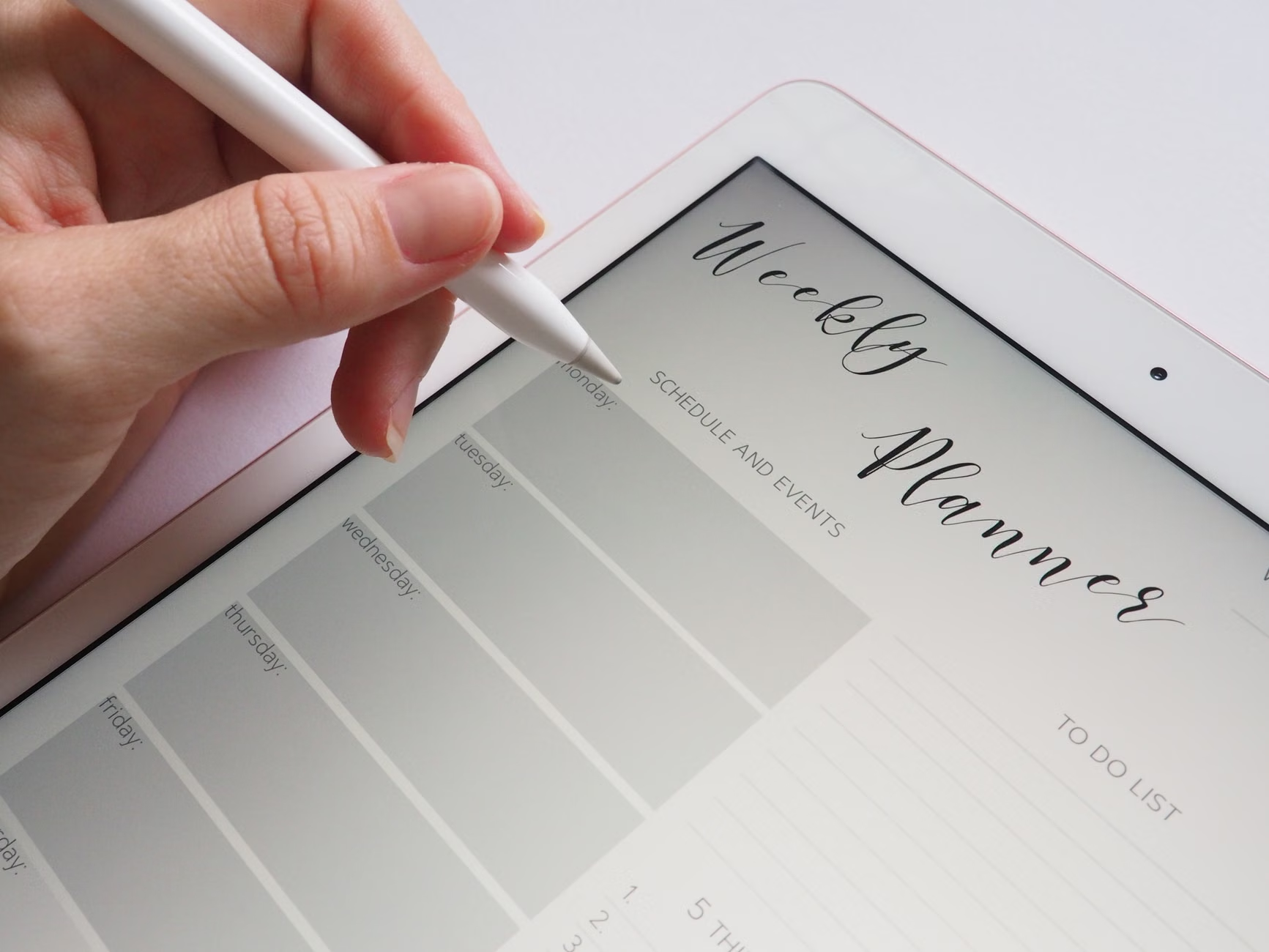
To build a successful dashboard, you should think of it as a relational database. Most people make the mistake of creating a simple list. A relational system means your data is interconnected. For example, when you check off a “Grocery Shopping” task, it shouldn’t just disappear; it should ideally update your “Inventory” list or trigger a notification to your partner.
Here is the breakdown of the core modules you should include:
- The Master Calendar: A shared view of school events, work travel, and medical appointments.
- The Dynamic Task List: A database of chores that includes “frequency” settings (e.g., weekly, monthly, quarterly).
- Inventory Tracking: A simple list of household essentials (toilet paper, cleaning supplies) that you can update from your phone while at the store.
- The “Brain Dump”: A catch-all space for ideas, future home projects, or gift ideas for birthdays.
Why Standard Apps Fail Where Custom Dashboards Succeed
You might be wondering: “Why not just use Todoist or Google Keep?” Those are excellent tools, but they are designed for individual productivity, not household synchronization. They often lack the “view” flexibility that families need. A household dashboard isn’t just a list; it’s a living document.
Consider the “Common Mistake” scenario: You use a shared Google Keep note for groceries. Your partner goes to the store, but you’ve already bought the milk. Because the note isn’t automated, your partner buys more milk, and you end up with two gallons expiring in the fridge. A low-code dashboard built on Airtable, for instance, can allow you to create a “checked-out” status that removes items from the “To Buy” view and moves them to a “Stocked” view. It’s a small change, but it eliminates the friction of redundant shopping.
Furthermore, custom dashboards allow for Role-Based Views. You can create a simplified “Kids View” that only shows their school responsibilities and chores, preventing them from being overwhelmed by the adult-level financial or maintenance tasks. This is something standard productivity apps rarely handle well without significant premium subscriptions.
Step-by-Step: Building Your First Module
Don’t try to build the whole system in one afternoon. The most common cause of failure is “over-engineering.” Start with one specific pain point. Let’s take the Household Maintenance Tracker as our first module.
Step 1: Define the Data
What are the things you always forget? Changing the HVAC filter, cleaning the dryer vent, scheduling the annual chimney sweep, or renewing the car registration. Write these down in a simple spreadsheet.
Step 2: Choose Your Platform
If you want a document-based feel, use Notion. If you want a database-driven feel with powerful filtering, use Airtable. If you want a standalone app that looks like a native iOS/Android app, look at Glide. For beginners, Notion is the easiest entry point.
Step 3: Create the “Database”
In your chosen tool, create a table with columns: “Task Name,” “Last Completed Date,” “Frequency (Days),” and “Next Due Date.” Use a formula to calculate the “Next Due Date” based on the “Last Completed Date” + “Frequency.”
Step 4: The “View” Layer
This is where the magic happens. Create a “Dashboard View” that filters the database to show only items where the “Next Due Date” is within the next 7 days. Now, you don’t have to scroll through a list of 50 items; you only see the 3 things that actually need your attention this week.
The Hidden Costs and Trade-offs
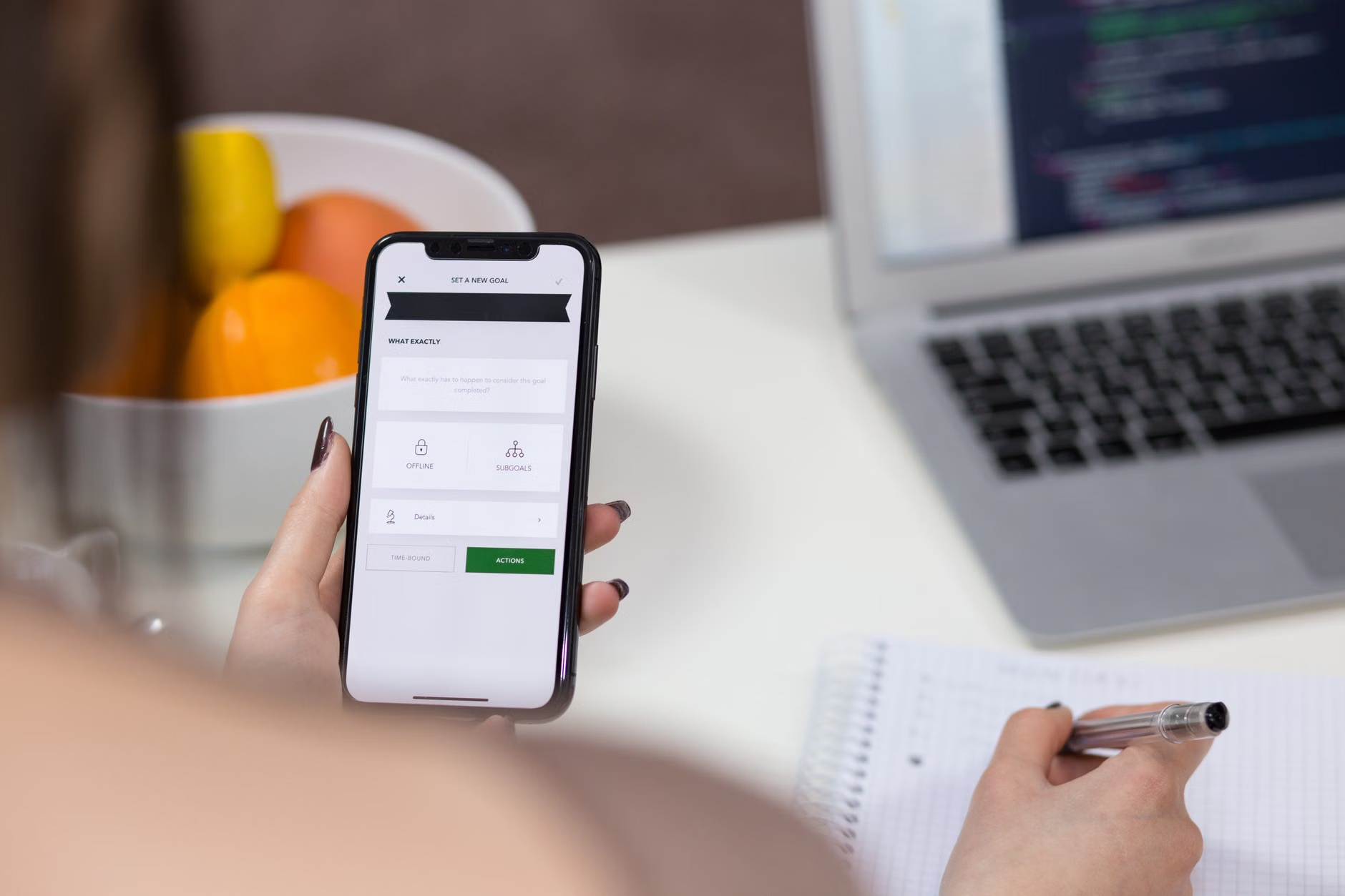
While low-code is powerful, it is not “free” in terms of time. You are essentially becoming the system administrator of your home. If you build a complex dashboard that requires constant manual data entry, your family will stop using it. The “hidden cost” is the maintenance of the system itself.
Decision Rule: If an automated integration (like using Zapier to automatically add a new email invoice to your “To Pay” list) takes more than 30 minutes to set up, skip it. Stick to manual entry until you are certain the process is something you actually do every single week. Automation should only be applied to established habits, not to processes you haven’t mastered yet.
Another trade-off is the “Alert Fatigue.” If your dashboard sends you a push notification for every single task, you will eventually disable the app entirely. Configure your dashboard to show information when you look for it, rather than pushing it at you when you are busy.
Refining Your Workflow for Long-Term Success
Once your dashboard is up and running, you need to establish a “Household Sync” meeting. Even the best technology cannot replace the need for human communication. Once a week—perhaps Sunday evening—spend 15 minutes looking at the dashboard together. Review what was accomplished, update the inventory, and set the priorities for the upcoming week.
During these check-ins, you might find that certain tasks are constantly being pushed back. This is a data-driven insight. If a task is always being delayed, it’s either not a priority, or it’s too complex. Use this as a trigger to simplify the task or remove it from the dashboard entirely. This is the beauty of a custom system: it adapts to your life, rather than forcing you to conform to a rigid, pre-packaged app structure.
Common Pitfalls to Avoid
| Pitfall | The Consequence | The Fix |
|---|---|---|
| Over-automating | System becomes fragile and breaks easily. | Keep it manual until the process is second nature. |
| Too many categories | Decision paralysis; you don’t know where to look. | Stick to “Daily,” “Weekly,” and “Project” views only. |
| Lack of accessibility | Only one person uses it. | Ensure the dashboard is pinned to the home screen of every family member’s phone. |
The table above highlights the most critical factors. If you don’t have the “buy-in” from your partner or family members, the dashboard will become a “ghost town.” Ensure that the interface is accessible, simple, and provides immediate value to everyone, not just the person who built it.
Advanced Techniques: Integrating External Data
Once you are comfortable with the basics, you can start pulling in external data. For example, if you use a smart home system or a connected calendar, you can use tools like IFTTT (If This Then That) or Make.com to pull data into your dashboard. Imagine receiving a notification in your dashboard that your smart washing machine has finished its cycle, or automatically pulling weather data to adjust your “Outdoor Chores” schedule.
However, a word of caution: complexity is the enemy of consistency. The more “moving parts” your system has, the more likely it is to fail. If a third-party service updates its API, your connection might break. If you aren’t prepared to troubleshoot these issues, stick to the core manual-entry modules. The goal is to reduce stress, not to create a new hobby that requires constant tech support.
Why This Matters for Your 30s and 40s
Why are we talking about this now? Because your 30s and 40s are the peak years of household complexity. You are likely balancing a career, potentially raising children, managing elder care, and trying to maintain a home. The cognitive load—the sheer amount of information you are holding in your head—is at its highest. By offloading this to a “second brain,” you are not just being “techy”; you are practicing self-care. You are freeing up mental bandwidth to focus on the things that actually matter: your relationships, your health, and your downtime.
Don’t feel guilty about the time spent setting this up. Think of it as an investment. Spending four hours one weekend to build a system that saves you 30 minutes of “Where is that thing?” or “Did we pay that bill?” every week will pay for itself in less than two months. It is an efficiency gain that compounds over time.
Final Recommendations and Next Steps
If you take nothing else away from this, remember that your dashboard should be a tool for clarity, not a tool for control. If it feels like a job, you’ve built it wrong. It should feel like a relief.
Start today by identifying the one thing that causes you the most friction. Is it the grocery list? The chore chart? The bill calendar? Build that one module. Get it working. Then, and only then, add the next piece. You are not building an enterprise software suite; you are building a home operating system designed to keep your life running smoothly so you can focus on enjoying it.
For those interested in exploring the platforms mentioned, you can check out the official guides here:
Frequently Asked Questions
1. Is it possible to use these tools if I have no experience with coding?
Yes, absolutely. These platforms are explicitly designed for non-programmers. They use visual drag-and-drop interfaces. If you can use a spreadsheet, you can build a low-code dashboard.
2. What happens if I lose internet access?
Most modern low-code tools like Notion or Airtable have offline modes or mobile caching. However, they are primarily cloud-based. If you are in a location with zero connectivity, you won’t be able to sync your data, but you can usually view the last cached version of your dashboard.
3. How do I get my family on board with using this?
The key is simplicity and immediate benefit. If the dashboard makes their life easier—by reminding them of a chore they enjoy or making the grocery run faster—they will use it. If it feels like “more work,” they won’t. Involve them in the design process from the start, and make sure the mobile interface is clean and easy to use.