The secret to a sustainable home office isn’t buying the newest gadget every year; it is performing a systematic ‘hardware-audit’ once every six months to identify which components are bottlenecks and which are still serving your needs.
- The 3-Year Rule: Peripheral hardware (mice, keyboards, cables) should be audited for physical degradation annually, while core computing hardware needs a performance review every three years.
- Bottleneck Identification: Most productivity issues aren’t caused by slow processors, but by insufficient RAM or thermal throttling caused by dust buildup.
- The “Audit-First” Mindset: Never replace a device until you have verified if a software update, internal cleaning, or cable replacement can resolve the issue.
If you are in your 30s or 40s, your home office likely serves as a command center for your professional life, a late-night hub for personal projects, and occasionally a place where you try to hide from the chaos of parenting. When a monitor flickers or a laptop fan starts sounding like a jet engine, the default reaction is often to start shopping for a replacement. But in an era of rising costs and environmental awareness, “replace” is a lazy solution. A hardware-audit is a proactive, strategic approach to managing your digital environment.
Why Your Home Office Deserves a Quarterly Audit
Most of us treat our home office like a junk drawer: we throw things in, plug them in, and hope they work until they don’t. This leads to what I call “tech-fatigue.” You’re working, the Wi-Fi drops, your mouse double-clicks when you only pressed it once, or your back hurts because your monitor is two inches too low. You spend your day fighting your own tools instead of using them.
An audit isn’t just about cleaning dust. It is about assessing the Total Cost of Ownership (TCO) and the Efficiency Quotient of your equipment. For a parent in their 30s, time is the most expensive commodity. If a slow computer costs you 15 minutes of frustration every day, that’s over 60 hours a year. That is almost a full week of your life lost to hardware that could have been optimized or replaced.
A hardware-audit forces you to look at your gear through three lenses: Functionality, Ergonomics, and Longevity.

Phase 1: The Physical Deep-Dive
Start with what you can touch. Most hardware failures in home offices are physical, not digital. Cables fray, dust clogs ventilation, and keyboards collect debris that eventually leads to key switch failure.
Step-by-Step Physical Audit:
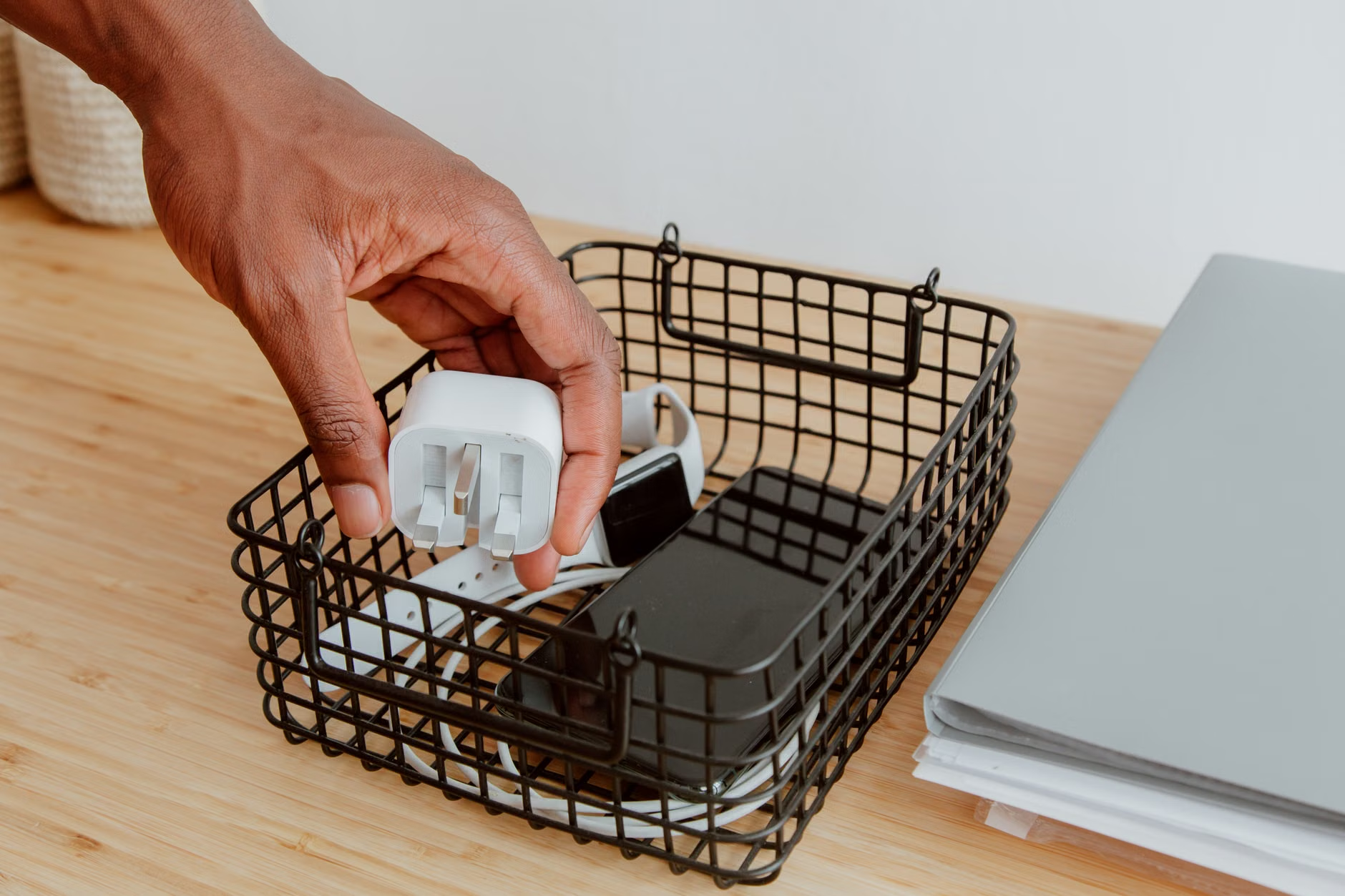
- Unplug Everything: Yes, everything. This is your chance to reset your cable management. If a cable is showing signs of wear (fraying, exposed wire, or kinks), recycle it immediately. Do not keep it as a ‘backup.’ A faulty cable is a fire hazard and a data risk.
- The Thermal Check: Use a can of compressed air to clear out your laptop or desktop vents. Overheating is the #1 killer of hardware longevity. If your computer fan runs constantly while you are just browsing a web page, it is begging for a cleaning.
- The Surface Inspection: Look at your mouse and keyboard. If the sensor on your mouse is skipping, it might just need a microfiber cloth wipe-down. If your keyboard keys are sticking, it is time for a proper cleaning or a replacement switch, not a new keyboard.
Common Mistake: Many people keep “legacy” cables—those old micro-USB cords or VGA cables—just in case. If you haven’t used a device that requires those cables in the last two years, let them go. A cluttered space leads to a cluttered mind, and old cables are just noise.
Phase 2: The Performance Benchmarking
Once the physical side is sorted, look at the software-hardware interface. You need to know if your computer is actually failing or if it is just bogged down by “digital rot”—the accumulation of background apps, cache, and temporary files that slow down even the best machines.
The “Performance Audit” Checklist:
| Component | Audit Metric | Actionable Threshold |
|---|---|---|
| RAM (Memory) | Usage during peak work | If consistently >85%, upgrade or close background apps. |
| Storage (SSD) | Remaining free space | If <20% free, performance drops significantly. |
| Battery Health | Maximum capacity % | Below 80%? Plan for a replacement or keep it plugged in. |
For Windows users, Task Manager is your best friend. For Mac users, Activity Monitor provides the same insight. Look at the “Memory” tab. If you see “Memory Pressure” in yellow or red, you are starving your system. This is a clear indicator that your hardware is no longer suitable for your current workflow, or you need to change your habits (like having 50 browser tabs open at once).

Phase 3: The Ergonomic Audit
You might have the fastest computer in the world, but if your chair is destroying your lumbar spine, your productivity will plummet. Many people in their 30s and 40s begin to notice chronic back or neck pain. Often, this is a direct result of “desk-drift”—where your monitor, keyboard, and chair position have slowly shifted over months into a posture-breaking configuration.
The “Alignment Rule”:
- Monitor Height: The top third of your screen should be at eye level. If you are looking down, you are straining your neck.
- Elbow Angle: Your arms should form a 90-degree angle when typing. If your shoulders are hiked up, your chair is too low or your desk is too high.
- The “Limp-Wrist” Test: Your wrists should be neutral while typing. If you are bending them up or down, your keyboard position is wrong.
If you find that your equipment doesn’t allow for this alignment, don’t just “power through it.” This is a high-priority hardware audit item. Investing in a monitor arm or a laptop stand is often cheaper than a single physiotherapy session.
Phase 4: Future-Proofing for the Long Haul
Longevity is about modularity. When buying new gear, prioritize items that can be repaired or upgraded. A monitor with a standard VESA mount will last you through three different desk setups. A mechanical keyboard with hot-swappable switches can last a decade because you can replace a single broken switch for a few cents rather than throwing away the whole board.
The “Hidden Cost” of Cheap Tech: We often buy cheap plastic peripherals because they are affordable today. However, these items rarely last more than 18 months under daily use. If you buy a $30 mouse every year, you spend $150 in five years. If you buy a $100 professional-grade mouse once, it likely lasts five years and provides a better experience throughout. This is the core logic of your hardware-audit: Quality lowers the frequency of the audit.
The Reality of Maintenance vs. Replacement
There is a fine line between maintaining a machine and clinging to the past. How do you know when to quit on a piece of hardware?
The 3-Point Decision Rule:
- Compatibility: Does the hardware support your current operating system updates? If the manufacturer has dropped security support, the device is a liability, not an asset.
- Time-to-Value: Does the time required to fix the issue exceed the cost of a replacement? If you are spending three hours a week troubleshooting a printer, that printer is costing you more in time than a new one would in money.
- Dependency: Is this a “mission-critical” device? Your main computer needs to be reliable. If it crashes during a client call, that is an unacceptable risk. A secondary monitor, however, can be a bit glitchy without ruining your day.
For most readers, the goal is to reach a “steady state”—where your office setup changes very little from year to year. When you find gear that works, treat it well. Keep it clean, keep the software updated, and keep the environment (cables, power) stable.
Advanced Troubleshooting: Beyond the Basics
Sometimes, the audit reveals a problem that isn’t immediately obvious. A common, overlooked issue in home offices is Voltage Sag. If you have all your high-power devices (monitors, desktop, printer, lights) plugged into a single cheap power strip, you might be experiencing voltage drops when everything is under load. This can cause intermittent screen flickering or USB devices disconnecting randomly.
The Fix: Invest in a high-quality surge protector with a visible indicator of health. If your power strip is more than five years old, it has likely lost its surge protection capability. It is a small investment that protects thousands of dollars worth of equipment.
Another overlooked variable is Wi-Fi interference. If your router is tucked behind your monitor or in a metal cabinet, you are killing your signal strength. During your audit, move your router to an open, elevated position. This simple physical change can often be more effective than upgrading to a more expensive router.
Managing the “Parenting-Office” Hybrid Space
If your office is part of a living room or a shared space, your hardware-audit must include Child-Proofing and Durability.
- Cable Management: Not only is it cleaner, but it prevents little hands from pulling on cords and sending a monitor crashing down. Use cable sleeves or under-desk trays.
- Spill Protection: Keep your keyboard and laptop on a desk mat that is water-resistant. A $20 mat can save a $2,000 laptop from a stray juice box spill.
- The “Away” Setup: If you need to clear your desk at the end of the day, use a docking station. A single-cable solution (USB-C) allows you to unplug everything in one second. This encourages you to keep your desk clean and organized, which makes the next day’s start much smoother.
The Importance of an Inventory Log
Keep a simple document—a Google Sheet or a note in your favorite app—that lists your hardware. Include the purchase date, the warranty end date, and any major maintenance performed. Why? Because when something breaks, you will know exactly how old it is and whether it is worth repairing.
Example of an inventory log entry:
- Device: 27-inch 4K Monitor
- Purchased: Jan 2022
- Warranty: Expires Jan 2025
- Notes: Cleaned vents Oct 2023. No issues.
This simple habit prevents the “I don’t know how old this is” panic when a device starts acting up. It transforms your relationship with technology from reactive to proactive.
Finalizing Your Audit Cycle
Your goal is to build a setup that serves you, not one that requires constant babysitting. By auditing your hardware twice a year—perhaps around the start of the year and the start of the summer—you stay ahead of potential failures. You stop wasting money on upgrades you don’t need and you stop wasting time on hardware that is past its prime.
Next Steps:
- Schedule your first audit in your calendar for this weekend.
- Gather your cleaning supplies: compressed air, a microfiber cloth, and a vacuum with a soft brush attachment.
- Start with the cables. If you can’t see the floor under your desk, that is your first project.
Your home office is the foundation of your professional output. Treat it with the respect it deserves, and it will keep you productive, comfortable, and sane for years to come. It’s not about having the latest gear; it’s about having the right gear, properly maintained, and perfectly aligned with your life.
Frequently Asked Questions
A good rule of thumb is to check your CPU and Memory usage during normal work. If they are constantly at 100%, check for background processes that you don’t need. If you have plenty of free resources but the computer is still slow, it is likely a software issue (like a cluttered OS). If you are consistently maxing out your RAM, that is a hardware bottleneck that requires more memory or a new machine.
2. Is it worth repairing a 5-year-old laptop?
It depends on the type of repair. If it’s a simple battery replacement or a storage upgrade (like switching from an HDD to an SSD), it is absolutely worth it. If the motherboard or screen needs replacing, the cost often approaches the price of a mid-range new laptop. In those cases, the smart move is to salvage the storage and upgrade.
3. What should I do with the old tech I replace?
Never throw electronics in the regular trash. Most cities have e-waste recycling centers. If the device still works, consider donating it to a local school or charity, or selling it on a reputable second-hand platform. Always remember to perform a factory reset and remove your storage drives before letting go of any device.
For further reading on sustainable tech and hardware standards, check out the EPA’s guide on Electronics Donation and Recycling.