The most effective way to secure your smart nursery monitor is to treat it not as a simple toy, but as a gateway to your home network that requires regular, manual verification of its firmware integrity.
Three Key Takeaways for Smart Nursery Security:
- Firmware is the foundation: If the software controlling your monitor’s hardware is outdated, known security vulnerabilities remain open for exploitation, regardless of how strong your Wi-Fi password is.
- Network isolation is non-negotiable: Placing your nursery monitor on a “Guest” or “IoT-only” network segment prevents a compromised camera from accessing your primary home computers and personal data.
- The “Set and Forget” trap: Most security breaches in smart homes occur because users enable automatic updates that fail silently or never check for manual security patches released by manufacturers.
You probably bought that high-definition smart nursery monitor for the peace of mind. Maybe it’s the two-way audio that lets you soothe your baby from the kitchen, or the crisp night vision that saves you from stumbling into the nursery at 3:00 AM. But there is a hidden trade-off: every device that connects to your Wi-Fi is essentially a tiny computer, and like any computer, it can be compromised if its “firmware”—the permanent software programmed into the device—is left vulnerable.
We often treat smart baby gear as “plug and play,” but in the current landscape of Internet of Things (IoT) security, “plug and play” is the exact mindset that leaves our homes exposed. If you are in your 30s or 40s, you are likely managing a household filled with smart devices. You are the IT department for your family. Performing a firmware audit isn’t about becoming a software engineer; it’s about establishing a routine that keeps your private spaces, well, private.
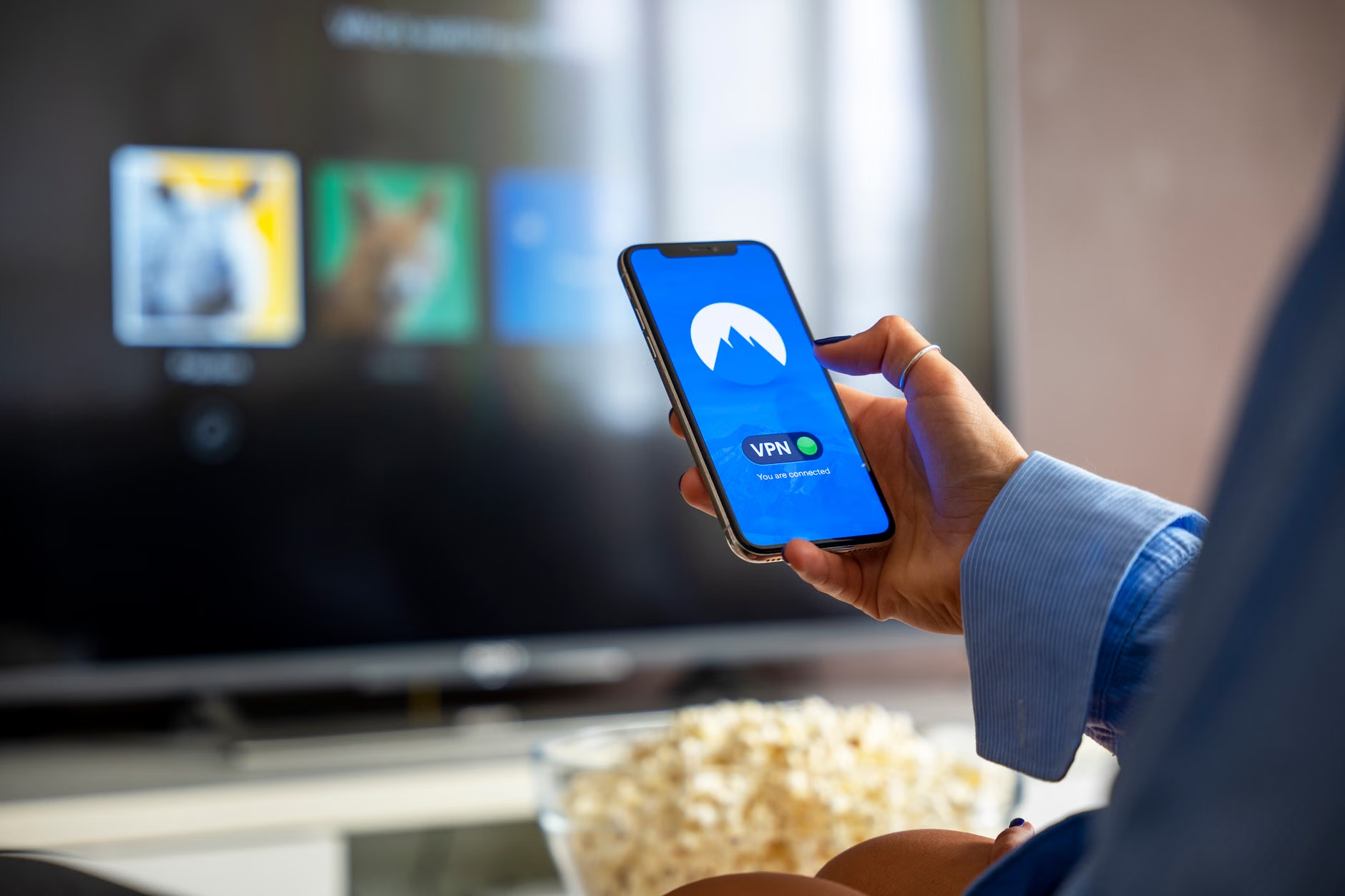
Why Firmware Security is the Primary Defense for Your Nursery
Firmware is the invisible bridge between your monitor’s physical components (the camera lens, the microphone, the speaker) and the internet. When a manufacturer discovers a security flaw—such as a weakness that allows unauthorized users to bypass the login screen—they release a firmware update to patch that hole.
Think of it like a lock on your front door. If a locksmith discovers that a specific brand of deadbolt can be opened with a paperclip, they issue a recall or a fix. In the digital world, that “fix” is a firmware update. If you don’t update your monitor, you are essentially leaving your front door unlocked after the manufacturer has already told you there is a problem with the lock.
For parents, the stakes are higher than just data theft. A compromised monitor can lead to unauthorized audio streaming or visual access to your nursery. This is why understanding the update cycle of your device is the first step in your security audit.
The Lifecycle of a Security Patch
Most reputable manufacturers (like those adhering to standards set by the NIST IoT guidelines) follow a predictable update cycle. However, smaller or “budget” brands often stop releasing updates within 12 to 24 months of a product’s launch. This is the “End of Life” (EOL) phase.
Decision Rule: If your nursery monitor has not received a firmware update in over 18 months, it is statistically likely that it is no longer being patched for new security vulnerabilities. In this scenario, the most secure action is to decommission the device or move it to a strictly offline, non-networked configuration if the hardware allows.
Step-by-Step: How to Audit Your Monitor’s Firmware
Auditing doesn’t require a degree in computer science. It requires a 15-minute window and your smartphone. Follow this protocol once every three months to ensure your nursery tech remains secure.
- Identify the Version: Open your monitor’s app. Look for “Settings,” “Device Info,” or “System Information.” Note the current firmware version number.
- Check the Manufacturer’s Portal: Visit the manufacturer’s official support website. Do not rely solely on the app telling you “Your device is up to date.” Sometimes, apps are slow to push notifications. Search for your specific model number to see the latest available version.
- Verify the Release Notes: Look for a “Change Log” or “Release Notes” section. If the notes say “Improved performance” or “Bug fixes,” that is often developer-speak for “Security patch.”
- Force the Update: If the versions don’t match, trigger the update manually through the app. Crucial: Ensure your phone and the monitor stay powered on and connected to stable Wi-Fi throughout the process. A failed update during installation can “brick” (permanently disable) the device.

Network Segmentation: The “Zero Trust” Approach
Even with the latest firmware, you should never assume a smart device is 100% secure. This is where network segmentation comes in. If you have a router that supports “Guest Networks” or “VLANs” (Virtual Local Area Networks), you should move your nursery monitor onto a separate network from your primary laptop, phone, and tablet.
Why does this matter? If someone were to exploit a zero-day vulnerability in your monitor, a segmented network acts like a firewall between the compromised monitor and your main computer. The attacker might be able to see the camera, but they won’t be able to “jump” across your network to access your bank account information or personal documents stored on your home PC.
| Network Type | Security Level | Best For |
|---|---|---|
| Main Home Network | Low (for IoT) | Personal computers, work devices, gaming consoles. |
| Guest Network | Medium | Smart nursery monitors, lightbulbs, smart plugs. |
| Isolated VLAN | High | Advanced setups for total separation of sensitive data. |
Most modern mesh Wi-Fi systems (like Eero, Google Nest Wifi, or ASUS AiMesh) make it incredibly easy to toggle on a Guest Network. Once enabled, change the Wi-Fi credentials on your baby monitor to connect to this new network. This simple step effectively neutralizes the most common lateral movement attacks in home networks.
Common Mistakes Parents Make with Smart Tech
We often fall into habits that seem convenient but are actually security risks. Let’s look at the three most common mistakes and how to fix them.
Mistake 1: Default Credentials
Many older or cheaper monitors come with a default username and password (like “admin/admin”). If you didn’t change this during the initial setup, you are essentially leaving the door open. If your device allows it, change the login credentials to a unique, complex password immediately. If the device does not allow you to change the default username, consider replacing it.
Mistake 2: Relying on Cloud-Only Access
If your monitor requires a cloud account to function, you are trusting the manufacturer’s server security as much as your own. Always ensure you have enabled Two-Factor Authentication (2FA) on the account associated with your monitor app. This is the single most effective way to prevent unauthorized access, even if your password is stolen.
Mistake 3: Ignoring Physical Security
A smart monitor is only as secure as its physical placement. If your monitor is positioned where it can be easily accessed or tampered with, all the firmware updates in the world won’t help. Ensure the mount is secure and, if possible, positioned out of reach of anyone except the primary caregivers.
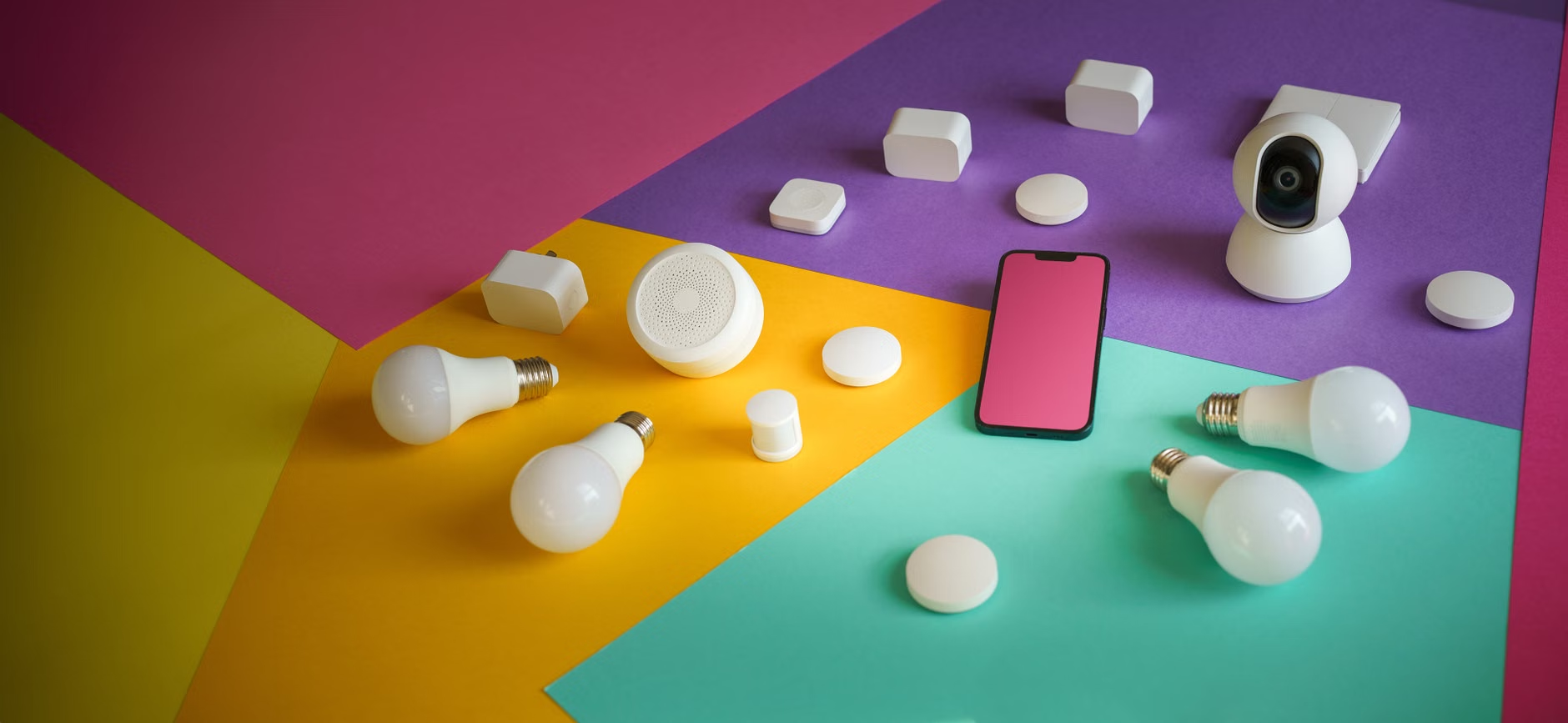
Beyond the Audit: When to Retire a Device
Sometimes, the best security decision is to retire a device. You should consider retiring your smart nursery monitor if:
- The manufacturer has declared the product “End of Life” and no longer provides security updates.
- The device has experienced a known, unpatchable vulnerability that has been widely publicized.
- You notice “ghost” activity (the camera moving on its own, or the audio engaging when the room is silent) that persists even after a factory reset.
When you decide to move on, do not just toss the device in the trash. A factory reset is essential. Most devices have a small pinhole reset button. Press and hold it for 10–15 seconds while the device is powered on to wipe your Wi-Fi credentials and account information. If you don’t do this, a stranger could potentially retrieve your Wi-Fi network name and other metadata from the device.
The Reality of Smart Nursery Security
Securing your nursery monitor isn’t a one-time chore; it is part of the modern parenting toolkit. By treating your devices with the same vigilance you apply to your physical home, you create a layer of protection that allows you to enjoy the convenience of modern technology without the constant worry of “what if.”
Start today by checking your firmware version. If you find your device is outdated, update it. If you find it hasn’t been updated in years, start planning for a replacement. Your peace of mind is worth the extra ten minutes of research.
For further reading on IoT security standards, you can review the CISA guidance on securing IoT devices, which provides comprehensive advice for home users.
Frequently Asked Questions
1. Does a firmware update ever break the monitor’s features?
Occasionally, yes. Sometimes a patch might change the way an app interacts with the camera, which can cause minor bugs. However, the security benefit of patching a vulnerability far outweighs the minor inconvenience of a potential bug. If you experience issues, perform a factory reset after the update to clear any residual cache.
2. How do I know if my monitor is “End of Life”?
Check the manufacturer’s support page for your model. If you see a status labeled “Discontinued,” “Legacy,” or if the last update release date is more than two years old, it is effectively EOL. Most reputable brands will explicitly state when they stop providing security support.
3. Can I use a VPN to secure my baby monitor?
A VPN (Virtual Private Network) can add a layer of privacy by encrypting your traffic, but it does not fix a vulnerable firmware. It is an excellent secondary measure, but it should not be considered a substitute for keeping your firmware updated and your network segmented.
Disclaimer: This article provides general guidance based on cybersecurity best practices. Always consult your specific device manufacturer’s manual for instructions tailored to your hardware.