Most wireless peripherals, from high-end ergonomic mice to mechanical keyboards, are designed with a planned obsolescence cycle that often ends prematurely due to simple dust accumulation or minor electrical contact oxidation. Instead of spending $80 to $150 on a replacement every time your cursor starts acting erratically or your click registers twice, you can resolve the vast majority of these issues with a few basic tools and about twenty minutes of patience.
- Double-clicking is rarely a broken switch: 90% of the time, this is caused by static electricity or oxidation on the micro-switch contacts, which can be fixed with a drop of contact cleaner.
- Sensor drift is a hygiene issue: Dust, pet hair, and skin cells inside the sensor aperture are the primary culprits behind erratic tracking, not a failing internal laser or LED.
- Battery health is usually connection health: Before recycling a “dead” device, clean the battery terminals with high-percentage isopropyl alcohol to remove the insulating layer of corrosion.
Why Your Wireless Peripheral Is Likely Still Functional
We live in a culture of convenience. When a $100 mouse starts double-clicking—meaning you click once but the computer registers two—the immediate reaction is to go to an e-commerce site and order a replacement. However, the internal components of these devices, particularly the micro-switches (the parts that make the “click” sound), are rated for millions of actuations. It is statistically unlikely that you have reached the mechanical limit of your device in two or three years of use.
The “broken” state is almost always an environmental issue. Your workspace, no matter how clean it looks, is a magnet for microscopic debris. If you have children, the risk is compounded by crumbs, sticky residue, and accidental drops. By understanding that these devices are essentially modular assemblies of plastic, metal, and basic circuitry, you shift from being a “consumer” to a “maintainer.” This transition not only saves you money but also reduces e-waste, which is a significant environmental win.
The Anatomy of a Wireless Mouse Failure: A Diagnostic Framework
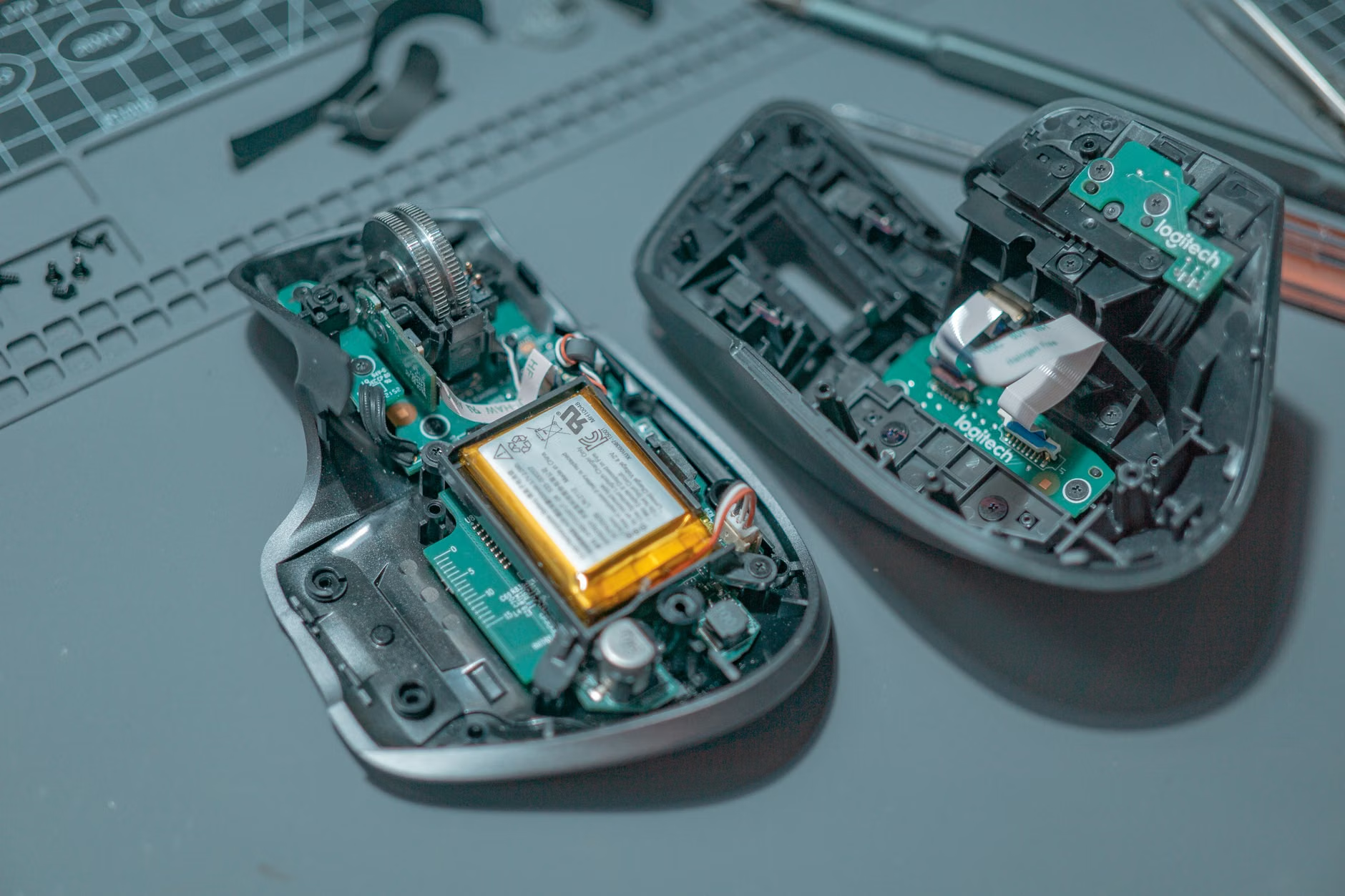
Before you even pick up a screwdriver, you need to categorize the failure. Hardware issues generally fall into three buckets: power delivery, signal transmission, and mechanical actuation. Treating the wrong category leads to frustration and unnecessary disassembly.
| Symptom | Probable Cause | Repair Difficulty |
|---|---|---|
| Device won’t turn on | Battery terminal corrosion or internal lead break | Low/Medium |
| Erratic cursor movement | Obstructed sensor or surface interference | Very Low |
| Double-clicking / Missed clicks | Oxidation on micro-switch contacts | Medium (Requires opening) |
| Laggy/Stuttering connection | RF interference or low battery voltage | Low |
If your device is failing to track, the problem is rarely the sensor itself. The sensor is essentially a high-speed camera. Anything that blocks its view—a single hair, a speck of dust, or a smudge of oil—will cause the tracking to stutter. If you are experiencing “lag,” it is almost always wireless interference. Are you using a USB 3.0 hub right next to your mouse receiver? USB 3.0 ports are notorious for emitting electromagnetic interference in the 2.4GHz spectrum, which is exactly where most wireless mice operate. Moving the receiver to a port further away, or using a USB extension cable to bring the receiver closer to the mouse, often solves the problem instantly without any “repair” at all.
Step-by-Step: The Deep Clean for Sensor and Scroll Wheel
The most common frustration for parents working from home is the “sticky” scroll wheel or the erratic cursor. Children, despite their best intentions, often leave behind microscopic traces of food or moisture. This debris finds its way into the scroll wheel encoder, which is a small component that counts the “steps” of your scrolling. When it gets gunked up, you end up scrolling up when you try to scroll down.
To fix this, you need 90% or higher isopropyl alcohol, a pack of cotton swabs, and a compressed air canister. Do not use water, and do not use generic household cleaners; they leave residues that attract more dust. The goal is to clean the optical path of the sensor and the physical encoder of the wheel.
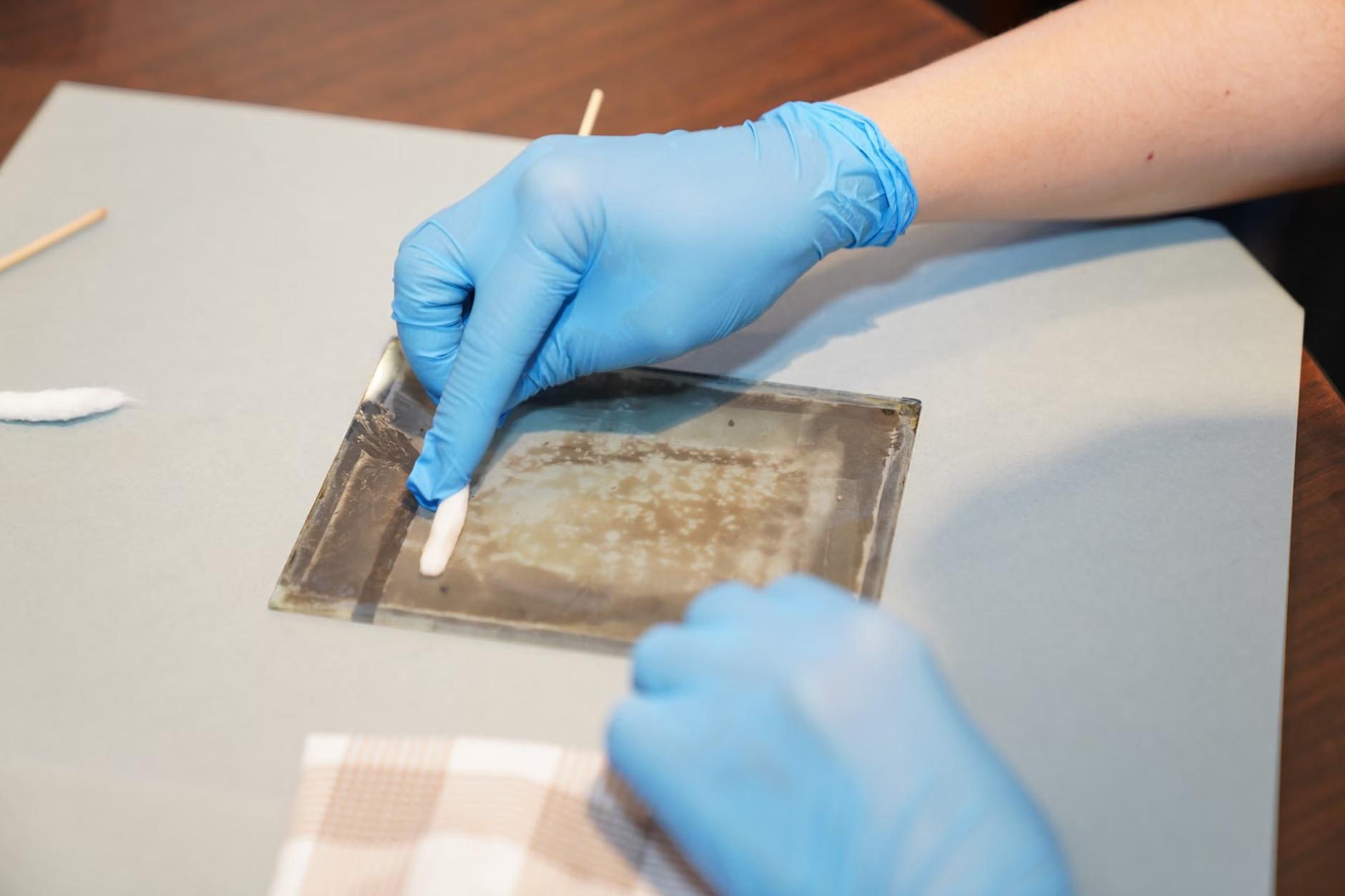
The Protocol: First, power down the device and remove the batteries. Use the compressed air to blow out the sensor aperture from several angles. Do not hold the can upside down, as you might spray liquid propellant. Next, dampen a swab with the alcohol—it should be damp, not dripping. Gently wipe the sensor lens. If you see a buildup of “lint” around the scroll wheel, use a pair of plastic tweezers to carefully lift the debris out. Never force the wheel. If the debris is deep, use the compressed air again to dislodge it. Once clean, let the device sit for five minutes to ensure the alcohol has fully evaporated before reinserting the batteries.
Addressing the “Double-Click” Phenomenon
The double-click issue is the bane of the modern professional. It occurs when the micro-switch inside the mouse develops a high-resistance layer of oxidation on the metal contact point. When you press the button, the switch bounces, causing the computer to register two clicks instead of one. This is a classic electrical contact issue, not a mechanical break.
If your device is out of warranty, you have nothing to lose by attempting a contact-cleaner flush. You will need to open the chassis. Look for hidden screws under the rubber “feet” (the pads on the bottom of the mouse). Use a hairdryer on a low setting for 10 seconds to soften the adhesive, peel the feet back carefully, and remove the screws. Once the shell is off, locate the micro-switches—they are usually small, rectangular boxes, often colored red, blue, or grey.
There is a tiny seam on the side of these switches. Using an electronic contact cleaner (like DeoxIT), spray a tiny amount—literally a pinhead’s worth—into the seam. Click the button rapidly 20–30 times to work the cleaner into the contact surfaces. The solvent will evaporate, leaving behind a protective, conductive coating. Reassemble the device and test. If this fails, the switch is truly worn out, and you would need to desolder it and solder in a new one, which is an intermediate-level electronics project. However, in 80% of cases, the contact cleaner flush restores full functionality.
Battery Terminal Maintenance: The Overlooked Variable
We often assume batteries are the problem, but the interface between the battery and the device is a frequent point of failure. Over time, particularly in humid environments, the metal battery terminals can develop a dull, grayish-white layer of corrosion. This creates “voltage drop,” where the device doesn’t get enough power to maintain a stable wireless connection, leading to intermittent disconnects.
Check your battery compartment. If you see any white or green crust, that is battery leakage or oxidation. Use a pencil eraser to gently rub the metal contacts until they are shiny again. If you have a multimeter, check the voltage of your batteries. A “dead” battery might show 1.2V instead of the 1.5V it needs to operate properly. If you are using rechargeable batteries, remember that they have a finite lifespan, usually around 500–1,000 cycles. If your mouse works perfectly for an hour and then dies, it is almost certainly a failing rechargeable cell, not the mouse itself.
Strategic Decision Making: When to Repair vs. When to Replace
Not every device is worth the time investment. If you are using a $15 office mouse, the cost of the contact cleaner and your time spent troubleshooting will quickly exceed the value of the device. In that case, recycle the mouse at an authorized e-waste facility and buy a new one. However, if you are using a professional-grade peripheral—something in the $70+ range—the ROI (Return on Investment) for a 30-minute repair is effectively $140/hour.
Consider the “modular” nature of your setup. If you have a high-end mouse, check if the manufacturer offers replacement “feet” (PTFE skates). These wear down over time, causing friction that makes the mouse feel sluggish. Replacing the feet is cheap, easy, and makes a two-year-old mouse feel brand new. This is a “hidden” maintenance step that most people ignore, yet it has a massive impact on the tactile experience of using your computer.
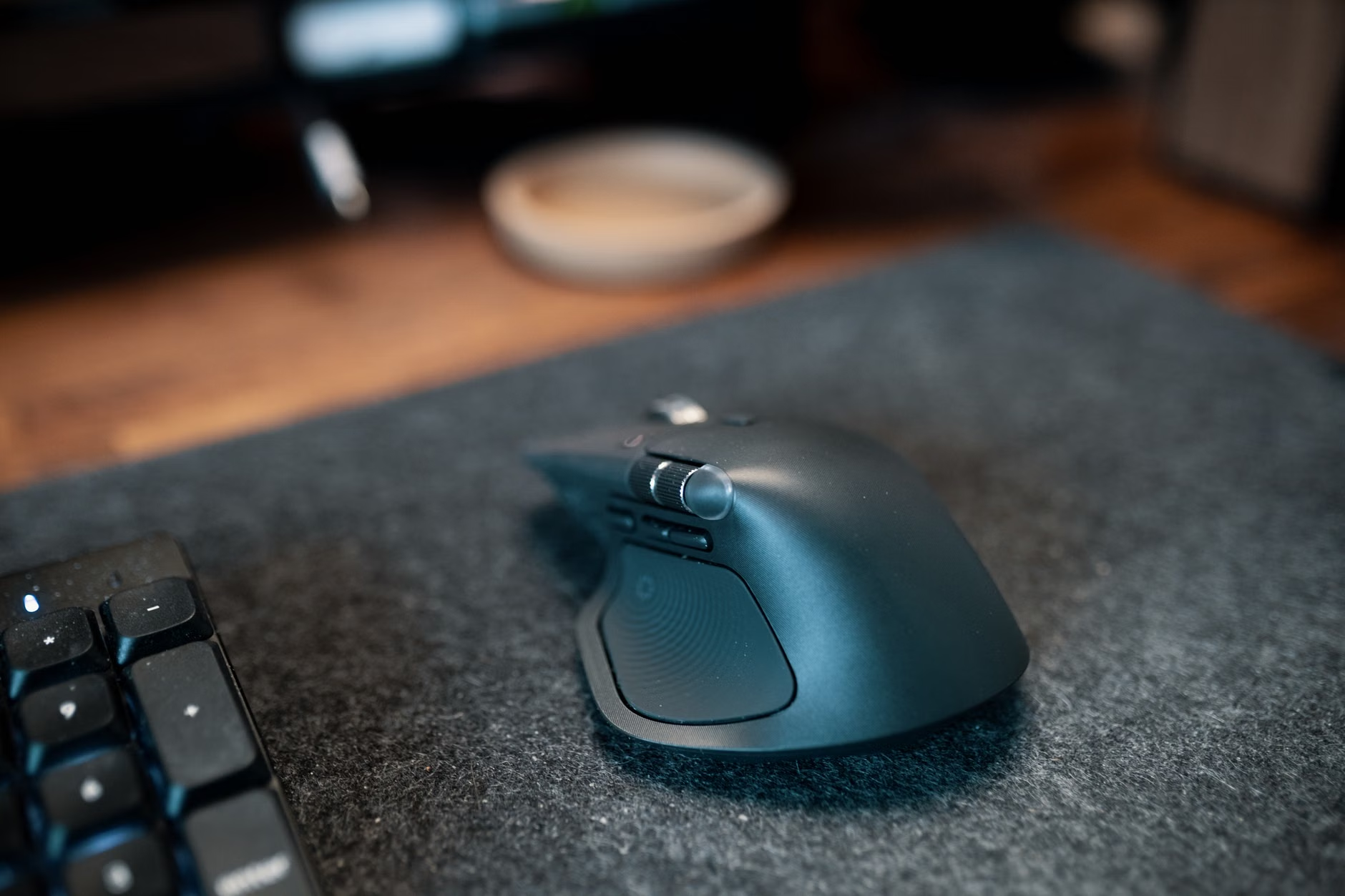
Also, evaluate your environment. If you work in a dusty area or have pets, consider using a desk mat. It prevents dust from being pulled into the sensor and protects the feet from wearing down against a rough desk surface. A $20 desk mat can extend the lifespan of a $100 mouse by an extra year or more simply by keeping the operating environment cleaner.
The Long-Term Perspective on Hardware Longevity
Maintaining your peripherals is a microcosm of managing a household. It requires a proactive stance rather than a reactive one. By spending five minutes every month cleaning your mouse and keyboard, you prevent the accumulation of the very debris that leads to the failures described above. It is the digital equivalent of changing the oil in your car; it’s boring, it’s a chore, but it prevents a much more expensive breakdown later.
Furthermore, as we move toward more sustainable living, the ability to repair our own tools is a vital skill. It breaks the cycle of consumerism that forces us to discard perfectly good hardware because of a minor technical hiccup. When you fix your own gear, you gain an understanding of how it works, which makes you a more informed consumer in the future. You’ll stop buying “pretty” mice with complex, non-repairable shells and start looking for devices that have accessible screws and standard components.
Ultimately, the goal is to stop the cycle of frustration. Your wireless mouse is not a disposable item; it is a precision tool. Treat it with the same care you would give to any other piece of equipment in your home, and it will serve you for years to come. If you encounter a problem, don’t rush to the checkout page. Open the case, look for the dust, clean the contacts, and see if you can bring it back to life. You’ll be surprised at how often you succeed.
Frequently Asked Questions
- How do I know if my wireless mouse is actually broken beyond repair?
If you have replaced the batteries with fresh ones, cleaned the sensor, and tested the device on a different computer, but it still fails to track or register clicks, the internal PCB (printed circuit board) likely has a damaged trace or a fried component. At this point, unless you have advanced soldering skills and can source the specific PCB, it is likely time for a replacement. - Is it safe to use contact cleaner on all mouse parts?
Contact cleaner is safe for metal contacts and most electronic components, but it can cloud certain types of clear plastic or dissolve some painted finishes. Always spray the cleaner onto a swab first, then apply it to the target area, rather than spraying directly into the device, to ensure you don’t get chemicals on the outer shell. - Why does my mouse cursor still jitter even after I’ve cleaned the sensor?
If the sensor is clean and the cursor still jitters, check your surface. Glass desks or highly reflective surfaces are problematic for optical sensors. Try using a high-quality fabric mousepad. If the jitter persists, it may be radio frequency interference. Try moving your wireless receiver away from other high-speed data cables or USB 3.0 hubs.
For more information on proper e-waste recycling and how to identify if your specific device has a known hardware defect, you can check the manufacturer’s support portal or resources like iFixit, which provides comprehensive teardown guides for most major hardware brands.