- Prioritize Verticality: Use rail-mounted modular systems to keep desk surfaces clear, which is essential for multi-user shared spaces.
- The “Zone” Rule: Even in a shared space, assign specific “anchor zones” for each family member to prevent physical and digital clutter from bleeding into other work areas.
- Cable Management is Non-Negotiable: A shared desk with loose cords is a safety hazard and a productivity killer; use under-desk trays and cable spines to keep the floor clear.
The most efficient way to maintain a shared family study room is to abandon the idea of a “fixed” desk and move toward a modular-tech ecosystem. If you are currently struggling with a dining table that is perpetually covered in laptop chargers, school reports, and half-finished projects, you are not failing at organization—you are simply lacking a system that scales with your family’s changing needs.
For parents in their 30s and 40s, the home office is no longer a solitary sanctuary. It is a rotating hub where you might be finishing a spreadsheet while your child completes a coding project or a creative assignment. A modular setup allows you to reconfigure the space in minutes, moving from a professional deep-work station to a collaborative family learning center without needing a complete room overhaul.
Why Traditional “One-Size-Fits-All” Desks Fail Families
Most standard desks are designed for a single user with a static workflow. When you bring that philosophy into a shared family room, you inevitably run into three specific problems: physical obstruction, power shortages, and sensory overload. A standard desk lacks the flexibility to adjust heights for different age groups or to swap out peripherals when someone else takes over the station.
Modular-tech setups solve this by treating the desk as a platform rather than a piece of furniture. By using mounting rails, clamp-on monitor arms, and interchangeable storage modules, you can create a “chassis” that stays put while the “payload”—the monitors, tablets, and lighting—changes based on who is sitting there. This isn’t just about aesthetics; it is about reducing the cognitive load of setting up your space every time you sit down to work.
Think of it like a professional kitchen. A chef doesn’t move the stove every time they change the dish; they change the tools they use on the burner. By mounting your core tech (monitors, lights, and power) to the desk frame, you ensure that the “infrastructure” is always ready for the next person.
The Anatomy of a Modular-Tech Setup
Building a truly functional modular space requires a shift in how you view your hardware. You are no longer just buying a desk; you are building a workspace architecture. The following components are the building blocks of a high-functioning shared family study room.
1. The Rail System: Your Vertical Backbone
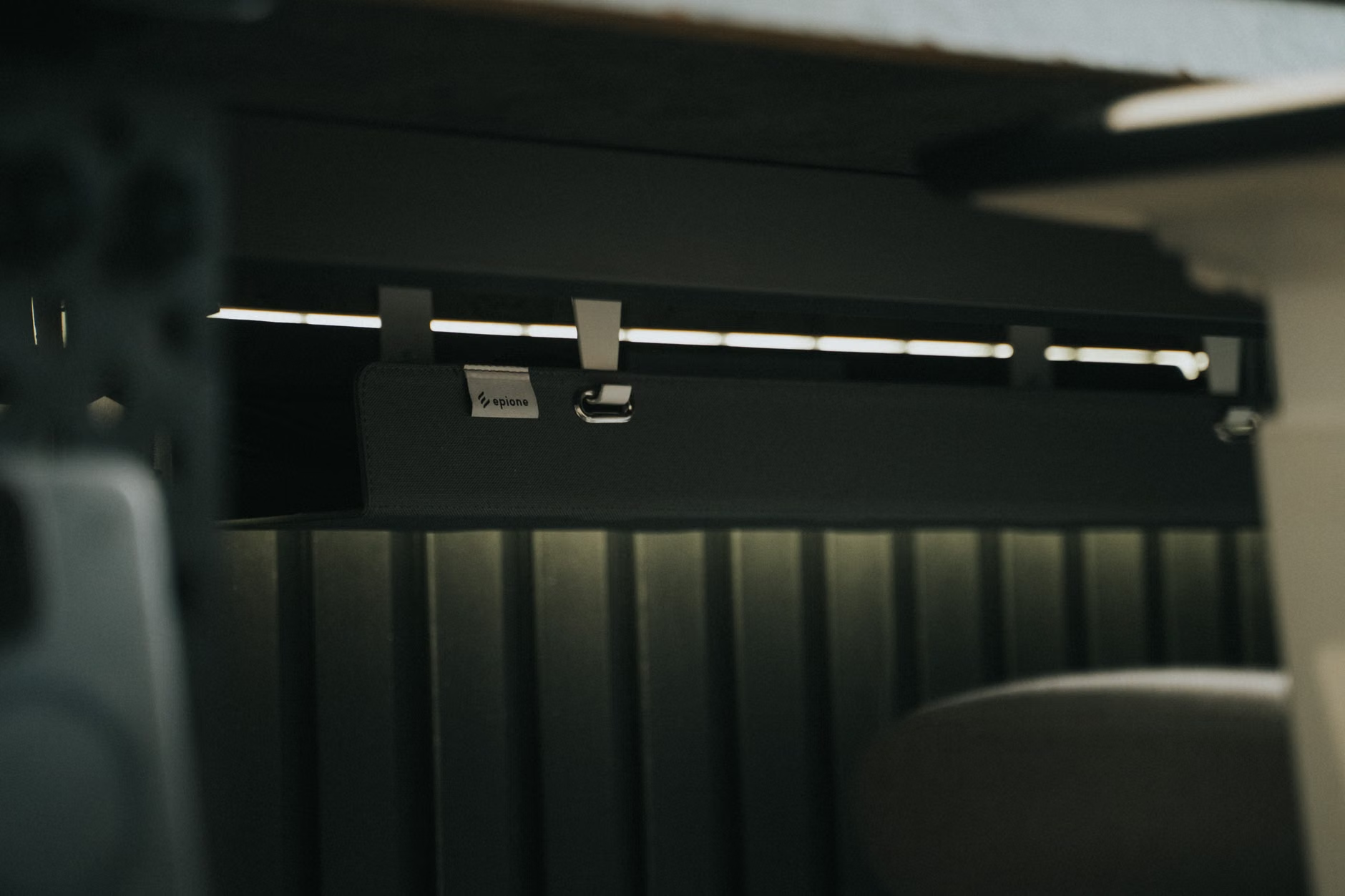
The biggest mistake people make in small shared rooms is cluttering the desk surface with stands for monitors, speakers, and lamps. A rail system—often mounted to the back of the desk or the wall—allows you to “float” these items. This frees up the entire desk surface for writing or collaborative projects. Look for aluminum extrusion rails that allow you to slide attachments horizontally. This means if you need more desk space on the left side for a textbook, you can slide your monitor arm to the right in seconds.
2. Universal Clamping Mechanisms
Avoid furniture that requires drilling or permanent mounting if possible. Modular systems that rely on high-quality C-clamps or grommet mounts offer the best of both worlds: stability and portability. If your child grows taller or your work equipment changes, you can simply unclamp and reposition your hardware. This modularity ensures your investment lasts for years, rather than being tied to a specific desk configuration that might become obsolete as your children grow.
3. Power Infrastructure
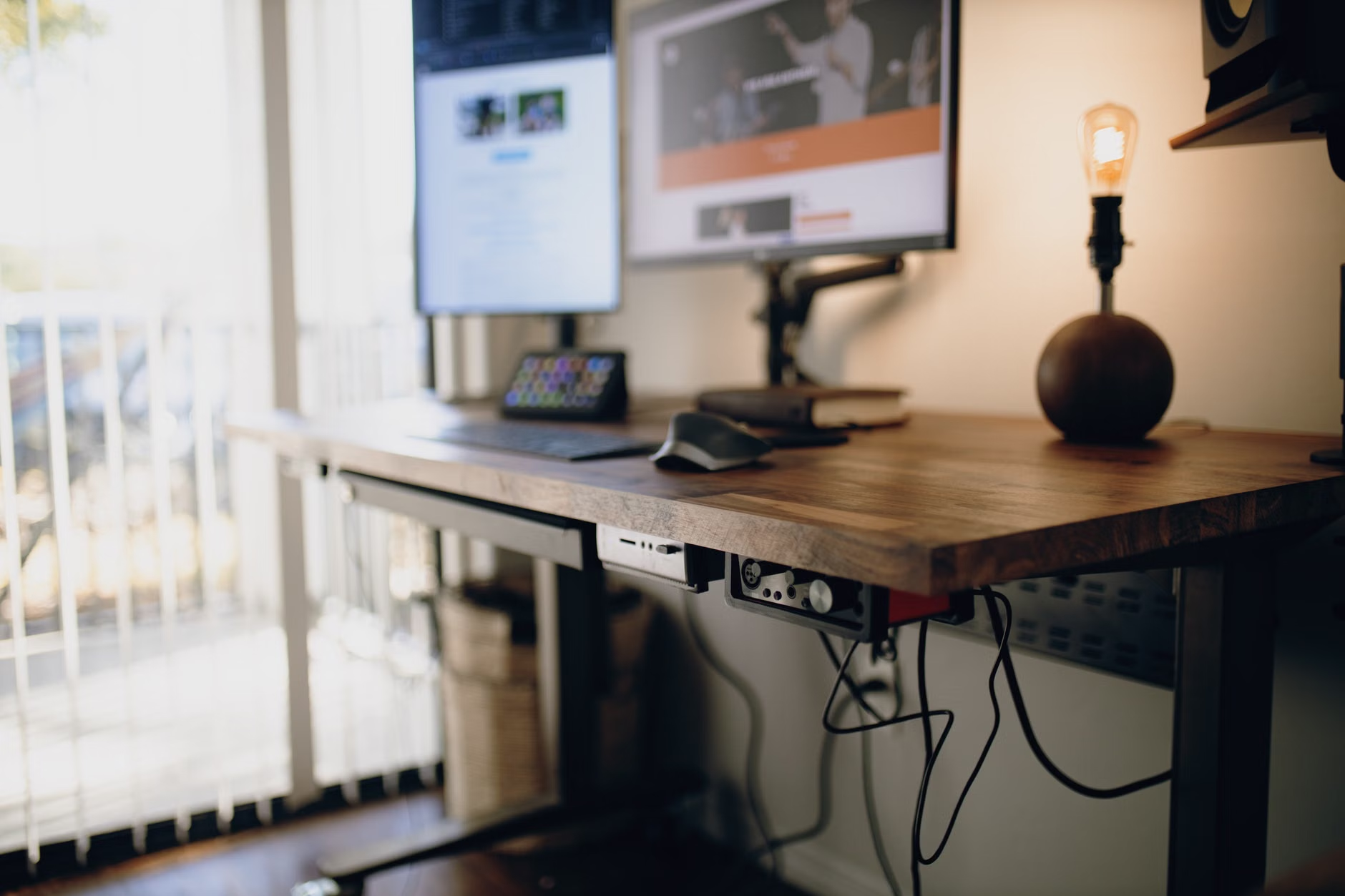
In a shared room, the “power battle” is real. You have laptops, tablets, e-readers, and desk lamps all vying for outlets. Instead of relying on a floor-based power strip, which is a tripping hazard and a dust magnet, install an under-desk power tray. Use a high-wattage GaN (Gallium Nitride) charger mounted under the desk to provide USB-C Power Delivery (PD) to multiple devices. This way, the only thing that needs to be plugged into the wall is the tray itself.

Defining “Anchor Zones” for Efficient Sharing
A common pitfall in shared study rooms is the “creep factor”—where one person’s items slowly migrate into the other person’s space. To prevent this, you must physically define the zones on your desk. Even if it is a single long surface, use visual and functional cues to divide the space.
The 60/40 Split Rule: If you are sharing a 72-inch desk, do not split it exactly down the middle. One person usually requires more “active” space (for a keyboard and mouse), while the other might need more “static” space (for a tablet or sketchbook). A 60/40 split allows for a primary user and a secondary user without feeling cramped. Use desk mats of different colors or textures to provide a clear psychological boundary for where one person’s territory ends and the other’s begins.
Decision Criteria for Zone Assignment:
| User Needs | Recommended Zone | Why? |
|---|---|---|
| Heavy Keyboard/Mouse Work | Primary (60%) | Requires more elbow room and cable slack. |
| Tablet/Light Reading | Secondary (40%) | Requires less surface depth; can be tucked away. |
| Creative/Physical Crafts | Corner/End | Easier to store supplies on a nearby rolling cart. |
Managing the Digital and Physical Clutter
The “tech” part of modular-tech is not just about gadgets; it is about how you manage the flow of information. When two or more people share a workspace, you are dealing with multiple digital ecosystems. A shared study room should be equipped with a centralized “hub” area.
Use a vertical file sorter or a wall-mounted pegboard directly above the desk to house shared items: charging cables, reference books, and basic stationery. If it isn’t on the desk surface, it doesn’t distract. If it isn’t in a drawer, it doesn’t get lost. The goal is to make the desk “reset” to a neutral state in under 60 seconds. If it takes longer than that, you will eventually stop doing it, and the clutter will return.
Many people assume that “shared” means “simultaneous.” However, the most effective shared study rooms are designed for asynchronous use. You are rarely using the desk at the exact same moment for the exact same task. Don’t design for the chaos of everyone working at once; design for the ease of transitioning between users.
Common Mistake 1: Fixed Lighting. Overhead room lighting is often insufficient for detailed work and can create glare on screens. Use dedicated, dimmable monitor light bars for each user. These attach to the top of the monitor and illuminate the desk without hitting the screen, and they can be adjusted to different color temperatures depending on whether you are doing intense work (cool light) or relaxed reading (warm light).
Common Mistake 2: Ignoring Ergonomics for Kids. We often buy “kids’ furniture” that is essentially a smaller, cheaper version of a real desk. This is a mistake. A child’s posture is just as important as an adult’s. Use adjustable-height chairs with lumbar support and footrests. If your desk is a standing desk (which is highly recommended for modular setups), ensure the height is easily adjustable via presets so a child can safely reach the surface.
Common Mistake 3: The “Catch-All” Drawer. Avoid drawers that are too deep. Deep drawers become graveyards for forgotten tech, pens, and loose papers. Use shallow, tray-style drawers that allow you to see everything inside at a glance. If you can’t see it, you’ll forget you have it, and you will end up buying duplicates, adding to the clutter.
Practical Next Steps for Your Family
If you are ready to upgrade your family’s study setup, do not try to do it all in one weekend. Start with the “Infrastructure Phase.”
- Audit the Power: How many devices need to be charged? Get a high-quality, multi-port GaN charger and an under-desk mount. This is the single biggest win for workspace cleanliness.
- Clear the Surface: Use a monitor arm. Even if you only have one monitor, getting it off the stand and onto an arm creates an immediate sense of order and creates space for a second person to slide in a laptop.
- Define the Boundaries: Use desk mats. They are inexpensive, easy to clean, and provide a clear, non-verbal signal of where one person’s space begins and ends.
- Establish a “End-of-Session” Ritual: For the kids, this means putting the tablet in the charging dock and the pens in the cup. For the adults, it means closing the laptop and tucking the mouse away. If everyone does this, the desk is always ready for the next person.
The beauty of a modular-tech desk is that it evolves. As your children move from elementary school to high school, their tech needs will change. They might move from a tablet to a full desktop setup. Because your system is modular, you won’t need to replace the desk; you will simply add a new arm, a new mount, or a new shelf to the existing rail. You are building a system that grows with your family, rather than a piece of furniture that eventually ends up in a landfill.
Remember that the goal is not a “Pinterest-perfect” desk that no one is allowed to touch. The goal is a functional, durable, and flexible space that serves your family’s daily life. Keep it simple, prioritize your cable management, and always leave the desk ready for the next person. It is a small investment in your family’s daily productivity that pays off every single time you sit down to work.
Frequently Asked Questions
Q: Is a standing desk necessary for a shared family room?
A: It is not strictly necessary, but it is highly beneficial. A motorized standing desk allows for a wide range of height adjustments, which is essential if both an adult and a child are using the same desk. It ensures both users can maintain proper ergonomic posture regardless of their height.
Q: How do I handle different “tech ecosystems” (e.g., Mac vs. PC) in a shared space?
A: The best approach is to use a USB-C docking station. If both users have laptops with USB-C/Thunderbolt support, you can connect the monitor, keyboard, and mouse to the dock. When a new user sits down, they only need to plug in one cable to have their entire peripheral setup ready to go, regardless of whether they are using a Mac or a PC.
Q: What is the most overlooked item in a modular desk setup?
A: It is almost always the cable spine or management sleeve. People focus on the desk surface but ignore the “spaghetti” of wires hanging down the back of the desk legs. A simple cable spine that runs from the underside of the desk to the floor will instantly make your room look professional, organized, and—more importantly—safe for children and pets.
For more information on ergonomic standards for home workspaces, you can refer to the OSHA eTool for Computer Workstations, which provides excellent guidance on monitor height, chair adjustment, and proper posture.