Key Takeaways:
- Passkeys replace passwords with cryptographic keys: They use your device’s own security (FaceID, TouchID, or PIN) to log you in, making them virtually immune to phishing.
- Syncing is the secret sauce: Passkeys are stored in your cloud account (iCloud, Google Password Manager, or Microsoft), allowing you to access accounts across all your family’s devices seamlessly.
- Immediate action needed: Start by enabling passkeys on major accounts like Google and Apple; this single shift eliminates the “forgotten password” cycle for your household.
If you have ever spent ten minutes resetting a Netflix password while the kids are already restless on the couch, you know the frustration of modern digital gatekeeping. We are currently in a transition phase where passwords—those archaic strings of mixed-case letters and special characters—are being phased out in favor of something called “passkeys.”
For parents juggling multiple streaming services, school portals, and banking apps, the shift to password-free authentication isn’t just a technical upgrade; it is a sanity saver. But what actually happens when you click “Save Passkey,” and is it really safer than that complicated password you’ve been reusing for years?
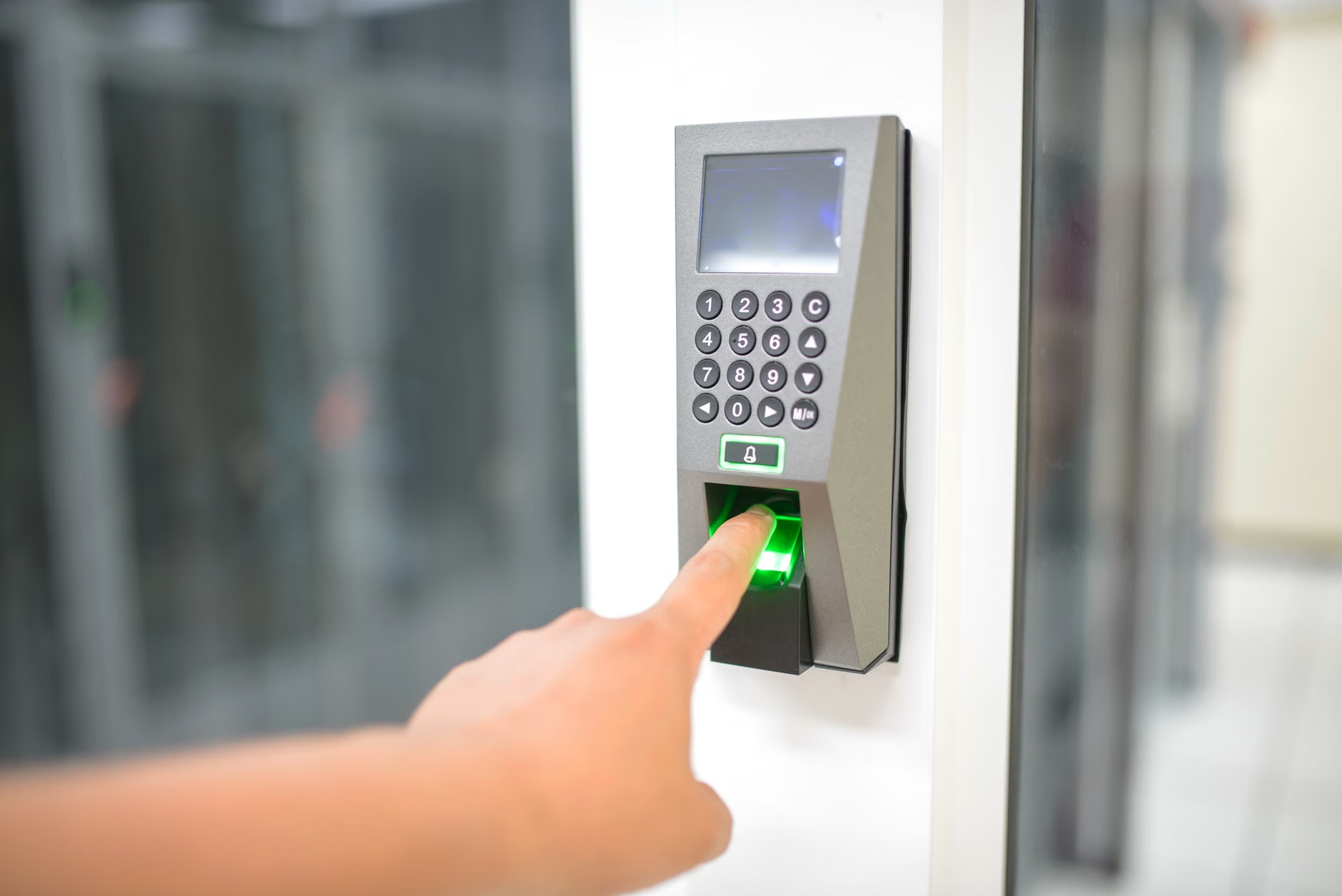
The Anatomy of a Passkey: Why Your Face is Your New Password
To understand why tech companies are obsessed with killing the password, you have to look at the math. A password, no matter how complex, is a secret known to both you and the server hosting your data. If that company gets hacked, your “secret” is out. A passkey changes the fundamental architecture of login security.
When you create a passkey, your device generates a unique pair of cryptographic keys: a public key and a private key. The public key is registered with the website or service (like Amazon or Google). The private key, however, never leaves your device. It is locked behind your device’s biometric security—your fingerprint, your face scan, or your screen lock PIN.
Think of it like a physical key to your house. A password is like a paper copy of a key that you hand to the landlord; if the landlord loses it, anyone can enter your home. A passkey is like having a key that is physically fused to your hand. Unless someone physically has your face or your fingerprint, they cannot “use” your key to enter the account. This is why passkeys are effectively immune to phishing attacks; a scammer can send you a fake website link, but your device will simply refuse to “sign” the request because the website address doesn’t match the one stored in your secure chip.
The Real-Life Impact for Busy Families
In a family household, the “password fatigue” is real. We often share accounts, or worse, use the same “family-friendly” password across five different services to make sure everyone can remember it. This is a massive security risk. If one service is compromised, the domino effect puts your banking, shopping, and social media at risk.
With passkeys, the login process becomes universal. When you navigate to a site on your phone, the device recognizes you via FaceID or TouchID and performs the handshake automatically. You no longer need to remember if your password for the local grocery delivery app used an exclamation point or a hashtag. You just look at your phone, and you are in.
Setting Up Your Digital Household: A Step-by-Step Guide
Moving your family to a password-free setup doesn’t require an IT degree. Most major platforms now support this. The most important step is to start with your “account hubs”—these are the primary accounts that control your other digital access, specifically Google, Apple, and Microsoft.
Step 1: Secure the Hubs. Go into your Google Account settings or your Apple ID security settings. Look for the “Passkeys” or “Security” section. You will likely see a prompt asking if you want to create a passkey for the device you are currently holding.
Step 2: Syncing Across Devices. This is the part that confuses most people. You might ask, “If the key is on my phone, how do I log in on my laptop?” Modern operating systems use “syncing” via the cloud. Your passkey is encrypted and stored in your iCloud Keychain, Google Password Manager, or Microsoft Authenticator. When you try to log in on your laptop, your phone will receive a Bluetooth handshake request, confirming it is really you.
Step 3: Managing Family Access. For shared family accounts (like a shared Netflix profile or a family gaming subscription), you should treat the primary account holder’s passkey as the “master key.” Avoid sharing the physical credentials. Instead, use the account’s built-in “Family” or “Profile” features. If you must share a login, ensure the service supports multiple passkeys for the same account, which is becoming the industry standard.

Common Misconceptions That Keep You Stuck in the Past
There is a lot of hesitation surrounding “giving up” passwords. Let’s address the three biggest myths that prevent families from adopting this technology.
| Myth | The Reality |
|---|---|
| “I’ll be locked out if I lose my phone.” | Passkeys are backed up to the cloud. If you lose your phone, you simply sign into a new device with your master cloud account, and your passkeys are restored. |
| “It’s less secure because it’s automatic.” | It is significantly more secure. Biometric data never leaves your device. It is harder to spoof a face scan than it is to guess “Summer2024!” |
| “Only tech-savvy people can use this.” | If you can unlock your phone, you can use a passkey. The interface is designed to be invisible—it just works. |
The “lockout” fear is the most common reason people delay. However, consider the alternative: if you forget a password, you have to go through email recovery, security questions, and verification codes. With passkeys, the “recovery” is usually just logging into your cloud account (like your Apple ID), which is already secured by your trusted devices. It is a much tighter, more reliable loop.
Hidden Trade-offs: What You Need to Watch Out For
While passkeys are a massive leap forward, they aren’t without their logistical quirks. One major issue is platform dependency. If you are a household that mixes platforms—perhaps you use an iPhone but your laptop is a Windows PC—you need to ensure your password manager is compatible.
Using a third-party password manager like 1Password or Bitwarden is often the best strategy for mixed-device families. These apps act as a “neutral ground” for your passkeys, allowing you to use them across Apple, Google, and Microsoft devices without being tethered to a single ecosystem. This is a small hidden cost (most require a subscription for premium features), but it is worth it for the peace of mind of having all your digital keys in one secure, cross-platform vault.
Another variable is legacy sites. Smaller websites or older local portals (like a school’s internal grading system) may not support passkeys yet. For these sites, you still need a strong, unique password. Do not make the mistake of using the same password you use for your bank. Keep using a password manager for these “non-passkey” sites, and prioritize migrating them once they eventually add support.

Managing Your Family’s Digital Identity
As our children grow, they start acquiring their own digital identities—school emails, gaming accounts, and social media. Teaching them about passkeys is part of modern digital literacy. Explain to them that their face and their fingerprint are the ultimate keys to their digital life, and that they should never share their device PIN with friends.
For parents, the goal is to reduce the friction of security. When security is annoying, we bypass it. We write passwords on sticky notes, we use simple patterns, and we reuse credentials. Passkeys remove the “annoyance” factor. By making security easier than insecurity, you are naturally nudging your entire family toward better habits without having to lecture them on cybersecurity basics.
Take a Saturday afternoon to audit your main accounts. Start with your email, your cloud storage, and your primary banking app. These three areas cover 90% of your digital risk. Once you have converted those to passkeys, the rest of your digital ecosystem will follow suit as more apps update their security protocols. You will find that the “forgotten password” email is slowly becoming a relic of the past.
Practical Next Steps for Your Household
If you are ready to make the switch, do not try to do it all at once. Start with a structured approach. First, ensure all your family devices are updated to the latest software versions; passkey support is tied to OS-level security updates. Second, choose your “vault”—whether it is iCloud, Google, or a dedicated manager like Bitwarden—and make sure everyone in the family knows how to access it.
Third, perform a “Password Cleanse.” For every account you update to a passkey, delete the old password from your records. This prevents you from falling back into old habits. If an account doesn’t support passkeys, check if it at least supports 2FA (Two-Factor Authentication) via an app. Avoid SMS-based 2FA whenever possible, as it is vulnerable to SIM-swapping attacks.
The transition to a password-free life is not just about convenience; it is about reclaiming your time and your peace of mind. Every time you log into an account with a simple biometric check, you are closing a door on potential hackers and opening one on a more efficient, secure way of living. It is a small change in the way you interact with your devices, but it is one of the most effective ways to protect your family in the digital age.
Frequently Asked Questions
1. If I use a passkey, can my family members still access the account?
Yes, but you should handle this through the service’s built-in sharing features (like Netflix profiles or Google Family Groups) rather than sharing the login credentials themselves. If you need to share a single login, some third-party password managers allow you to create “shared vaults” where a passkey can be securely accessed by multiple authorized family members.
2. What happens if I move from an iPhone to an Android?
If your passkeys are stored in a third-party manager like 1Password or Bitwarden, they will move with you seamlessly. If you rely on Apple’s iCloud Keychain, you will need to manually export your passwords or rely on the fact that you still have access to your old device to help verify your identity on the new one. This is why a cross-platform password manager is often recommended for families.
3. Are passkeys really 100% secure?
Nothing in cybersecurity is 100% secure, but passkeys are drastically safer than passwords. They eliminate the “credential stuffing” and “phishing” risks that account for the vast majority of personal data breaches. As long as your device itself is physically secure and you aren’t sharing your device PIN with others, your accounts remain protected behind hardware-level encryption.
For more detailed information on configuring your specific devices, you can visit the official support pages for Google Account Passkeys and Apple ID Passkeys.