- Cloud is not enough: Relying 100% on cloud services risks account lockouts, subscription price hikes, and privacy breaches; local storage provides absolute ownership.
- The 3-2-1 Rule: Maintain three copies of your data, on two different media types, with one copy stored physically off-site to ensure recovery from any disaster.
- Automation is the key: A backup strategy only works if it happens without manual effort; use scheduled synchronization tools to ensure your daily photos are protected automatically.
The most dangerous place for your family’s digital legacy is a single, proprietary cloud account. We have all become accustomed to the convenience of “syncing,” but when you look closely at the fine print of major cloud providers, you aren’t just paying for storage—you are agreeing to terms that can lead to account suspension, data scraping, or simply losing access when a subscription payment fails. For a family in their 30s or 40s, balancing school runs, work, and the digital clutter of thousands of photos, the “Local-First” approach isn’t just about tech-savviness; it’s about digital sovereignty.
A Local-First strategy means your primary copy of data lives on hardware you own and control. It prioritizes accessibility, speed, and privacy, keeping your memories off-limits to third-party algorithms. By building a local foundation, you stop being a tenant of your own digital life.
Why Your Digital Life Needs a ‘Physical’ Foundation
In the past decade, we have been conditioned to trust the cloud as a permanent vault. However, the cloud is essentially someone else’s computer. When you rely solely on a service provider, you face three primary risks: privacy erosion, service dependency, and cost inflation. Cloud providers frequently update their terms of service, often granting themselves broader rights to use your data for machine learning training. If your account is flagged for a policy violation—even a false positive—you could find your entire family archive locked overnight.
Furthermore, the cost of cloud storage is a “forever tax.” As your library of 4K video clips and high-resolution photos grows, you are forced into higher subscription tiers. Local storage, while requiring an upfront investment, eventually pays for itself. It also offers something the cloud cannot: instant access. When you want to scroll through ten years of photos on your living room TV, a local server delivers that content in milliseconds, regardless of your internet connection speed or ISP throttling.
For the average family, a Local-First strategy creates a “Single Source of Truth.” Instead of having photos scattered across iCloud, Google Photos, and a forgotten SD card, you consolidate everything onto a central hub. This hub becomes the master copy from which all other backups are derived.
The 3-2-1 Rule: The Gold Standard of Data Protection
To implement this, you must follow the industry-standard 3-2-1 backup rule. It is simple, effective, and works regardless of your technical comfort level:
- 3 Copies of your data: You need the original and at least two backups.
- 2 Different media types: Do not rely only on hard drives. Use a combination of a Network Attached Storage (NAS) device, external portable drives, or even high-quality optical media (though less common now).
- 1 Off-site copy: If your home suffers a fire, flood, or theft, your local copies will be lost. One copy must exist in a different physical location.
In practice, for a family in their 30s or 40s, this looks like this: Your primary files live on a NAS device in your home office. A secondary backup is scheduled to run every night to an external hard drive connected to that NAS. A third, off-site copy is pushed to a secure, encrypted cloud service or a portable drive kept at a family member’s house.
The common mistake here is thinking “I have it on my phone, so it’s safe.” Your phone is a device, not a backup. Devices break, get lost, or are dropped in water. A backup must be a distinct, separate entity from the device you use to capture the content.
Choosing Your Hardware: NAS vs. External Hard Drives
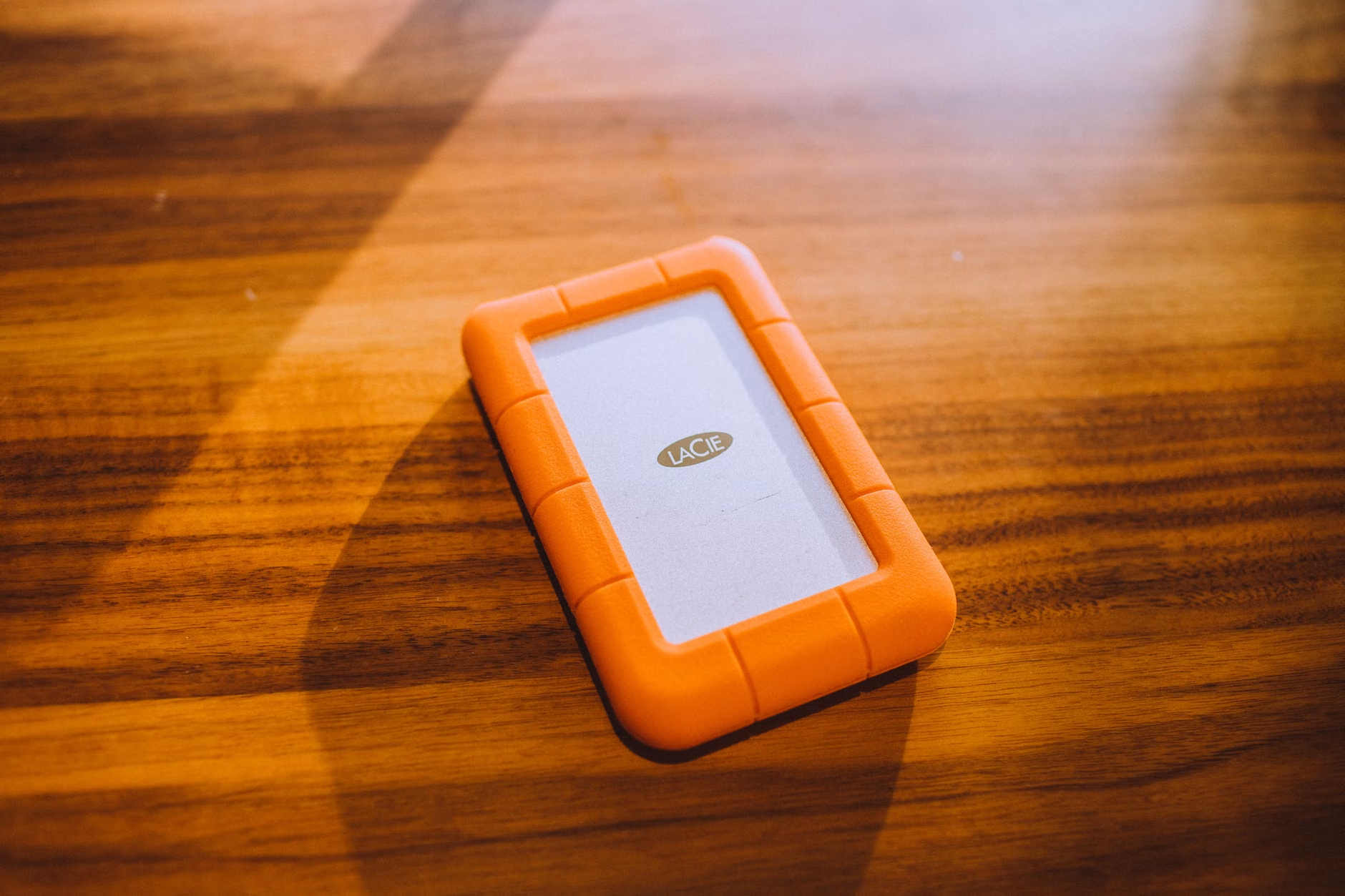
The heart of your local-first system is the storage device. You have two main paths: a simple external drive or a dedicated Network Attached Storage (NAS) unit.
| Feature | External Hard Drive | NAS (Network Attached Storage) |
|---|---|---|
| Cost | Low ($80 – $200) | Medium to High ($300 – $1,000+) |
| Ease of Use | Plug and Play | Requires initial configuration |
| Automation | Manual or basic software | Full automation, multi-device sync |
| Redundancy | None (Single point of failure) | RAID support (protects against drive failure) |
If you are just starting, an external hard drive is perfectly acceptable. However, for a growing family, a NAS is the superior investment. A NAS acts as a private cloud inside your home. It allows your children to watch movies from the drive, your spouse to back up their laptop, and your phone to automatically offload photos—all at once. Most importantly, a NAS with RAID (Redundant Array of Independent Disks) can survive the failure of a single physical hard drive without losing your data. This is a level of protection that a simple external drive cannot offer.
Step-by-Step: Building Your Local-First Workflow
Do not try to do everything at once. Start by centralizing. You likely have photos in three or four different locations. Create a single “Archive” folder on your local storage device. Use a tool like FreeFileSync or Syncthing to automate the movement of files from your various devices to this central folder.
Next, configure your backup schedule. For most families, a daily backup at 3:00 AM is ideal. This ensures that the day’s activities are captured without you having to remember to click “sync.” If you are using a NAS, the device’s built-in software usually handles this natively. If you are using a PC or Mac, look at tools like Carbon Copy Cloner or Time Machine to automate the secondary copy to an external drive.
Finally, address the off-site requirement. If you choose not to use a cloud service for this, you should have two portable drives that you rotate. Keep one at home and one at your workplace or a relative’s home. Every month, swap them. This “sneaker-net” approach is the most secure way to handle off-site storage without paying recurring monthly fees or trusting a third party with your encryption keys.
Common Pitfalls and How to Avoid Them
The most common mistake is “Bit Rot.” This is a phenomenon where data on a storage medium slowly degrades over many years. If you leave a hard drive in a closet for five years and never plug it in, you might find that some files are corrupted when you finally open them. To combat this, you should perform a “scrub” or a check of your drives at least once a year. Plug them in, verify the file integrity, and ensure the hardware is still operational.
Another pitfall is ignoring file formats. While the JPEG or MP4 format is universal today, who knows what will be standard in 20 years? Stick to open, widely supported formats. Avoid proprietary file types from niche photo editing software if you can, as that software might not exist in a decade. If you use proprietary formats, always export a “master” copy in a universal format like JPEG or TIFF.
Lastly, don’t underestimate physical security. A NAS is a computer; it needs a surge protector. If you live in an area with frequent power outages, a small Uninterruptible Power Supply (UPS) is mandatory. A sudden power cut during a file write operation can corrupt your entire file system. A $100 UPS will protect your $500 NAS and your years of family memories from a sudden voltage spike.
The Hidden Advantage: Digital Minimalism
When you move to a Local-First strategy, you are forced to confront the volume of your digital data. You will quickly realize that you don’t need to keep 40 versions of the same blurry photo of your child’s birthday cake. This process of centralization naturally leads to better digital hygiene. As you move files to your NAS, you will delete duplicates, organize by year and event, and create a searchable archive that is actually usable.
This is the hidden benefit: you regain control over your memories. Instead of being served “On this day” notifications by a faceless algorithm, you can browse your own organized folders at your own pace. You become the curator of your family’s history, rather than a passive consumer of a tech giant’s curated feed.
Moving Forward: Your Next Action Items
If you are feeling overwhelmed, start small. Your goal for this weekend is not to have a perfect, automated, multi-site backup system. Your goal is to consolidate. Start by buying one high-capacity external drive (4TB or 8TB are currently the best value-per-gigabyte). Copy all your scattered photos to this drive. This single act is a 100% improvement over your current state.
Once your data is in one place, look into a NAS for the following year. As your children grow, your data needs will only increase. By setting up a local-first system now, you are building an infrastructure that will serve your family for the next decade. It is a one-time setup that pays dividends in peace of mind and total ownership of your most precious assets.
Take the time to review your storage needs, set up a simple rotation schedule, and protect your drives with a surge protector. The digital world is ephemeral, but your family’s history deserves a permanent, physical home.
Frequently Asked Questions
Q: Is it really safer to keep data at home than in the cloud?
A: Yes, in terms of ownership and privacy. While cloud providers have excellent uptime, they can freeze your account for any reason. A local-first system means you never have to worry about account lockouts or subscription price hikes. As long as your hardware is maintained, the data is yours forever.
Q: How often should I replace my hard drives to prevent failure?
A: Hard drives are mechanical and will eventually fail. A good rule of thumb is to replace your primary drives every 4 to 5 years, or sooner if the drive shows signs of slow performance or clicking noises. If you use a NAS, it will typically notify you when a drive’s health status drops below a certain threshold.
Q: What if I am not tech-savvy enough to manage a NAS?
A: Modern NAS devices from companies like Synology or QNAP have become significantly easier to use, often functioning like a simple web-based file manager. If a NAS still feels too complex, stick to the two-drive rotation method (using external hard drives). It is much better to have a simple manual backup process that you actually use than a complex, automated one that you never configure.
Official Resources for Further Reading: