Your home router is the digital front door to your life, yet it is often the most neglected piece of hardware in your home office. If you are balancing work, family, and a growing ecosystem of smart devices, you need to know that the default settings on most ISP-provided routers are insufficient for modern cybersecurity threats. A simple hardware-security audit is not just for IT professionals; it is a fundamental chore for any parent who wants to protect their family’s privacy and their professional data from unauthorized access.
Key Takeaways for Your Home Network
- Default credentials are a massive vulnerability: Changing your router’s admin password is the single most effective step to prevent unauthorized remote access.
- Firmware updates are non-negotiable: Outdated router software is the #1 entry point for automated botnet attacks targeting residential networks.
- Network segmentation is your best defense: Keep your smart fridge and kids’ tablets on a separate Guest Network to prevent a compromise in one device from spreading to your work laptop.
Think about your typical Tuesday. You’re on a Zoom call, your partner is streaming a show, your kids are playing games on a tablet, and a smart camera is monitoring the front porch. All of this traffic flows through one device. If that device is compromised, every single one of those endpoints is exposed. This isn’t about being paranoid; it’s about acknowledging that the “set it and forget it” era of home networking is over.
1. The “Physical Access” Check: Why Your Router’s Location Matters
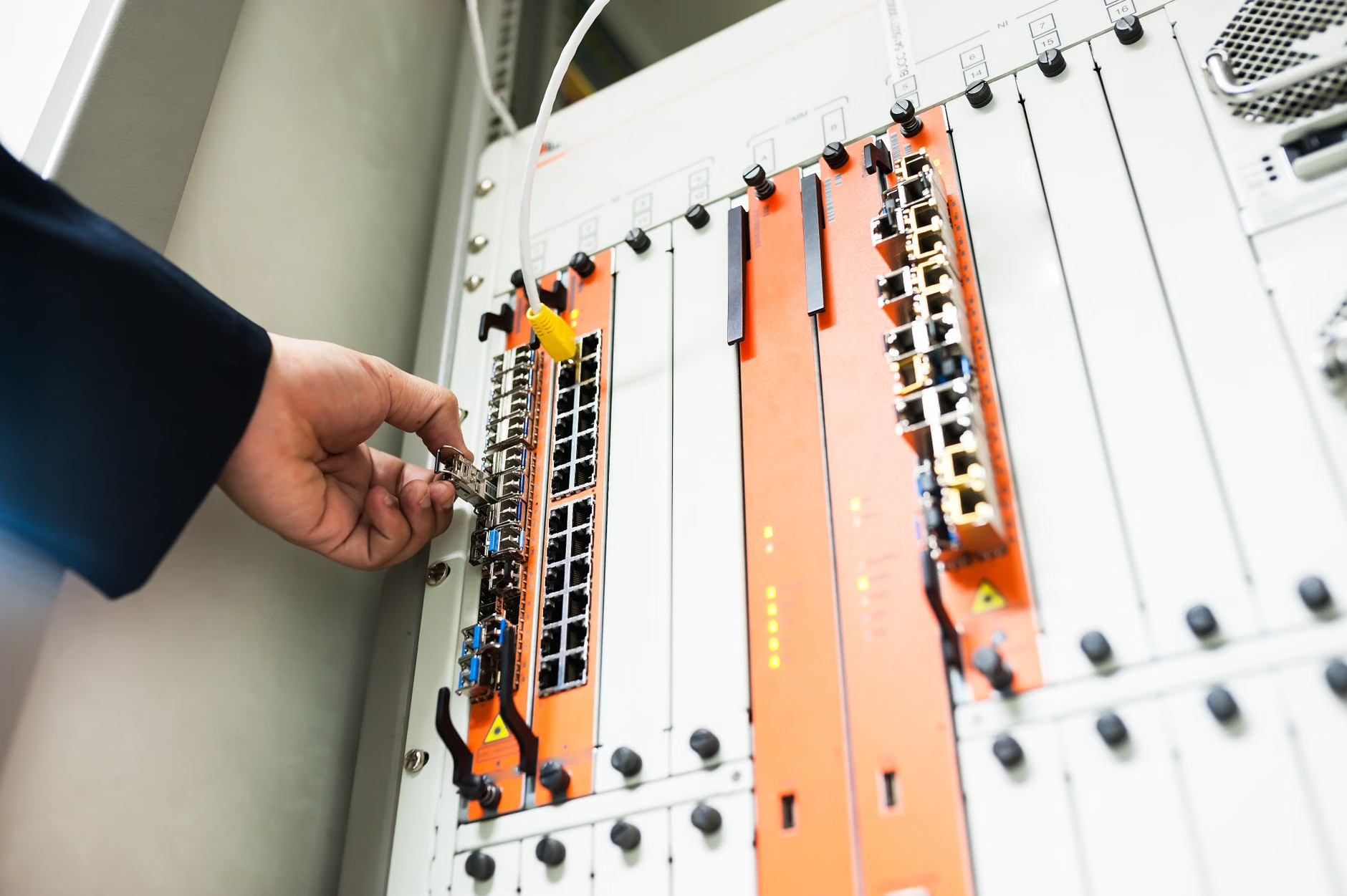
Most of us shove our routers into a dark corner, inside a cabinet, or behind a stack of books because they are unsightly. While we want our home to look nice, this creates a physical security and performance bottleneck. From a hardware perspective, a router that is physically accessible to visitors or service workers is a liability. If someone can physically plug an ethernet cable into your router, they can bypass your Wi-Fi password entirely.
Start your audit by evaluating the physical placement. Is the router in a common area where guests or contractors have unsupervised access? If so, consider moving it to a more controlled space or, at the very least, ensure that the physical ports are not easily accessible. More importantly, check the hardware itself for signs of tampering. If you are using an older router provided by your ISP, look for damage to the casing or loose ports. If the hardware looks like it has seen better days, it might be time to request an upgrade or invest in a modern mesh system.
Common Mistake: Leaving the factory-default ethernet cable plugged into the WAN port without checking if the plastic tab is broken. A loose connection can cause intermittent drops, which users often misidentify as “slow internet” rather than a potential hardware failure. If you notice your signal dropping whenever someone walks past the router, check the physical connection first. A loose cable is a vulnerability—it creates signal instability that can be exploited by sophisticated attackers to force a reboot into a recovery mode.
2. Credentials and Admin Access: The Front Line of Defense
If you haven’t changed the admin password on your router since the day your ISP technician installed it, you are essentially leaving your front door unlocked. Most routers ship with default credentials like “admin/admin” or “admin/password.” These are public knowledge. Any script-kiddie or automated bot scanning your local IP range can attempt to log in using these defaults within seconds.
To perform this part of the audit, you need to log into the router’s web interface. Usually, this involves typing an IP address like 192.168.1.1 or 192.168.0.1 into your browser. If you don’t know your router’s IP address, you can find it on Windows by opening Command Prompt and typing ipconfig, or on a Mac by checking the Network settings in System Preferences. Look for “Default Gateway.”
Once you are in, navigate immediately to the “Administration” or “System Tools” tab. Change the admin password to something long, complex, and unique. This is not the same as your Wi-Fi password. This password controls the settings of the router itself. If you lose this, you have to factory reset the device, so save it in a password manager. If your router allows you to change the default “admin” username, do that as well. Changing the username from “admin” to something unique makes it significantly harder for automated bots to brute-force their way into your network.
3. Firmware: The Silent Guardian of Your Network
Hardware security is not just about the plastic box; it is about the software (firmware) that tells the hardware what to do. Manufacturers release firmware updates to patch known vulnerabilities. When a security researcher finds a “hole” in a router’s code, the manufacturer writes a patch. If you don’t update your router, that hole remains open forever.
Many modern routers have an “Auto-Update” feature. If yours does, turn it on immediately. If you have an older or budget model, you might need to check manually. Log into your router’s interface and look for a “Firmware Update” or “Check for Updates” button. If the manufacturer hasn’t released a patch in over a year, that is a massive red flag. It means your router is essentially “End of Life” (EOL) and should be replaced. Using an EOL router is like driving a car with no brakes; eventually, you will crash.
Why does this matter for a family? Because your smart devices—the smart lights, the baby monitor, the thermostat—do not have advanced security features. They rely on the router to keep them safe. If the router’s firmware is outdated, an attacker can use the router as a “jump box” to move laterally into your smart devices. Suddenly, someone isn’t just stealing your bandwidth; they are watching your kids through the baby monitor.

4. Segmenting Your Network: The “Guest” Strategy
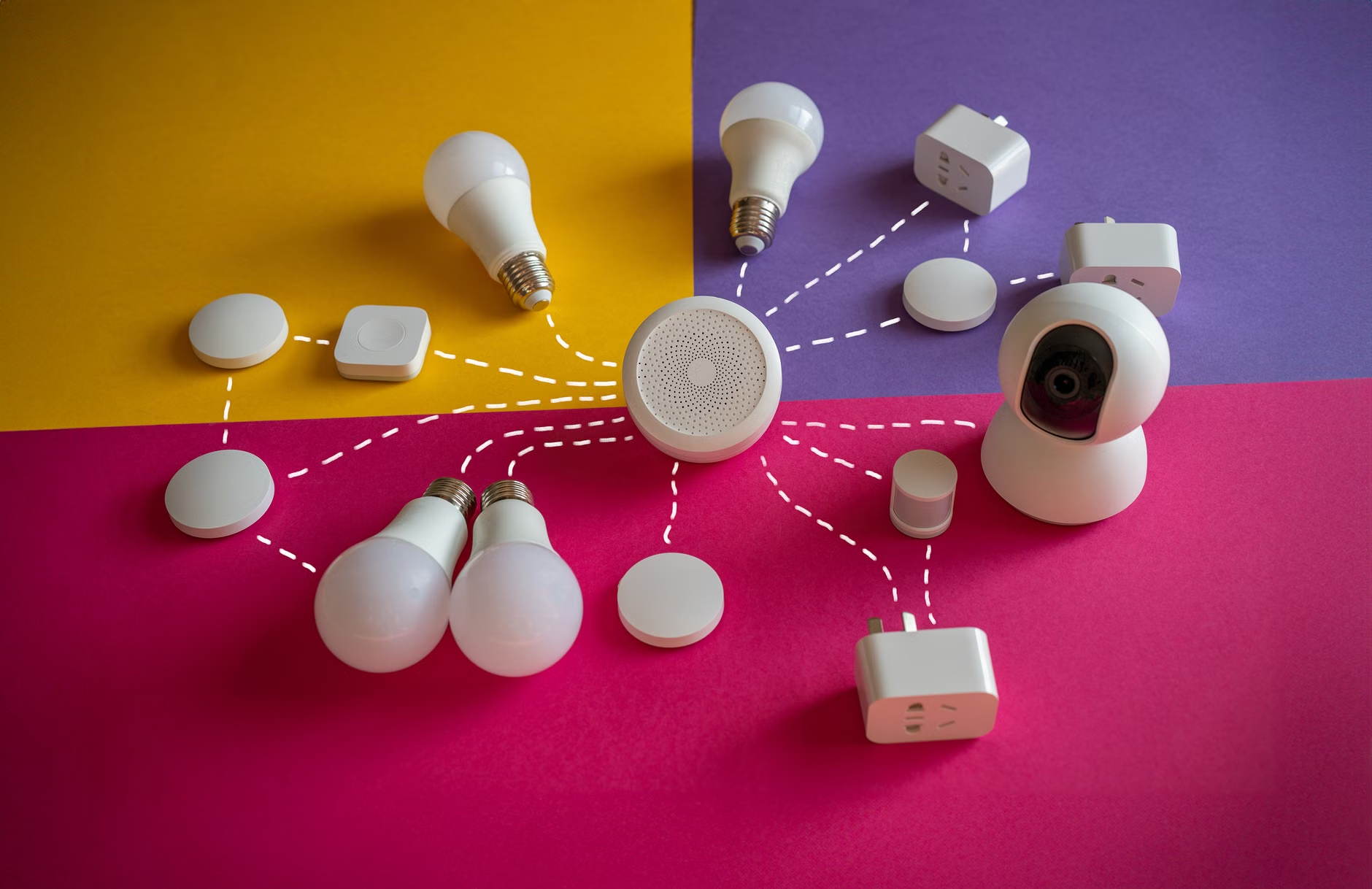
One of the best pieces of advice for the modern home office is to never put your work laptop on the same network as your “Internet of Things” (IoT) devices. IoT devices are notoriously insecure. They are often manufactured with cheap, unpatchable code. If you have a smart plug, a smart lightbulb, or a connected kitchen appliance, these devices are potential entry points for hackers.
Your router likely has a feature called “Guest Network.” Use it. Move every single non-essential device—tablets, smart TVs, IoT gadgets, and visitors’ phones—onto the Guest Network. Keep your primary network strictly for your work laptop, your personal phone, and your main desktop computer.
The Logic: If your smart lightbulb gets hacked, the hacker is trapped on the Guest Network. They cannot see your work laptop, your NAS (Network Attached Storage), or your personal data. This “segmentation” is a standard practice in corporate IT, and it is remarkably easy to implement at home. It’s the digital equivalent of locking the door between your office and the rest of the house.
| Device Category | Network Placement | Why? |
|---|---|---|
| Work Laptop / Personal PC | Primary Network | High security, access to sensitive data. |
| Smart Home (Lights, Plugs) | Guest Network | Low security, prone to vulnerabilities. |
| Kids’ Tablets/Consoles | Guest Network | Limit exposure, prevent accidental malware spread. |
| Visitors’ Phones | Guest Network | Never trust guest devices on your primary network. |
By implementing this, you create a “blast shield.” If one device is compromised, the rest of your digital life remains isolated and safe. It takes ten minutes to move your devices over, but it provides a lifetime of reduced risk.
5. The Hidden Vulnerability: Disabling Unnecessary Services
Routers often come with “convenience” features enabled by default that you likely never use. These features are essentially open windows that you haven’t closed. The most common culprit is UPnP (Universal Plug and Play). UPnP allows devices on your network to automatically open ports on your router to talk to the internet. While this makes setting up a game console or a printer easier, it is a massive security risk because it allows malware to open holes in your firewall without your knowledge.
Another feature to check is Remote Management. This allows you to log into your router’s interface from outside your home (e.g., from a coffee shop). Unless you have a very specific, advanced reason for needing this, turn it off. If you need to access your home network from afar, use a secure VPN instead. The risk of someone gaining remote access to your router’s control panel far outweighs the convenience of changing your Wi-Fi settings while you’re on vacation.
Finally, look for WPS (Wi-Fi Protected Setup). You know, that button on the back of the router that lets you connect devices by pressing them both? It’s a convenience feature that has been proven to be vulnerable to brute-force attacks. Disable it in the settings. Use a strong, long Wi-Fi password instead. It’s a bit more effort to set up a new device, but it is infinitely more secure.
Putting It All Together: The Audit Checklist
Performing this audit doesn’t require a degree in computer science. It requires consistency and a bit of skepticism toward “default” settings. Think of your router audit as a seasonal chore, like changing the batteries in your smoke detectors. Do it once every six months, or whenever you add a significant number of new smart devices to your home.
If you find that your router is too old to support these features—like Guest Networks, WPA3 encryption, or modern firmware updates—it is time to upgrade. Don’t look at a new router as an unnecessary expense. Look at it as an insurance policy. A $150 router is a small price to pay to keep your work data, your family’s privacy, and your smart home ecosystem secure.
One final tip: When you change your Wi-Fi password to something robust, ensure it is not easily guessable. Avoid dates, names of pets, or common phrases. A password manager can generate a random string of characters for you. It’s a minor inconvenience for your guests to type in a 20-character password, but it’s a major deterrent for anyone attempting to hop onto your network from the driveway.
Frequently Asked Questions
What should I do if my router doesn’t have a “Guest Network” option?
If your current hardware lacks basic security features like Guest Networks or the ability to disable WPS, it is likely an outdated model. In this case, the most practical step is to purchase a modern router or a mesh Wi-Fi system. You can often bridge your ISP’s modem (turning it into a simple pass-through) and connect a high-security router behind it. This gives you full control over your security settings without relying on the hardware provided by your service provider.
Is it really necessary to disable UPnP if I play online games?
While UPnP is convenient for gaming consoles, it is inherently insecure because it allows devices to bypass your firewall’s rules. If you are a serious gamer, you can manually “Port Forward” only the specific ports your console needs. This is more time-consuming, but it is significantly safer than leaving the entire network open to automated port-opening requests. If you are not a technical user, start by disabling UPnP and see if your games still function; many modern games handle network connectivity much better than they did a decade ago.
How often should I actually perform this security audit?
I recommend a “check-in” every six months. Set a reminder on your calendar. During this check, verify that your firmware is up to date, review the list of devices currently connected to your network (to ensure there are no “mystery” devices), and confirm that your passwords remain complex. If you add a new “smart” device to your home, perform a quick check immediately to ensure it is isolated on your Guest Network.
For more information on securing your home network, you can refer to the Cybersecurity & Infrastructure Security Agency (CISA) guide on securing your home network, which provides additional context on protecting your digital workspace.