- Isolate your IoT: Place smart home devices on a dedicated Guest Network or VLAN to prevent them from accessing your private computers and sensitive data.
- DNS is your first line of defense: Switching your router’s DNS settings to a privacy-focused provider (like NextDNS or Cloudflare) instantly blocks many trackers and malicious domains at the network level.
- Hardware matters: Avoid ISP-provided routers if possible; investing in a router that supports open-source firmware or advanced traffic monitoring gives you the granular control required for true privacy.
Your home network is the silent highway for every piece of data your family generates. From your children’s tablets and the baby monitor in the nursery to your work laptop and the smart fridge, everything is constantly “talking” to the internet. Most people plug in their router, set a Wi-Fi password, and never think about it again. But in a world where smart devices are notorious for “phoning home” with telemetry data, the default security settings provided by your ISP (Internet Service Provider) are effectively an open door.
Building a “privacy-hardened” network doesn’t require a degree in computer science. It requires a shift in mindset: treat your network like a house with different zones. You wouldn’t let a stranger wander into your bedroom just because they are visiting for dinner, yet that is exactly what happens when you keep your untrusted smart lightbulbs on the same network as your banking laptop.
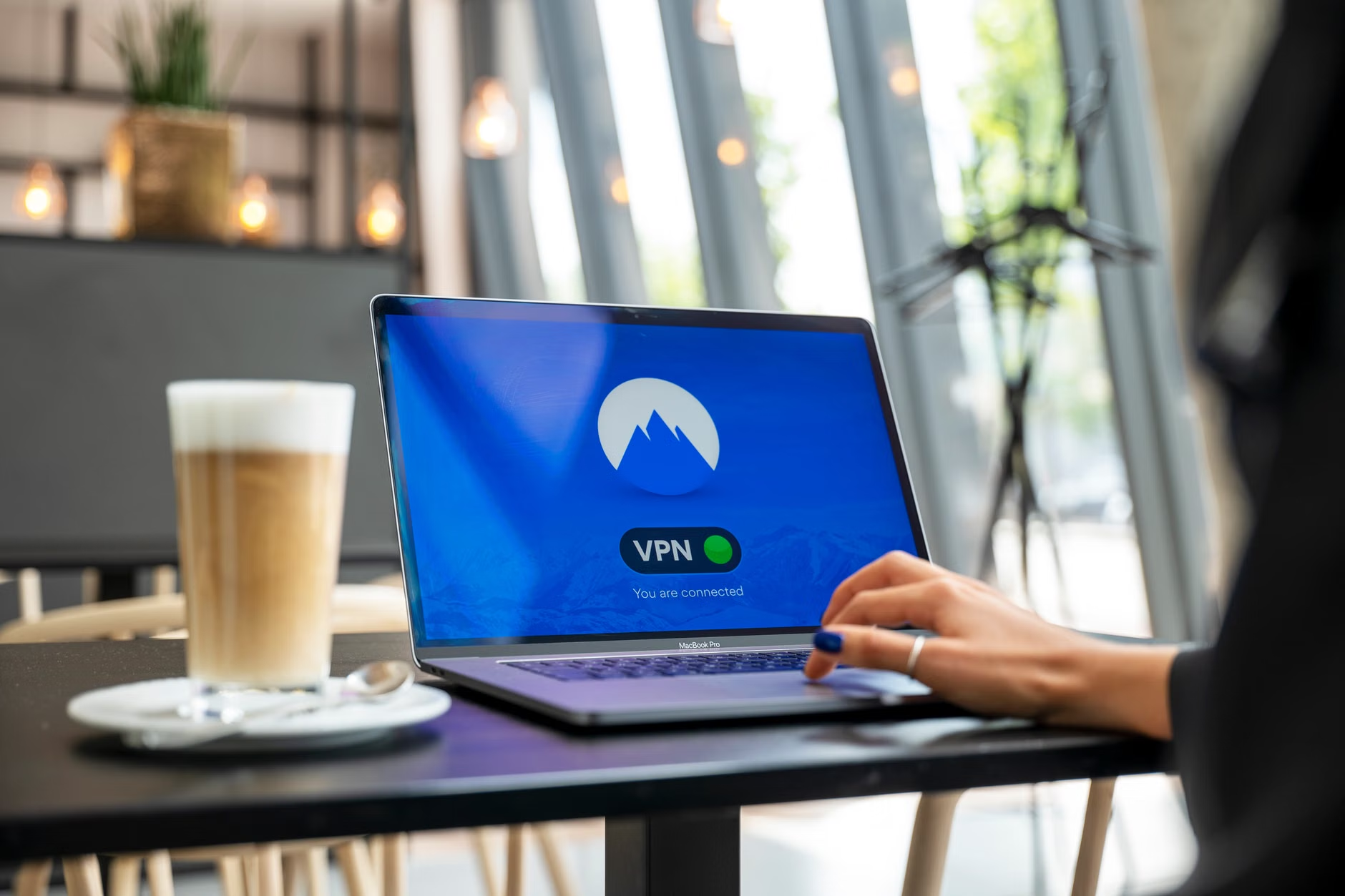
Understanding the “Smart Home” Data Leak
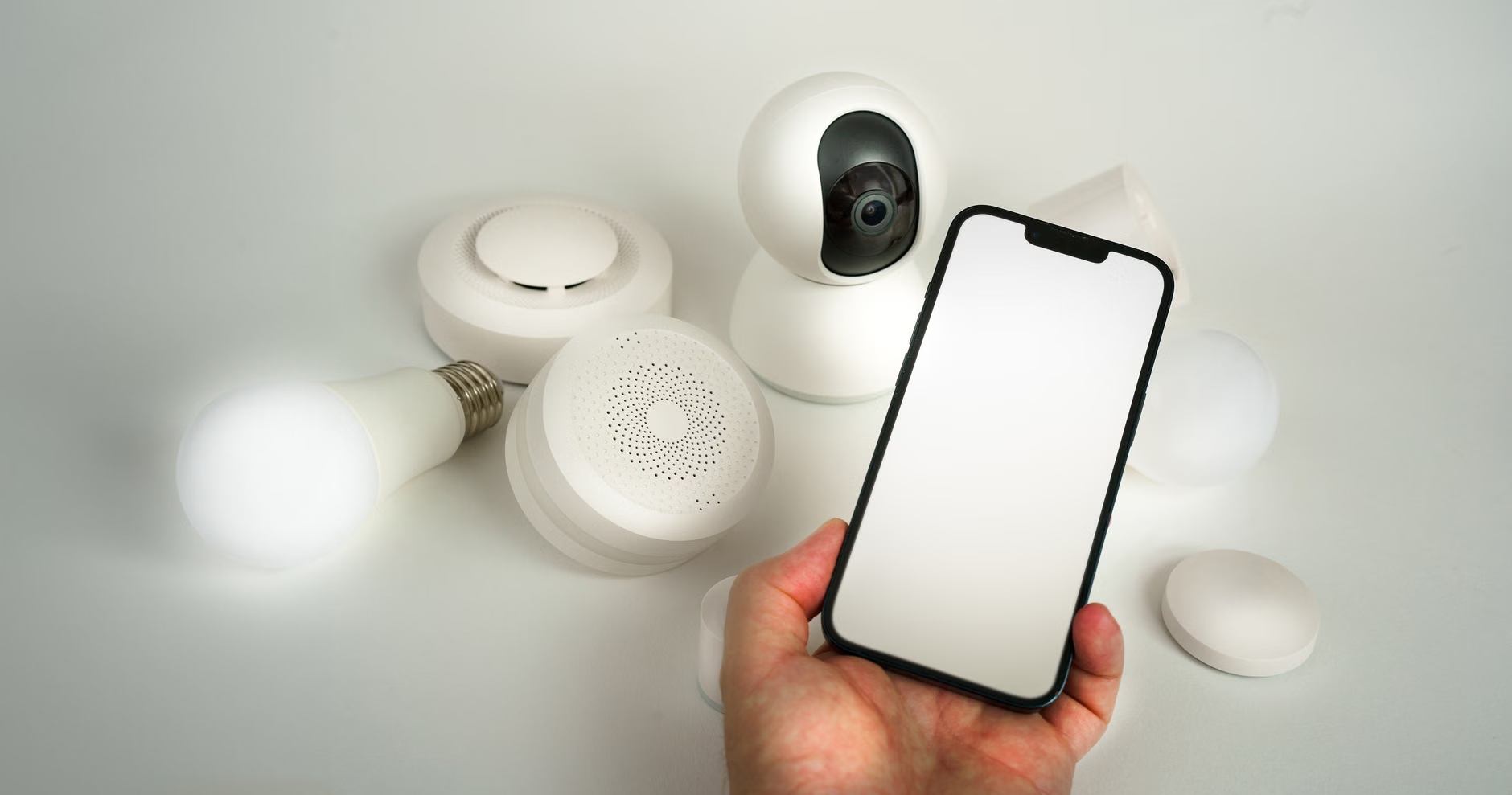
The primary issue with modern smart home devices isn’t necessarily that they are “evil,” but that their business models are often built on data harvesting. When you buy a cheap smart camera or a budget-friendly Wi-Fi plug, the manufacturer often subsidizes the cost by collecting usage patterns, location data, and even audio snippets. This data is then sent to servers in various parts of the world, often without clear oversight.
When these devices reside on your primary network, they can potentially “see” other devices. If a cheap smart bulb has a security vulnerability—which is common, as these devices rarely receive firmware updates—a hacker could use that bulb as a bridge to enter your network. Once inside, they could scan for your NAS (Network Attached Storage), your printer, or your unencrypted personal computer. By hardening your network, you create a “containment zone” that limits the damage if a device is compromised.
Step 1: The First Line of Defense – DNS Filtering
DNS (Domain Name System) is essentially the phonebook of the internet. When you type a website address, your device asks a DNS server for the IP address. By default, your ISP provides this service, and they often use it to track your browsing habits or serve you ads. Changing this is the single easiest way to improve your privacy.
Why this matters: By using a privacy-focused DNS provider, you can block trackers, advertisements, and malicious domains before they even reach your home. Services like NextDNS or Cloudflare (1.1.1.2 for Malware Blocking) offer filters that prevent your smart devices from reaching known telemetry servers.
How to do it:
- Log into your router’s admin panel (usually by typing 192.168.1.1 or 192.168.0.1 into your browser).
- Look for “WAN” or “Internet” settings.
- Find the “DNS Server” fields.
- Replace the ISP-provided numbers with the addresses provided by a secure service (e.g., 1.1.1.2 and 1.0.0.2 for Cloudflare).
- Save and reboot your router.
This simple change acts as a “network-wide ad blocker.” It won’t stop all data collection, but it stops the low-hanging fruit of basic tracking and malicious site access for every device connected to your Wi-Fi.
Step 2: Segregation through Guest Networks and VLANs
This is the most critical step for parents and home users. You should never let your “always-on” smart devices share the same network as your primary computers and phones. Most modern routers offer a “Guest Network” feature. This is not just for visitors; it is your primary tool for device isolation.
The Strategy:
| Network Zone | Devices Included | Security Level |
|---|---|---|
| Primary Network | Computers, Phones, Tablets (Personal) | High (Strict) |
| IoT/Guest Network | Smart Bulbs, Cameras, Speakers, Plugs | Medium (Isolated) |
By moving all your “Internet of Things” (IoT) devices to the Guest Network, you enable “AP Isolation.” This setting prevents devices on that network from talking to each other or to your main network. Even if your smart toaster is compromised, the attacker cannot pivot to your laptop. If your router supports VLANs (Virtual Local Area Networks), you can go a step further and create a permanent “IoT VLAN” that is logically separated from your main traffic, ensuring total silence between your smart home gear and your private data.
Step 3: Choosing the Right Hardware
If you are still using the router provided by your ISP, you are severely limited. These devices are often locked down, receive infrequent security updates, and lack advanced features like VPN integration or granular firewall controls. For a privacy-hardened home, you need hardware that you control.
Look for routers that support open-source firmware like OpenWrt or FreshTomato. These operating systems allow you to see exactly what traffic is leaving your network, block specific ports, and set up advanced firewall rules that consumer-grade routers simply cannot handle. If you aren’t comfortable flashing custom firmware, look for “prosumer” gear from companies that prioritize security and local management, such as Ubiquiti (UniFi) or MikroTik. These brands are designed for people who want to manage their network rather than have it managed for them.
Common Pitfalls and How to Avoid Them
One common mistake is setting up a “privacy” network and then forgetting to update the firmware on the router itself. A router is a computer; if its software is outdated, it has vulnerabilities. Set a reminder on your calendar to check for firmware updates once a month. Another mistake is over-complicating the setup to the point where it breaks family usability. If you block too many domains, your smart TV might stop streaming, or your kids’ online games might fail to connect. Always test incrementally.
The “Hidden Cost” of Privacy: You will spend more time managing your network. When a new device is bought, you must manually assign it to the correct network and verify its permissions. This is the trade-off for security: convenience and privacy are often on opposite ends of the spectrum. Start by hardening the “high-risk” devices first—like cameras and smart speakers—before moving on to basic lightbulbs.
Managing the Family Digital Footprint
As a parent, you are the gatekeeper of your family’s digital environment. Hardening your network is a technical fix, but it should be paired with digital literacy. Talk to your children about why certain devices are on a different network or why you use a VPN on the family computer. When they understand that devices collect data, they become more conscious of how they use technology.
Consider implementing a “Network-Wide VPN” if you have a subscription service. By installing the VPN client directly on your router, all traffic leaving your home is encrypted by default. This masks your IP address from your ISP and hides your browsing activity from local snooping. However, be aware that this can impact connection speeds, so choose a router with a powerful processor to handle the encryption overhead.
Practical Implementation Checklist
If you are ready to start today, follow this order of operations to avoid breaking your home setup:
- Audit: Make a list of every device currently connected to your Wi-Fi. You will be surprised by the number of “unknown” devices.
- Update: Update the firmware on your router and all smart devices. Many security patches are released to fix known vulnerabilities that attackers already know about.
- DNS: Change your router’s DNS settings to a secure provider.
- Isolate: Enable the Guest Network. Move smart devices one by one to this network. Test each one after moving it to ensure it still functions correctly.
- Firewall: If your router allows it, disable “UPnP” (Universal Plug and Play). While convenient, it allows devices to open their own ports on your firewall, which is a major security risk.
There is no “perfect” state of privacy, only a continuum of security. By taking these steps, you are moving from a “default vulnerable” state to an “actively protected” state. You are ensuring that your home remains a private sanctuary, even in an era of constant connectivity.
Frequently Asked Questions
1. Will moving my smart home devices to a Guest Network prevent me from controlling them with my phone?
In many cases, yes, because your phone is on the “Primary” network and the device is on the “Guest” network. To fix this, you need a router that supports “mDNS” or “Bonjour” forwarding, which allows communication between networks for specific services. Alternatively, many modern smart home platforms (like HomeKit or Google Home) handle this cross-network communication automatically if configured correctly, but you may need to experiment with your specific router’s “inter-VLAN routing” settings.
2. Does a privacy-hardened network replace the need for a VPN?
No, they serve different purposes. A privacy-hardened network (DNS, VLANs, Firewall) protects you from local network threats and limits data collection by devices. A VPN encrypts your traffic as it travels to the internet, hiding your activity from your ISP and websites. Using both provides the most comprehensive layer of protection for a modern family home.
3. How often should I update my router firmware?
You should check for updates at least once a month. Many routers have an “Auto-Update” feature in the settings—if yours does, turn it on. If your router is more than 5 years old and no longer receiving security updates from the manufacturer, it is time to replace it, as it is likely a significant security liability.
Useful Resources:
- NextDNS: Privacy-focused DNS filtering and analytics.
- OpenWrt Project: Documentation for open-source router firmware.
- PrivacyTools: A community-driven guide to privacy-respecting software and hardware.
Building a secure home is an ongoing process of learning and refinement. Don’t feel pressured to perfect your setup in a single weekend. By focusing on isolating your devices and controlling your DNS traffic, you’ve already taken a massive step toward securing your family’s digital life. Stay curious, keep your software updated, and enjoy the peace of mind that comes with a controlled, private network.