If you are tired of watching your hard-earned money disappear into monthly subscriptions for cloud storage—only to worry about who has access to your family’s private photos—the best alternative is building your own local-hardware server, which pays for itself in about two years while giving you total control over your digital life.
- Economic Break-even: A typical home NAS (Network Attached Storage) system for a family costs roughly $400–$600 upfront, which is cheaper than five years of high-tier cloud subscriptions.
- Data Sovereignty: You own the hardware and the data, meaning no third-party company can scan your photos for AI training or lock you out of your account.
- The Maintenance Trade-off: While you save money, you inherit the responsibility for hardware failures and security updates, which requires a basic level of technical curiosity.
The Hidden Cost of “Free” Cloud Convenience
We have all been there. You get a notification on your phone: “Your cloud storage is 90% full. Upgrade to the next plan for $9.99/month.” It seems like a small amount, but over a decade, you are looking at over $1,200 for space you don’t even technically own. When you pay for Google Photos, iCloud, or Dropbox, you are essentially renting a digital locker. If you stop paying, you lose access. If they change their terms of service, your data is subject to their new rules.

For parents in their 30s and 40s, this is more than just a financial annoyance. It is a privacy concern. Our phones are filled with thousands of photos of our children, our financial documents, and our daily routines. Do we really want that data sitting on a server farm where it is being analyzed by algorithms to serve us ads? A local-hardware server—commonly known as a NAS—brings that data back into your home. It sits in your closet or on your desk, humming quietly, holding your digital life under your roof.
What Exactly Is a Home NAS and How Does It Work?
Think of a NAS as your own private version of Google Drive or iCloud. It is a small, dedicated computer that connects to your home router. Instead of sending your files out to a giant data center in another state, you send them through your Wi-Fi to this box. Because it is connected to your local network, the transfer speeds are often significantly faster than uploading to the internet, especially when you are backing up high-resolution family videos or thousands of vacation photos.
Most modern NAS devices are designed to be “plug and play.” You buy the enclosure, you slide in a couple of hard drives, and you connect it to your router. From there, you install an app on your phone or computer. The interface looks and feels just like the cloud services you are already using. You can set your phone to automatically back up your camera roll the moment you walk through your front door. The magic happens behind the scenes: the server organizes the files, creates thumbnails, and keeps them safe.
The Financial Reality: Is It Really Cheaper?
Let’s run the numbers. A standard “prosumer” NAS enclosure from a reputable brand like Synology or QNAP will cost you around $300 to $400. You will also need hard drives. A pair of 4TB NAS-rated hard drives will set you back another $200. Total initial investment: $600.
Compare this to a standard 2TB cloud storage plan, which currently averages about $10/month or $120/year. In five years, you will have spent $600 in subscription fees and have nothing to show for it but a history of payments. With a NAS, you have spent $600, but you own the hardware, the drives, and the data. If you decide to upgrade your storage in five years, you just swap out the drives. The enclosure stays. The cost-per-gigabyte drops significantly the longer you use the system.
| Feature | Public Cloud (iCloud/Google) | Local-Hardware NAS |
|---|---|---|
| Ownership | Rented | Owned |
| Privacy | Company-monitored | Private (Encrypted) |
| Monthly Fee | $10–$20/mo | $0/mo |
| Upfront Cost | $0 | $400–$700 |
| Maintenance | None | Occasional updates |
The table above highlights the trade-off. You aren’t just paying for storage; you are paying for the convenience of not having to worry about hardware. With a NAS, you trade that “zero-maintenance” lifestyle for “total control.”
Managing the “Responsibility” Gap: The Common Misconception
The biggest criticism of the home server approach is that “hard drives fail.” And yes, they do. If you store your precious family photos on a single hard drive and that drive dies, those photos are gone. This is where the “3-2-1 backup rule” becomes essential for anyone considering this path.
The 3-2-1 rule is the gold standard for data safety:
- 3 copies of your data: Keep your original files and at least two backups.
- 2 different media types: For example, the NAS itself and an external USB drive.
- 1 copy off-site: This is critical. If your house burns down or is flooded, a local NAS won’t save your photos. You still need an off-site backup.
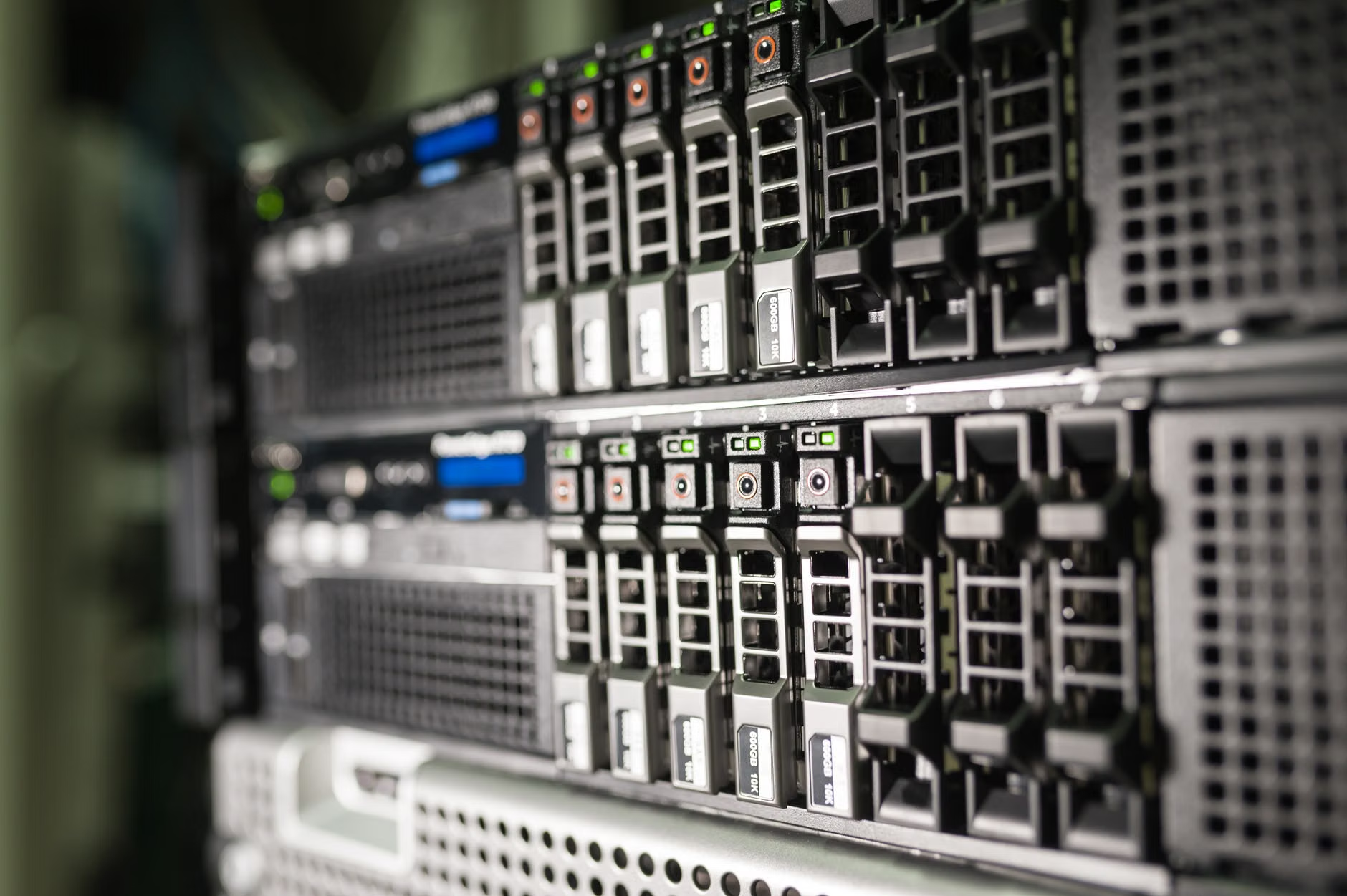
Many people mistake a NAS for a “backup.” A NAS is a storage device. To make it a backup, you need to configure it to mirror your data. Most NAS systems come with RAID (Redundant Array of Independent Disks). If you have two drives in your NAS, you can set them up so that every file is written to both drives simultaneously. If one drive fails, you just pull it out, put in a new one, and the system rebuilds itself. You don’t lose a single photo.
Setting Up Your First Home Server: A Step-by-Step Approach
If you are ready to make the jump, don’t overcomplicate it. You do not need to be an IT professional to set this up. Here is the realistic path for a busy parent:
- Select your enclosure: Start with a 2-bay NAS. It’s small, quiet, and fits on a shelf.
- Choose your drives: Buy “NAS-rated” drives. These are designed to spin 24/7. Do not buy generic desktop drives from a big-box store; they aren’t built for this workload.
- Installation: Slide the drives in, plug in the power, and connect the Ethernet cable to your router.
- Configuration: Log into the web interface. Set up your user accounts. This is where you decide who in the family can see what.
- Mobile Sync: Download the manufacturer’s mobile app. Enable “Auto-Backup” for your photos.
The most common mistake people make is trying to make their NAS accessible from the public internet immediately. Do not open ports on your router to the world unless you know exactly what you are doing. Instead, use the manufacturer’s secure “QuickConnect” or “Relay” services, which act as a secure tunnel. This allows you to access your files from your phone while you are at the park or on vacation without exposing your entire home network to hackers.
Beyond Storage: What Else Can You Do?
A NAS is more than just a digital closet. Once you have it, you will find it becomes the “brain” of your home. You can run a media server like Plex or Jellyfin on it, which allows you to stream your own movie collection to your TV without needing a subscription to every streaming platform. You can use it to host your own password manager (like Vaultwarden), keeping your sensitive logins away from big-tech companies.

For families, this is a game-changer. You can have a shared folder where parents can drop photos from their phones, and they instantly appear on the shared family iPad. It simplifies the digital chaos of modern parenting. You stop hunting through five different email accounts and cloud apps trying to find that one photo from last year’s birthday party.
The Hidden Variables: What Could Go Wrong?
Before you commit, consider these three “unexpected” factors:
- Electricity costs: While a NAS is efficient, it does run 24/7. Depending on your local electricity rates, this might add $2–$5 to your monthly utility bill. It is still cheaper than a cloud subscription, but it is a real cost.
- The “Update” Burden: You are now the IT department. When the NAS manufacturer releases a security update, you need to install it. It takes five minutes, but it is a task you cannot ignore.
- Physical Space: Even a small 2-bay NAS needs ventilation. Do not hide it inside a closed cabinet with no airflow. Electronics get hot, and heat is the enemy of hard drives.
The Final Verdict: Is It Right for You?
If you enjoy the convenience of “it just works” and don’t mind paying a premium for that, stick with your cloud provider. But if you value your privacy, want to save money in the long run, and enjoy having a bit more control over your digital environment, a NAS is a fantastic upgrade for your household. It is a one-time project that pays dividends in both security and freedom.
Start small, research the specific model you want, and remember that the goal isn’t to be a tech expert—it’s to be the curator of your own family’s digital history. Once you see that first automatic photo upload, you will realize that the “cloud” was never actually necessary; it was just a service we were taught to rely on.
Frequently Asked Questions
1. Will I lose my data if the NAS device itself breaks?
No, provided you have your hard drives intact. If the enclosure (the box) fails, you can simply purchase a new enclosure from the same brand, insert your existing hard drives, and the data will be accessible. This is why you should always buy your NAS from a reputable brand with a long history of backward compatibility.
2. Can I access my photos on the NAS when I am away from home?
Yes. Most modern NAS systems offer a secure, encrypted relay service that allows you to access your files via a mobile app or a web browser from anywhere in the world. You do not need to be on your home Wi-Fi to view or upload your files, provided you have an internet connection.
3. How often do I need to replace the hard drives?
NAS-rated hard drives are typically designed to last for 3 to 5 years of continuous use. Most NAS operating systems include “S.M.A.R.T.” monitoring, which tracks the health of your drives and will send you an email alert long before a drive actually fails, giving you plenty of time to replace it without losing any data.
For further reading on data storage standards and hardware health, you can consult the official support pages for Synology or QNAP, which provide extensive documentation on setting up secure home storage environments.