The most dangerous backup strategy is the one that relies on your memory, because if you have to remember to copy your files, you will eventually forget—and that is exactly when your drive will crash.
- Automate or Fail: Manual “drag-and-drop” backups are statistically doomed to fail due to human error and inconsistency; software-driven automation is the only reliable protocol.
- Adopt the 3-2-1 Rule: Maintain three copies of your data, on two different types of media (e.g., SSD and Cloud), with one copy stored physically off-site.
- Encryption is Mandatory: If your external drive is stolen or lost, your unencrypted personal data is exposed; always enable hardware or software-level encryption for sensitive backups.
We have all been there: the dreaded “Disk Error” notification or the sudden, silent death of a hard drive containing five years of family vacation photos. In our 30s and 40s, we are the designated archivists for our families. We hold the digital keys to childhood milestones, tax documents, and career-defining projects. Yet, most of us still treat backups like a chore we do “when we feel like it” or “once a month if we remember.”
The reality is that manual backups are not a protocol; they are a gamble. If you are still relying on your own willpower to keep your data safe, you are already behind schedule. Let’s look at how to build an “Auto-Backup” protocol that runs in the background, requiring zero effort from you once it is set up.
Why Your Current Manual Backup Strategy is a Liability
When we talk about “manual backups,” we are referring to the habit of occasionally plugging in an external hard drive and dragging folders over from our computer. This method has three fundamental flaws that make it unsuitable for modern digital life.
First, there is the Recency Bias. We tend to back up our data when we have a “scare”—perhaps a friend mentions their laptop broke. We back up our files, feel a sense of relief, and then don’t touch the drive for another six months. During that gap, hundreds of new photos and documents are created that exist only on your primary machine. If your machine fails on day 179 of that gap, you have lost everything created since your last session.
Second, Human Error is inevitable. We rename files, delete duplicates, or move folders around. During a manual transfer, it is incredibly easy to miss a sub-folder or accidentally overwrite a newer version of a file with an older one. Computers are bad at remembering to back up, but they are excellent at executing a script every single day without fail.
Third, Data Fragmentation occurs when you rely on manual copies. Over time, you end up with multiple “backup” folders across different drives, none of which contain the complete, current state of your digital life. You lose the ability to easily recover a file because you cannot remember which drive holds the most recent version.
The 3-2-1 Rule: The Gold Standard for Modern Families
Before you automate anything, you need a framework. The industry standard, used by IT professionals worldwide, is the 3-2-1 rule. It sounds technical, but it is actually a simple insurance policy for your digital existence.
- 3 Copies: You should have three total copies of your data. The original on your computer, a local backup on an external drive, and a remote backup in the cloud.
- 2 Media Types: Use at least two different types of storage. For example, a physical SSD (Solid State Drive) for your home office and a cloud-based service (like Backblaze, iCloud, or Google Drive) for off-site redundancy.
- 1 Off-site: One of these copies must be in a different physical location. If there is a fire, theft, or flood in your home, having two drives sitting on your desk doesn’t help you.
For a parent in their 30s, this means your “Auto-Backup” protocol should ideally involve one software that pushes data to an external drive at home and another service that pushes data to the cloud. You set it once, and then you simply ensure the drive is plugged in or the computer is connected to the internet.
Choosing the Right Tools for Automatic Synchronization
Not all backup software is created equal. You need a tool that runs in the background, handles “incremental” backups (only copying what has changed since the last time, which saves time), and provides a clear history of your files.
| Tool Type | Pros | Cons | Best For |
|---|---|---|---|
| Native OS Tools (Time Machine / File History) | Free, deeply integrated, easy to set up. | Limited customization, requires specific drive formatting. | General home users and families. |
| Cloud Sync (OneDrive / iCloud / Google Drive) | Always on, off-site, accessible everywhere. | Subscription costs, requires fast internet. | Documents, photos, and active projects. |
| Dedicated Software (Carbon Copy Cloner / Acronis) | Bootable clones, granular control, high speed. | Learning curve, potential license fees. | Power users and heavy media creators. |
If you are a macOS user, Time Machine is your best friend. It is built-in, free, and once you point it at an external drive, it handles everything. It creates hourly snapshots, so if you accidentally delete a file, you can go back to how your computer looked yesterday morning. The mistake most people make is not leaving the drive connected. If you are using a laptop, consider a docking station where you can leave the backup drive plugged in 24/7.
For Windows users, File History is the native equivalent, though many power users prefer third-party tools like Macrium Reflect or Acronis Cyber Protect for more robust features, such as creating a “disk image”—a complete copy of your entire system, including your settings and apps, not just your files.
Hardware Considerations: SSD vs. HDD
When building your protocol, the physical drive matters. The market has shifted heavily toward Solid State Drives (SSDs), and for good reason.
Mechanical Hard Disk Drives (HDDs) have moving parts inside. If you drop one while it is running, the read/write head can crash into the disk, causing permanent data loss. SSDs have no moving parts; they are essentially very large, very fast USB thumb drives. They are significantly more durable, faster, and quieter.
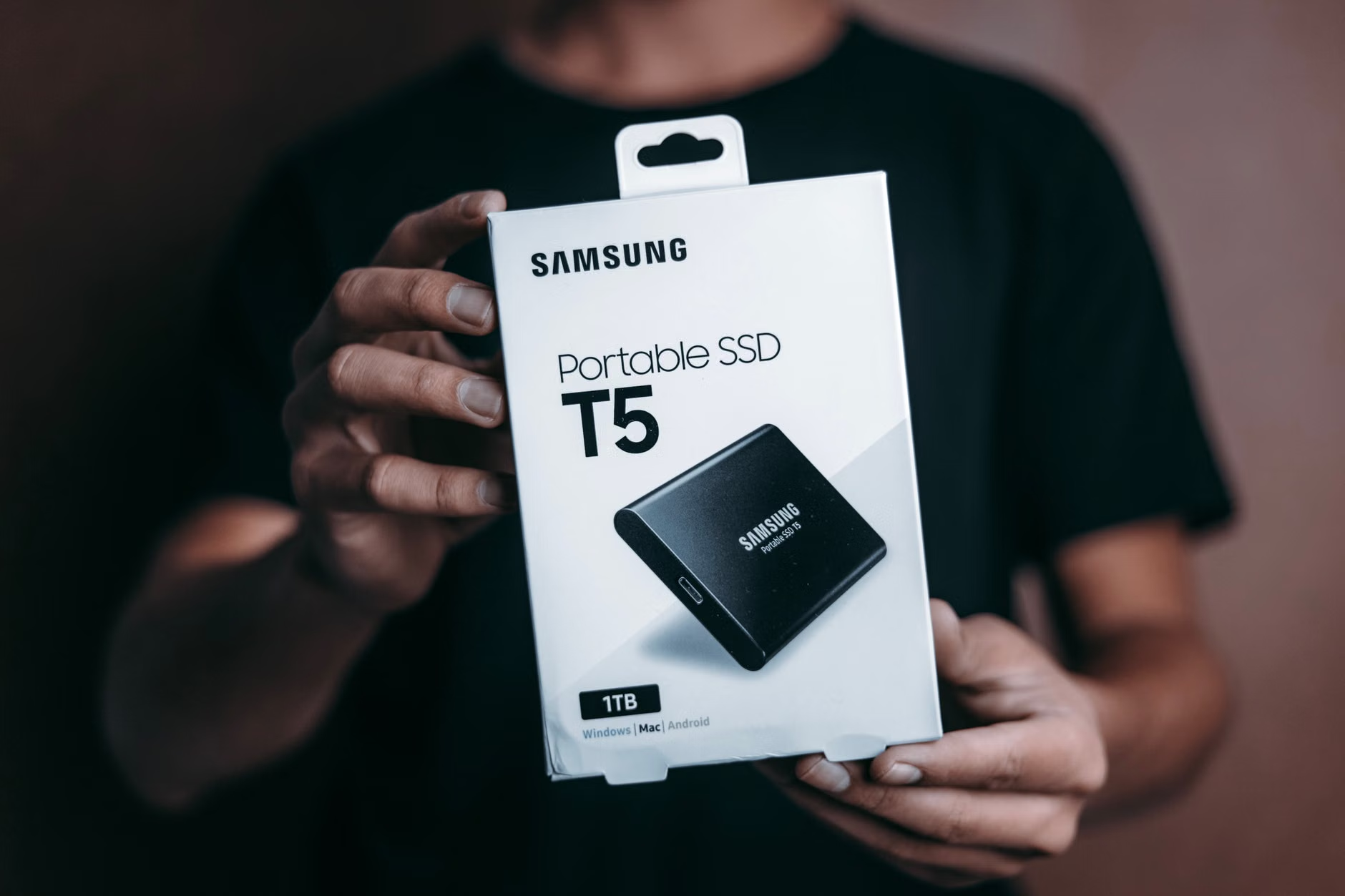
However, there is a nuance: SSD longevity. SSDs have a limited number of “write cycles.” If you are constantly rewriting huge amounts of data (like video editing or massive database management) to the same drive every day, an enterprise-grade HDD might actually outlast a cheap consumer SSD. For 95% of families, however, a high-quality portable SSD (like a Samsung T7 or SanDisk Extreme) is the superior choice because it can survive being knocked off a desk during a busy afternoon of parenting.
Common Mistake: Do not use a “Green” or “Eco” drive for your primary backup. These drives are designed to spin down to save power. When your backup software tries to wake them up, it can cause delays or connection timeouts, leading to failed backups. Stick to drives rated for general performance or specialized NAS (Network Attached Storage) drives if you are building a server.
The Hidden Risk: Encryption and Security
Many people set up an external drive and forget it. But what happens if that drive is stolen from your home or car? If your drive is not encrypted, the thief has access to every tax return, photo, and personal document you own. It is a major security vulnerability that is easily overlooked.
Most modern external drives come with software to enable AES 256-bit hardware encryption. This means the drive requires a password to be accessed. If you lose the drive, your data is useless to anyone else. If you are using a generic drive without built-in encryption, you can use software like BitLocker (Windows) or FileVault (macOS) to encrypt the drive volume itself.
Decision Rule: If your backup contains sensitive information—and let’s be honest, it does—encryption is not optional. The trade-off is that if you forget your password, your data is gone forever. Keep your recovery key in a password manager (like Bitwarden or 1Password) or printed in a physical safe.
Step-by-Step Implementation: The ‘Set and Forget’ Protocol
To implement your protocol, follow this sequence. It will take about an hour to set up, but it will save you days of potential recovery effort.
- Acquisition: Buy an external drive that is at least twice the size of your computer’s internal storage. This allows the backup software to keep “versions” of your files over time.
- Formatting: Connect the drive. Format it to the native file system of your OS (APFS for Mac, NTFS for Windows). Avoid ExFAT unless you absolutely need to switch between Mac and PC, as it is less stable for long-term backups.
- Software Configuration: Open your OS native backup tool (Time Machine or File History). Select the drive. Set the backup interval to “Automatic” or “Hourly.”
- Exclusion List: Check the settings to see what is being backed up. You may want to exclude temporary files, downloads (that you don’t need to keep), or large game installations to save space.
- Verification: Run the first backup manually. Once complete, try to restore a single, unimportant file to ensure the process works.
- Physical Management: If you use a laptop, create a “docking ritual.” When you sit down to work, the first thing you do is plug in the drive. When you leave, you unplug it. If you have a desktop, just leave it plugged in.
Troubleshooting Common Backup Failures
Even the best systems have hiccups. The most common issue is the “Drive Full” warning. Backup software is designed to keep versions of your files. When the drive fills up, it should automatically delete the oldest versions to make room for new ones. If it doesn’t, your disk is likely too small.
Another issue is “Connection Interruption.” If you are using a USB hub, the power might be insufficient to keep the drive running, causing it to disconnect during a backup. Always connect your backup drive directly to the computer’s main USB port, not through a keyboard or monitor hub. If you must use a hub, ensure it is a “powered” hub that plugs into a wall outlet.
Lastly, check your backup logs once a month. Most software will give you a simple green checkmark or a red notification. If you see repeated failures, it is usually a sign that the drive is starting to fail (look for “I/O errors”) or your cable is damaged. Replace the cable first—it is the cheapest and most frequent point of failure.
The Psychological Barrier: Why We Avoid Backing Up
We often avoid backups because they feel like an admission of mortality—for our hardware, at least. We want to believe our devices will work forever. But in our 30s and 40s, we have enough responsibilities; we don’t need the stress of digital loss. Framing backups as “automated hygiene” rather than a “technical project” helps.
Just like brushing your teeth or paying your bills, this is a maintenance task. By automating it, you remove the burden of choice. You are no longer choosing to back up; the system is doing it for you. This shift in perspective is what separates people who lose their data from those who simply recover it in an hour.
Final Thoughts: Your Digital Safety Net
The “Auto-Backup” protocol is about peace of mind. It is the quiet confidence that even if your laptop takes a spill, your family memories remain intact. You don’t need to be an IT expert to implement this; you just need to be consistent with the setup. Follow the 3-2-1 rule, use reliable encryption, and automate the process so you never have to think about it again.
Start today. If you don’t have a dedicated drive, order one. If you have one, plug it in and turn on the automatic settings. Your future self, dealing with a potential hardware failure, will thank you.
Frequently Asked Questions
Q: Does my cloud storage (like Google Drive or iCloud) count as a backup?
A: Not entirely. Cloud storage is a “sync” service. If you accidentally delete a file on your computer, it often deletes it from the cloud simultaneously. A true backup creates a separate, version-controlled copy. Always complement your cloud sync with a physical, automated local backup.
Q: How often should I replace my external hard drive?
A: A good rule of thumb is every 3 to 5 years. Even if the drive shows no errors, the mechanical components or the flash memory cells in SSDs degrade over time. If you notice the drive running significantly slower or making unusual noises, replace it immediately.
Q: What if my computer doesn’t have enough USB ports for a permanent backup drive?
A: Invest in a high-quality, powered USB-C or Thunderbolt dock. A good dock will provide the necessary power and data bandwidth to keep your backup drive connected reliably without interfering with your other peripherals.
For further reading on data security and storage standards, you can refer to the NIST Guide to Data Backup and Recovery.