Building your own self-hosted media server is the most effective way to insulate your household from the relentless cycle of streaming service price hikes, content removals, and platform fragmentation. By transitioning from a monthly subscription model to a personal, owned digital library, you secure permanent access to your media while gaining total control over your family’s viewing environment.
- Long-term Savings: While there is an upfront hardware cost, self-hosting eliminates recurring monthly fees that often exceed $300–$500 annually across multiple platforms.
- Content Permanence: You are no longer subject to licensing agreements; movies and shows in your library remain available regardless of which streaming service loses the rights to them.
- Privacy and Control: Self-hosting keeps your viewing habits private and allows you to curate content specifically for your family without algorithmic interference or unwanted advertisements.
If you are in your 30s or 40s, you likely remember a time when “owning” media meant putting a physical disc into a player. Today, we rent our digital lives. We pay for Netflix, Disney+, Hulu, and Amazon Prime, only to find that our favorite show has been moved to a different service or pulled from the platform entirely. When you add up these monthly subscriptions, you are likely spending a significant portion of your disposable income on access that can vanish overnight. This is the “subscription fatigue” that is currently affecting millions of households globally.
Understanding the Shift from Renting to Owning
The core concept of a media server is simple: you host your own digital files on a piece of hardware you own, and a software interface organizes them so they look and feel exactly like a professional streaming app. Instead of a monthly fee, you pay once for the hardware—a computer, a dedicated server, or even a repurposed older laptop—and you own the infrastructure.
Why does this matter now? Because inflation isn’t just hitting your grocery bill; it’s hitting the “digital shelf.” Streaming platforms have been steadily raising prices while simultaneously introducing ad-supported tiers. By building a media server, you opt out of this game. You are no longer paying for the privilege of seeing ads, and you are no longer at the mercy of a corporate board deciding which shows stay or go.
Real-life scenario: Imagine you have a library of classic family films or niche shows that are rarely available on major platforms. In a streaming-only world, you might pay for a specific service just to access one title for a month, only to forget to cancel the subscription. With a self-hosted server, those files reside on your local network. You can watch them at 2 AM or 2 PM, with no internet connection required, and no risk of a “content not available” error message.
Evaluating the Hardware Requirements
One common misconception is that you need an enterprise-grade data center in your basement to host a media server. In reality, for a standard family household, you can start with hardware that is likely already sitting in your house or can be bought for a fraction of the cost of a new gaming console.
| Hardware Type | Pros | Best For |
|---|---|---|
| Repurposed PC/Laptop | Zero upfront cost, easy to set up | Beginners testing the waters |
| NAS (Network Attached Storage) | Reliable, power-efficient, data safety | Long-term library storage |
| Mini PC (e.g., Intel NUC) | High performance, low footprint | Heavy users with 4K content |
For most families, a Mini PC is the sweet spot. They are roughly the size of a paperback book, consume very little electricity, and have enough processing power to “transcode” (convert) video files so they play smoothly on everything from your living room TV to a kid’s tablet in the car.
The Decision Matrix: Choosing Your Software
Once you have the hardware, the software acts as the “brain” of your server. The two industry giants in the self-hosting space are Plex and Jellyfin. Choosing between them is a matter of trade-offs.
Plex is the user-friendly, “it just works” option. It has a polished interface that feels like Netflix, and it handles the heavy lifting of organizing your movie posters, cast lists, and metadata automatically. It does, however, have a “Plex Pass” subscription model for premium features like hardware transcoding (which helps older devices play high-quality video). It is the best choice if you have a busy life and want a system that requires minimal maintenance.
Jellyfin is the entirely free, open-source alternative. It doesn’t have a corporate entity behind it, meaning no paywalls, no tracking, and no subscriptions. It requires a bit more technical setup—you might need to spend an extra hour or two reading documentation or watching tutorials to get it configured perfectly. If you are privacy-conscious and want a system that is 100% yours, Jellyfin is the superior choice.
Setting Up Your Digital Library: A Step-by-Step Approach
The process of building your server can be broken down into four logical steps. Do not try to do this all in one afternoon; take it one stage at a time to ensure your data is organized correctly from the start.
- Hardware Selection: Choose your platform based on the table above. Ensure you have adequate storage capacity. A good rule of thumb is to start with at least 4TB of storage, which will comfortably hold a large collection of high-definition movies and seasons of television.
- Operating System: Most users start with Windows or a Linux distribution like Ubuntu. If you are comfortable with computers, Linux is more efficient, but Windows is perfectly capable of hosting a media server.
- Software Installation: Download either Plex or Jellyfin. Follow the installation wizard, which will ask you to point the software toward the folders where your media is stored.
- File Organization: This is the “hidden work.” The software works best when files are named correctly (e.g., “Movie Name (Year).mkv”). If your files are disorganized, the server will struggle to identify them and download the correct cover art.
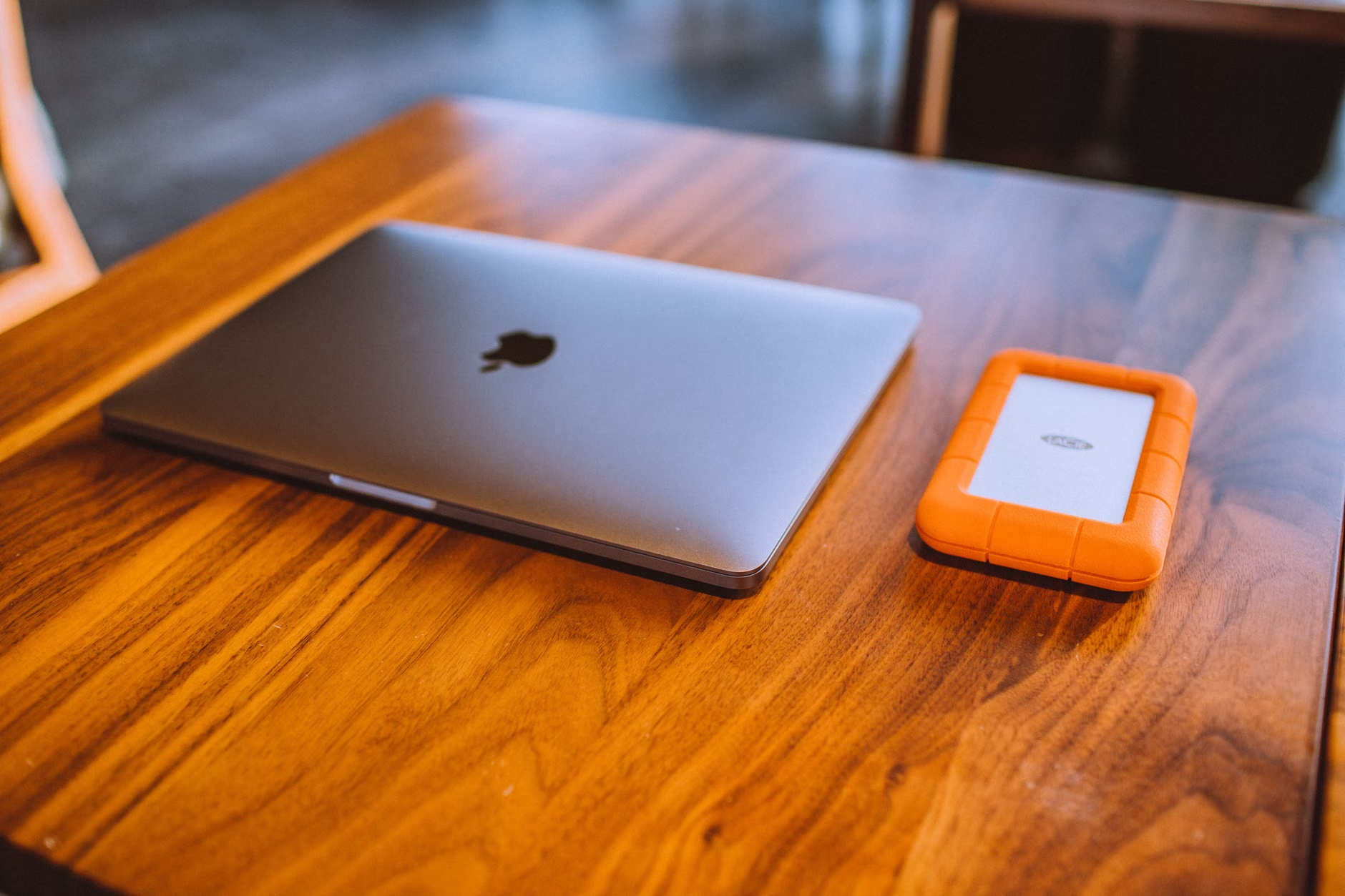
A common mistake is trying to manage files directly on the server machine. Instead, keep your main library on a secondary drive or a network share. This way, if your computer crashes or you decide to upgrade your hardware, your media library remains safe and ready to be plugged into the new system.

Addressing Potential Hurdles: Performance and Network
You might worry about whether your home internet can handle a media server. The good news is that for 90% of home use, your internet speed does not matter. A media server operates on your “Local Area Network” (LAN). When you stream a movie from your server to your TV, the data travels through your home router, not through your ISP’s external lines.
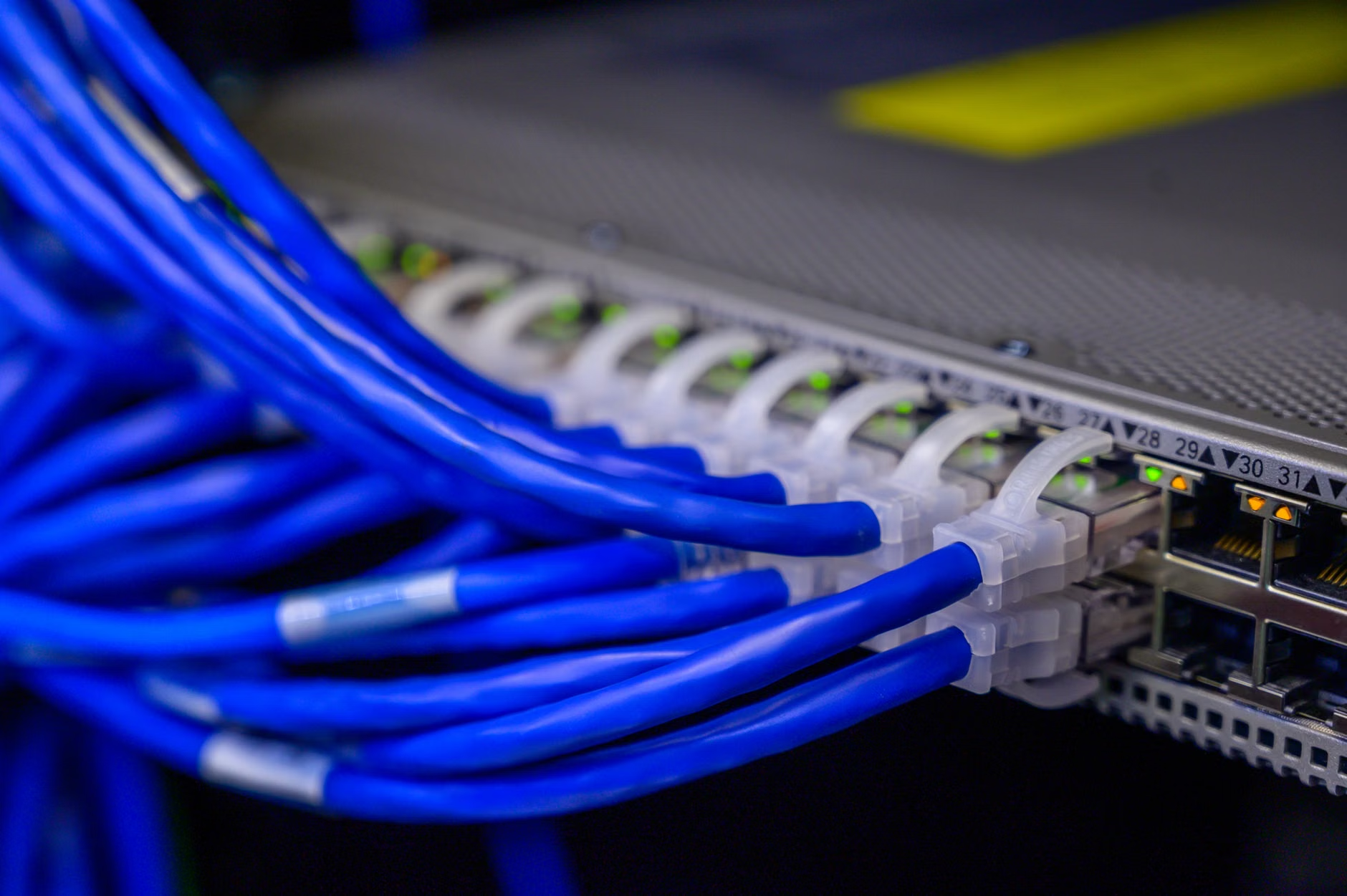
However, your internal network does matter. If you are streaming high-bitrate 4K content, Wi-Fi can sometimes be unstable. The best practice is to connect your server to your router using a physical Ethernet cable. If your TV is far from the router, consider a powerline adapter or a mesh Wi-Fi system to ensure a consistent connection. Avoiding “buffering” is all about the stability of your local connection.
Another variable to consider is energy efficiency. Because a media server is often running 24/7, you want hardware that uses minimal power. A modern Mini PC can cost as little as $10–$15 per year in electricity, whereas an old, power-hungry desktop tower could cost five times that. Factor this into your hardware choice if you plan to keep the server running continuously.
The Hidden Value: Beyond Movies and Shows
A media server isn’t just for movies. It is also an excellent tool for managing your family’s digital life. Many people use their server to host personal photo and video backups. Instead of paying for cloud storage (like Google Photos or iCloud) where you are charged monthly based on how many photos you have, you can use your media server to store and view your family memories on your own terms.
Furthermore, you can curate content for children. Both Plex and Jellyfin allow you to set up “managed users” with specific parental controls. You can restrict access to certain libraries or age ratings, ensuring that your kids only see the content you have vetted, without the risk of them stumbling onto inappropriate material through an algorithmic recommendation.
It is important to address the elephant in the room: where the media comes from. When you build a self-hosted server, you are responsible for the content. Many users digitize their existing collections of physical DVDs and Blu-rays. This is a common and straightforward process using tools like MakeMKV, which creates a digital “backup” of your disc that can be played on any device.
Be aware that the legal landscape regarding “format shifting”—converting media you own from one format to another—varies by country. In many jurisdictions, creating a personal backup of media you own for your own use is generally accepted, but distributing that content or downloading copyrighted material from unauthorized sources is not. Always ensure you are operating within the laws of your specific region. The goal of a media server is to manage the media you have legally acquired, not to facilitate piracy.
Common Mistakes to Avoid
One of the biggest mistakes beginners make is failing to implement a backup strategy. A media server is not a backup; it is a playback device. If your hard drive fails, your library is gone. Always maintain a “3-2-1” backup strategy if you can: three copies of your data, on two different types of media, with one copy stored off-site (like an external drive kept at a friend’s house or a secure cloud backup).
Another common oversight is neglecting updates. Because your server is connected to your network, it is a piece of software that needs to be maintained. Set aside time once a month to check for software updates for your server application and your operating system. This ensures that you have the latest security patches and performance improvements.
Finally, avoid the temptation to “over-build.” You do not need a $2,000 server to watch movies. Start with what you have. If you find that your needs grow, you can upgrade your storage or processing power later. The modular nature of self-hosting is one of its greatest strengths.
Making the Final Decision: Is It Right for You?
Is a self-hosted media server for everyone? Not necessarily. If you enjoy the convenience of a “one-click” streaming experience and don’t mind the rising monthly costs, sticking to commercial platforms might be easier for your specific lifestyle. However, if you are looking to regain control, save money in the long run, and ensure your entertainment library is truly yours, the effort of setting up a media server is one of the most rewarding tech projects you can undertake.
The upfront effort acts as a barrier to entry, but the payoff is a permanent, inflation-proof, and private entertainment system that serves your family for years. Start small, use the resources available online—such as the official documentation at Plex Support or Jellyfin Documentation—and take it one step at a time. Your future self will thank you when the next round of subscription price hikes hits the news.
Frequently Asked Questions
1. Do I need to be a tech expert to set up a media server?
Not at all. If you can follow a step-by-step tutorial and install basic software, you have the skills required. Modern tools like Plex and Jellyfin are designed for consumer use, not just IT professionals.
2. Will my internet bill go up if I build a media server?
No. In fact, it might go down if you use your server to replace several high-bandwidth streaming services. Because media servers work on your home network, they do not consume your ISP’s data plan when you watch movies locally.
3. What happens if my home server breaks?
If the hardware fails, your media files (the movies/shows) are usually stored on a separate hard drive that can be plugged into a new computer. As long as you keep your files organized and backed up, your library remains safe even if the “brain” of the server needs to be replaced.
For further reading and community support, visit the official r/selfhosted community on Reddit, where thousands of users share tips and troubleshooting advice for maintaining their private home servers.