The most common reason your Wi-Fi fails in a multi-story home isn’t the router itself, but the vertical distance and physical obstacles—like concrete floors and metal piping—that kill your signal long before it reaches the kids’ bedrooms upstairs. To achieve a seamless, high-speed connection across every floor, you must stop treating your mesh nodes like decorative ornaments and start treating them like strategic signal repeaters that require a clear line of sight.
Key Takeaways:
- The Staircase Rule: Placing nodes near stairwells is the most effective way to bridge the vertical gap between floors, as the open space acts as a natural tunnel for wireless signals.
- Backhaul Matters: If your home is wired with Ethernet, use a “Wired Backhaul” connection for your nodes to prevent signal degradation caused by wireless interference.
- Frequency Matters: You must force your high-bandwidth devices (like 4K streaming TVs or consoles) onto the 5GHz or 6GHz bands, keeping the 2.4GHz band clear for smart home devices that don’t need high speed but need long-range stability.
Why Your Current Mesh Setup Is Failing You
We have all been there: you are finally settling down to stream a show in the master bedroom, or perhaps you are trying to finish a work video call from the home office, and suddenly, the connection drops to a crawl. You checked your speed test, and your ISP is delivering the full gigabit plan you pay for. So, what gives?
In a multi-story home, the problem is rarely the lack of bandwidth; it is the signal attenuation. Wireless signals, especially the faster 5GHz and 6GHz bands, struggle to penetrate floor joists, heavy insulation, and metal-reinforced concrete. If you simply place your mesh nodes in the same room as your cable modem, you are essentially creating a powerful bubble of Wi-Fi in the living room while leaving the rest of the house to fight for scraps.
The biggest mistake most people make is “node clustering.” They place the main router in the utility room and a satellite node just a few feet away in the hallway. This creates a redundant signal that doesn’t actually reach the “dead zones” in the corners of the house. To fix this, you need to think about your home as a three-dimensional grid rather than a flat map. Every wall and ceiling is a physical barrier that absorbs energy from your Wi-Fi signal.

The Physics of Placement: Why Height and Positioning Trump Power
Wireless signals propagate in a spherical pattern from the antenna. When you place a router on the floor behind a sofa or inside a wooden cabinet, you are effectively blocking a significant portion of that sphere. In a multi-story home, this is amplified because you are asking that signal to travel through the floor—the densest part of your home’s construction.
The Golden Rules of Placement:
- Elevate, Don’t Hide: Keep nodes on shelves or tables at least 3 to 5 feet off the ground. Never hide them in cabinets or behind televisions. Metal components in TVs are notorious for reflecting and absorbing Wi-Fi signals.
- The Stairwell Bridge: Since floors are thick, the stairwell is your best friend. It is the only “open” pathway between levels. Place a satellite node at the top of the stairs and one at the bottom, positioned so they have a clear line of sight to each other across the stairwell opening.
- Avoid the “Microwave Zone”: Keep your nodes away from other major electronics. Microwaves, cordless landline phones, and even some smart refrigerators emit interference on the same 2.4GHz frequency as your router, which can cause your mesh network to “stutter” as it tries to switch channels.
If you have a home larger than 2,000 square feet, don’t just add more nodes. Adding too many nodes in a confined space can actually cause “co-channel interference,” where the nodes start competing with each other for airtime. For most two-story homes, a 3-node system (one main, two satellites) is the sweet spot. If you are still seeing dead zones, it is better to move a node closer to the problem area than to buy a fourth or fifth unit.
Wired vs. Wireless Backhaul: The Hidden Performance Booster
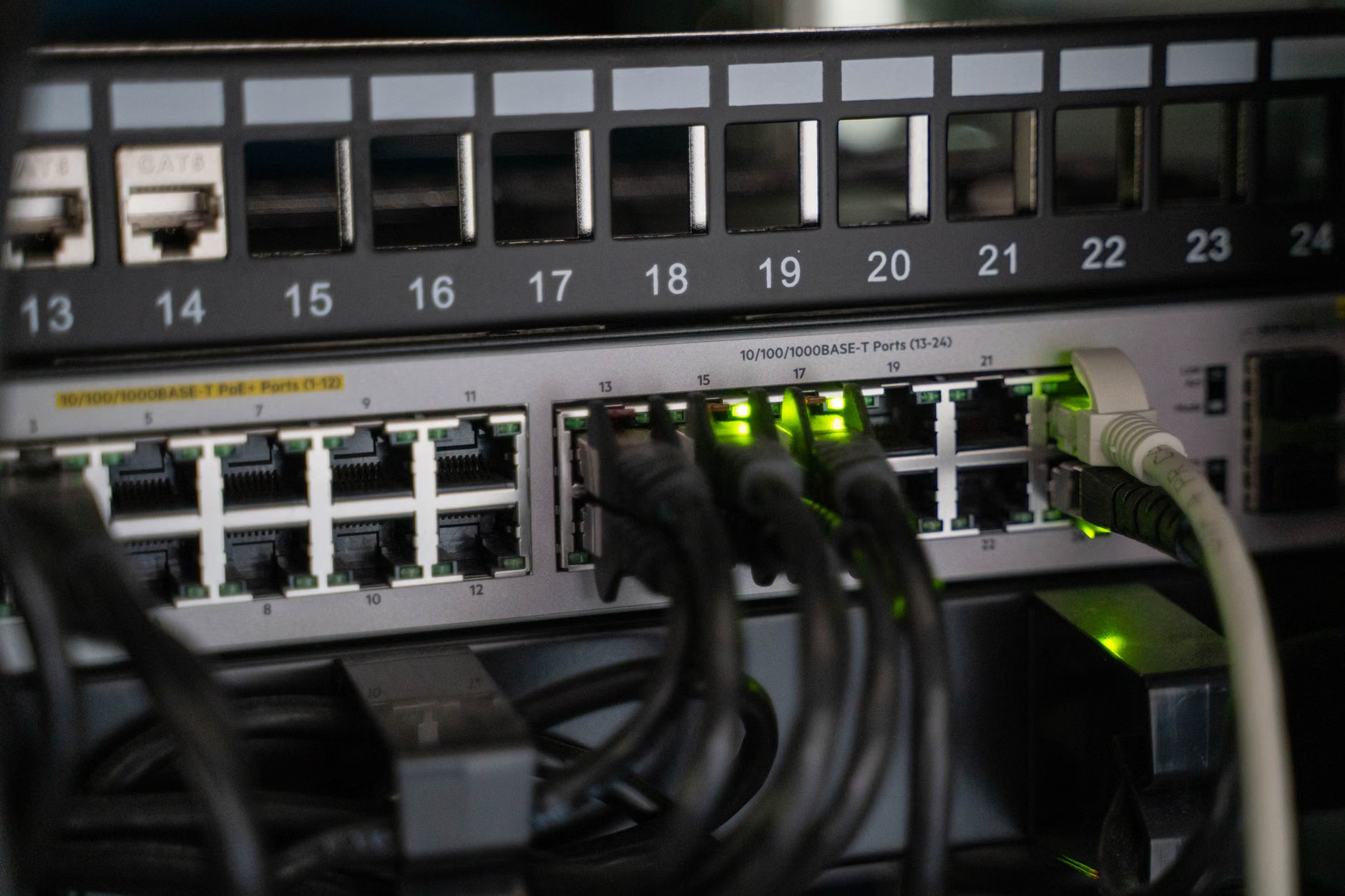
When you use a standard mesh system, the nodes communicate with each other over the same wireless bands that your devices use. This is called “wireless backhaul.” It is convenient, but it essentially cuts your available bandwidth in half because the nodes are busy talking to each other instead of to your laptop or phone.
If your home has Ethernet wall ports in different rooms (common in homes built after 2010), you have the ultimate advantage: Wired Backhaul. By connecting your satellite nodes directly to the router via Ethernet, you free up the wireless bands entirely for your devices. This can increase your effective Wi-Fi speed by 30% to 50% in remote rooms.
How to set up Wired Backhaul:
- Ensure your mesh system supports Ethernet backhaul (most modern systems like Eero, Deco, or Orbi do).
- Connect an Ethernet cable from the main router to a network switch.
- Run cables from the switch to the wall ports in your various rooms.
- Connect your satellite nodes to those wall ports.
- The mesh system will automatically detect the wired connection and switch to “backhaul mode,” effectively turning your satellites into high-speed access points.
Optimizing for the Modern Family: Band Steering and Device Management
Not all devices need the same amount of data. Your smart light bulbs and temperature sensors are perfectly happy with a slow, stable 2.4GHz connection. Your teenager’s gaming PC and your 4K Netflix stream, however, need the high throughput of the 5GHz or 6GHz bands.
Most modern mesh systems use “Band Steering.” This is a feature that automatically encourages devices to connect to the fastest band available. However, it isn’t always perfect. If you notice your high-bandwidth devices are sluggish, dive into the app settings for your mesh system. Look for the “Device List” and check which band your devices are currently using.
Common Mistakes in Device Management:
- Ignoring the 2.4GHz bottleneck: If you have 50+ smart home devices, they might be saturating the 2.4GHz band. If possible, move your smart devices to a dedicated “Guest Network” or a smart-home-specific VLAN if your router supports it. This keeps the traffic separated from your primary network.
- Over-managing: Do not force devices onto specific bands unless you have a persistent connection issue. Modern mesh algorithms are generally better at balancing the load than a human is.
- Ignoring Firmware Updates: Mesh systems receive updates that often include “beamforming” improvements. Beamforming is a technology that allows the router to focus the signal directly at your device rather than broadcasting in all directions. If your firmware is outdated, you are missing out on these efficiency gains.
If you find that your devices are “sticky”—meaning they stay connected to a distant node instead of switching to a closer one—restart the device’s Wi-Fi. Sometimes the client device (your phone or laptop) is the one refusing to let go of the weaker signal. A quick toggle of the Wi-Fi switch on your device usually forces it to scan for the strongest available signal.
Troubleshooting the “Dead Zone” Myth
Sometimes, no matter how you position your nodes, a specific room remains a dead zone. Before you blame the mesh system, look for external factors. Is there a large mirror between the room and the node? Mirrors are essentially silver-backed glass, and they act as massive reflectors for Wi-Fi signals. Even a large aquarium can act as a signal-absorbing block because water is incredibly effective at dampening 5GHz waves.
If you have a basement, you are likely dealing with concrete walls or steel support beams. Wi-Fi does not travel through metal. If your basement is a critical area, you must use a wired backhaul or a dedicated mesh node inside the basement itself. Do not expect a signal from the ground floor to “leak” through the floorboards into a finished basement.
Strategic Decision Matrix for Your Home
To help you decide on the right approach for your specific home layout, use this table as a guide for common scenarios.
| Scenario | Recommended Action | Why |
|---|---|---|
| Multi-story with Ethernet ports | Wired Backhaul | Removes wireless congestion and doubles effective speed. |
| Older home with thick brick/stone walls | More, smaller nodes | Signals cannot penetrate dense masonry; you need a node in every room. |
| Large open-plan home | Tri-band system | A third band acts as a dedicated lane for inter-node communication. |
If you are in your 30s or 40s, you likely have more devices connected today than you did five years ago. Between work-from-home demands, streaming services, and the “Internet of Things” (smart thermostats, security cameras, speakers), your network is working harder than ever. Treating it as a “set it and forget it” utility is a recipe for frustration. By taking the time to optimize your placement and utilizing wired backhaul where possible, you are not just improving your internet; you are reclaiming the hours you would otherwise spend troubleshooting connectivity issues.
Check the official support pages for your specific router manufacturer (such as Eero Support, TP-Link FAQ, or Netgear Support) to see if they offer specific “placement guides” for your model. They often provide heat maps or specific distance recommendations that are unique to their antenna configuration.
Frequently Asked Questions
Does adding more mesh nodes always improve performance?
No. In fact, adding too many nodes can decrease performance. If your nodes are placed too close to each other, they will interfere with one another, causing latency and packet loss. Always start with the minimum number of nodes recommended for your square footage and only add more if you have a verified dead zone that cannot be solved by moving an existing node.
Should I turn off my ISP’s router Wi-Fi?
Yes, absolutely. If you are using a separate mesh system, you should either set your ISP modem to “Bridge Mode” or disable its built-in Wi-Fi functionality. Running two separate wireless networks in the same home creates “Wi-Fi noise” that will force your mesh system to work harder to find a clean channel. Contact your ISP if you aren’t sure how to access the bridge mode settings.
How often should I reboot my mesh system?
You shouldn’t have to do it often, but a monthly reboot is a good “hygiene” practice. It clears out memory leaks and forces the system to re-scan for the cleanest wireless channels in your area, which may have become crowded due to neighbors’ networks. Most mesh apps have a “Scheduled Reboot” feature—set it for 3:00 AM on a Sunday to ensure your network stays fresh without interrupting your daily life.
Ultimately, a stable home network is the backbone of a modern, stress-free household. It’s worth the one-time effort of mapping your home and optimizing your hardware to ensure that when you finally do get a moment to relax or work, the technology works for you, not against you.