Your family’s digital history—those thousands of photos, first-step videos, and scanned childhood drawings—is currently held hostage by the terms of service of big tech companies. The most reliable way to ensure these memories survive for the next thirty years is to adopt a “local-first” storage strategy, where you own the physical copies of your data before you ever consider syncing it to the cloud.
- Cloud is a convenience, not an archive: Cloud services prioritize syncing across devices, which means accidental deletions or corrupted files often sync instantly across all your platforms.
- The 3-2-1 Rule is the gold standard: Keep 3 copies of your data, on 2 different types of media (e.g., hard drive and SSD), with 1 copy stored in a different physical location (off-site).
- Ownership requires maintenance: Local storage is not a “set it and forget it” solution; you must verify file integrity and refresh hardware every 3–5 years to prevent bit rot.
The Hidden Fragility of Your Digital Life
If you are in your 30s or 40s, you likely have a decade or two of photos scattered across defunct social media accounts, old laptops, and various cloud services. We’ve been conditioned to believe that “the cloud” is synonymous with “safe.” If your phone breaks, you get a new one, sign in, and your photos return. It feels like magic. But this convenience hides a significant risk: you are essentially renting your memories.
Consider the “Syncing Trap.” Most cloud storage providers are designed to reflect the current state of your device. If you accidentally delete a folder on your phone to clear up space, that command is often mirrored to the cloud within milliseconds. Unlike a traditional backup, which creates a static snapshot of your data, cloud syncing is a two-way street. If your account is hacked, your payment method expires, or the provider decides to change its storage policies, your access to those memories is no longer guaranteed.
Local-first storage flips this power dynamic. When you store your files on a physical drive that you own, you are the final authority on who can access them and whether they are deleted. You aren’t subject to the whims of a server migration or a sudden subscription price hike. For a family archive, this isn’t just about saving space; it’s about ensuring that your children can look back at their childhood photos twenty years from now, regardless of whether Google or Apple still exists in its current form.
Understanding the 3-2-1 Strategy for Everyday Families
The 3-2-1 backup rule sounds like a piece of IT jargon, but it is actually the most practical framework for anyone managing a growing family library. It is not about buying expensive enterprise-grade equipment; it is about redundancy.
| Component | What it means | Practical Example |
|---|---|---|
| 3 Copies | The original plus two distinct backups. | One on your phone, one on your PC, one on an external drive. |
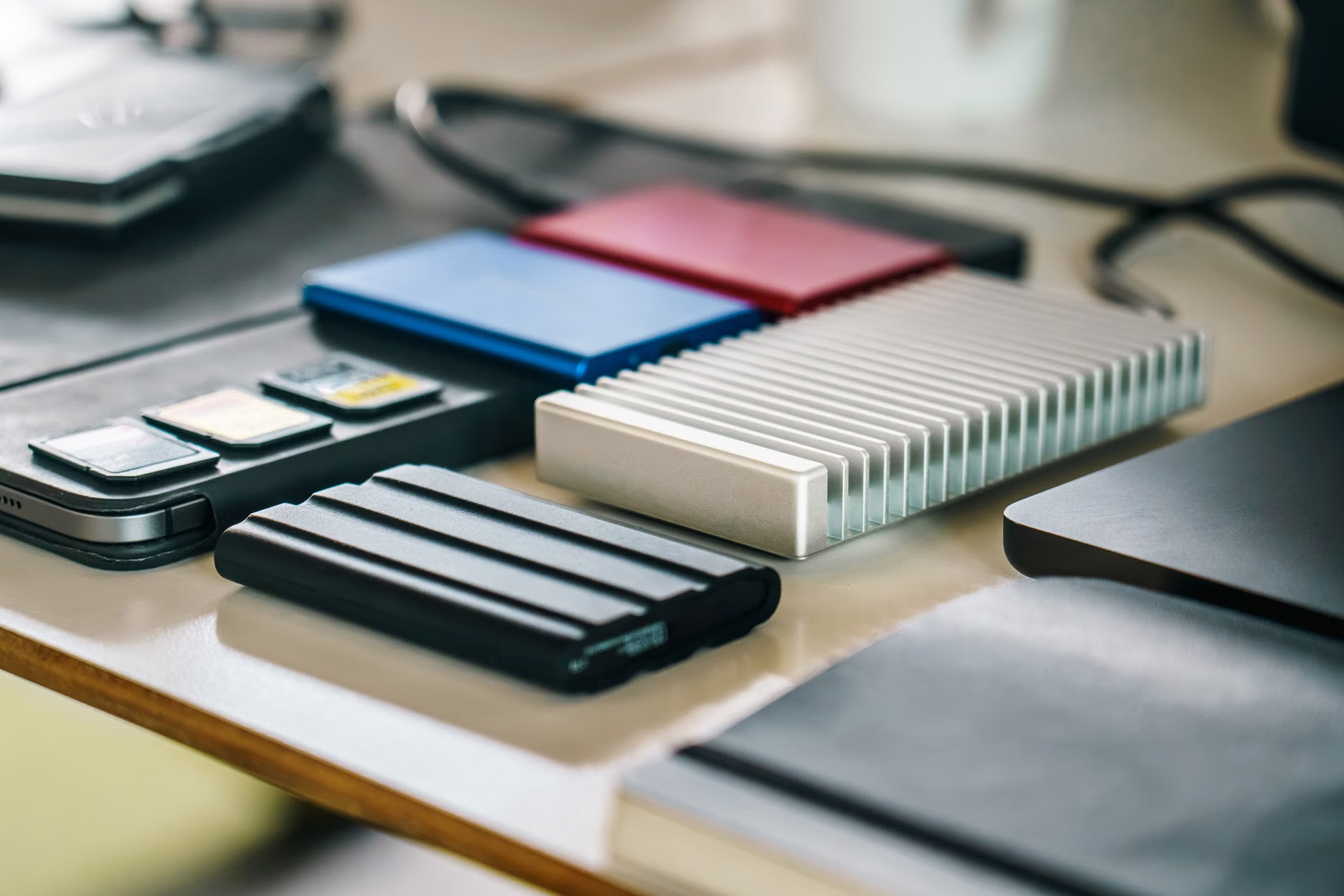
| 2 Media Types | Store data on different physical technologies. | An SSD for speed and a mechanical HDD or M-DISC for longevity. |
| 1 Off-site | A copy kept away from your home. | A drive at a relative’s house or a secure cloud vault. |
Why does this matter? If you only have your photos on your computer, a single hardware failure or a kitchen fire destroys everything. If you only have them on the cloud, a localized internet outage or a locked account leaves you stranded. The “2 different media” part is crucial because all hardware eventually fails. Mechanical hard drives (HDDs) can suffer from motor failure, while Solid State Drives (SSDs) can lose charge if left unpowered for many years. By diversifying, you reduce the probability of losing everything at once.
Building Your Local-First Archive: A Step-by-Step Approach
Starting a local archive can feel overwhelming, especially when you have ten years of disorganized files. You don’t need to do it all at once. The first step is to establish a “Master Repository.” This is a large-capacity external hard drive or a Network Attached Storage (NAS) device that acts as the single source of truth for your family photos.
1. Consolidation and Cleanup
Before you back anything up, you need to consolidate. Most families have photos scattered across three different laptops, two old phones, and a random USB stick. Gather these into a single folder structure on your computer. Use a simple naming convention like YYYY-MM-DD_EventName. This ensures that even if your photo management software fails, the files themselves are human-readable and easy to sort.
2. The Role of the NAS vs. External Drives
For most families in their 30s and 40s, a simple external SSD is a great starting point. However, if your archive is growing rapidly, consider a NAS. A NAS is essentially a small, private server that sits on your home network. It can automatically back up every device in your house, meaning you don’t have to remember to “plug in” your phone or laptop. It does the work for you in the background.
3. Implementing the “Off-site” Requirement
The “1” in the 3-2-1 rule is often the most neglected. How do you keep a copy off-site without relying on a subscription service that you might forget to pay? The most reliable “low-tech” method is to keep a physical drive at a family member’s house. Every six months, swap the drive at your house with the one at theirs. It’s a manual process, yes, but it is immune to digital hacks, account closures, and internet downtime. It is the ultimate insurance policy for your most precious memories.
Avoiding the “Bit Rot” and Hardware Obsolescence Traps
A common misconception is that once you save a photo to a hard drive, it is safe forever. Unfortunately, digital files are subject to “bit rot”—a phenomenon where the magnetic or electrical charges holding your data slowly degrade over time. If a drive sits in a closet for ten years, there is a non-zero chance that some files will become corrupted.
To combat this, you must build a “refresh cycle” into your life. Every three to five years, you should copy your data to new hardware. This serves two purposes: it ensures your data is on healthy, modern drives, and it gives you a chance to organize and prune your collection. Think of it as digital spring cleaning. When you copy your files to the new drive, the process of reading and writing the data often identifies and fixes minor errors, essentially “refreshing” the integrity of your files.
Furthermore, keep an eye on physical ports. We have moved from USB-A to USB-C in a relatively short time. If you keep your archives on a drive that requires a cable standard that no longer exists, you are effectively locking yourself out of your own data. By refreshing your hardware every few years, you naturally transition to modern connection standards, keeping your archive accessible.
Why Subscription-Based Services Shouldn’t Be Your Only Choice
It is tempting to rely on services like Google Photos or iCloud because they offer “unlimited” or “easy” backup. But these services are designed for convenience, not long-term archival. The terms of service often grant these companies rights to scan your photos for metadata or AI training, and they can change their pricing or storage limits at any time. If you decide to leave their ecosystem, exporting your data is often a clunky, multi-step process that can result in lost metadata (like the date the photo was taken or the location).
When you own the local files, you own the metadata. You aren’t reliant on a company’s proprietary algorithm to “search” for your photos. You can use free, open-source software like DigiKam or PhotoPrism to manage and search your own library. These tools run locally on your machine, meaning your data never leaves your home network unless you want it to. This is the gold standard for privacy-conscious parents who want to keep their children’s photos out of massive corporate databases.
Practical Decision Criteria: Which Storage Method is Best for You?
Choosing the right hardware depends on your technical comfort level and your family’s data volume. Here is a breakdown of how to decide:
| User Type | Recommended Setup | Why? |
|---|---|---|
| Casual User | 2 Portable SSDs | Simple, fast, and easy to store in a fireproof box. |
| Active Family | NAS + 1 Cloud Sync | NAS automates the backup; cloud acts as the “off-site” layer. |
| Data Hoarder | NAS + Cold Storage (HDD) | NAS for daily use, HDD kept offline for long-term safety. |
If you are a “Casual User,” don’t let the complexity of a NAS scare you away from starting. Just buying two identical external hard drives is a massive improvement over having no backup. One drive stays at home, and the other can stay at your parents’ house or a secure office. The best backup system is the one you actually use. If a system is too complex, you will stop doing it, and that is the greatest risk of all.
The Psychological Shift: Moving from “Syncing” to “Archiving”
We need to stop thinking about our digital files as temporary items meant for social media consumption and start thinking of them as family heirlooms. When you treat a photo as an heirloom, you take the time to label it, organize it, and ensure it is stored safely. This requires a shift in mindset. Instead of “syncing” everything to the cloud and hoping for the best, you are “curating” your digital life.
This curation process is actually rewarding. Going through your photos to organize them into folders by year or event allows you to relive those memories. It transforms a chaotic, unmanageable “camera roll” into a coherent story of your family’s life. It makes the photos more accessible, not less. When you have a clean folder structure, you don’t need a search algorithm to find the photos from your child’s third birthday; you just go to the 2023_Birthdays folder.
This is a gift you are giving to your future self and your family. In twenty years, when technology has changed in ways we cannot predict, those folders of JPEGs and MP4s will be the only thing that remains. By keeping them local and under your control, you ensure that they remain yours to keep, share, and cherish.
Common Mistakes to Avoid
The most common mistake is assuming that a “RAID” setup (where multiple hard drives are mirrored inside a single device) is a backup. It is not. RAID protects against hardware failure, but it does not protect against accidental deletion, file corruption, or ransomware. If you delete a file on a RAID system, it is gone from all drives simultaneously. Always treat your RAID array as “live storage” and maintain a separate, independent backup.
Another mistake is using flash drives or SD cards as long-term storage. These devices are designed for temporary transfers, not for years of sitting on a shelf. They are prone to failure and are easily misplaced. Stick to dedicated external SSDs or HDDs that are designed for longevity and have higher write-cycle durability.
Finally, do not forget to document your passwords and encryption keys. If you decide to encrypt your local backups—which is a great practice for privacy—ensure that your spouse or a trusted family member knows how to access them. A perfectly secure backup that no one can open is effectively a lost backup.
Taking the First Step Today
You don’t need to be a tech expert to secure your family’s digital legacy. Start today by buying a single 1TB or 2TB external SSD. Spend an hour this weekend gathering the photos from your primary device and moving them into a structured folder. It won’t be perfect, and it won’t be finished in one day, but it will be a start. Once you have that first copy, the second copy is just a matter of copying and pasting the files to a second drive. That simple action puts you in the top tier of digital preservation.
Remember, the cloud is a convenient tool for sharing and viewing, but it should never be the only place your memories live. Take ownership of your data, keep a local copy, and breathe a little easier knowing that your family’s history is safe in your own hands.
For those interested in the technical standards of data longevity, you can read more about data preservation strategies from the National Archives’ guidance on digital records. While designed for government agencies, the core principles of format migration and redundancy apply perfectly to personal archives.
Frequently Asked Questions
What happens if my external drive breaks and I haven’t refreshed it in years?
If you suspect a drive is failing (e.g., it’s making clicking sounds, or files are taking a long time to open), stop using it immediately. If the data is critical, professional data recovery services may be able to extract files, but this is expensive. This is exactly why the 3-2-1 rule is vital: if one drive fails, you should have at least two other copies to rely on. Always test your backups by trying to open a random sample of files every few months.
Is a NAS too complicated for a non-technical person?
Modern NAS devices from companies like Synology or QNAP have become much more user-friendly, often featuring app-based interfaces that feel like using a smartphone. While they do require an initial setup—connecting to your router, creating user accounts, and setting up backup tasks—once they are configured, they are “set it and forget it.” If you can manage a home Wi-Fi router, you can manage a basic NAS setup.
Should I use encryption for my local backups?
Encryption is highly recommended, especially for off-site backups. If you keep a drive at a relative’s house or in a storage unit, you want to ensure that if it is lost or stolen, your private family photos cannot be accessed by strangers. Most modern operating systems (like macOS with FileVault or Windows with BitLocker) allow you to encrypt an entire external drive with a password. Just make sure you store that password in a secure, physical location that your family can access in an emergency.