Buying second-hand technology is the smartest way to stretch your household budget, but it is only a bargain if the device is secure, functional, and free of hidden “digital baggage.”
- Factory resets are not enough: Always perform a full firmware re-flash or reinstall the operating system to ensure no persistent malware or spyware remains from the previous owner.
- Battery health is the #1 hidden cost: For devices over two years old, assume the battery needs replacing and factor that $50–$100 cost into your total price comparison.
- Verification is mandatory: Never skip checking the IMEI or serial number against global stolen device databases before handing over cash.
Whether you are picking up a tablet for your child’s schoolwork or a secondary laptop for your home office, the thrill of finding a high-end device at a fraction of the retail price is undeniable. However, in our 30s and 40s, we don’t have the time to troubleshoot a device that fails three weeks after purchase or, worse, one that compromises our personal financial data. Let’s break down how to navigate the second-hand market without the headache.
Beyond the Screen: Why Your First Move Should Be a Hardware Audit
When you meet a seller or receive a package, the temptation is to turn the device on immediately. Resist that urge. Your first step is to inspect the “physical truth” of the device. Many sellers use clever photography to hide dents, port corrosion, or screen delamination.
The Physical Inspection Checklist:
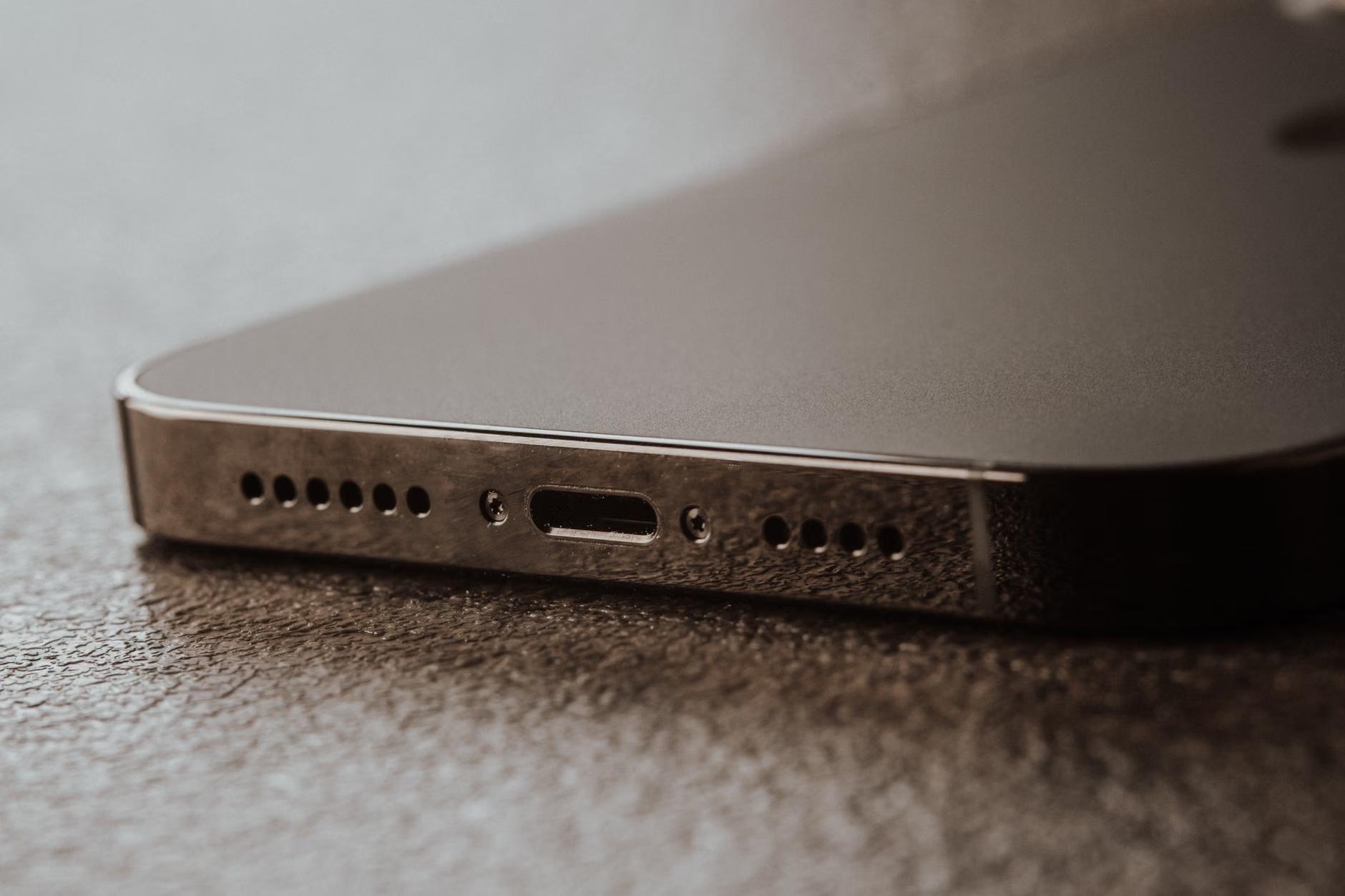
- Port Integrity: Use a bright flashlight to look into the charging port. If you see bent pins or debris, walk away. This is a common point of failure that often requires an expensive motherboard repair.
- Screen Uniformity: Turn the screen to a solid white background (you can find “dead pixel test” websites). Look for “yellowing” or uneven brightness, which often indicates water damage or cheap, non-original replacement parts.
- Screw Heads: Look at the screws on the bottom or back of the device. If they are stripped, the device has been opened by someone who likely lacked the proper tools, suggesting a “DIY repair” that might be hiding internal damage.
In real-life scenarios, a device that looks pristine from the outside but has stripped screws is a major red flag. It implies that the previous owner attempted a self-repair, which often voids warranties and introduces risks like poorly seated ribbons or missing heat-sink paste.
The Hidden Digital Trap: Why Factory Resets Fail
Many people believe that selecting “Erase All Content and Settings” on a phone or “Reset This PC” on a laptop is a complete sanitization. This is a common misconception. While it clears your user data, it does not necessarily scrub low-level firmware or hidden partitions where malicious actors can hide persistent threats.
The “Clean Slate” Protocol:
- For Laptops/Desktops: Do not rely on the built-in reset. Create a bootable USB drive using the official ISO image from the manufacturer (Microsoft for Windows, Apple for macOS). Perform a clean install by wiping the entire hard drive, including existing partitions.
- For Smartphones: Ensure the device is signed out of the previous owner’s cloud account (iCloud or Google Account). If the device is still “Activation Locked,” you have essentially bought a paperweight. Never pay for a device until you see the “Welcome/Setup” screen that asks you to select your language.
If the device is an older model, check if it still receives security updates. A device that is no longer supported by the manufacturer is a liability, regardless of how cheap it is. Using an outdated operating system is like leaving your front door unlocked; it’s not a matter of if you’ll be compromised, but when.
Battery Health: The Invisible Depreciation
Batteries are chemical components that degrade with every charge cycle. If you are buying a smartphone or laptop that is three years old, the battery is likely functioning at 70–80% of its original capacity. This isn’t just an inconvenience; it’s a hidden cost.
How to Calculate the Real Cost:
| Device Age | Expected Battery Health | Action Required |
|---|---|---|
| 1 Year | 90% – 95% | None |
| 2 Years | 80% – 85% | Monitor performance |
| 3+ Years | Below 80% | Factor in replacement cost |
If you purchase a $300 laptop, but it requires a $100 battery replacement to survive a three-hour flight, your effective cost is $400. Always ask the seller for a screenshot of the battery health report. If they refuse, assume the worst and adjust your offer accordingly. For MacBooks, use the “System Information” utility; for Windows, use the command line (powercfg /batteryreport) to get the exact cycle count.
Verifying Provenance: Avoiding the “Stolen Tech” Pitfall
Buying stolen hardware is not only unethical; it can lead to your device being remotely bricked by the manufacturer or confiscated by authorities. Every smartphone has a unique identifier known as an IMEI or MEID. Never complete a transaction without checking this number.
Use global databases like StolenPhoneChecker.org (in the US) or similar national registries. If a seller is hesitant to provide the IMEI before the sale, take it as a definitive sign that something is wrong. Legitimate sellers have nothing to hide. A common scam involves selling a device that is still under a carrier financing plan—it might work for a few days, but once the original owner stops paying the bill, the carrier will blacklist the IMEI, rendering the device useless on cellular networks.

The Decision Matrix: Used vs. Refurbished vs. New
Sometimes, the “second-hand” path is the wrong one. You need to weigh the risk-to-reward ratio based on the specific device type.
When to buy Used:
- Desktop PCs: These are modular and easier to inspect. If a component fails, you can replace just the power supply or the RAM.
- Non-Networked Devices: Things like external monitors or high-end audio equipment have lower security risks and longer lifespans.
When to buy Refurbished (by the Manufacturer):
- Laptops and Smartphones: Buying directly from companies like Apple or Samsung (via their official refurbished stores) is the gold standard. You get a new battery, a new outer shell, and a full manufacturer warranty. The 15–20% savings are worth the peace of mind.
When to buy New:
- Entry-level accessories: Cheap cables, power banks, or budget earbuds are often not worth the effort of sourcing used. The risk of fire from a degraded lithium-ion battery in a cheap, used power bank is a gamble you shouldn’t take.
For parents, the decision often comes down to the “longevity factor.” If you are buying a tablet for a child, a manufacturer-refurbished model is almost always superior to a random used one from a classifieds site because of the included warranty and guaranteed battery health.
Common Mistakes That Cost You Money
One of the most frequent mistakes is ignoring the “ecosystem tax.” You might find a great deal on a used phone, but if it requires expensive, proprietary chargers or specialized adapters that are no longer in production, you’ll end up spending more on accessories than you saved on the device.
Another pitfall is the “software compatibility gap.” We often assume that because a device is “only” three years old, it will run the latest software. This isn’t always true. Some devices stop receiving major OS updates after a certain period. Check the manufacturer’s support lifecycle page for the specific model number. If the device is nearing its “End of Life” (EOL) date, it will stop receiving critical security patches, making it a poor choice for handling banking apps or sensitive family data.
Practical Steps to Secure Your Purchase
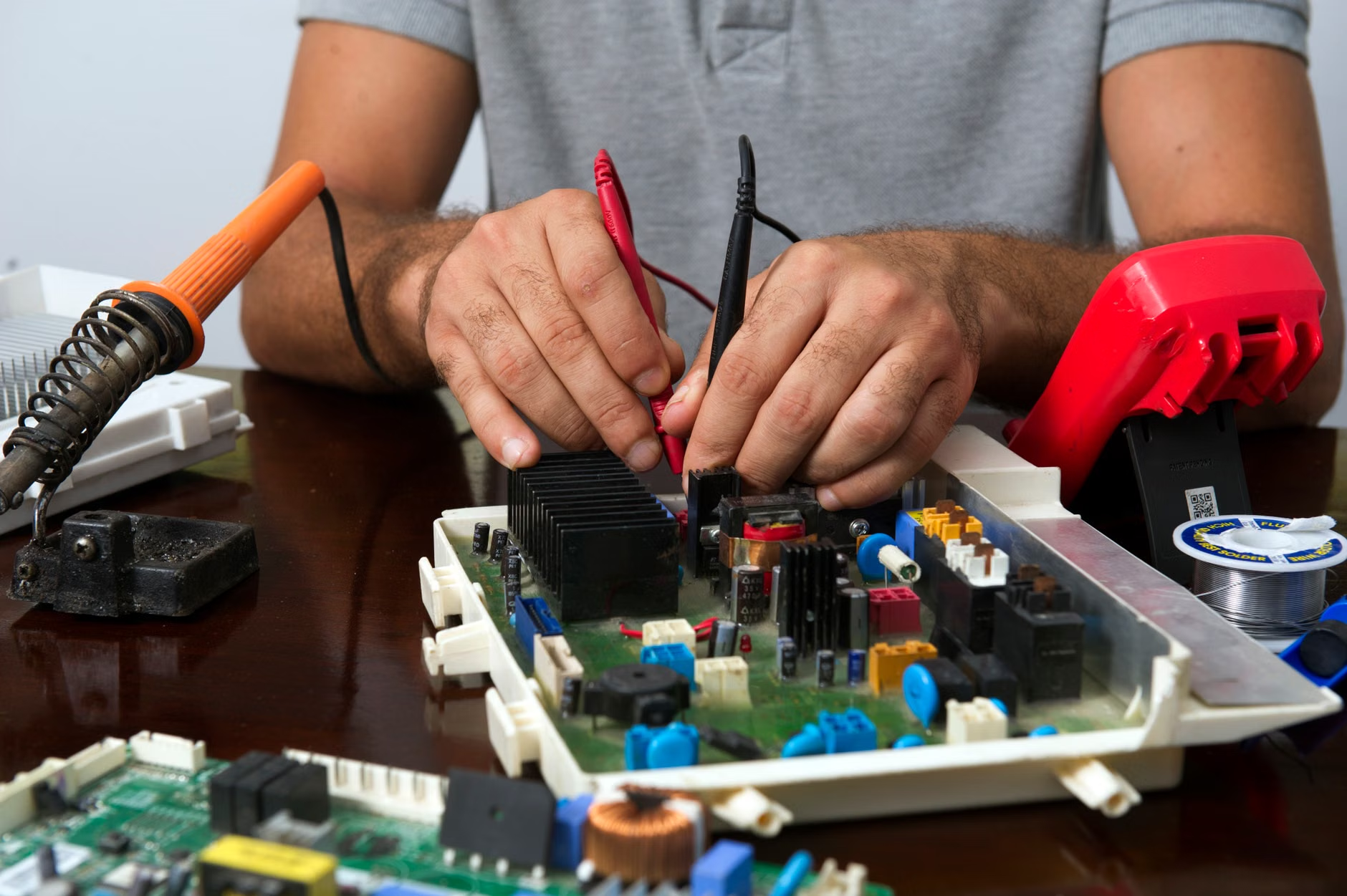
Once you have the device in hand, follow this workflow to ensure it is actually ready for your daily life:
- Sanitize: Use 70% isopropyl alcohol wipes to clean the chassis, keyboard, and screen. Avoid spraying liquid directly onto the device; always spray the cloth first.
- Update Everything: Immediately check for OS updates and firmware updates. If the device is a laptop, visit the manufacturer’s support website and download the latest drivers.
- Run Diagnostics: Most modern laptops have built-in hardware diagnostics (accessible during startup, usually by pressing F12 or holding the Option key). Run a full memory and hard drive test. If it fails, you are still within the window to return the item.
- Secure the Account: Set up a fresh user account with a strong, unique password. Do not use the previous owner’s profile, even if they claim they “cleared it.”
Refining Your Search Strategy
If you are searching on platforms like eBay, Facebook Marketplace, or specialized electronics forums, filter for “Buy It Now” listings from sellers with high ratings. Avoid “as-is” listings unless you are an expert at hardware repair. The term “as-is” is a clear signal that the seller knows something is wrong and wants to avoid returns.
When communicating with sellers, ask specific, technical questions. Instead of “Is it in good condition?”, ask “What is the battery cycle count?” or “Is there any screen burn-in?” A seller who can answer these questions is usually someone who has taken care of their tech. If they respond with “I don’t know, it works fine,” they likely haven’t maintained the device properly.
Remember that the “best” choice is the one that balances your budget with your tolerance for risk. If you are buying a device that will house your family photos and banking information, the risk is high. In that case, prioritize buying from a source that offers a return policy or a warranty, even if it costs 10% more than a private sale.
Closing Thoughts: The Value of Peace of Mind
Second-hand tech is a fantastic way to live sustainably and affordably, but it requires a shift in mindset. You are not just buying a product; you are inheriting the history of that device. By performing a thorough hardware audit, validating the device’s status, and ensuring a clean software environment, you transform a risky purchase into a reliable tool for your family.
Don’t be afraid to walk away from a deal if the seller cannot provide the information you need. There will always be another listing. Your data, your time, and your peace of mind are worth far more than the few dollars you might save on a questionable device.
Official Resources for Reference:
- Stolen Phone Checker (CTIA) – Use this to verify the status of mobile devices.
- Apple Support: What to do before you sell, give away, or trade in your Mac – A great guide for understanding what a “clean” device should look like.
- Microsoft Support: Fresh Start for Windows – Procedures for ensuring a clean OS installation.
Frequently Asked Questions
1. Is it safe to buy a second-hand phone with a replaced screen?
It depends on the quality of the repair. If the screen was replaced by an authorized service provider using original parts, it is generally safe. However, if it was a cheap, third-party screen, you may experience issues with touch sensitivity, color accuracy, or future software updates. Always ask if the repair was performed by an authorized shop and check if features like “True Tone” (on iPhones) still function.
2. Should I worry about malware on a used laptop?
Yes. While it is rare for a casual seller to intentionally install malware, it is possible. More importantly, the previous owner may have accidentally left behind security vulnerabilities. The only way to be 100% sure is to perform a clean installation of the operating system from a trusted source, effectively wiping the drive and starting fresh.
3. How do I know if the battery is “original” or a cheap knock-off?
On many modern devices, the system settings will display a warning if the battery is not recognized as a genuine part. For older devices, check the physical battery label if possible, or use diagnostic software to check if the battery reports its serial number and manufacturer correctly. Cheap third-party batteries often fail to communicate properly with the device’s power management system.