If you want to ensure your family’s digital legacy lasts for decades without paying monthly “rent” to big tech companies, you need to shift your storage strategy toward “local-first” software. The most reliable way to preserve your memories is to keep the primary copy of your data on hardware you own, using software that functions independently of internet servers.
- Data Sovereignty: Local-first tools ensure you aren’t locked out of your photos if a service provider changes their terms, goes bankrupt, or hikes subscription prices.
- Performance & Privacy: By processing data locally, you avoid the latency of cloud syncing and prevent your private family moments from being scanned by third-party AI algorithms.
- The 3-2-1 Rule remains king: Local-first does not mean “no backups”; you still need three copies of your data, two different media types, and one off-site location for true security.
We’ve all been there: you open your cloud storage app to find a photo from five years ago, only to realize the service has updated its UI, buried your images behind a paywall, or started “optimizing” (compressing) your high-resolution files. For parents in their 30s and 40s, this isn’t just an inconvenience; it’s a threat to the primary record of our children’s childhoods. When we rely entirely on centralized cloud services, we are effectively renting our history.
The “local-first” movement is a response to this dependency. It’s a philosophy in software design where the application prioritizes your local device as the primary source of truth. The cloud is treated as a secondary synchronization tool, not a mandatory gatekeeper. Let’s break down why this matters for your family archive and how you can actually make the switch.
What “Local-First” Means for Your Everyday Digital Life
In traditional cloud-based software, your data lives on a server. When you open an app on your phone, it fetches a preview from that server. If you lose your internet connection, or if the company decides to shut down its servers, your access disappears. Local-first software flips this. The data lives on your computer or hard drive first. The software works perfectly offline, and it syncs to other devices or the cloud only when you want it to.
For a parent, this means you can organize thousands of photos while sitting on a plane or at a cabin with no Wi-Fi. You don’t have to wait for “uploading” icons to finish spinning before you can edit a tag or move a file. More importantly, it solves the “dead link” problem. If a company goes out of business tomorrow, your photos remain safely on your hard drive, untouched and accessible via any standard file explorer.
Why does this matter in your 30s? Because you are currently in the “high-volume, high-value” phase of digital history. You are capturing hundreds of photos every month. Managing this volume requires software that is fast, reliable, and durable. Cloud-only services often prioritize their own server-side efficiency over your ability to curate and export your own data. Local-first tools, by definition, must provide you with better ways to access your raw files.
The Hidden Costs of Cloud Convenience
We often talk about “free” cloud storage, but the cost is just hidden in different places. There is the monetary cost of subscription creep—paying $10 or $20 a month for various services adds up to hundreds of dollars over a decade. Then there is the “privacy tax.” Many free cloud services analyze your images to improve their facial recognition or search algorithms. While convenient, this means your family’s private life is being harvested for data points.
Consider the scenario of a “forced migration.” A popular photo service might decide to change its storage tiering, effectively forcing you to pay more or lose access to your older photos. If you have 500GB of data, moving that to a new provider is a logistical nightmare. With local-first storage, you are in control of the file system. Moving your archive from a failing hard drive to a new one is a simple “copy and paste,” not a multi-week download-and-re-upload marathon.
Comparing Storage Philosophies
| Feature | Cloud-Only | Local-First |
|---|---|---|
| Data Ownership | Company-controlled | User-controlled |
| Offline Access | Limited | Full |
| Long-term Cost | Recurring subscriptions | One-time hardware purchase |
| Privacy | Subject to provider scans | Private and local |
Building Your Local-First Archive: A Step-by-Step Guide
Transitioning to a local-first system isn’t about ditching technology; it’s about re-centering it. You don’t need to be a software engineer to set this up. The goal is to establish a “Master Library” on your local computer and then build a robust backup system around it.
Step 1: The Master Library
Choose a dedicated folder on your computer that acts as the “Source of Truth.” Use software that respects this folder structure. Tools like DigiKam or Adobe Lightroom Classic (when used in its local-only mode) are excellent for this. They allow you to tag, rate, and organize photos without moving them into a proprietary “walled garden” database. If the software crashes, your photos are still in their original folders, organized by date or event.
Step 2: Hardware Consistency
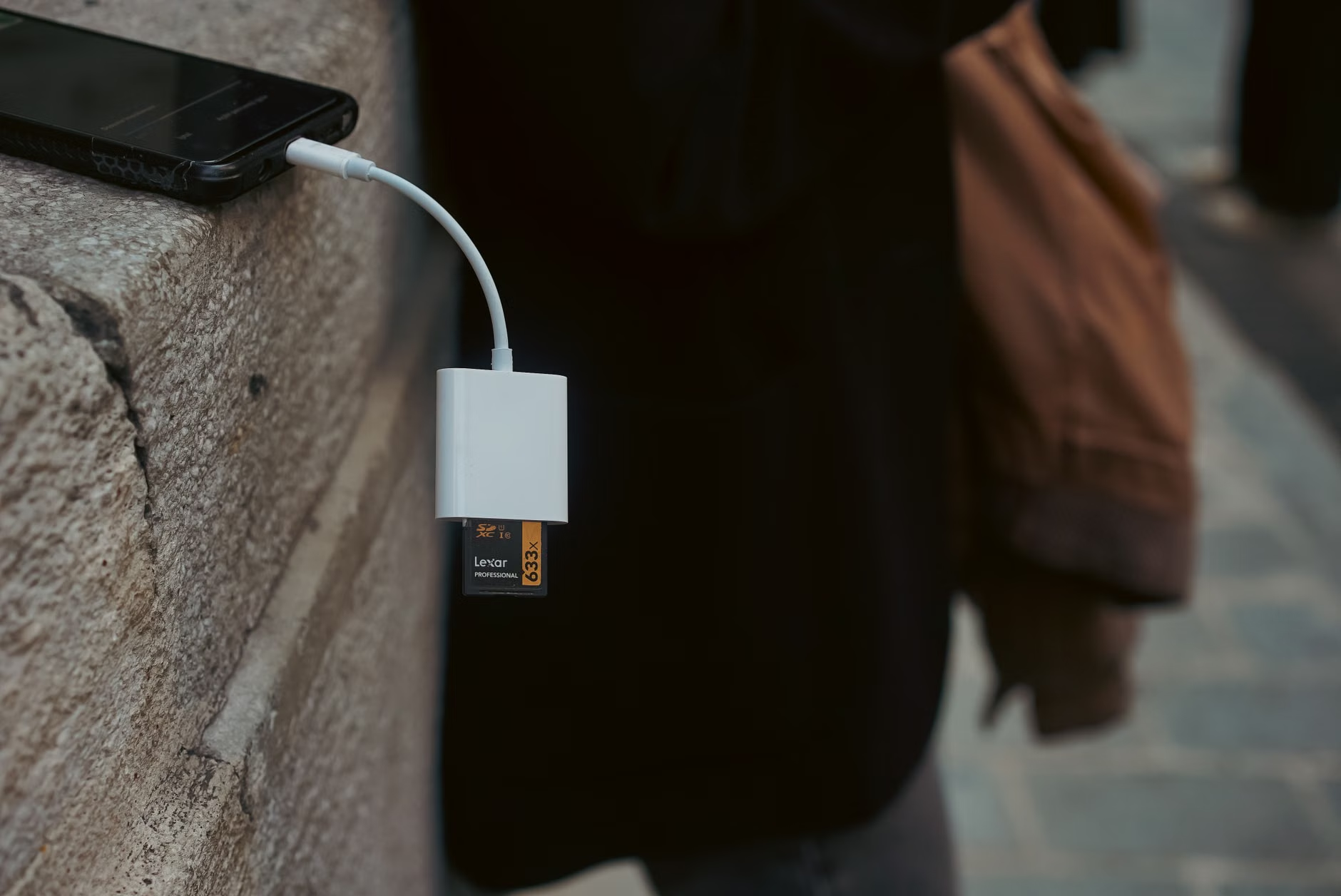
Invest in a reliable External Solid-State Drive (SSD). Avoid cheap, unbranded thumb drives. Your master library should live on a drive with enough capacity to handle at least 2-3 years of future growth. A 2TB or 4TB portable SSD is currently the sweet spot for most families. Keep this drive plugged into your computer while you work, then store it in a cool, dry place when not in use.
Step 3: The “3-2-1” Backup Strategy
Local-first does not mean “only one copy.” In fact, it means you have to be more responsible for your backups. The 3-2-1 rule is the gold standard:
- 3 copies of your data.
- 2 different types of media (e.g., your computer’s internal drive and an external SSD).
- 1 off-site copy (e.g., a cloud backup service like Backblaze or a second drive kept at a family member’s house).
By keeping your master library local, you can use automated, “dumb” backup software that simply copies your folders to another location without trying to manage or “enhance” your photos for you.
Common Mistakes and How to Avoid Them
One of the most common mistakes people make when moving to a local-first system is “Folder Hoarding.” It’s tempting to create a complex hierarchy of folders (e.g., 2024 > June > Birthday > Party > Cake). While this feels organized, it often leads to “lost” photos because you forget which sub-folder you put them in. Instead, use metadata (tags, keywords, and ratings) within your local-first software. This allows you to search for “Birthday” across your entire archive, regardless of which folder the file sits in.
Another pitfall is “Ignoring File Rot.” Digital files can become corrupted over many years. Because you are the custodian of your data, you should periodically verify your backups. Set a calendar reminder once every six months to plug in your backup drives, check that the files are readable, and perhaps run a simple checksum utility to ensure the data hasn’t degraded. This sounds technical, but it’s the digital equivalent of checking that your physical photo albums aren’t getting damp in the basement.
Finally, avoid the “Proprietary Format Trap.” Always export your photos in standard formats like JPEG, HEIC, or RAW (DNG). Avoid software that saves your edits in a way that is exclusive to that specific app. If you use a tool for editing, ensure it saves “sidecar” files (small files that store your edits alongside the original image) so that your original photo remains untouched.
Why “Local-First” is the Ultimate Parenting Hack
Beyond the technical benefits, local-first archiving changes your relationship with your family memories. When you know your photos are stored locally, you are more likely to actually engage with them. You can easily drag and drop files to create physical photo books, print large canvases, or share specific folders with family members via local network transfers or secure, encrypted peer-to-peer sharing tools.
There is a quiet peace of mind in knowing that your family’s digital history doesn’t depend on a server in another country. When your child asks to see a video of themselves as a toddler, you can pull it up instantly, without waiting for a cloud service to “load.” You are reclaiming your role as the family archivist, and in doing so, you are preserving the authenticity of your shared experience.
Start small. You don’t need to move ten years of photos in one weekend. Start with this year. Set up your local-first library, establish your 3-2-1 backup routine, and see how it feels to own your digital life. As you get comfortable, you can slowly migrate older years into your new, secure system. Your future self—and your children—will thank you for the effort.
Frequently Asked Questions
Q: Does “local-first” mean I can’t share photos with family members who live far away?
A: Not at all. Local-first means your *archive* is local. You can still export photos from your local library to share via email, messaging apps, or even a private, self-hosted web gallery if you’re tech-savvy. You just aren’t forced to use a public cloud as your only repository.
Q: What happens if my house burns down or I lose my external drive?
A: This is exactly why the “3-2-1” rule includes one off-site copy. Whether that’s a cloud backup service (like Backblaze) or a physical drive kept at a relative’s home, the off-site copy protects you against physical disasters. The difference is that the *primary* management of your files remains in your hands, not the cloud provider’s.
Q: Is this going to be too expensive compared to a $2/month cloud plan?
A: While a high-quality external SSD has an upfront cost, it often pays for itself within two or three years of subscription fees. More importantly, hardware doesn’t “change its terms of service.” Once you own the hardware, it works the same way for as long as the drive lasts, providing a much higher return on investment for your data’s longevity.
For more information on digital preservation and data management, you may find the following resources helpful:
Note: This guide is intended for informational purposes and reflects current trends in digital archiving. Always ensure your backup software is configured correctly before relying on it for critical data.