The most effective way to ensure your family’s digital history survives for your children and grandchildren is to adopt the “3-2-1 rule” while actively migrating data to open-format files, rather than trusting a single cloud provider to exist in twenty years.
- The 3-2-1 Rule is mandatory: Keep three copies of your data, on two different media types, with one copy stored off-site.
- File formats matter more than storage hardware: Convert proprietary files (like HEIC or RAW) to universal standards (JPEG, PDF/A, or MP4) to ensure they remain readable by future software.
- Cloud is a convenience, not a vault: Cloud storage accounts are often tied to active subscriptions; if you stop paying, your family history can be deleted within 30 days.
If you are in your 30s or 40s, you are likely the “designated archivist” for your family. You hold the digital keys to photos from your wedding, videos of your children’s first steps, and perhaps digitized scans of your parents’ childhood slides. We live in an era where we generate more data in a month than our grandparents did in a lifetime, yet this data is paradoxically more fragile than a physical shoebox of printed photos.
The frustration is familiar: you switch phone brands, and suddenly your cloud service stops syncing. Or, you try to open a video file from five years ago only to find the codec is no longer supported by your current operating system. This isn’t just a technical glitch; it is a failure of intergenerational planning. We are currently creating a “digital dark age” because we assume that because something is on the internet, it is permanent. It isn’t.
Understanding the Fragility of Modern “Permanence”
Digital files are not like physical paper. A photograph on a hard drive is not a static object; it is a complex arrangement of bits that requires a specific environment—hardware, software, and an operating system—to be interpreted. When one of those components changes, the file becomes inaccessible. This is known as “bit rot” or, more accurately, “format obsolescence.”
Most of us treat cloud storage as a “set it and forget it” solution. However, cloud storage is a service, not a permanent archive. If you lose access to your email account, forget a password, or a service provider pivots its business model or shuts down, your “cloud” vanishes. Furthermore, cloud providers often compress photos to save space, meaning you aren’t storing the original high-resolution file, but a degraded version that will look worse as screen resolutions increase.
To preserve history for the next thirty years, we must move away from the mindset of “saving” and toward the mindset of “curating and migrating.”
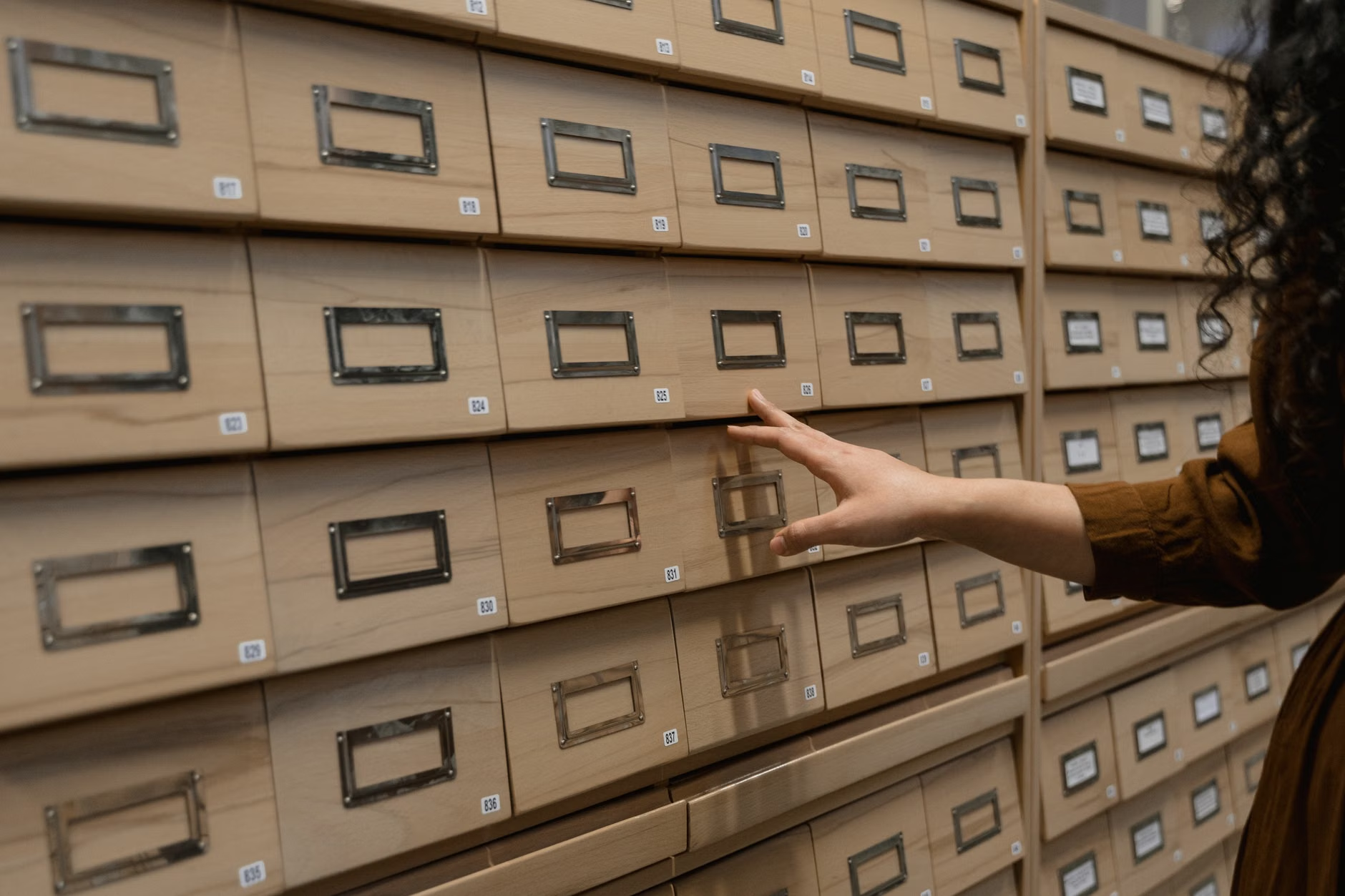
The 3-2-1 Strategy: A Practical Implementation Guide
The 3-2-1 rule is the gold standard used by IT professionals, but it is surprisingly simple to apply to a household environment. It prevents data loss from fire, theft, hardware failure, and account lockouts.
| Component | Action | Why it matters |
|---|---|---|
| 3 Copies | Original + 2 backups | Redundancy against single-point failure. |
| 2 Media Types | SSD + Cloud or NAS | Protects against specific hardware failure. |
| 1 Off-site | Cloud or external drive in another location | Disaster recovery (fire, theft, flood). |
Implementing this doesn’t require a master’s degree in computer science. Start with your primary computer (your working copy). Second, purchase a high-quality external SSD (Solid State Drive) to serve as your local backup. Third, use a reputable cloud service (like Google Drive, iCloud, or Backblaze) as your off-site backup. The key is automation. If you have to manually copy files every week, you will eventually stop doing it.
Future-Proofing Through File Format Selection
Hardware is only half the battle. If you save your family videos in a proprietary format used by a specific camera brand from 2012, that file might be unreadable in 2030. You need to standardize your archive using “open” or “universal” file formats that are supported across platforms.
For photographs, JPEG is the baseline. While newer formats like HEIC (used by iPhones) are more efficient, they are not yet universally supported by all legacy software or future-proofed for long-term archival. For high-importance family photos, consider converting them to TIFF or high-quality JPEG. For documents, PDF/A is the ISO-standardized version of PDF specifically designed for long-term archiving. It embeds fonts and metadata, ensuring the document looks exactly the same regardless of the software used to open it.
Common mistake: Many parents save their children’s digital art or school projects in proprietary formats (like .pages or .docx). Always export these as PDFs. If you have videos in obscure formats, use open-source tools like Handbrake to convert them into MP4 (H.264), which is widely considered the most “future-compatible” video container.
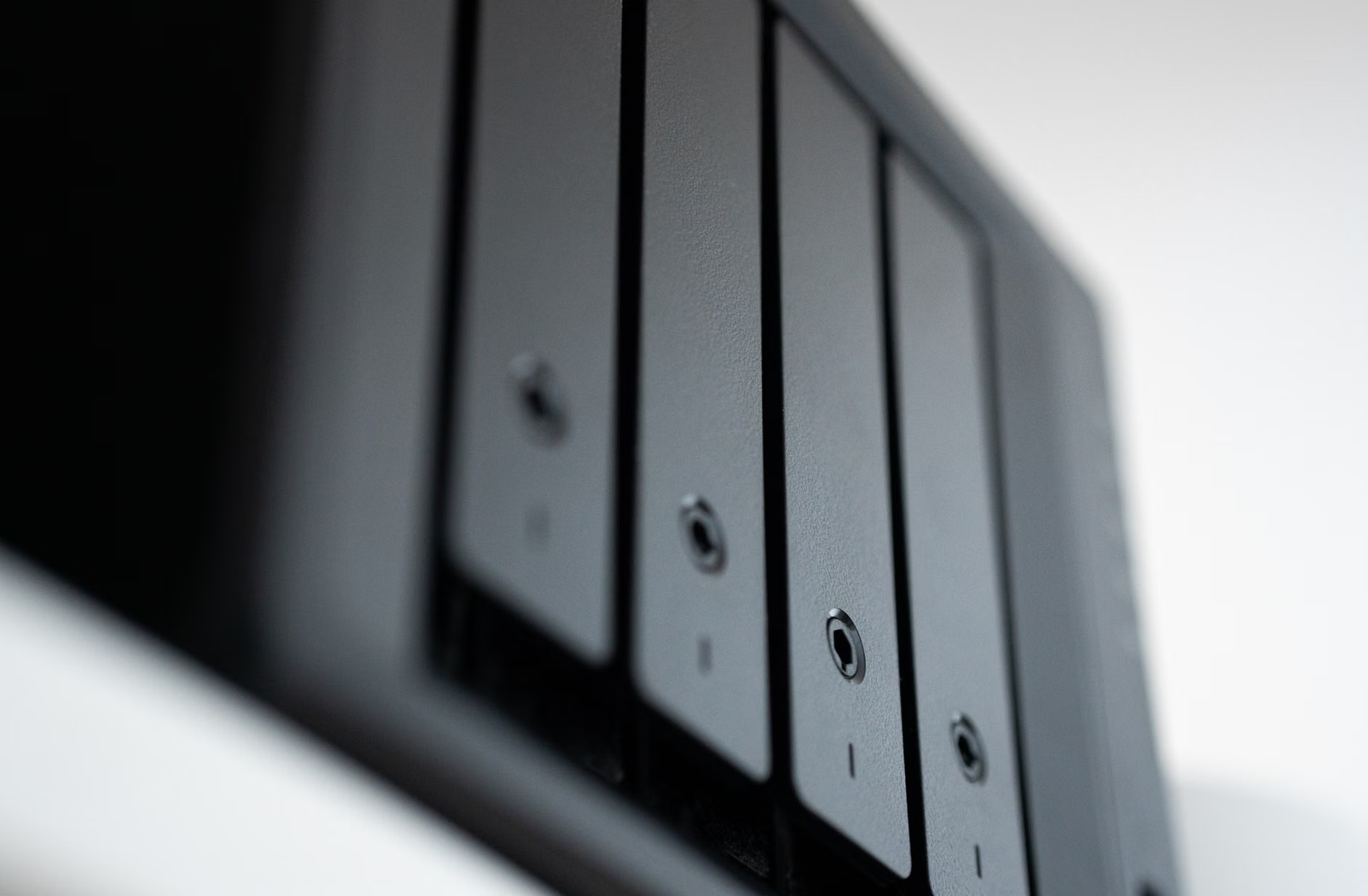
The Hidden Costs of Digital Hoarding
A major pitfall for parents in their 30s and 40s is the “everything is precious” trap. We take 50 photos of the same birthday cake to get one good shot. When you try to archive 50,000 photos, you create a “data graveyard” that no one will ever look at. An archive that is impossible to browse is, for all intents and purposes, lost.
Curation is part of preservation. Spend time during your annual “digital cleaning” to delete duplicates, blurry shots, and accidental pocket-photos. By reducing your archive to the “greatest hits,” you make it more likely that your children will actually engage with the collection in the future. A 10GB archive of high-quality, curated memories is significantly more valuable than a 2TB archive of digital noise.
Furthermore, consider the “metadata” of your files. Digital photos contain EXIF data—information about when, where, and with what device the photo was taken. If you move photos between services, sometimes this data is stripped. Use tools like ExifTool or simple desktop photo managers to ensure that dates and locations are baked into the file’s metadata, not just the folder name.
Hardware Maintenance: The Silent Killer
Even if you follow the 3-2-1 rule, hardware fails. SSDs and HDDs have a finite lifespan. A drive sitting in a drawer for five years may not spin up when you need it. You must adopt a “refresh cycle.”
Set a recurring event in your calendar for every two years to check your local storage. Plug in your external drives, verify that the files are still readable, and copy them to a newer drive if necessary. This sounds tedious, but it is the digital equivalent of flipping through a photo album. It’s also a great time to share these memories with your family. If you don’t look at the files, you won’t know if they are corrupted until it’s too late.

What happens to your digital archive if you are no longer around? This is a uncomfortable but necessary conversation. Most cloud services have “Legacy Contact” settings. For example, Apple and Google allow you to designate a person who can access your account after your death.
Set this up today. Without it, your heirs may face significant legal hurdles to access your digital life. Additionally, keep a “digital estate” document—a physical piece of paper stored in a secure location (like a fireproof safe)—that contains instructions on where your primary backups are located, how to access the drives, and where the master passwords are kept.
Do not rely on a password manager alone unless your trusted family members know the “master password” to that manager. If you die and your family cannot access your password manager, they cannot access your digital archive, regardless of how well you have backed it up.
Steps to Build Your Archive This Weekend
If you want to start today, do not try to do it all at once. Start with a “priority folder.”
- Identify the core: Pick the most important 500 photos and videos from the last five years.
- Consolidate: Move these into a single folder structure on your computer.
- Clean: Delete the duplicates and blurry shots.
- Convert: Ensure all videos are in .mp4 and photos are in .jpg or .tiff.
- Backup: Copy this folder to an external SSD (your local backup) and a cloud service (your off-site backup).
- Label: Use a clear naming convention, such as “YYYY-MM-DD-EventName”. This ensures that even if the software changes, the files remain sorted chronologically.
By focusing on this small subset, you create a “gold master” of your family history. Once you have a system for this core, expanding it to your entire library becomes a matter of habit rather than a daunting, multi-year project.
Common Misconceptions About Digital Longevity
Many believe that “the cloud” is safer because it is managed by tech giants. While it is true that they have better servers than you do, they are also prone to “account termination” for various reasons. There are documented cases of users losing decades of photos because a single automated algorithm flagged an image in their account as a policy violation, leading to a total account ban.
Another misconception is that “the internet remembers everything.” It does not. Websites go offline, social media platforms change their terms of service, and “link rot” is a genuine issue. If your family history is only on Facebook or Instagram, you do not own that history; you are merely renting space on a platform that could disappear or change its access rules at any moment.
Finally, do not assume that “more storage” equals “better archive.” Buying a 10TB drive and dumping everything onto it is the fastest way to lose track of what you actually have. A smaller, well-organized archive is always superior to a massive, chaotic one.
Final Thoughts: The Human Element
The technical aspects of archiving are important, but the human element is what makes it meaningful. An archive that sits on a drive is a dead object. An archive that is integrated into your family life—shared on birthdays, looked at during holidays, and discussed with your children—is a living history.
Don’t be afraid to occasionally print your favorite digital photos. Physical prints have a unique “survival” quality; they don’t require an operating system to be viewed. A high-quality photo book, created once a year, serves as an excellent “analog backup” that will survive long after the latest cloud service has gone the way of the dinosaur.
Start small, be consistent, and remember that you are the bridge between the past and the future. Your efforts today will allow your children to see their own history with the same clarity you wish you had for your parents’ lives.
Frequently Asked Questions
Q: Should I use a NAS (Network Attached Storage) for my family photos?
A: A NAS is an excellent solution for families with large data needs, but it comes with a steep learning curve and maintenance requirements. For most families, a high-quality external SSD paired with a reliable cloud subscription is sufficient and less prone to configuration errors. Only move to a NAS if you are comfortable with basic network management and RAID configurations.
Q: Is it safe to keep my photos on a USB flash drive?
A: No. USB flash drives (thumb drives) are notorious for failing unexpectedly and losing data. They are designed for temporary file transfer, not long-term storage. Always use a dedicated external SSD or HDD for your backups, and replace them every few years.
Q: How do I handle photos that are already on social media?
A: Use the “Download Your Data” tools provided by platforms like Facebook and Instagram. These tools allow you to export a zip file containing your original uploads. Do this once a year to ensure that you have a master copy of everything you’ve posted, regardless of what happens to your social media account.
Official Resources for Further Reading:
- Library of Congress: Digital Preservation Guide – An authoritative resource on how to keep digital files safe for the long term.
- ISO 19005 (PDF/A) – Learn about the international standard for long-term document preservation.