The safest place for your family’s digital life is not in a remote server farm halfway across the world; it is in your own hands, physically located within your four walls.
- Cloud is for convenience, not permanence: Subscription-based cloud services can delete your data if accounts are locked, payments fail, or policies change.
- The 3-2-1 Rule is your baseline: Always keep three copies of your data, on two different media types, with one copy stored off-site.
- Local-First is about ownership: By maintaining a local copy of your photos and videos, you ensure you have unfettered access to your history regardless of internet outages or service provider bankruptcy.
If you are in your 30s or 40s, you are likely the de facto digital archivist for your family. You hold the files that document the last decade—the shaky 4K videos of your toddler’s first steps, the thousands of photos from family trips, and those mundane but precious screenshots of text conversations with loved ones. We have been conditioned to trust the “cloud” implicitly. We pay our monthly fees to tech giants, assuming that as long as our phones say “Syncing,” our memories are immortal.
But what happens when that trust is misplaced? We have all heard the horror stories: a forgotten password, a banned account due to an automated policy violation, or a service provider simply shutting down a feature overnight. Relying exclusively on a third-party server to hold your family’s history is a gamble. A “Local-First” strategy doesn’t mean abandoning the cloud; it means reclaiming sovereignty over your data so that your family history doesn’t disappear the moment you stop paying a subscription fee.
Why the Cloud Isn’t Enough for Family Archives
The cloud is a service, not a storage solution. When you upload photos to a popular platform, you are essentially renting space on someone else’s computer. The convenience is undeniable, but it comes with hidden costs. First, there is the issue of account dependency. If your primary email account, which is often tied to your cloud storage, gets compromised or locked for suspicious activity, you could be effectively locked out of your own memories for weeks—or forever.
Second, there is the “subscription fatigue” trap. As we enter our 40s, we manage a dozen different monthly payments. If you decide to cancel a cloud storage subscription to save money or switch providers, the migration process is rarely seamless. You risk losing metadata (the date, location, and camera settings tagged to your photos) or resolution quality if the transfer isn’t handled perfectly. In contrast, a local copy stays with you, regardless of your financial situation or the changing terms of service of a tech company.
Finally, there is the privacy concern. While most cloud providers are secure, they are also data processors. They scan your images for facial recognition, object detection, and metadata analysis to improve their AI models and targeted advertising. While this makes it easier to search for “beach photos,” it means your most intimate family moments are being analyzed by machines. Maintaining a local-first repository allows you to curate your own archive without third-party surveillance.
Understanding the 3-2-1 Backup Methodology
If you want to ensure your family media survives the next 50 years, you need a system. The gold standard for data preservation is the 3-2-1 rule. It is simple, effective, and works just as well for a household as it does for a small business.
| Component | Description |
|---|---|
| 3 Copies | You need three total copies of your data: the original and two backups. |
| 2 Media Types | Store these on two different physical media (e.g., your computer’s internal SSD and an external hard drive). |
| 1 Off-site | Keep one copy in a different physical location (e.g., a relative’s house or a secure cloud service). |
The “3” ensures that if one drive fails, you have a backup. The “2” ensures that if a specific technology fails (like a hard drive controller dying), you aren’t reliant on a single type of hardware. The “1” ensures that if your house suffers a fire, flood, or theft, your data is safe elsewhere. For most families, this means your phone/laptop is copy #1, a Network Attached Storage (NAS) or large external hard drive is copy #2, and a cloud provider or an encrypted drive kept at a grandparent’s house is copy #3.
Building Your Local-First Infrastructure: A Practical Guide
You don’t need an IT degree to set up a robust local-first system. Start by assessing your current volume of data. If you have 500GB of photos, a simple 2TB external hard drive is more than enough for a few years. If you have multiple terabytes of 4K video, you should look into a NAS, which acts as a private, home-based cloud server.
Step 1: Centralization
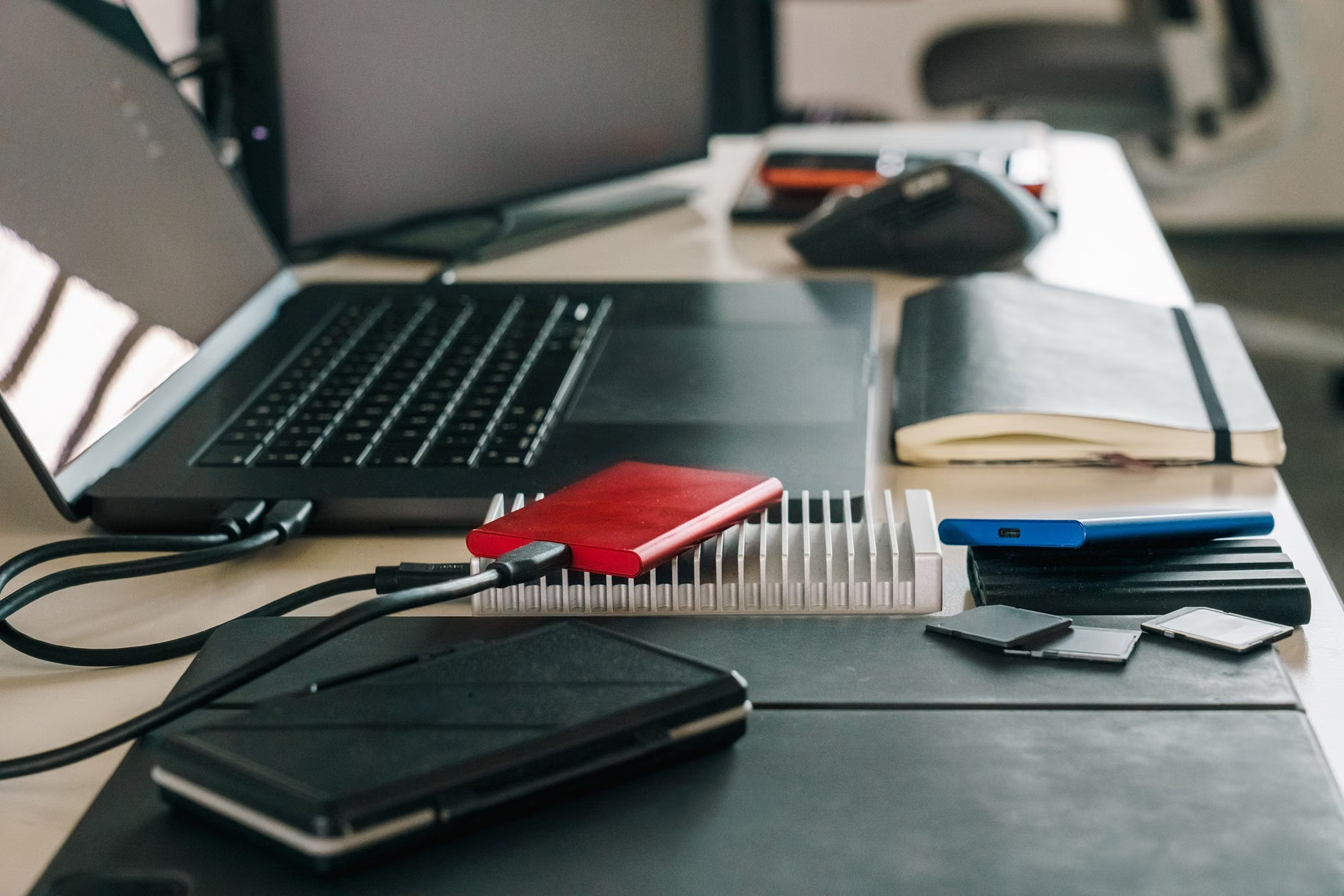
The biggest enemy of backup is fragmentation. We have photos on SD cards, old laptops, Google Photos, iCloud, and random USB thumb drives. Start by consolidating everything into one “Source of Truth” folder on your main computer. Dedicate a Saturday to downloading everything from cloud services and importing files from legacy devices. This is the hardest part, but it is essential for deduplication.
Step 2: Deduplication
Once you have a single folder, you will find hundreds of duplicates. Use tools like Gemini 2 or the open-source Czkawka to identify identical files. Don’t worry about minor variations yet; focus on the obvious duplicates that clutter your storage and make the backup process feel overwhelming.
Step 3: The Primary Local Backup
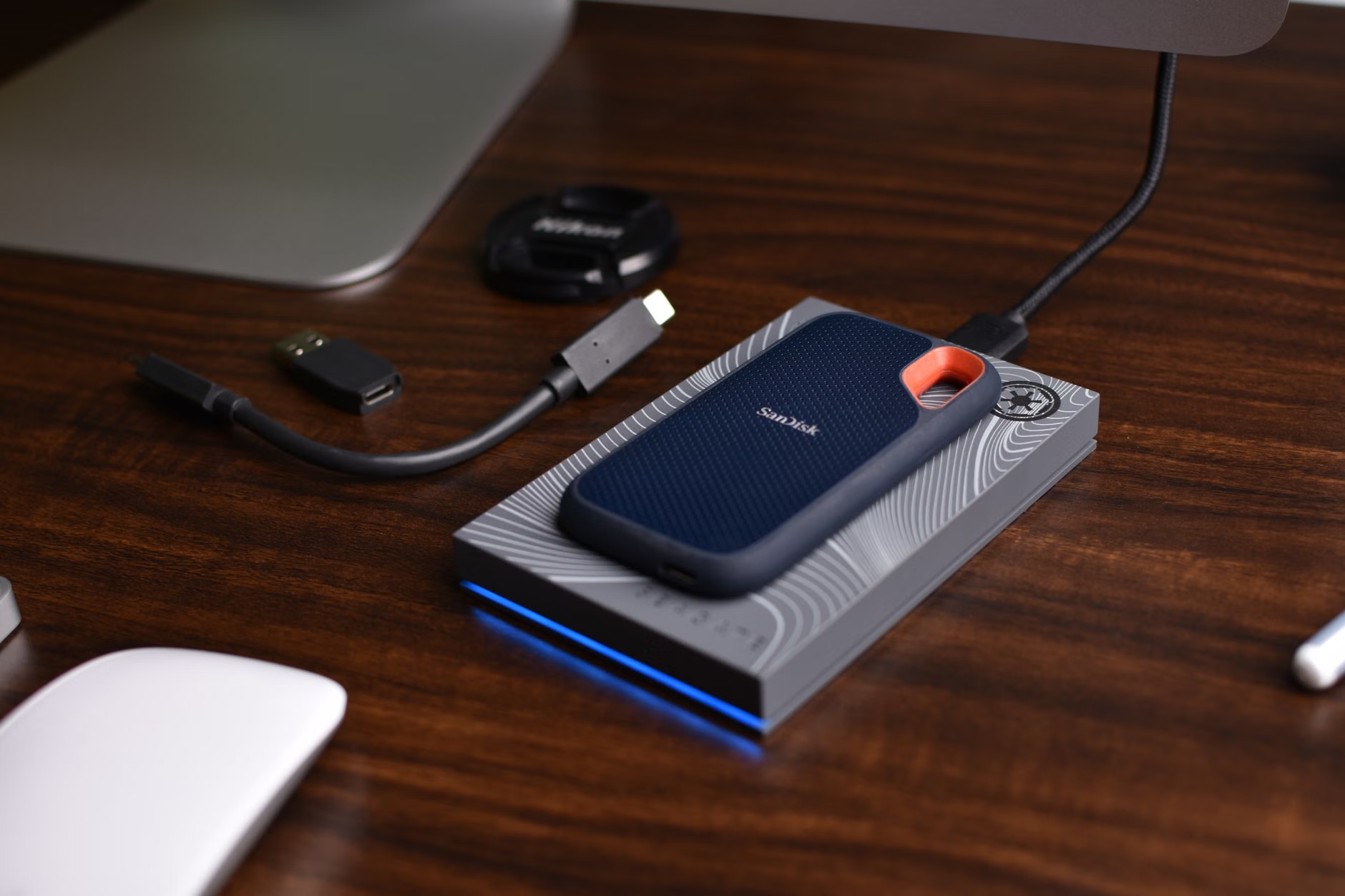
Purchase a high-quality external SSD (Solid State Drive). Unlike traditional spinning hard drives (HDDs), SSDs have no moving parts, making them significantly more durable for home use and accidental drops. Back up your “Source of Truth” folder to this drive using software that allows for “incremental” backups. This means the software only copies the new files added since the last backup, rather than re-copying everything every time.
Step 4: The Off-site Safety Net
Now that you have a local copy, you need an off-site copy. This is where the cloud actually shines. Use a service designed for archival storage—like Backblaze B2 or iDrive—rather than a consumer-facing service like iCloud or Google Photos. These archival services are cheaper and prioritize long-term storage over syncing features. Alternatively, copy your data to a high-capacity drive and leave it at a family member’s home, updating it once every six months.
Common Pitfalls and How to Avoid Them
One of the most common mistakes people make is the “set it and forget it” mentality. Hard drives have a finite lifespan. Even an SSD sitting in a drawer for five years might fail to spin up when you finally need it. You must establish a routine. Put a recurring event on your calendar every three months to perform a “backup check.”
During this check, verify that your external drive is still readable. Open a few random folders from three years ago. If you can see the files, your system is working. If you can’t, you have time to fix it before the drive fails completely. Another common error is failing to account for “bit rot.” This is a phenomenon where data on a storage medium slowly degrades over time. Using file systems like ZFS or Btrfs (which are features found in most modern NAS devices) can automatically detect and repair this data corruption.
Also, beware of proprietary file formats. While Apple’s HEIC format or Google’s Motion Photos are efficient, they may not be easily readable on devices 20 years from now. Whenever possible, keep a copy of your most important photos in a universal format like JPEG or TIFF, and your videos in MP4 (H.264). These formats are the “English language” of digital media; they will likely be supported by whatever technology comes next.
The Hidden Cost of “Digital Hoarding”
As you build your local-first archive, you will inevitably face the “hoarding” dilemma. We take 20 photos of the same scene just to get one good shot. In the cloud, this is just a number. On your own physical hardware, it is a resource constraint. This is actually a benefit. By curating your media—deleting the blurry shots, the accidental pocket photos, and the screenshots you no longer need—you create a more meaningful archive.
Think of your digital archive as a physical photo album. You wouldn’t keep 500 photos of the same birthday cake; you would pick the best one. Applying this philosophy to your local-first strategy makes the backup process faster, cheaper, and more rewarding. When you finally sit down to look through your media, you will be viewing a curated history, not a digital landfill.
Choosing Your Hardware: SSD vs. HDD vs. NAS
When choosing hardware, your budget and technical comfort level will dictate your path. Here is a breakdown of the common storage tiers:
- Portable SSDs (e.g., Samsung T7, SanDisk Extreme): Best for users who want a “plug and play” solution. They are fast, portable, and durable. Perfect for the primary backup.
- Desktop External HDDs (e.g., WD My Book, Seagate Expansion): Best for high-capacity storage at a low cost. These are bulky and need their own power supply but offer the best “price-per-terabyte” ratio for massive archives.
- NAS (e.g., Synology DiskStation, QNAP): Best for families who want a private, always-on server. A NAS allows you to access your files from anywhere, share them with family members, and manage complex backup schedules automatically. It is the “gold standard” for the local-first household.
If you are just starting, do not feel pressured to buy a NAS. Start with a reliable SSD. The act of manually backing up your data creates a habit. Once you have the habit, you can upgrade your hardware. The most important part of this strategy is not the equipment; it is the discipline of taking your digital life off the network and into your own possession.
The Role of Physical Media in a Long-Term Strategy
For those who want to be truly paranoid about their data, there is the concept of “Cold Storage.” This refers to data that is not intended to be accessed frequently and is stored in a way that minimizes the risk of electronic failure. While optical media (like M-DISC) has been touted as a solution, it is often too cumbersome for the average family. Instead, focus on the “3-2-1” rule using two different brands of hard drives. If you buy two Seagate drives, they might share the same manufacturing defect. Buy one Seagate and one Western Digital to diversify your risk.
Remember that your digital legacy is worth more than the cost of a few hard drives. If you lose your photos, you lose the ability to tell your family’s story. If you keep them, you are building a bridge to the future. Treat your local-first backup strategy as a family heirloom project—because that is exactly what it is.
Start small this weekend. Pick one folder, buy one drive, and make your first manual backup. Once you see how satisfying it is to have your photos physically located in your own home, the rest will follow. You are not just saving files; you are reclaiming your history from the ephemeral nature of the modern web.
Frequently Asked Questions
Does a “Local-First” strategy mean I have to stop using Google Photos or iCloud?
Not at all. A local-first strategy is about redundancy, not exclusivity. You can continue to use the cloud for the convenience of sharing photos with friends and syncing across devices, but you should treat the cloud as a “temporary” copy. Your local-first storage (your NAS or external drive) should be the “Master Copy” that you maintain and control independently of any subscription service.
How often should I replace my hard drives to prevent failure?
Hard drives do not have a specific expiration date, but they are mechanical devices that will eventually fail. A good rule of thumb is to replace your primary backup drives every 5 to 7 years. However, the more important practice is to verify the data integrity annually. If you use a NAS with a RAID configuration (which spreads data across multiple drives), the system will alert you when a drive is showing signs of failing, allowing you to replace it before any data is lost.
What if I am not tech-savvy; is there a simpler way?
If you find the technical aspects daunting, start with a “Manual Sync.” Once a month, plug in a high-quality external hard drive, copy your main photo folder from your computer to the drive, and then disconnect it. This is a manual version of the 3-2-1 rule. It doesn’t require complex software or networking knowledge. The key is simply to ensure that your files exist in two physical places at once. As you get more comfortable, you can look into automated software that handles the syncing for you.
For further reading on data preservation standards, you may find the following resources useful: