You are likely renting your family’s history rather than owning it. If your entire digital archive lives exclusively in a single cloud provider’s ecosystem, you have traded your data sovereignty for the convenience of automatic syncing, leaving your memories vulnerable to account suspensions, subscription price hikes, and algorithm-driven privacy changes.
- The 3-2-1 Rule is non-negotiable: Keep three copies of your data, on two different media types, with at least one copy stored off-site.
- Cloud is a convenience, not an archive: Relying on a single cloud service creates a “vendor lock-in” that risks your long-term access to your photos.
- Local control is the only way to ensure permanence: Investing in a personal NAS (Network Attached Storage) or encrypted external drives gives you full legal and technical ownership of your history.
The Hidden Cost of Cloud Convenience
For most parents in their 30s and 40s, the default solution for photo management is simple: enable “Auto-Upload” on your smartphone and let the cloud provider handle the rest. It feels seamless. You take a photo of your child’s first steps, and ten seconds later, it is “safe” in the cloud. But what does “safe” actually mean in this context?
When you rely on a monolithic cloud service, you are essentially a guest in their digital home. Consider the Terms of Service (ToS) you likely skipped. Most major providers reserve the right to suspend accounts for various reasons, sometimes triggered by automated, error-prone AI filters that flag content as “inappropriate.” If your account is locked, your access to years of family milestones can disappear instantly, with no human support line to call.
Furthermore, there is the issue of “digital entropy.” As companies pivot their business models, they may discontinue services, change file formats, or significantly increase storage costs. When you store your photos in a proprietary cloud environment, you often lose the ability to move those photos elsewhere without losing metadata, like dates, locations, or even the original resolution. Data sovereignty means you hold the master files in a format you control, on hardware you own, independent of any third-party service provider.
Understanding the 3-2-1 Strategy for Families
If you want to move away from total cloud dependency, you need a framework. The gold standard for data preservation is the 3-2-1 backup strategy. It sounds technical, but it is remarkably simple to implement once you understand the logic behind it.
The 3-2-1 rule dictates:
- 3 copies of your data: Your original photo, plus two distinct backups.
- 2 different media types: Do not just save everything to your computer’s hard drive. Use a mix of internal storage, external hard drives (HDDs), or high-capacity solid-state drives (SSDs).
- 1 off-site copy: This protects you against physical disasters like fire, theft, or water damage at your home.
In a real-life scenario, this looks like this: Your “Primary” copy is on your computer. Your “Backup 1” is on a local Network Attached Storage (NAS) device in your home. Your “Backup 2” is an encrypted, compressed archive stored in a cloud service or on a drive kept at a relative’s house. This setup ensures that even if one device fails—or even if your house suffers a disaster—your family’s digital history remains intact.

Choosing Your Hardware: NAS vs. External Drives
For the average family, the decision usually comes down to a Network Attached Storage (NAS) system versus traditional external hard drives. A NAS is essentially a small, dedicated computer that stays connected to your home network, acting as your own private cloud. Brands like Synology or QNAP offer user-friendly interfaces that make managing your photo library feel like using a private version of Google Photos or iCloud.
Comparing Storage Options:
| Feature | External Hard Drive (HDD/SSD) | NAS (Network Attached Storage) |
|---|---|---|
| Setup Difficulty | Low (Plug and play) | Moderate (Requires network config) |
| Accessibility | Requires physical connection | Accessible via Wi-Fi/Internet |
| Cost | Low initial cost | Higher upfront investment |
| Redundancy | Manual (You must copy files) | Automatic (RAID protection) |
If you are tech-savvy and want a “set it and forget it” system, a NAS is superior. It can automatically sync photos from your phones, organize them by date, and even perform “RAID” (Redundant Array of Independent Disks) backups, meaning if one drive inside the box fails, your data is still safe on the others. However, if your budget is tight, do not feel pressured to buy a NAS. A pair of high-quality, encrypted external hard drives—one kept at home and one kept in a safe or at a family member’s house—is significantly better than relying solely on a cloud provider.
The Metadata Trap: Why File Formats Matter
A common mistake people make is ignoring the “metadata” of their photos. Metadata is the invisible data attached to your image file: the date it was taken, the GPS coordinates, the camera model, and the settings used. When you upload photos to some social media platforms or poorly designed cloud services, they strip this metadata to save space or protect user privacy.
If you lose the date and location, those photos eventually become a “digital junk drawer.” You might have 5,000 photos of your child, but if you don’t know when they were taken, the context is lost. When you practice data sovereignty, you keep the “EXIF” (Exchangeable Image File Format) data intact. Always store your photos in their original file format (such as JPEG, HEIC, or RAW) rather than letting a service convert them into a proprietary, compressed format that you cannot easily open in ten years.
Actionable Tip: Use software like Adobe Lightroom or open-source alternatives like DigiKam to manage your local library. These tools allow you to embed metadata directly into the files, ensuring that even if you switch software in the future, your organizational work remains with the photos themselves.
Addressing the “Cloud is Safer” Myth
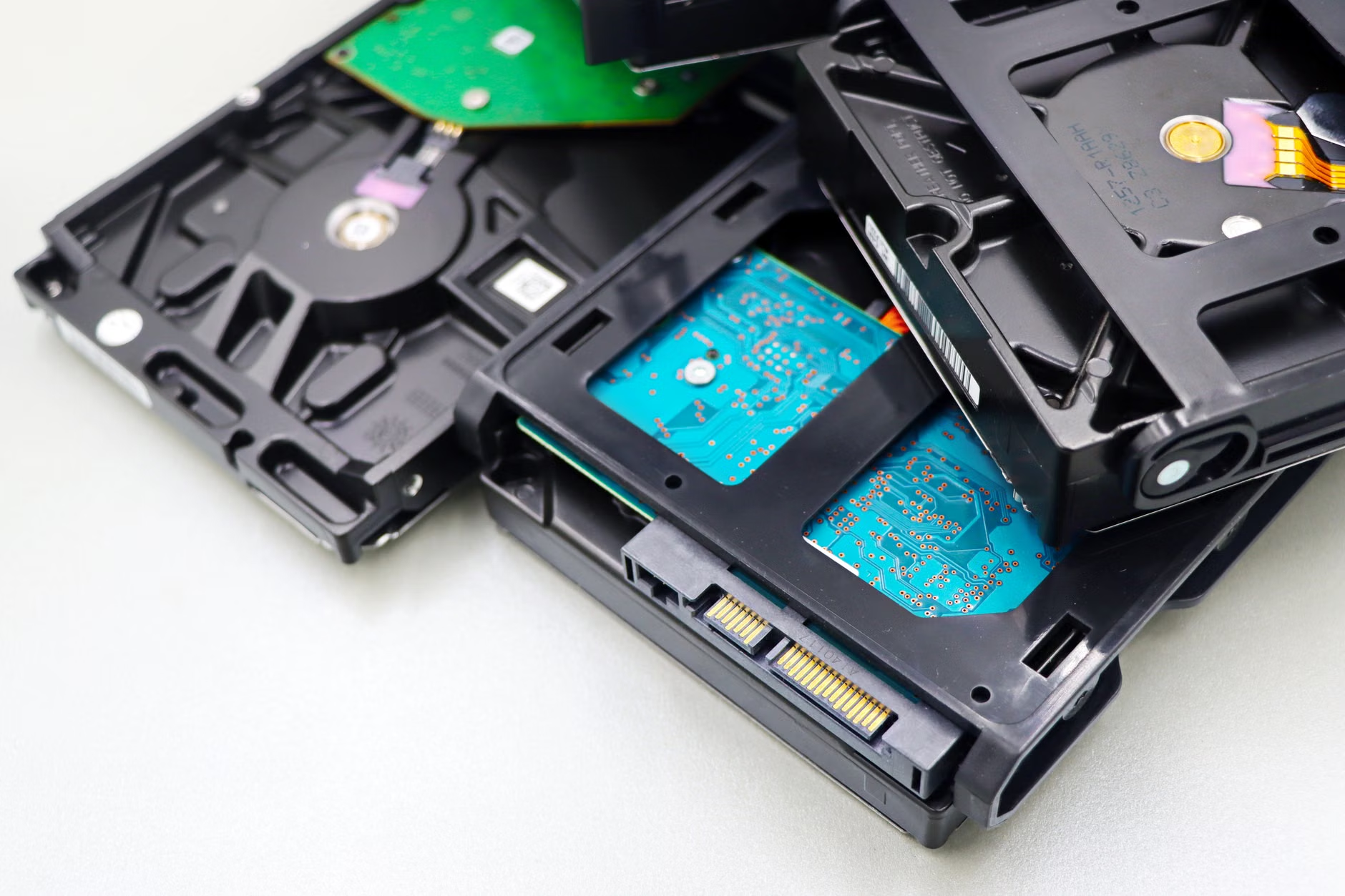
A frequent objection to local storage is the fear that physical drives are less reliable than the cloud. It is true that hard drives fail; mechanical disks have moving parts that eventually wear out. However, the “Cloud” is just someone else’s computer. The difference is that when your cloud provider has a server failure, you have zero control over the recovery process. When your home drive fails, you have the physical object in your hands, and you can pay for professional data recovery services if necessary.
The real risk to your data is not hardware failure—it is “bit rot” and human error. Bit rot is a phenomenon where data on a storage medium degrades over a very long period. To counter this, you should perform a “scrub” of your data once every six months. This involves simply plugging in your drives and checking that the files are still readable. If you use a NAS, this process is usually automated. If you use external drives, it is a manual, but essential, task.
Managing the Privacy Trade-off
When we talk about data sovereignty, we are also talking about privacy. Every time you upload your family photos to a major cloud provider, you are training their facial recognition algorithms. While this makes it easier to search for “photos of my daughter,” it also means that your family’s biometric data is being processed and stored by a corporation.
By moving to a local system, you reclaim that privacy. Many modern NAS systems now include local AI features that perform facial recognition *on your own hardware*. This means you get the convenience of searching for “Summer 2022” or “Photos of John” without sending your private images to a massive data center. This is the pinnacle of data sovereignty: getting the features you want without the privacy cost you cannot afford.
Steps to Reclaim Your Digital Sovereignty
Reclaiming your data does not have to happen in a single weekend. It is a process of transitioning from a “subscriber” to an “owner.”
- Audit your current footprint: Identify where your photos are currently stored. Are they scattered across Dropbox, iCloud, Google Photos, and old SD cards?
- Consolidate to a “Master Archive”: Create a single, organized folder structure on your main computer. Use a consistent naming convention like YYYY-MM-DD_EventName.
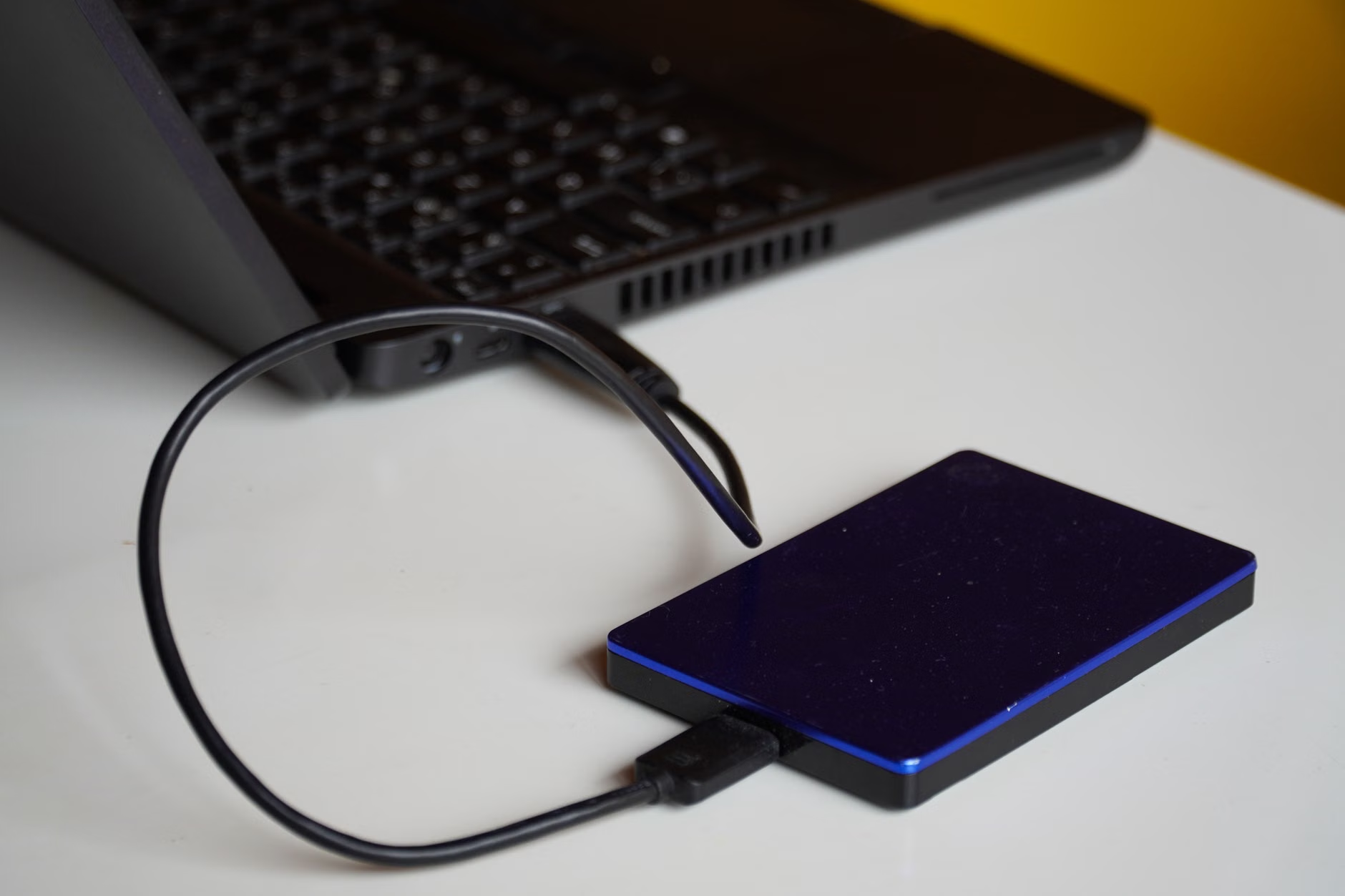
- Implement the 3-2-1 plan: Purchase your storage hardware. If you are starting today, buy two 4TB external drives. One will be your primary local backup, and the other will be your off-site copy.
- Automate the sync: Use software like FreeFileSync or the native sync tools provided by your NAS manufacturer to ensure that new photos are automatically copied to your secondary drives.
- Review and Rotate: Set a recurring calendar reminder every six months to check your drives and rotate your off-site backup.
Common Pitfalls to Avoid
One of the biggest mistakes people make is over-complicating their folder structure. Don’t create a folder for every single day. A structure like `Year > Month > Event` is usually sufficient. Another common error is failing to encrypt the drives. If you keep a backup of your family photos at a relative’s house, that drive should be encrypted. If it is lost or stolen, your family’s private life remains inaccessible to anyone else.
Additionally, avoid “RAID” as your only backup strategy. Many people think that because their NAS has two drives, they are “backed up.” This is false. RAID protects you against hardware failure, not against accidental deletion or ransomware. You must have a separate, third copy of your data that is not part of your active storage array.
The Long-Term Perspective on Digital Legacy
As you move into your 40s and beyond, the value of these archives only increases. Your children will eventually want access to these memories. If your entire archive is tied to a personal account that is linked to your email address, what happens to that archive if you are no longer around to manage it? By having a local, organized, and documented archive, you are creating a digital heirloom that can be passed down.
Write down a “digital will” or a simple instruction sheet for your family. Explain where the drives are, what the passwords are for the encrypted volumes, and how to access the files. This is the ultimate expression of data sovereignty: ensuring that your family’s story survives, regardless of the whims of tech giants or the passage of time.
The journey to data sovereignty is a shift in mindset. It is the realization that while the cloud is a fantastic tool for sharing, it is a poor vault for preserving. By taking responsibility for your own digital archives, you are not just backing up files; you are protecting your family’s narrative.
Frequently Asked Questions
1. Is it truly necessary to have an off-site backup if I have a NAS at home?
Yes. A NAS protects you from hardware failure, but it does not protect you from a house fire, flood, theft, or a localized power surge that could damage all connected electronics. An off-site backup is the only way to ensure your data survives a catastrophe at your primary location.
2. Can I use a cloud service as my “off-site” backup for the 3-2-1 strategy?
Absolutely. Many services like Backblaze B2 or AWS S3 offer “cold storage” options that are very affordable. The key is to ensure that you are using these as a secondary, encrypted backup, rather than your primary, active photo library. This keeps your data sovereignty intact while utilizing the cloud for its best purpose: redundant, off-site storage.
3. How do I handle photos on my phone without constant manual uploads?
If you use a NAS (like Synology), they have companion mobile apps (like Synology Photos) that automatically back up your camera roll to your home device over Wi-Fi, just like iCloud or Google Photos. This gives you the convenience of automatic syncing with the security of local ownership.
For further reading on data privacy and local storage standards, visit the Electronic Frontier Foundation (EFF) Privacy Guide for more on protecting your digital life.