- Refurbished vs. Used: Always opt for “certified refurbished” from reputable vendors to secure a warranty, which is the single most important factor in mitigating the risk of second-hand hardware failure.
- The Depreciation Sweet Spot: High-end business-grade laptops (like ThinkPads or MacBooks) retain performance longevity for 5+ years, making them the most cost-effective purchases when bought 2–3 years after their initial release.
- Hidden Costs of “Cheap”: Avoid “as-is” private sales for mission-critical items like power supplies or batteries; the lack of a return policy often turns a bargain into a total loss if the unit arrives defective.
If you are currently staring at a desk cluttered with slow hardware or a laptop that sounds like a jet engine every time you open a browser tab, you aren’t alone. Balancing the demands of a remote career with the chaotic reality of family life in your 30s and 40s means your home office isn’t just a place to work—it’s a command center. Yet, the instinct to head straight for the latest “new in box” release is often driven more by marketing than by actual performance needs.
The “second-hand-tech” movement isn’t just about saving a few dollars; it’s a strategic shift toward sustainable, high-value computing. By looking at the pre-owned market, you can often acquire enterprise-grade equipment—machines built for durability and heavy-duty use—for the price of a budget-tier consumer laptop that would struggle to keep up with your workflow within eighteen months. Let’s break down how to build a professional-grade workspace without falling into the trap of overspending.
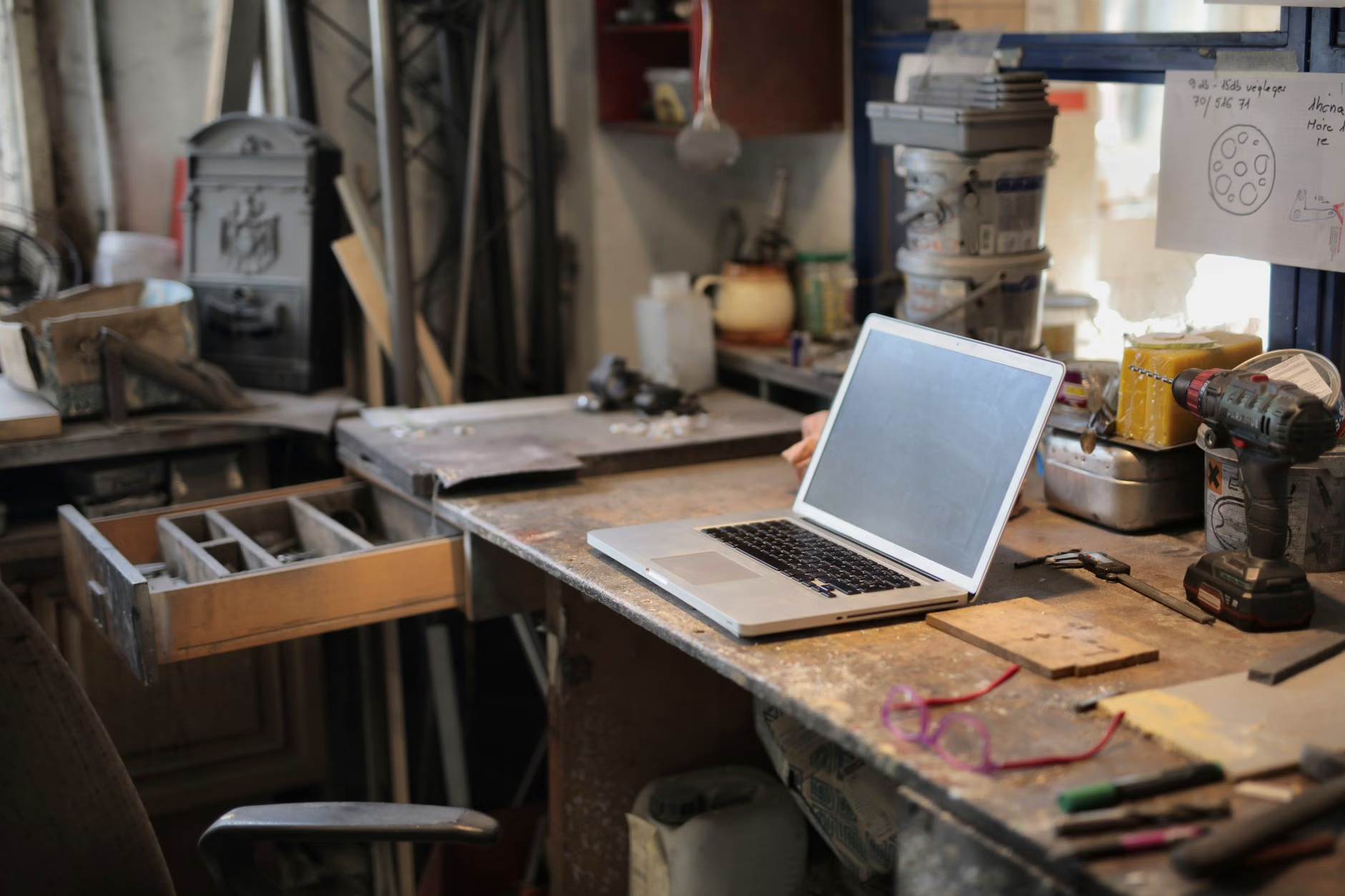
Why Business-Grade Hardware Outlasts Your Consumer Choices
When you walk into a big-box retailer, you are surrounded by consumer-grade devices. These are designed to be thin, aesthetically pleasing, and affordable. However, they are often built with plastic components, soldered-in parts that cannot be upgraded, and cooling systems that struggle under sustained workloads. This is a deliberate design choice meant to encourage you to replace your machine every three years.
In contrast, business-grade hardware—think of the Lenovo ThinkPad T-series, the Dell Latitude line, or the Apple MacBook Pro—is designed for the corporate world. These machines are built to be dropped, run for 12 hours a day, and repaired easily. When a corporation cycles through its hardware every three years, that gear doesn’t just disappear. It enters the secondary market in droves.
The “Three-Year Rule”: In the world of enterprise IT, equipment is typically depreciated over three years. This means that a laptop that cost $2,000 in 2021 is often sold for $600 to $800 in 2024. For a remote worker, this machine is still a powerhouse. You are essentially getting a professional tool for a fraction of the cost, provided you know where to look. The performance delta between a 2021 flagship laptop and a 2024 mid-range laptop is often negligible for standard office tasks like video conferencing, document management, and multitasking.
Defining Your “Must-Haves” vs. “Nice-to-Haves”
Before you start browsing, you need a clear decision framework. Most people overspend because they buy for “potential” usage—like thinking they need a high-end graphics card for basic video editing—rather than their actual daily output. Here is how to prioritize your budget for a home office:
| Component | Priority | Second-Hand Strategy |
|---|---|---|
| Laptop/Desktop | High | Buy certified refurbished with a 1-year warranty. |
| Monitor | Medium | Check for dead pixels in person; avoid older models with low brightness. |
| Mechanical Keyboard | Low | Safe to buy used; easy to clean and sanitize. |
| Docking Station | High | Stick to manufacturer-specific models; avoid generic USB-C hubs. |
The most common mistake is buying a “cheaper” used device that doesn’t meet the system requirements of your software. If you use heavy SaaS applications or manage large datasets, prioritize RAM (aim for 16GB minimum) and SSD storage over processor speed. A processor from four years ago is still fast, but 8GB of RAM will bottleneck your system instantly if you have twenty browser tabs and a Zoom call open simultaneously.
The Essential Difference: “Refurbished” vs. “Used”
One of the most important lessons in the second-hand market is the distinction between “refurbished” and “used.” These terms are not interchangeable, and confusing them is how you end up with a headache.
Certified Refurbished: This usually means the device was returned to the manufacturer or a professional third-party refurbisher. They test the hardware, replace the battery (which is crucial for laptops), wipe the storage, and reinstall the operating system. Crucially, these come with a warranty—often 6 to 12 months. This is the gold standard for your primary work machine.
Used (As-Is): This is the Wild West. You are buying a device exactly as it was when the previous owner finished with it. There is no guarantee that the battery holds a charge, that the screen isn’t flickering, or that the internal cooling fan isn’t clogged with dust. Only purchase “as-is” for non-critical peripherals, such as monitors, external hard drive enclosures, or cables.
If you are buying a used laptop from a private party, always ask for a “Battery Health Report.” On Windows, you can run a command prompt report (`powercfg /batteryreport`), and on macOS, it’s under System Information. If the battery health is below 70%, factor in the cost of a replacement battery—which can range from $50 to $150—into your total purchase price.

Even with the best intentions, things can go wrong. The most common pitfall is the “firmware lock” or BIOS password. Some corporate laptops are locked down by the company’s IT department. Even if the laptop was legally sold at an auction, the BIOS might be password-protected, preventing you from changing boot settings or reinstalling the OS. Always confirm with the seller that the device is “BIOS unlocked” and “cloud-account free” (e.g., no iCloud/Find My Mac activation locks).
Another hidden cost is the power adapter. Many sellers omit the original charger to save on shipping costs or because they lost it. They might include a cheap, third-party aftermarket charger. Avoid these at all costs. Cheap power bricks are a fire hazard and often provide inconsistent voltage, which can eventually fry your laptop’s motherboard. Always source an original, manufacturer-branded charger, even if it costs $30 more.
When you receive your equipment, your first step should be a “stress test.” Don’t just turn it on and check if the desktop loads. Download a simple tool like HWMonitor to check temperatures while running a heavy task. If the machine hits 90°C+ immediately, the thermal paste has likely dried out. While replacing thermal paste is a great skill to learn, it’s a time investment you should account for before assuming the device is “ready to work.”
Building a Sustainable Workflow for Your Family
For parents, the home office is often a shared space or a high-traffic area. Your tech setup needs to be robust enough to survive the occasional spill or accidental knock. This is where the durability of enterprise gear shines. A ThinkPad, for example, is often spill-resistant and features a keyboard deck that can withstand a fair amount of abuse.
Furthermore, consider the environment you are creating. By opting for second-hand, you are extending the lifecycle of a machine by several years. Electronic waste, or e-waste, is one of the fastest-growing waste streams globally. According to the Global E-waste Statistics Partnership, millions of tons of tech are discarded annually, much of which contains toxic materials. By keeping a high-quality machine in circulation, you are actively reducing your household’s carbon footprint.
If you have older children, this is also a fantastic educational opportunity. Teaching them about the value of repairing, upgrading, and maintaining hardware rather than just replacing it fosters a mindset of sustainability and technical literacy. Show them how to upgrade the RAM or replace an SSD in a machine; it’s a tactile experience that demystifies the “black box” of modern computing.

Step-by-Step Guide to Your First Refurbished Purchase
If you are ready to make the jump, follow this structured process to minimize risk and maximize value:
- Identify the “Golden Era”: For Windows laptops, look for models made between 2020 and 2022. They often feature high-quality screens, excellent keyboards, and enough processing power for the next five years.
- Check the Vendor Reputation: If buying from marketplaces like Back Market, eBay (stick to “Top Rated” sellers), or official manufacturer “Outlet” stores, read the return policy first. A 30-day “no questions asked” return window is essential.
- The Unboxing Protocol: Record a video of yourself unboxing the item. Check the screen for dead pixels, test every single port with a USB drive, and verify that the keyboard keys all register.
- The Software Cleanse: Even if the seller says they wiped the device, do a clean install of the operating system yourself. This ensures there is no residual bloatware or security-compromising software left behind.
- Warranty Registration: If you bought a certified refurbished item, check if you can register it with the original manufacturer. Sometimes, you can even purchase extended accidental damage protection directly from the brand, which is a massive safety net for your home office.
Common Misconceptions About Used Technology
There is a persistent myth that “used tech is slow.” This is rarely true for office work. Modern software, while bloated, has not evolved as quickly as hardware. A processor from 2019 is still more than capable of handling 4K video playback, complex spreadsheets, and multiple virtual meeting applications simultaneously. The “slowness” people complain about is almost always due to a failing hard drive (HDD) rather than a slow CPU. If you buy a used machine, ensure it has an SSD (Solid State Drive). If it doesn’t, replacing the old drive with a cheap SSD is the single most effective upgrade you can make.
Another misconception is that you need the latest OS features. While security updates are non-negotiable, you don’t need the latest “AI-integrated” features that often require brand-new hardware. Most of these can be offloaded to cloud-based tools that run perfectly fine on older hardware. Focus on the machine’s ability to run your core applications reliably.
The Long-Term View: Creating a Resilient Workspace
Building a home office is a marathon, not a sprint. By choosing to integrate high-quality second-hand equipment, you are not just saving money; you are building a system that you understand. When you buy a pre-owned machine, you are more likely to open it up, clean the fans, and understand how it works. This knowledge makes you more resilient when things inevitably go wrong.
Remember that your productivity is not defined by the newest processor benchmark, but by the reliability of your tools. A computer that doesn’t crash, a monitor that displays accurate colors, and a keyboard that feels good to type on are the real drivers of your daily output. These are all things you can acquire for a fraction of the cost if you stop chasing the “new” label and start chasing the “durable” one.
Finally, keep an eye on your local electronics recycling centers or university surplus sales. These are often hidden gems for high-end monitors, docking stations, and peripherals. Many universities and large corporations sell their hardware in bulk, and you can often find professional-grade gear for pennies on the dollar if you live in a major city.
Take the time to curate your space. Don’t rush into a purchase. Research the specific model, verify the seller, and prioritize the components that actually matter to your daily workflow. Your wallet, your productivity, and the environment will thank you for it.
Frequently Asked Questions
1. How can I tell if a refurbished laptop is actually “good” or just an old machine with a new sticker?
Always check for the “Certified” label from the manufacturer or a large, reputable refurbisher. Look for a warranty period of at least 6 months. If a seller is selling a 5-year-old laptop as “refurbished” without a clear description of replaced parts like the battery or SSD, treat it as a standard used item and price it accordingly.
2. Is it safe to buy a second-hand monitor?
Monitors are generally very safe to buy second-hand because they have fewer moving parts than computers. However, check for “burn-in” (ghost images that stay on the screen) by displaying a solid white, black, and grey background. Also, verify that the monitor has the specific inputs (HDMI, DisplayPort, USB-C) you need for your laptop, as older monitors often lack modern high-speed ports.
3. What should I do if my second-hand laptop starts running hot after a few months?
This is common and usually indicates that the cooling fan is clogged with dust or the thermal paste has dried out. You can likely fix this by opening the bottom panel with a screwdriver (check YouTube for a “teardown” video of your specific model), using compressed air to clean the fans, and—if you are comfortable—applying a small amount of new thermal paste to the CPU. This simple maintenance can make a 4-year-old laptop feel brand new again.
For further reading on sustainable technology and e-waste reduction, check out the EPA’s guide on electronics recycling and the iFixit repair guides, which provide the best resources for maintaining your hardware over the long term.