The most effective way to ensure your family’s digital history survives the next twenty years is to move away from relying on a single cloud provider and instead adopt a “3-2-1” redundant storage strategy that you control yourself.
- The 3-2-1 Rule: Keep three copies of your data, on two different media types, with at least one copy stored off-site (physical or cloud).
- Cloud isn’t Archive: Subscription-based cloud services are synchronization tools, not long-term vaults; if your account is suspended or the company pivots, your history is at risk.
- File Format Matters: Use non-proprietary, open formats like JPEG, PNG, MP4, and PDF/A to ensure your files can be opened by software that doesn’t exist yet.
You probably have thousands of photos, videos, and scanned documents scattered across Google Photos, iCloud, an old laptop, and maybe a forgotten USB drive in a junk drawer. We treat our digital lives like they are permanently etched into the fabric of the internet, but they are actually incredibly fragile. If a tech company updates their terms of service, deletes inactive accounts, or simply goes out of business, those “digital memories” can vanish in an instant.
For those of us in our 30s and 40s, we are the bridge generation. We have the physical shoeboxes of our parents’ generation and the terabytes of data from our children’s lives. Managing this digital sprawl isn’t just about cleaning up your phone storage; it’s about creating an archive that survives you.
Why Your Current Cloud Setup Is Not an Archive
Most of us rely on iCloud, Google Photos, or Dropbox as our primary storage. These services are excellent for convenience—they sync your phone to your computer and allow you to share images with relatives instantly. However, they are designed for access, not preservation. When you delete a photo from your phone, it is often deleted from the cloud. If you lose access to your email account—perhaps because of a security breach or a forgotten password—you lose the keys to your entire digital kingdom.
A true archive requires you to own the data. In the world of digital preservation, we distinguish between “Active Storage” (what you use daily) and “Archival Storage” (what you keep for the long haul). If you aren’t paying for a service, you are essentially a guest. Even when you are paying, you are subject to the company’s business model. If a service decides to change its storage policies or sunset a feature, you are forced to migrate your data on their terms, not yours.
The Hidden Risks of Proprietary Ecosystems
Think about the proprietary formats used by some apps. If you use a specialized “family tree” app or a proprietary photo-editing tool that saves files in a unique, non-standard format, you are trapped. If that company goes under in ten years, those files might become unreadable digital sludge. The goal of a legacy-archive is to ensure that your grandchildren can view your photos without needing a specific subscription to a defunct service from the 2020s.

Building Your 3-2-1 Strategy: The Technical Foundation
The “3-2-1” rule is the gold standard used by IT professionals and archivists. It is simple to implement but requires a shift in how you view your data. You don’t need a server room in your basement, but you do need a system that doesn’t rely on a single point of failure.
| Component | Description | Example |
|---|---|---|
| 3 Copies | Keep three distinct copies of every important file. | Original + Backup 1 + Backup 2 |
| 2 Media Types | Use different hardware to prevent simultaneous failure. | Internal SSD + External HDD |
| 1 Off-site | Store one copy in a different physical location. | Cloud backup or a drive at a relative’s house |
Why does this matter for your family photos? Imagine your house suffers a fire or a flood. If your only copies of your children’s childhood photos are on your laptop and a drive sitting next to it, you have lost everything. By storing one copy off-site, you protect your history from localized disasters.
File Formats and the Battle Against Obsolescence
Digital files are not static. While a physical photograph might fade, you can still see the image. A digital file, however, is a sequence of bits. If the software required to interpret those bits disappears, the file is gone. To prevent this, focus on open, standardized formats.
Avoid proprietary formats: If you use software that saves in a format like .psd (Photoshop), keep an exported copy in .tiff or .jpg format alongside it. For documents, .docx is standard, but .pdf/a is the industry standard for long-term archival. For videos, stick to .mp4 with H.264 or H.265 compression, as these are universally supported and unlikely to lose support in the next several decades.
The Metadata Trap
One of the most overlooked aspects of digital archiving is metadata. When you tag a photo with a name, date, or location inside an app like Google Photos, that information is often stored in a proprietary database—not in the image file itself. If you move your photos to a new platform, that data might be stripped away. Whenever possible, use tools that embed metadata (EXIF/IPTC) directly into the file. This ensures that even if you switch apps, the “who, when, and where” stays with the photo.
Step-by-Step: Creating Your Master Archive
You don’t need to do this all at once. In fact, trying to organize 20 years of digital clutter in a weekend is the fastest way to give up. Treat this as a maintenance project, similar to gardening or home repair.
- Centralization: Create a single “Master Folder” on a secure, local drive. This is your source of truth. Move all photos, scanned letters, and important videos into this folder structure.
- Deduplication: Use software tools (like Gemini 2 or CCleaner) to find and remove duplicate files. You don’t need five copies of the same birthday photo.
- Naming Conventions: Rename files using a standardized format, such as YYYY-MM-DD_Description.jpg. This makes searching your files intuitive even without software.
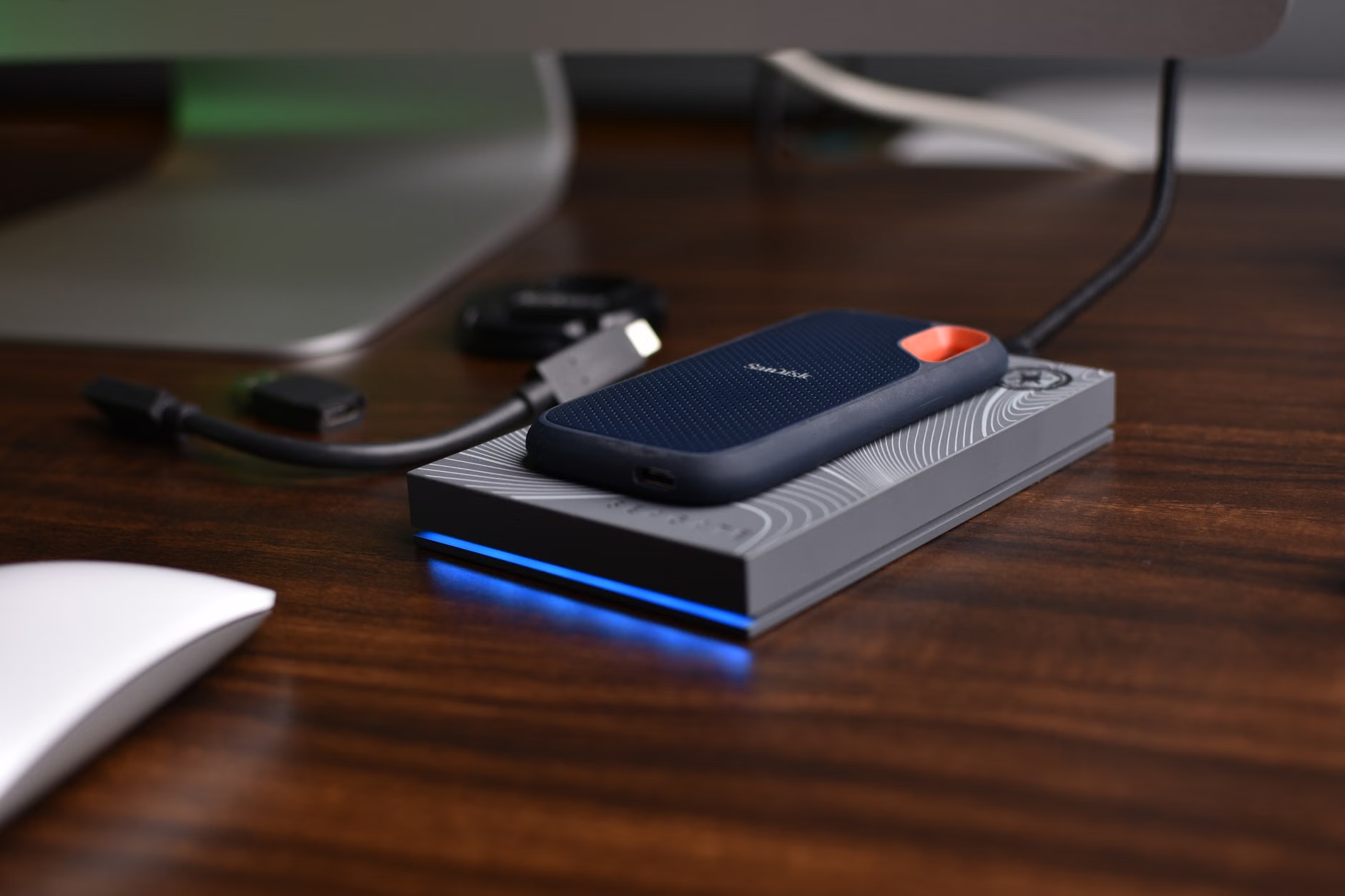
- The First Backup: Once your Master Folder is organized, copy it to an external drive (an SSD is recommended for durability).
- The Second Backup (Off-site): Use a cloud backup service that is not a sync service. Services like Backblaze or Arq Backup are designed for “set it and forget it” long-term backups. They don’t try to sync your phone; they just back up your drive.
Dealing with “Digital Decay”
Hardware fails. An external hard drive left in a closet for ten years might not spin up when you need it. A key part of your legacy-archive plan should be a “refresh cycle.” Every three years, check your drives. Copy the data to a new drive. This is not just about replacing failing hardware; it’s about ensuring you are using current connection standards (like USB-C) so you don’t have to hunt for archaic cables in twenty years.
The Human Element: Curation vs. Storage
The biggest mistake people make is trying to save everything. If you save 50,000 photos, you have essentially created a digital landfill. An archive should be curated. Your descendants do not need twenty photos of the same sandwich from 2014. They want the milestones, the candid moments, and the stories.
The “One-Per-Moment” Rule: For every event, pick the best three to five shots and delete the rest. This makes your archive manageable and actually enjoyable to look through. If you keep everything, you will never look at it, and neither will your children.
Add Context: A photo of a group of people is just a photo. A photo with a text file or a voice memo attached explaining who those people are and why the moment mattered is a piece of history. Consider creating a “Family Story” folder where you record short audio clips or write brief notes about the context of your digital collections.
Addressing Common Misconceptions
“The cloud is safer than a hard drive because it’s in a data center.”
This is a half-truth. Data centers are secure, but your account security is not. If your account is hacked or you lose access to your recovery email, the data center’s security doesn’t help you at all. You need local control.
“I’ll just put everything on a USB stick.”
USB flash drives are notoriously unreliable. They are prone to bit rot (data corruption) and are easily lost. Use an external SSD (Solid State Drive) for your primary backup and keep it in a safe, dry place.
“Digital files last forever.”
Digital files are subject to “bit rot,” where individual bits of data flip over time, leading to corrupted files. This is why you need multiple copies. If one copy corrupts, you have two others to verify against.
Putting Your Plan Into Action
Start small. Don’t worry about the archives from 2005 today. Focus on the current year. Create a folder for the current year, organize it, and ensure it is backed up to both an external drive and an off-site location. Once you have a system for the present, you can slowly work backward through your digital backlog.
Remember that your goal is not perfection; it is accessibility. A messy archive that you can actually open is infinitely more valuable than a “perfectly” organized archive that is locked behind a defunct account or a broken piece of proprietary hardware. Keep it simple, keep it redundant, and keep it in your own hands.
For further reading on data preservation, the Library of Congress provides excellent resources on personal digital archiving. Visit their Personal Digital Archiving guide to learn more about the long-term standards used by professionals.
Frequently Asked Questions
1. How often should I check my backup drives?
Aim for a “refresh” every 2-3 years. Simply plugging the drive in, checking that files open, and perhaps moving them to a newer, larger drive is enough. This prevents the “forgotten drive” syndrome where you find out a drive is dead exactly when you need it.
2. Should I pay for a cloud service, a physical drive, or both?
Both. The physical drive provides speed and total ownership, while the cloud provides off-site protection against fire, theft, or natural disaster. Relying on only one is the most common reason people lose their family history.
3. What do I do with old physical photos that I’ve scanned?
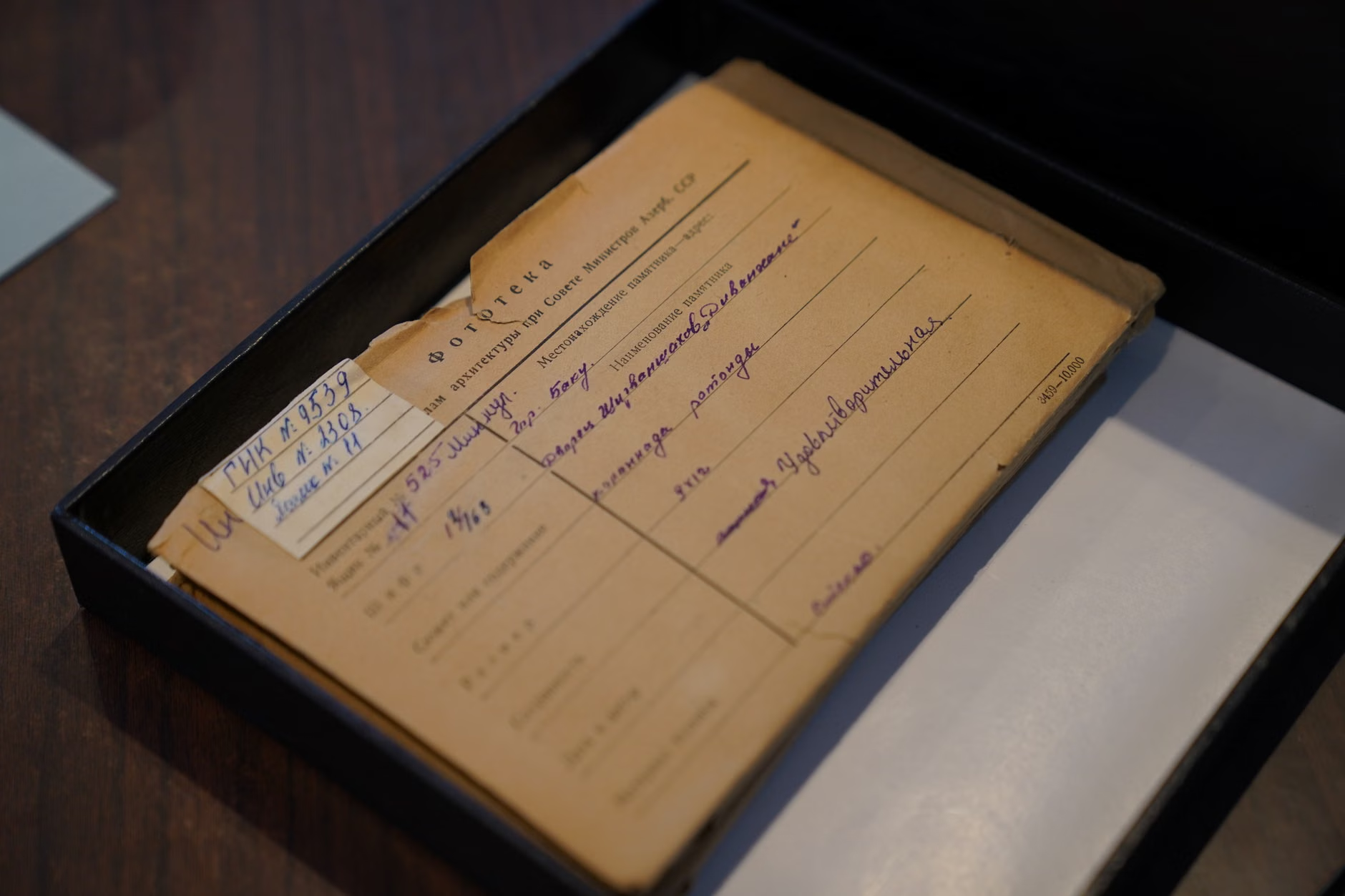
Don’t throw the originals away immediately. Even a high-quality scan is not a perfect 1:1 replacement for an original physical photo. Keep the originals in an archival-safe box (acid-free) and store them in a cool, dry place. The digital files are for sharing and easy viewing; the originals are your ultimate backup.
Building a legacy-archive is one of the most thoughtful gifts you can leave for your family. It takes time, but the peace of mind that comes from knowing your history is secure is worth every hour of organization. Start with one folder today, and build from there.