The single most important step in preserving your family’s history is to stop treating your digital life as a temporary convenience and start treating it as a permanent archive that requires active maintenance.
- The 3-2-1 Rule is the gold standard: Keep 3 copies of your data, on 2 different media types, with 1 copy stored in a separate physical location (cloud or off-site).
- Cloud storage is not archival: Syncing services like iCloud or Google Photos are for convenience, not long-term preservation; you must have an offline master copy.
- File format matters: Use universal, uncompressed formats like JPEG, PNG, or PDF/A to ensure your files can be opened by software 20 or 30 years from now.
We have all been there: you are scrolling through your phone, looking for that specific video of your child’s first steps, only to find a “Storage Full” notification or, worse, a corrupted file that refuses to load. In our 30s and 40s, we have become the accidental curators of our families’ histories. We take thousands of photos, capture high-definition videos, and store years of tax documents and medical records on devices that were never designed to last a lifetime.
The problem is that we treat digital data like a physical object. We assume that if it is “on the computer,” it will stay there. But hardware fails, cloud accounts get locked, and software formats become obsolete. If you want your children to be able to access these memories when they are adults, you need to shift from passive storage to a proactive digital-legacy vault.
Why Your Current “Syncing” Strategy is Failing You
Most of us rely on automatic syncing. We snap a photo on our phone, and it appears in our cloud gallery. We think, “It’s backed up.” This is a dangerous misconception. Syncing is not the same as archiving. If you delete a photo from your phone to clear space, it is deleted from the cloud. If your account is hacked or you lose access to your password recovery email, your entire digital history vanishes in an instant.
Furthermore, cloud providers are businesses, not libraries. They change their terms of service, raise their prices, or occasionally discontinue services entirely. Relying solely on a third-party server means you are a tenant, not an owner, of your digital history. A true digital-legacy vault requires you to hold the “keys” to your data.
Think of it like a physical house. Syncing is like leaving your doors unlocked; it’s convenient, but it doesn’t protect you from a disaster. An archive is like a fireproof safe. It takes a little more effort to put things inside, but you know that even if the house burns down, the important documents remain.

The 3-2-1 Architecture for Family Archives
To build a resilient system, you need to follow the industry-standard 3-2-1 rule. This is not just for IT professionals; it is the most effective way for a busy parent to ensure they never lose a file again.
| Requirement | Practical Implementation |
|---|---|
| 3 Copies | Original (Phone/PC), Local Backup (External Drive), Cloud Backup (Off-site). |
| 2 Media Types | Do not keep all backups on the same type of drive. Use a mix of SSDs, HDDs, or Cloud storage. |
| 1 Off-site | The cloud counts as off-site, but so does a hard drive kept at a relative’s house or a bank deposit box. |
If you only have two copies, you are one hardware failure away from a disaster. If you only have one copy, you are already living in a disaster waiting to happen. The goal is to make your data independent of any single point of failure.
Step 1: The Local Master Archive
Your local master archive should live on a dedicated external hard drive (or a home NAS—Network Attached Storage—if you are tech-savvy). This drive should not be used for anything else. It is the repository where you consolidate every photo, video, and document from your various devices.
Common Mistake: Using your laptop as the archive. Laptops are mobile, prone to spills, drops, and theft. They are working machines, not storage vaults. Move your files off your laptop at least once every quarter.
Step 2: The Redundant Offline Copy
Once you have your files on a primary external drive, copy them to a second, identical drive. Keep this drive in a different location—perhaps a fireproof box in your home or, even better, at a trusted family member’s house. This protects you against fire, flood, or theft in your primary residence.
Step 3: The Cloud “Hot” Backup
Use a cloud service (like Backblaze or an encrypted cloud storage provider) to keep a “hot” copy. This is for quick access and off-site security. Unlike your phone’s photo sync, a dedicated backup service will keep versions of your files, meaning if you accidentally delete a file, you can recover it from a previous snapshot.
Choosing the Right File Formats for Longevity
It is not enough to just save the files; you have to ensure they remain readable. Proprietary formats—like those used by specific photo-editing software or niche document scanners—may not exist in 20 years. Always prioritize open, universal formats.
For photographs, JPEG remains the king for compatibility, but if you want high-quality archiving, TIFF or DNG (Digital Negative) are better for long-term preservation as they do not lose data every time you open and save them. For documents, always use PDF/A, which is an ISO-standardized version of the PDF format designed specifically for the long-term archiving of electronic documents.
If you are digitizing old family photos or paper documents, scan them at a minimum of 600 DPI (dots per inch). Anything less will look pixelated on future high-resolution screens. This is a “do it once, do it right” task. Do not settle for smartphone photos of paper documents; the lighting and perspective distortion will make them difficult to read or print later.
The Hidden Cost: Data Rot and Silent Corruption
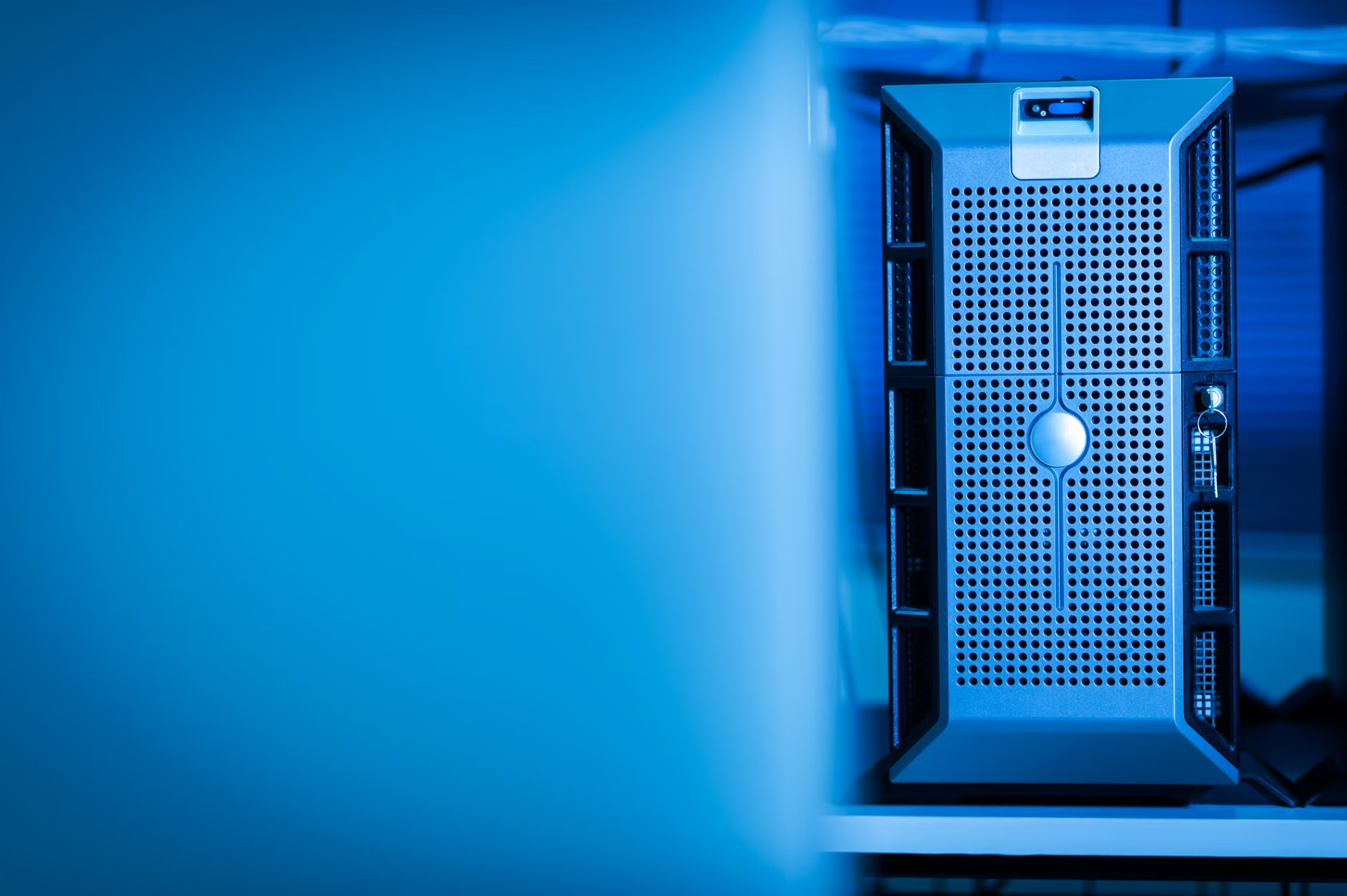
A common misconception is that digital data is static. It is not. Hard drives can suffer from “bit rot,” where the magnetic charge on the disk weakens over time, leading to silent data corruption. You might open a photo five years from now and find half of it is grayed out or distorted.
This is why you must perform an “audit” of your vault. Every year, plug in your external drives and verify that the files are still readable. You don’t need to check every single file, but perform a random sampling. If you find a corrupted file, it’s a signal that your drive is failing and you need to migrate your data to a new one.
The 5-Year Rule: Regardless of how “healthy” your hard drive seems, assume it has a lifespan of about five to seven years. Every five years, purchase a new, larger drive, copy your entire archive over, and retire the old one. This process of refreshing your hardware is the only way to guarantee your digital legacy survives the evolution of technology.
Planning for the “Digital Inheritance”
What happens to your digital vault if you are no longer around? Most people leave their family with a mess of locked accounts and encrypted hard drives. A digital-legacy vault is only useful if someone else can open it.
You need to create a Digital Estate Plan. This does not need to be a complex legal document, but it should be a clear, written set of instructions. Store this in your physical safe alongside your backup hard drive.
- Password Management: Use a password manager (like Bitwarden or 1Password). Ensure that at least one trusted family member has the “Emergency Access” or “Master Password” to your account.
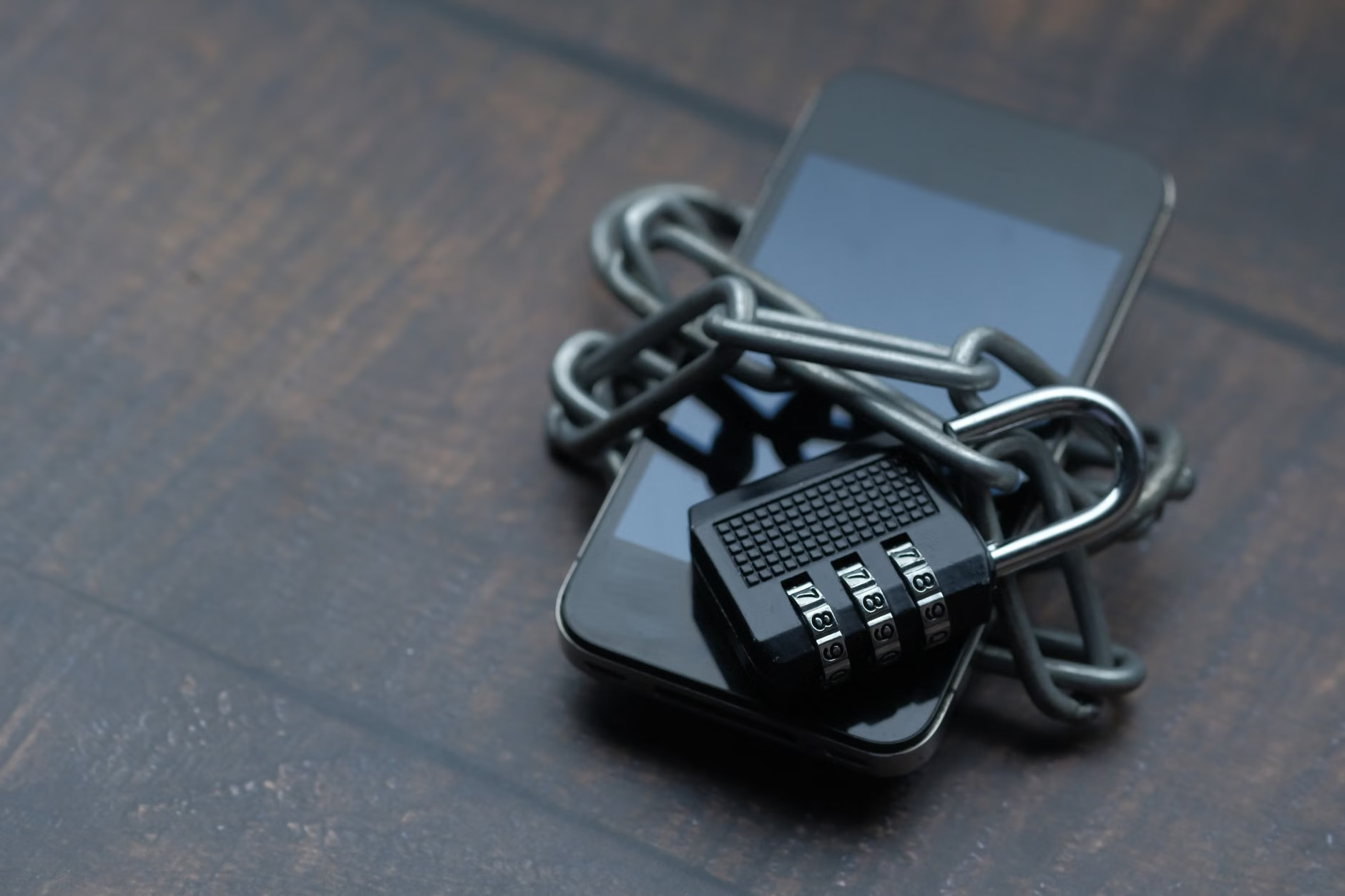
- Device Access: Keep a master list of PINs and passcodes for your phones, computers, and external drives in a secure, physical location.
- Instructions for Heirs: Write a simple “How to” guide. Explain where the drives are, what software is needed to open the files, and what the priority folders are (e.g., “The ‘Family Photos’ folder is the most important”).
If you don’t do this, your digital legacy effectively dies with you. A locked, encrypted hard drive is just a paperweight to a grieving family member who doesn’t have the password.
Actionable Steps to Build Your Vault Today
You don’t need to do this all at once. Start by dedicating one weekend to the project. Follow these steps to get your vault off the ground:
- Consolidate: Gather all your external drives, USB sticks, and cloud account links. Create a single folder on your main computer called “Master Archive.”
- De-duplicate: Use a tool like dupeGuru or similar software to identify and remove duplicate files. This will save you massive amounts of space and make your archive much easier to navigate.
- Categorize: Use a consistent naming convention. A simple format like YYYY-MM-DD_EventName (e.g., 2023-12-25_Christmas_Dinner) is universally readable and makes sorting easy.
- Purchase Hardware: Buy two high-quality external SSDs (Solid State Drives). SSDs are more durable than traditional HDDs because they have no moving parts, making them less susceptible to physical damage.
- The First Copy: Copy your “Master Archive” folder to both SSDs.
- The Location Shift: Keep one SSD in your home and take the second one to a different location (a safety deposit box or a trusted relative’s home).
Once you have this set up, the maintenance is minimal. Set a calendar reminder for every six months to add new files and verify the integrity of your current ones. It is a small time investment that pays off in the security of your family’s most precious memories.
Common Pitfalls and How to Avoid Them
Many people fall into the “perfectionism trap.” They try to organize their photos by every single person in the photo, every date, and every location. This is exhausting and, frankly, unnecessary. Your primary goal is preservation, not curation. If you spend all your time tagging and organizing, you will eventually burn out and stop backing up your data altogether.
Another common mistake is relying on “legacy” storage. Do not keep your files on old DVDs or CDs. These media types are highly prone to degradation and are becoming increasingly difficult to read as computers lose their optical drives. If you have old family photos on CDs, move them to an SSD immediately.
Finally, avoid the temptation to use “free” cloud storage for everything. Free accounts often have size limits, and if you stop using them, they may delete your data after a period of inactivity. If your family history is worth saving, it is worth the cost of a reliable, paid storage service.
The Trade-off Between Convenience and Security
There is a constant tension between how easily you can access your photos and how secure they are. For example, keeping your photos on your phone is highly convenient—you can show them to friends at a dinner party. Keeping them in an encrypted, offline vault is highly secure—but it takes effort to access them.
My recommendation is to maintain a “two-tier” system. Keep your “curated favorites” (the best 10% of your photos) in a convenient, cloud-synced app for daily viewing. Keep your “raw archive” (100% of your photos and videos) in your secure, offline, 3-2-1 vault.
This allows you to enjoy your memories on a daily basis without compromising the integrity of your long-term archive. If your phone is lost or your cloud account is breached, you have lost the “favorites,” but you still have the “archive” safe and sound.
Final Thoughts on Digital Stewardship
Building a digital-legacy vault is not a one-time project; it is an act of stewardship. We are the generation that transitioned from physical photo albums to digital galleries. We have an opportunity to pass down a much richer history than our parents did, but only if we take the responsibility to manage it properly.
Don’t be overwhelmed by the scale of the task. Start with the last year of photos. Then, work your way backward. The most important thing is that you have a system in place before the next hardware failure happens. Your future self—and your future children—will thank you for the time you spend today.
Frequently Asked Questions
Q: Is it better to store my photos on a NAS or just an external hard drive?
A: A NAS (Network Attached Storage) is great for accessibility within your home, allowing multiple devices to back up automatically. However, it is more expensive and complex to maintain. For most families, two high-quality external SSDs are more than sufficient and much easier to manage. Choose a NAS only if you have a large volume of data and want a seamless, automated experience.
Q: Should I use cloud storage for my entire archive?
A: Cloud storage is an excellent component of your 3-2-1 strategy, but it should not be your only component. Use it for the “1” in your 3-2-1 rule (your off-site copy). Relying on the cloud for everything leaves you vulnerable to subscription price hikes, account lockouts, and potential privacy concerns. Always keep a physical, offline master copy that you control.
Q: How do I handle photos shared across different family members’ devices?
A: This is the biggest challenge for parents. Use a shared folder system (like a shared Dropbox or Google Drive folder) where family members can upload their original files. Once a month, designate a “Sync Day” where you pull all files from that shared folder into your main “Master Archive” on your external drive. This keeps your archive centralized without needing to physically borrow everyone’s phones.
For more information on data preservation standards, you can refer to the Digital Preservation Coalition’s handbook on best practices for personal archives at https://www.dpconline.org/handbook. Additionally, for guidance on protecting your digital assets, the Cybersecurity & Infrastructure Security Agency (CISA) provides resources on securing your personal data at https://www.cisa.gov/news-events/news/securing-your-digital-life.