The single most effective way to protect your family photos is to adopt a “set it and forget it” automated backup protocol that creates at least two independent copies—one in the cloud and one on physical hardware—without requiring you to remember to hit a “sync” button.
- The 3-2-1 Rule is the gold standard: Keep 3 copies of your data, on 2 different media types, with 1 copy stored off-site (the cloud counts as off-site).
- Automation is the only reliable method: If a backup requires manual intervention, it will eventually fail due to human fatigue or forgetfulness.
- Cloud sync is not a backup: Services like iCloud or Google Photos are synchronization tools; if you delete a photo on your phone, it is deleted in the cloud. A true backup must be versioned or archival.
We have all been there: you are scrolling through your phone, looking for that specific photo of your child’s first day of school, only to realize you accidentally deleted it, or worse, your phone was lost or damaged, and the “sync” you thought was happening wasn’t actually turned on. In our 30s and 40s, we are the designated family historians. We carry the weight of decades of memories in our pockets, yet we treat our digital archives with the same casual disregard as a junk drawer.
The problem isn’t that we don’t care about our photos; it is that we are overwhelmed by the sheer volume of data. When you are balancing work, school runs, and household logistics, the last thing you want to do is spend your Sunday evening manually moving files from a phone to a hard drive. The good news is that technology has advanced enough that we can offload this cognitive burden entirely. If you follow the protocol outlined here, your photos will be safe even if you lose your phone, your laptop crashes, or a cloud service decides to change its pricing structure.
Understanding the Difference Between Syncing and Backing Up
Before we build the system, we need to clear up a common misconception that leads to thousands of lost photos every year: the difference between synchronization and backup. Most of us use cloud services like Apple iCloud, Google Photos, or Microsoft OneDrive. These are primarily synchronization services. Their job is to make sure the data on your phone matches the data on your tablet and your computer.
If you take a photo on your phone, it syncs to the cloud. If you then delete that photo on your phone to save space, the cloud service sees that deletion and removes the photo from the cloud as well. That is a sync, not a backup. A backup is a point-in-time snapshot. Even if you delete the source file on your phone, a true backup remains untouched until you explicitly decide to remove it.

For parents, this distinction is critical. We often treat our cloud storage as our primary and only archive. However, cloud accounts can be hacked, suspended, or accidentally wiped if a linked device is compromised. To truly secure your family history, you need a redundant system that operates independently of your daily device usage.
The 3-2-1 Strategy Applied to Family Life
The “3-2-1” rule is the industry standard for data professionals, but it is surprisingly easy to scale down for a household. It requires:
- 3 copies of your data: Your original, a cloud backup, and a local physical backup.
- 2 different media types: For example, your phone’s internal storage and an external solid-state drive (SSD).
- 1 off-site copy: This ensures that if your house suffers a fire, flood, or theft, your data remains accessible from a remote server (the cloud).
Step-by-Step Implementation of the Automated Protocol
Now that we know the theory, let’s look at the practical application. You do not need to be a software engineer to set this up. In fact, the more “automated” the process, the more likely it is to succeed over the long term.
Phase 1: The Cloud Foundation (The “Always-On” Layer)
Choose one primary cloud provider and stick to it. Whether it is Google Photos, iCloud, or Amazon Photos (which is often free for Prime members), ensure the “Auto-Backup” feature is toggled on. The key here is to verify that the settings are configured to “Upload full-resolution original files.” Many services offer a “storage saver” mode that compresses your images. While this saves space, it degrades the quality of your family memories. In your 30s and 40s, you want those high-resolution files for potential printing later.
Common Mistake: Many parents set up the backup but never check if it is actually completing. Once a month, check the “Cloud Status” in your app. Look for the “Backup Complete” message. If it says “1,200 photos remaining,” your system is failing. This usually happens because of background refresh settings being disabled on your phone to save battery. Ensure your photo app has “Background App Refresh” enabled in your phone’s privacy settings.
Phase 2: The Local Redundancy (The “Hard-Copy” Layer)
The cloud is convenient, but it is also a subscription service. If you stop paying or if the company changes its terms, you could lose access. This is why you need a local, physical backup at home. An external SSD is the best choice here. Unlike older mechanical hard drives, SSDs have no moving parts, making them much more resilient to accidental drops or bumps.

You can automate this without manual copying using software like FreeFileSync (for PC) or Time Machine (for Mac). These programs can be scheduled to run once a week. When you plug your drive into your laptop, the software detects it and automatically copies any new photos from your computer’s “Photos” folder to the drive. You don’t have to drag and drop files. The computer does the work for you.
Phase 3: The Off-Site Vault (The “Insurance” Layer)
If you are truly serious about your data, the “1” in the 3-2-1 rule is the most important. If your house is damaged, both your computer and your external hard drive might be lost. You need a copy of your data that isn’t in your house. While cloud storage acts as an off-site backup, it is often tied to your personal account. For maximum security, consider a service like Backblaze or Carbonite. These are “set-it-and-forget-it” services that run in the background of your computer and back up your entire hard drive to their servers. Unlike Google Photos, which focuses on images, these services back up the entire system, including documents, tax files, and projects.
Comparing Your Storage Options
Choosing the right hardware and software depends on your family’s volume of media and your comfort level with technology. The following table provides a quick guide for deciding which path to take.
| Option | Best For | Pros | Cons |
|---|---|---|---|
| Google Photos / iCloud | Casual users, high convenience | Automatic, searchable, easy sharing | Monthly cost, privacy concerns, sync-focused |
| External SSD | Privacy-focused users, large archives | One-time cost, high speed, private | Requires physical maintenance, vulnerable to theft |
| NAS (Network Attached Storage) | Tech-savvy families, massive libraries | Complete control, local access, redundant | Expensive, complex setup |
If you are just starting, do not jump straight into a NAS (Network Attached Storage). It is overkill for most families and requires significant maintenance. Start with the cloud + an external SSD. This covers 95% of use cases for families in their 30s and 40s.
The Hidden Costs and Trade-offs of Digital Preservation
When we talk about “free” storage, we are often paying with our data. It is important to understand that your photos are being scanned by AI for facial recognition and object detection to improve the service’s algorithms. If privacy is a major concern, you may want to look into services like Proton Drive or self-hosting your own cloud with a tool like Nextcloud. However, these require a much higher level of technical maintenance, which can be a significant trade-off for busy parents.
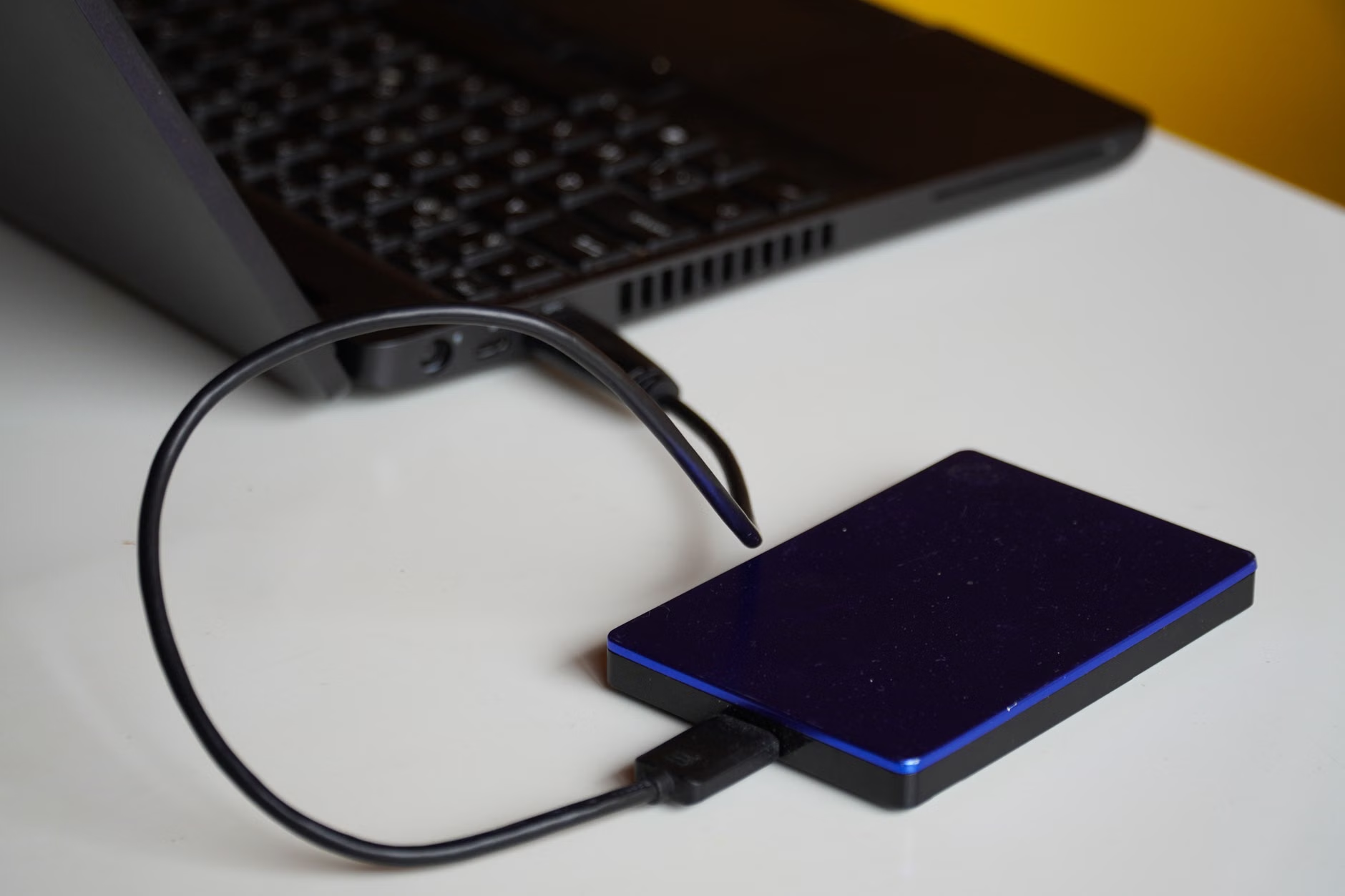
Another overlooked variable is the “bit rot” phenomenon. Over many years, digital files stored on hard drives can degrade. This is rare but possible. If you are keeping a physical drive as your primary backup, you should replace it every 5–7 years. The cost of a new 2TB SSD is a small price to pay for the security of your family’s history.
Practical Decision Rules for the Busy Parent
To keep this system sustainable, you need to establish “decision rules” that prevent you from falling into the trap of over-management. Don’t try to organize your photos into folders by date or event as you go. You will never keep up with it. Instead, rely on the search capabilities of modern software.
- The “Search-First” Rule: Stop spending hours creating folders like “Summer 2023 – Beach Trip.” Modern AI-powered photo apps can find “beach,” “child,” or “dog” across your entire library in milliseconds. Trust the search, not the folder structure.
- The “Purge” Rule: Every six months, take 15 minutes to delete screenshots, blurred photos, and accidental shots of the inside of your pocket. This is not for storage space—it is for mental clarity. A library of 50,000 photos is overwhelming; a library of 10,000 curated memories is a joy.
- The “Annual Review” Rule: Once a year, usually around the holidays or a birthday, create a physical photo book. This forces you to look at your photos and ensures that, even if all digital systems fail, you have a physical artifact of your family’s history.
Addressing Common Failures
Even with the best system, things go wrong. Here is how to handle the most common issues parents face.
Issue: My cloud storage is full.
Most people try to delete photos to save space. Instead, look at your “Sync” settings. Often, we are syncing high-quality videos that we don’t really need. Or, check if you have a “family plan” available. Most providers allow you to share one large storage bucket among multiple family members, which is almost always cheaper than paying for individual accounts.
Issue: I have photos scattered across three different services.
This is common after changing phones or email addresses. Use a tool like Google Takeout or the official “Transfer” tools provided by Apple and Google to consolidate your accounts into one primary bucket. Do this once, then delete the old accounts to prevent future confusion.
Issue: My external drive stopped working.
This is why you have the cloud backup! If a physical drive fails, simply buy a new one and run the backup software again. Because you have the cloud copy, you haven’t lost anything. This is the exact scenario the 3-2-1 protocol was designed to solve.
The Long-Term Perspective
Digital preservation isn’t just about technical settings; it is about the legacy you leave behind. In the age of digital photography, we are taking more photos than any generation in history, but we are also at the highest risk of losing them. We have moved from physical negatives, which could sit in a box for 50 years, to digital files that require active maintenance.
By implementing this automated protocol, you are doing more than just saving space on your phone. You are ensuring that in 20 years, when your children are in their 30s, they will have access to the full story of their childhood. That is a gift that is worth the small amount of effort it takes to set up these automated systems today.
Take an hour this weekend. Set up the cloud auto-backup on your phone, buy a reliable external SSD, and install the backup software on your computer. Once it is running, you can step back and let the machines do the heavy lifting. Your future self—and your family—will thank you.
For more information on data security and backup best practices, you can refer to the Cybersecurity & Infrastructure Security Agency (CISA) guide on backup options.
Frequently Asked Questions
Q: Should I use a NAS (Network Attached Storage) for my family photos?
A: Generally, no. A NAS is excellent for tech-savvy users who want total control, but it requires regular maintenance, software updates, and hardware replacement. For most families, a combination of a reliable cloud service and an external SSD is more than sufficient and much easier to manage.
Q: Is it safe to keep my photos on a cloud service?
A: Yes, provided you use a strong, unique password and enable Two-Factor Authentication (2FA). Most major providers offer high levels of encryption. If you are concerned about privacy, look for providers that offer “end-to-end encryption,” which ensures that even the service provider cannot view your files.
Q: How often should I update my physical backup drive?
A: You should aim to replace your external SSD every 5 to 7 years to prevent the risk of hardware failure due to age. Always test your drive once a year by opening a few random photos to ensure the files are still readable.